1
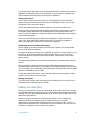
Manually positioning branches under the central topic via drag-and-drop:
1. Select the topic figure at the top of a branch under the central topic and drag it.
2. As you drag the item around a target symbol will appear showing you where it will be
manually positioned in the mind map. Other branches that remain as automatically
positioned items will automatically adjust their placement to ensure no overlap
occurs.
To reset the branch positioning so automatic layout is resumed:
1. Click anywhere within the mind map so the mind map inspector is available.
2. Choose the Arrange > Reset Layout menu item.
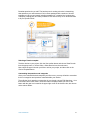
To cut or copy a branch into a new mind map:
1. Click a figure within the mind map.
2. Choose the Edit > Copy menu item which will copy this parent figure plus any child
figures automatically. If you choose Edit > Cut then the existing branch will also be
removed.
3. Go to another mind map or create a new mind map. Note that if you hold down Shift
when clicking on the Mind Map toolbar button you will get an empty mind map with no
default central topic figure.
4. Select the node you would like to paste the copied branch as a child branch.
Alternatively, you can select the mind map figure itself and the copied branch will be
pasted as a child branch of the central topic figure. If no central topic figure exists,
and you are just pasting one branch then the branchʼs parent figure will become the
central topic, else a default central topic will be created and the multiple branches will
be pasted as children underneath.
5. Choose the Edit > Paste menu item.
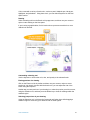
To prune off a branch in the mind map into a brand new linked-to mind map:
• Right-click on a figure in the mind map and choose Prune To Linked Collection.
Curio will then create a new mind map, of the same style as the current mind map, where
the selected parent becomes the central topic of the new mind map and all of its children
will be hierarchically arranged underneath.
The children of the original parent are then removed and the original parent itself
becomes a jump action which, when clicked, will zip you to the new collection. The new
collection can remain on the current idea space or it can be cut and pasted onto a
different idea space, and the jump action will still track it down. The root of the new
collection will automatically gain a jump action to jump you back to the parent collection
when clicked.
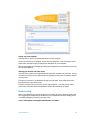
Working with MindMeister
You can share Curioʼs list and mind map data with the MindMeister website for webbased mind mapping.
To bring a MindMeister mind map into Curio as a mind map or list hierarchy:
1. In MindMeister, right-click on a node and choose Copy As > Text then select the text
outline that appears in the popup dialog then Edit > Copy that into the clipboard.
"
Curio User Manual"
77