1
20
Gramma: Software for Learning Greek
The “Dril l” Set tings
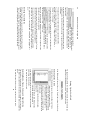
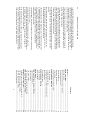
Inside the frame labeled “Drill” are two settings: “How Many” and
“Accents Important”.
If you imagine that a Gramma drill is like a
stack of flash cards, “How Many” dictates how
many flash cards you will be shown in one drill
session.
If “How Many” is set at its default setting of
100, and you choose to drill vocabulary, Gramma will show you 100
words before ending the drill and giving you your score.
“Accents Important” tells Gramma whether you want it to take into
account the accents on Greek words. If this box is checked (the default
setting), Gramma will consider an answer incorrect if you misplace the
accent on a Greek word.
We, the authors of Gramma, do not recommend turning “Accents
Important” off. Accents and breathings are an integral part of Greek, and
ignorance of them will harm your ability to read Greek accurately,
quickly, and with understanding. This feature has been requested a
number of times, however, and we aim to please. Use it at your own
risk!
If this box is not checked, Gramma will still show accents when it
displays Greek words, but will disregard any accents you type (or fail to
type).
The “Font s” Set ting
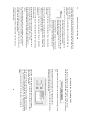
The next setting tells Gramma which fonts you want to use.
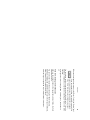
On the Macintosh, by default,
Gramma uses the “Geneva” font for
displaying English words, and
“Athenian” for displaying Greek
words.
On Windows, by default, Gramma
uses the “MS Sans” font for displaying English words, and “Athenian” for
displaying Greek words.
Setting Up the Noun, Pronoun, and Adjective Drill
You begin a Noun drill from the “Welcome” window, the first window you
see after you start Gramma and log in with your user name.
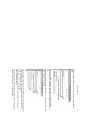
In the “Welcome” window, click on the “Nouns &c.” tab to bring it to the
front.
Sel ecting Nouns to Dr ill
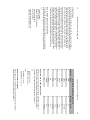
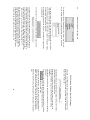
On the left side of the tab-panel you will see a scrolling list of nouns,
pronouns, and adjectives.
If these words do not appear in Greek characters, the Athenian font is
not installed correctly on your
computer; see the section on
installing Gramma for more
information (for Macintosh users,
page 11; for Windows users, page
15).
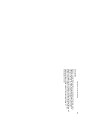
In this picture, one word is selected
from the list. This is marked by the
“>“ character to the left of the word.
You can select another word by
double-clicking on it.
You can de-select a word that is
already selected by double-clicking on it.
To de-select all words and start over, click the “Uncheck All” button
below the list of verbs.
You must select at least one noun, pronoun, or adjective.
45