1
Basic Authoring
5
Adding & Removing Album/Track
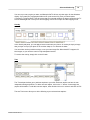
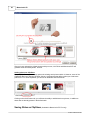
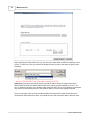
You can add a new album or track by clicking on the + button. Upon clicking, you will
receive a pop-up menu to determine whether you're adding a new album, or a new track to the existing
album. Should you decide to remove any existing album or track, you can simply select it and click on
the X button.
Looping Album Playback
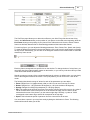
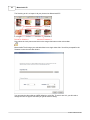
If you want an album to repeatedly play on your DVD player, you can set it to loop. To do so,
simply select the album you want, and click on the loop button. The film icon representing the album
will show a small loop inside.
Naming your Album/Track
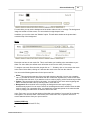
You can name your albums & tracks in any way you like. To re-name, simply select the album or
track, and click on the existing name. Alternatively, you can click on the pen button at the bottom of the
Project Panel. The names on your album will show on the disc menu, if the selected disc menu shows
album names.
Changing Album/Track position and hierarchy
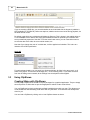
Albums & tracks are draggable. You can drag them to change their position, or to change
their hierarchy. A much easier alternative is to use to up/down buttons at the bottom of the Project
Panel. These, however, only allows you to change the position of the albums or tracks, and not their
hierarchy.
2.2
Importing Photos & Videos
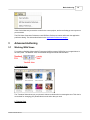
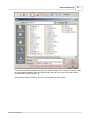
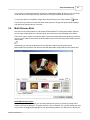
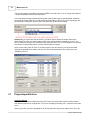
You can import your photos & videos into MemoriesOnTV when the import task is selected. You can
either use the built-in file explorer to drag & drop your photos/videos into the main panel, or use
Windows Explorer.
Adding photo/video to a specific position
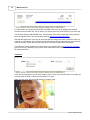
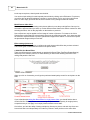
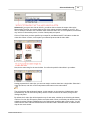
When you're in thumbnail view (default), any photos dropped will be added to the end of the album. If
you wish to add photos to the dropped position instead, simply hold the SHIFT key on your keyboard
when you perform the drag & drop. In the timeline view, photos are always added to the dropped
position.
Adding photo/video recursively
When you drag a folder into the main panel, it will create a new album. Any sub-folders that you drag in
will be created as an album as well. In this way, your folder of photos and videos are added recursively
into the project, with each folder forming an album.
Arranging your photo/video
To arrange your photos and videos in the album, simply drag and drop them to the desired position.
When in thumbnail mode, the order of the photo/video in the slideshow is from left to right, followed by
top to bottom. When in detailed list mode, the order is from top to bottom.
© 2007 CodeJam Pte Ltd