1
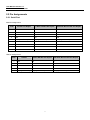
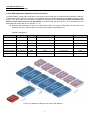
User Manual Version 1.0 SE5001A Serial Device Server 1.2 Packaging The package should contain following items: Atop SE5001A Ethernet Serial device server x 1 5 pins Terminal Block for Serial Connector x 1 (SE5001A-TB only) 3 pins Terminal Block for Power Connector x 1 Product CD containing configuration utility and documents x 1 Wall-mounting screws x 2 Atop Serial device server quick start guide x 1 Optional Accessories Name Part Number Description DK-25 30200000000022G ADP-DB9(F)-TB5 59906231G US315-12(US-Y) 50500151120009G Y-Type (BT1-10V) power adaptor, 100-240VAC input, 1.25A @ 12VDC output, US plug USE315-12(EU-Y) 50500151120019G Y-Type (BT1-10V) power adaptor, 100-240VAC input, 1.25A @ 12VDC output, EU plug DIN-Rail Kit Female DB9 to Female 3.81mm TB5 Converter 5