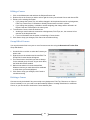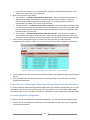
1
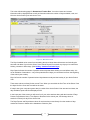
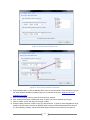
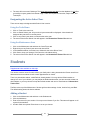
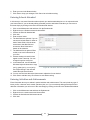
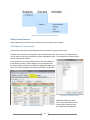
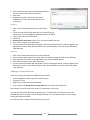
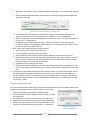
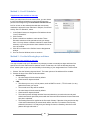
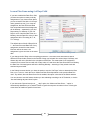
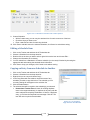
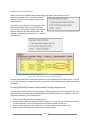
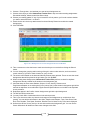
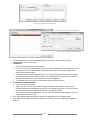
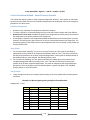
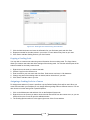
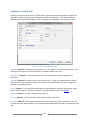
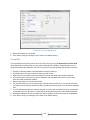
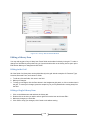
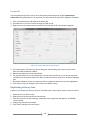
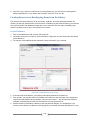
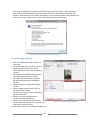
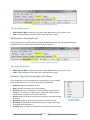
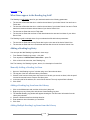
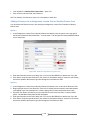
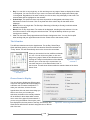
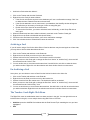
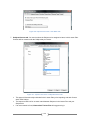
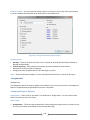
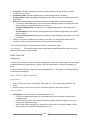
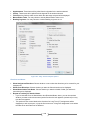
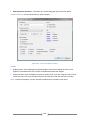
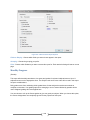
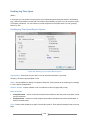
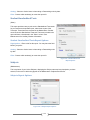
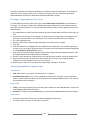
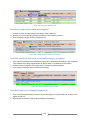
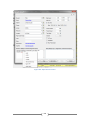
23. Click the SUBMIT button to enter these items into the Assignment grid; click Cancel to exit without
entering the items. The Page/Lesson/Chapter field for the items used will be updated accordingly in
the Weekly Planner grid.
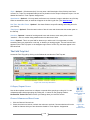
What if no assignments appear for one of my selections?
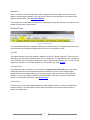
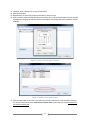
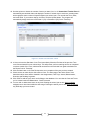
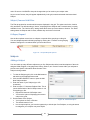
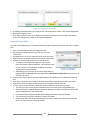
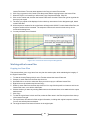
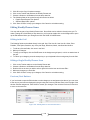
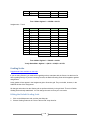
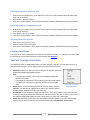
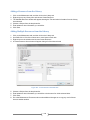
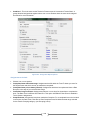
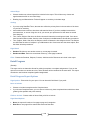
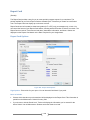
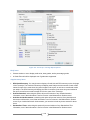
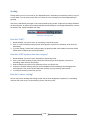
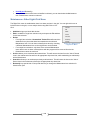
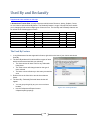
If you do not see Assignments in the Prepare window, there are three things you can check:
•
•
•
Make sure that your Weekly Planner item has at least one day of the week checked in the Selected
Days/2 Week area.
Make sure that you have a valid setting in the Page/Lesson/Chapter Text options. If the item has
reached the end of pattern, no assignments will be created.
Check the values in the First Use On/Last Use On fields to make sure that they don’t exclude the
selected date range in the Create Assignments window.
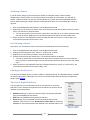
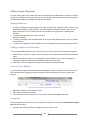
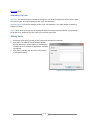
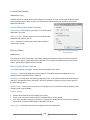
View Assignments
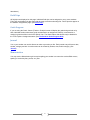
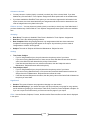
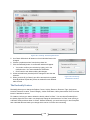
The View Assignments feature allows you see all Assignments for a Student that have the same Subject,
Course, Activity and Resource as a Weekly Planner item. This will show you all Assignments with those
parameters, regardless of whether they were created individually, from a Weekly Planner or Lesson Plan
item, or copied from an existing Assignment.
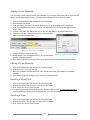
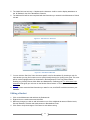
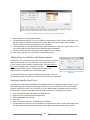
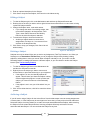
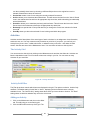
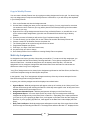
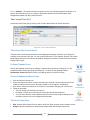
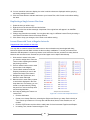
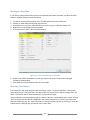
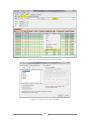
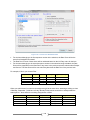
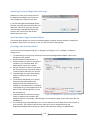
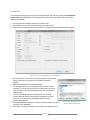
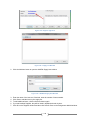
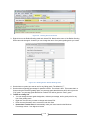
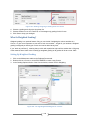
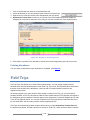
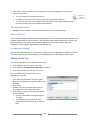
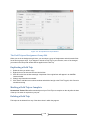
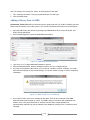
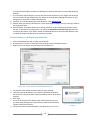
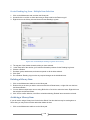
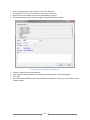
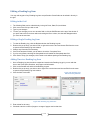
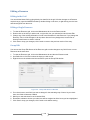
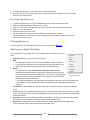
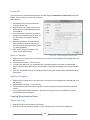
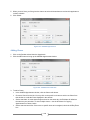
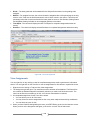
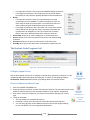
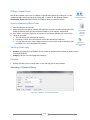
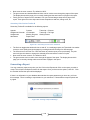
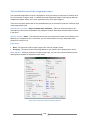
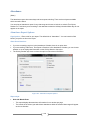
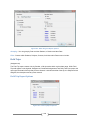
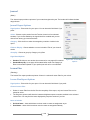
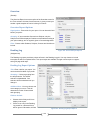
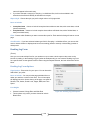
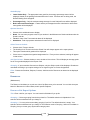
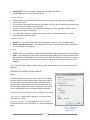
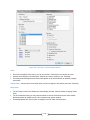
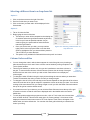
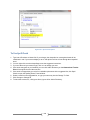
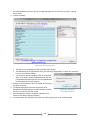
1. Right-click on any Weekly Planner item and choose View Assignments.
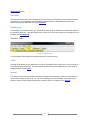
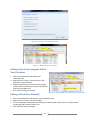
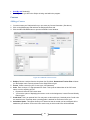
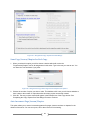
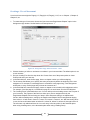
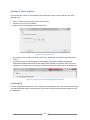
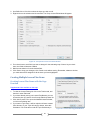
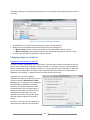
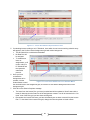
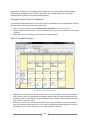
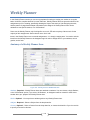
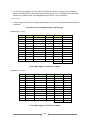
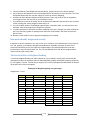
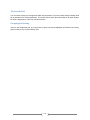
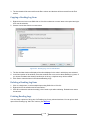
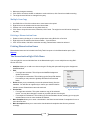
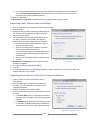
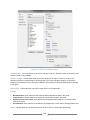
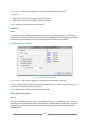
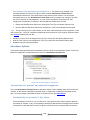
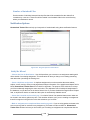
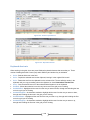
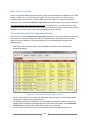
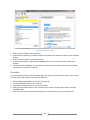
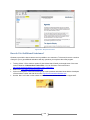
2. This will take you to a special view of the Assignment grid. The usual filters and calendar will be
inaccessible.
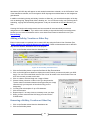
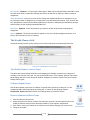
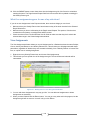
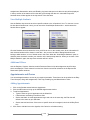
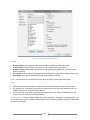
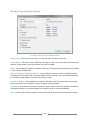
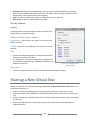
Figure 141 - Weekly Planner: View Assignments Window
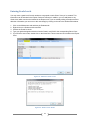
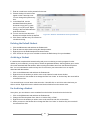
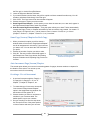
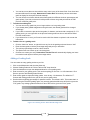
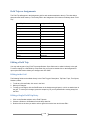
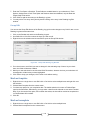
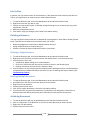
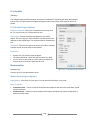
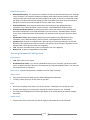
3. You can edit these Assignments in any way you like. You can add new Assignments or delete
Assignments as necessary.
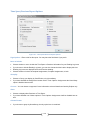
4. When you have finished click the Return button. You can go to any other tab in the program, but the
Assignment grid will not return to “normal” until you click Return.
124