1
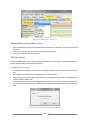
The Library Grid
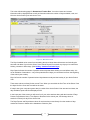
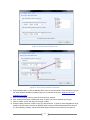
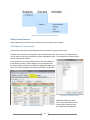
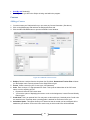
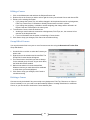
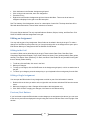
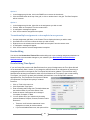
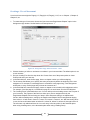
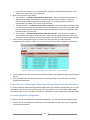
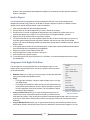
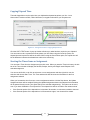
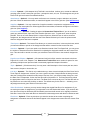
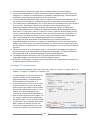
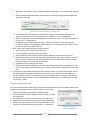
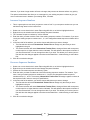
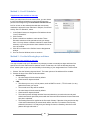
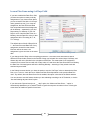
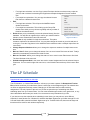
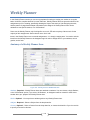
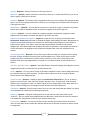
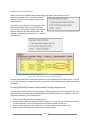
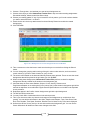
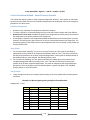
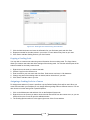
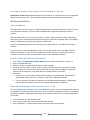
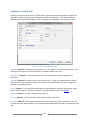
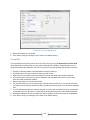
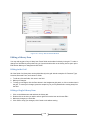
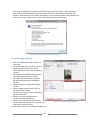
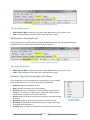
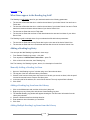
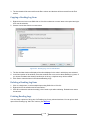
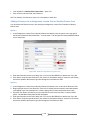
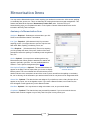
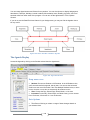
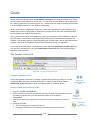
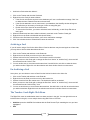
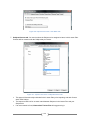
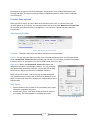
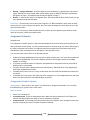
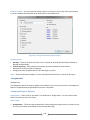
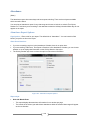
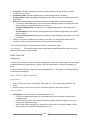
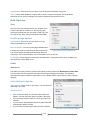
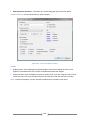
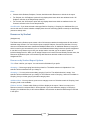
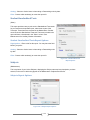
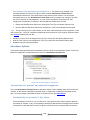
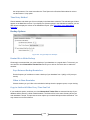
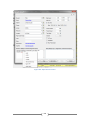
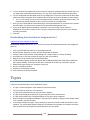
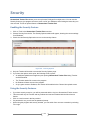
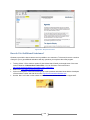
To access the Library, click on the Maintenance tab, and then click the Library tab.
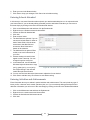
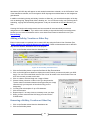
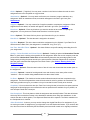
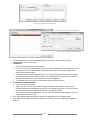
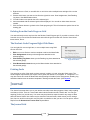
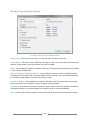
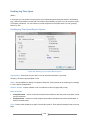
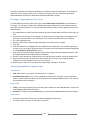
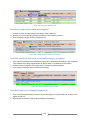
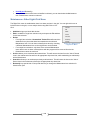
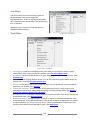
Figure 173 - Library Grid Panel
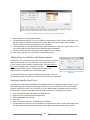
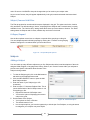
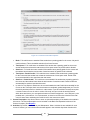
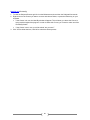
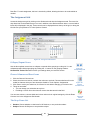
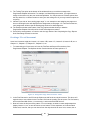
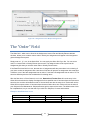
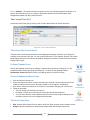
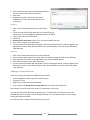
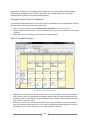
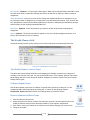
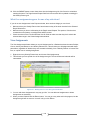
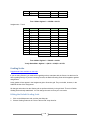
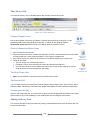
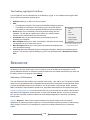
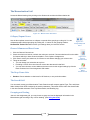
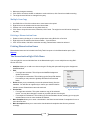
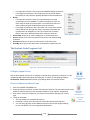
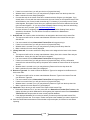
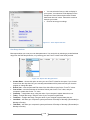
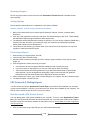
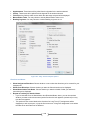
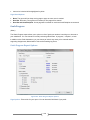
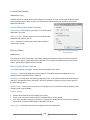
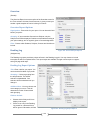
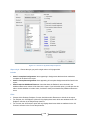
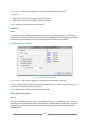
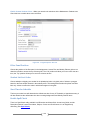
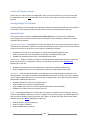
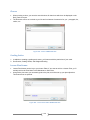
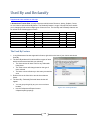
Collapse/Expand Icons
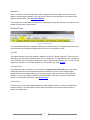
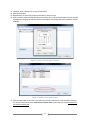
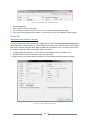
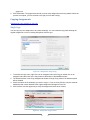
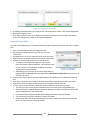
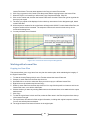
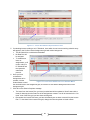
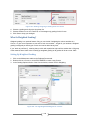
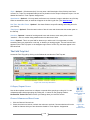
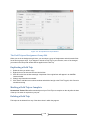
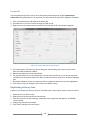
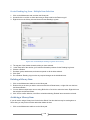
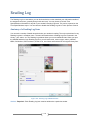
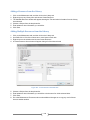
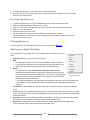
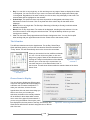
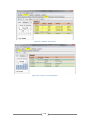
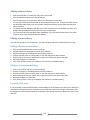
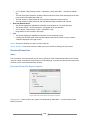
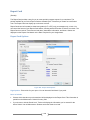
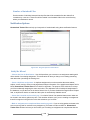
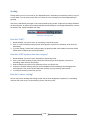
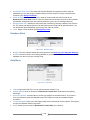
Use the blue up/down arrow icons to collapse or expand all the groupings on this grid. You can
collapse/expand individual groupings by clicking the -/+ buttons on the grouping headers.
Homeschool Tracker Plus will not retain your settings when you leave this screen.
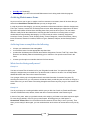
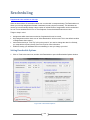
Figure 174 Collapse/Expand
Icons
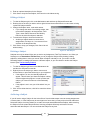
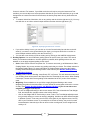
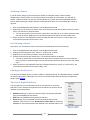
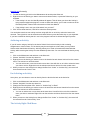
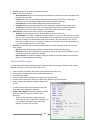
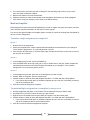
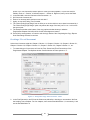
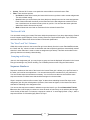
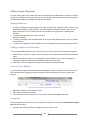
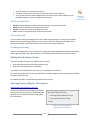
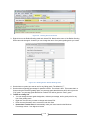
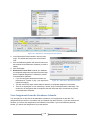
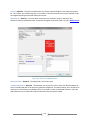
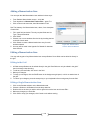
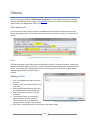
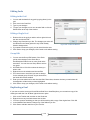
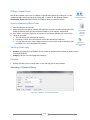
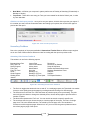
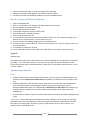
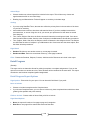
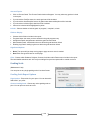
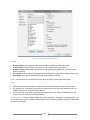
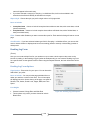
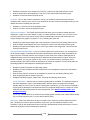
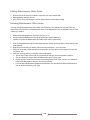
Choose Columns and Reset Icons
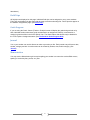
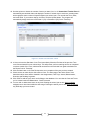
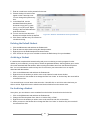
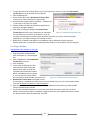
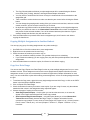
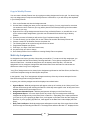
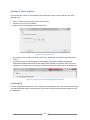
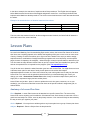
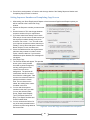
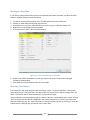
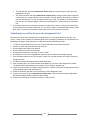
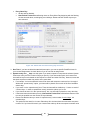
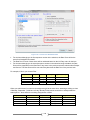
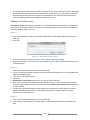
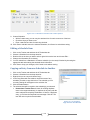
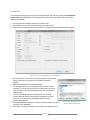
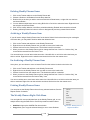
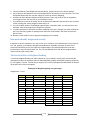
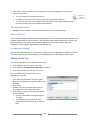
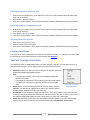
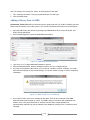
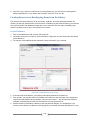
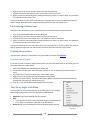
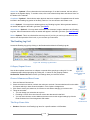
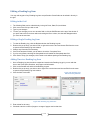
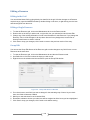
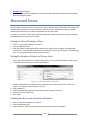
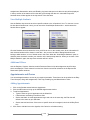
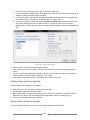
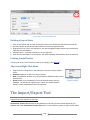
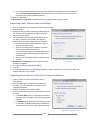
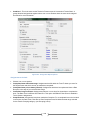
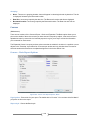
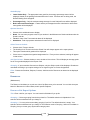
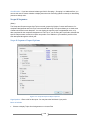
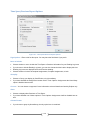
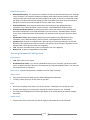
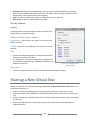
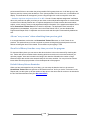
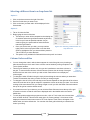
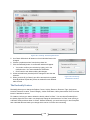
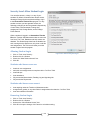
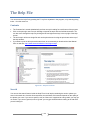
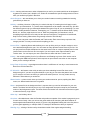
1. Click the Choose Columns icon.
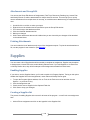
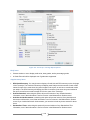
2. Check the columns to include; uncheck the columns to exclude. Column selections will not be visible
for features which you have elected to disable in Tools: Options: Assignments.
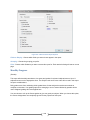
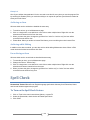
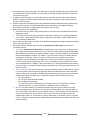
Figure 175 Choose
3. Click Save to retain your selections; click Cancel to exit without changing your column view.
Columns Icon
4. Things to remember:
• You can change your selections at any time.
• Excluding a column from view does not remove the data stored in that field.
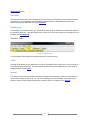
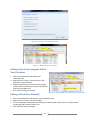
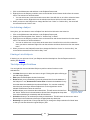
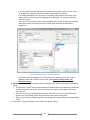
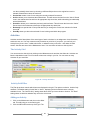
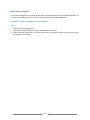
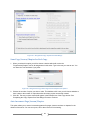
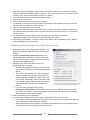
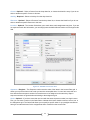
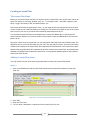
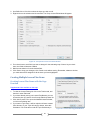
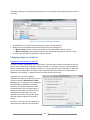
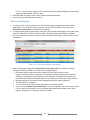
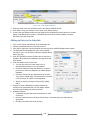
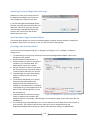
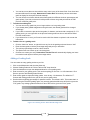
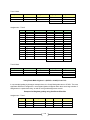
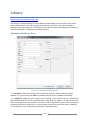
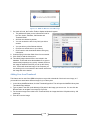
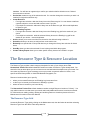
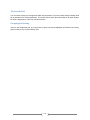
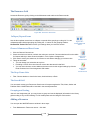
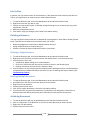
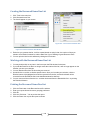
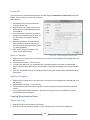
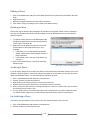
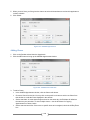
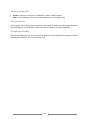
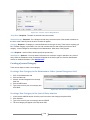
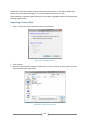
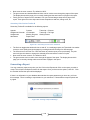
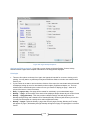
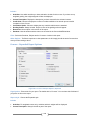
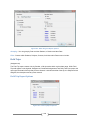
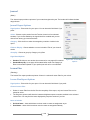
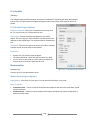
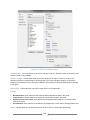
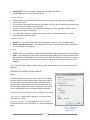
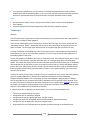
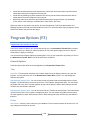
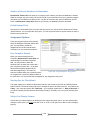
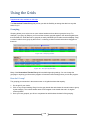
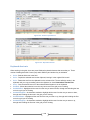
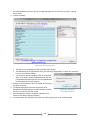
• You can reset columns, column widths and column order to their original settings by click the
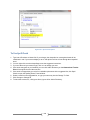
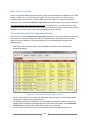
Figure 176 Reset Columns icon in the Assignment Grid header.
Reset
Columns Icon
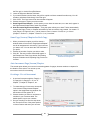
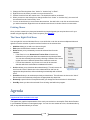
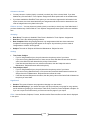
The Drop-Down Lists
•
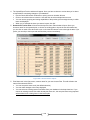
Filter: Choose whether to view Active items; Archived items; or Both.
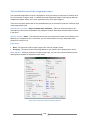
The Search field
You can search among your Library items. Search text will compare against Title; Type; Custom; Author;
Publisher; ISBN; Call Number; and Notes fields. Hidden fields will be included in the search parameters.
Grouping and Sorting
Just as in the Assignment grid, you may choose to group and sort the displayed information in the Library
grid according to any column heading. For full details please see the Using the Grids section.
Adding a Library Item
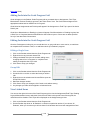
You can open the Add Library Item window by clicking on the Maintenance tab, then the Library tab, and
the click the Add button
160