1
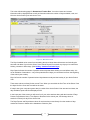
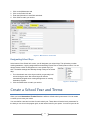
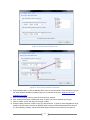
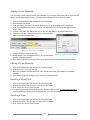
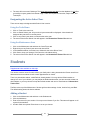
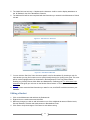
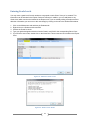
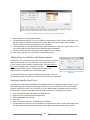
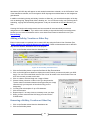
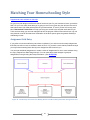
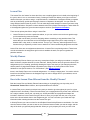
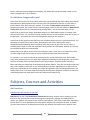
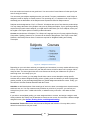
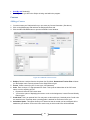
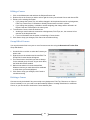
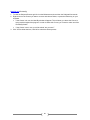
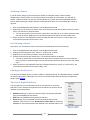
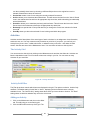
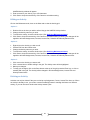
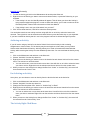
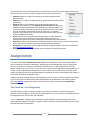
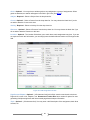
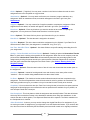
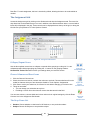
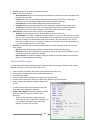
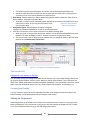
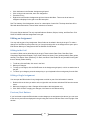
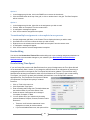
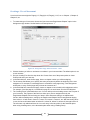
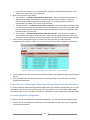
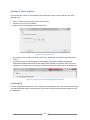
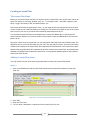
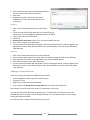
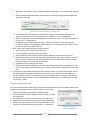
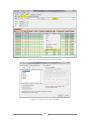
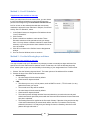
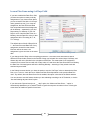
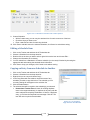
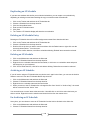
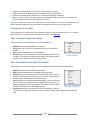
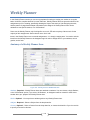
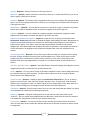
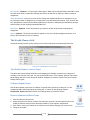
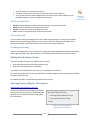
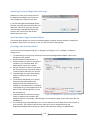
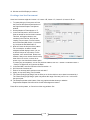
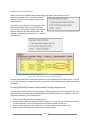
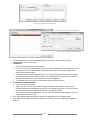
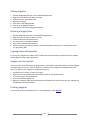
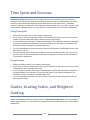
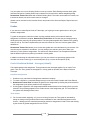
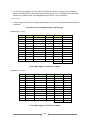
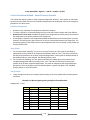
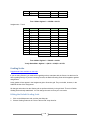
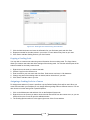
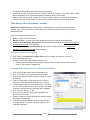
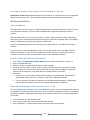
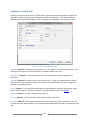
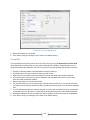
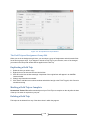
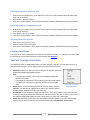
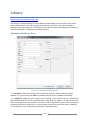
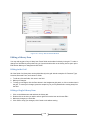
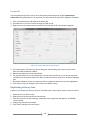
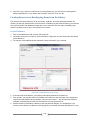
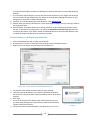
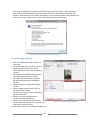
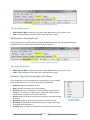
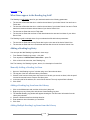
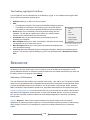
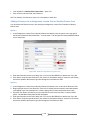
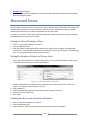
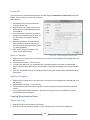
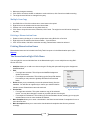
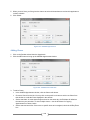
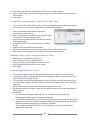
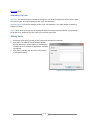
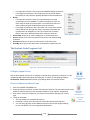
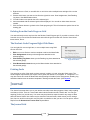
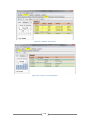
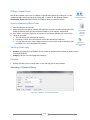
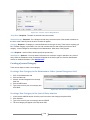
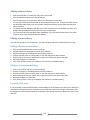
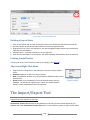
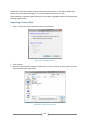
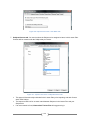
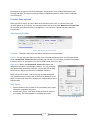
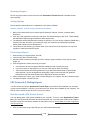
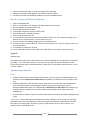
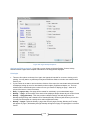
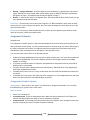
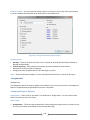
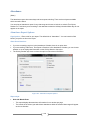
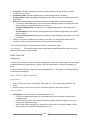
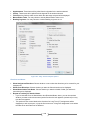
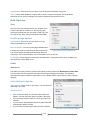
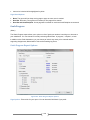
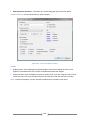
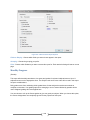
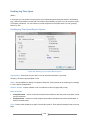
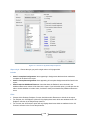
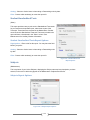
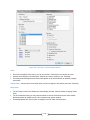
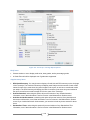
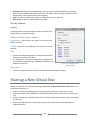
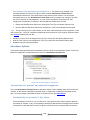
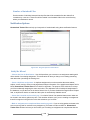
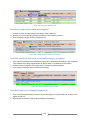
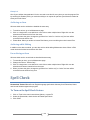
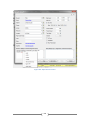
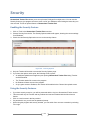
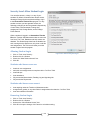
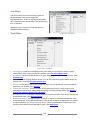
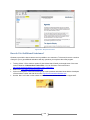
Figure 342 - Spell Check Option
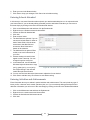
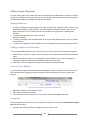
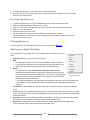
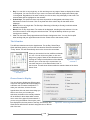
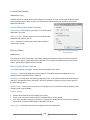
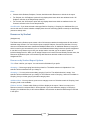
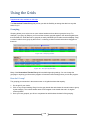
To Use Spell Check
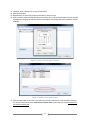
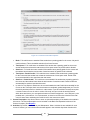
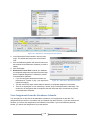
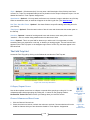
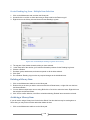
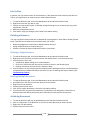
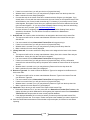
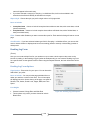
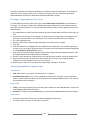
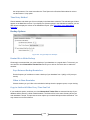
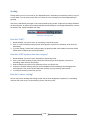
1. Type into a Directions or Notes field. If you mistype, the misspelled or unrecognized word will be
underlined in red. If your screen display is set to 120 dpi the red line will run through the misspelled
word.
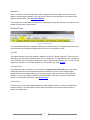
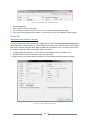
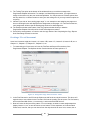
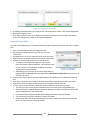
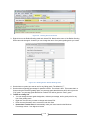
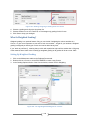
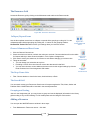
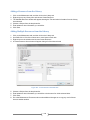
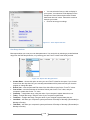
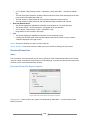
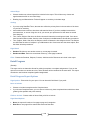
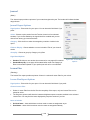
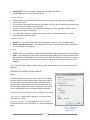
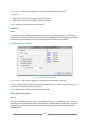
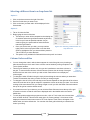
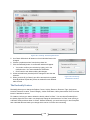
2. You can right-click over the misspellings to see the suggested corrections.
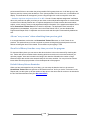
3. If you see the word you meant to type, click on it to change your text.
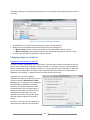
4. If the word was typed as you intended, you can click Add to Dictionary so that Homeschool Tracker
Plus will recognize the word the next time.
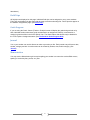
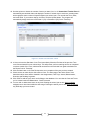
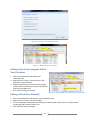
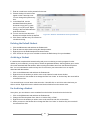
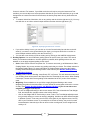
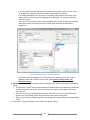
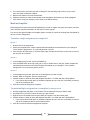
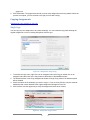
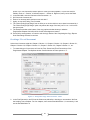
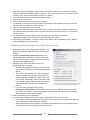
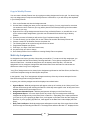
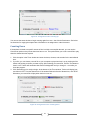
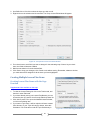
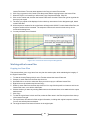
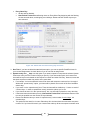
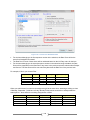
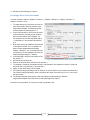
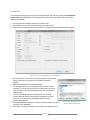
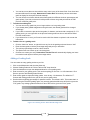
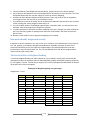
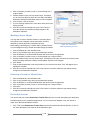
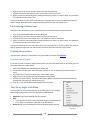
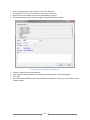
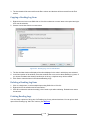
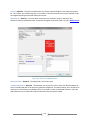
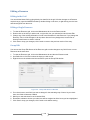
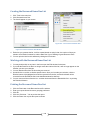
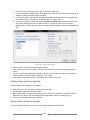
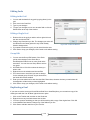
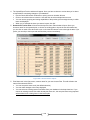
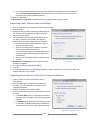
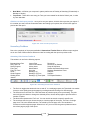
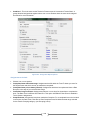
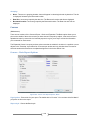
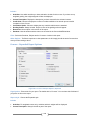
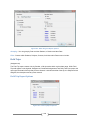
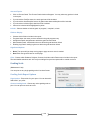
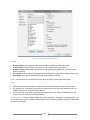
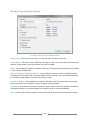
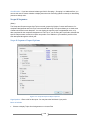
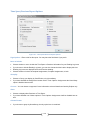
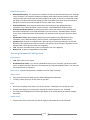
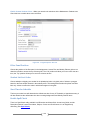
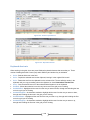
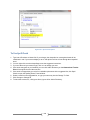
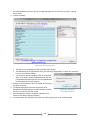
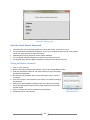
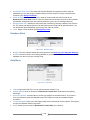
5. If the word is mistyped but you can’t find a suitable replacement in the suggested list, click Spell
Check to open the Spelling Errors Found window.
6. Select a word from the suggested list, or type your own entry into the Change To: field.
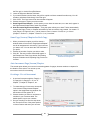
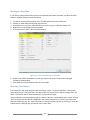
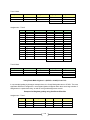
7. Click Change or Change All
8. To leave the word as it is, click Ignore Once, Ignore All or Add to Dictionary.
302