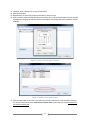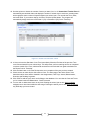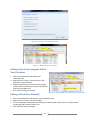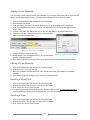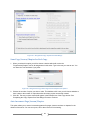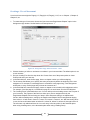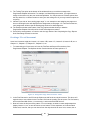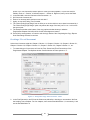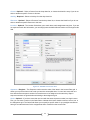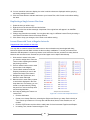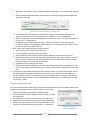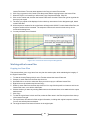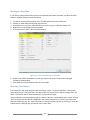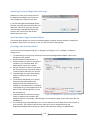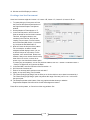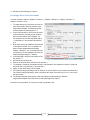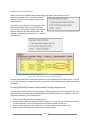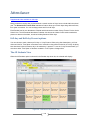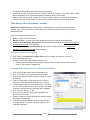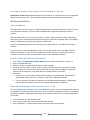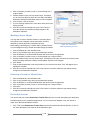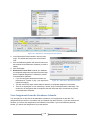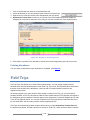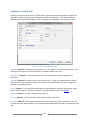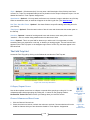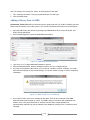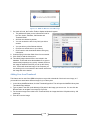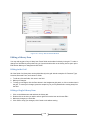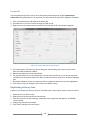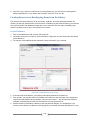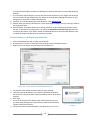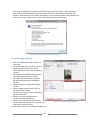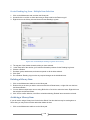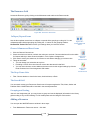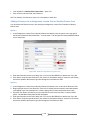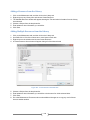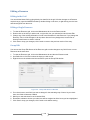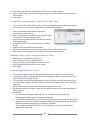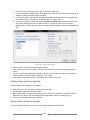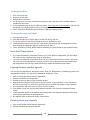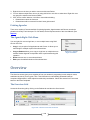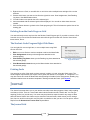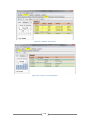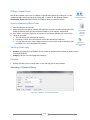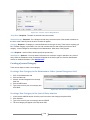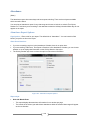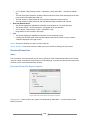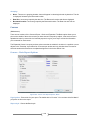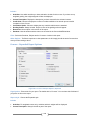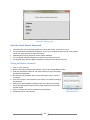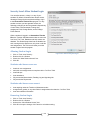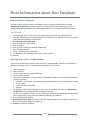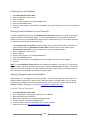
1
User Manual Version 6.2 Created and distributed by TGHomeSoft www.homeschooltracker.com For additional help, email us at [email protected] Copyright (c) 2003-2011, TGHomeSoft, LLC Document Version 2011.09.05.01 Table of Contents INTRODUCTION ..................................................................................................................................................... 1 GETTING STARTED ................................................................................................................................................. 2 NAVIGATING THE PROGRAM ................................................................................................................................. 2 MAIN MENU TAB ...........................................................................................................................................................2 STUDENT TABS ...............................................................................................................................................................4 Agenda...................................................................................................................................................................4 Assignments ...........................................................................................................................................................4 Attendance ............................................................................................................................................................4 Field Trips ...............................................................................................................................................................5 Goals Progress .......................................................................................................................................................5 Journal ...................................................................................................................................................................5 Memorization ........................................................................................................................................................5 Overview ................................................................................................................................................................6 Reading Log ...........................................................................................................................................................6 TEACHER TABS ...............................................................................................................................................................6 Goals ......................................................................................................................................................................6 Journal ...................................................................................................................................................................6 Lesson Plans ...........................................................................................................................................................7 LP Schedules...........................................................................................................................................................7 Weekly Planner ......................................................................................................................................................7 MAINTENANCE TABS .......................................................................................................................................................7 Library ....................................................................................................................................................................7 Resources ...............................................................................................................................................................7 School Info .............................................................................................................................................................7 Students .................................................................................................................................................................7 Subjects/Courses ....................................................................................................................................................8 Years/Terms ...........................................................................................................................................................8 Other ......................................................................................................................................................................8 REPORTS .......................................................................................................................................................................8 SETTING UP YOUR SCHOOL .................................................................................................................................... 8 NAMING YOUR HOMESCHOOL ..........................................................................................................................................8 DESIGNATING SCHOOL DAYS .............................................................................................................................................9 CREATE A SCHOOL YEAR AND TERMS .................................................................................................................... 9 ADDING A SCHOOL YEAR USING THE SCHOOL YEAR CALCULATOR ...........................................................................................10 EDITING A SCHOOL YEAR USING THE SCHOOL YEAR CALCULATOR ...........................................................................................14 EDITING A SCHOOL YEAR MANUALLY ................................................................................................................................14 ADDING A TERM MANUALLY...........................................................................................................................................15 EDITING A TERM MANUALLY...........................................................................................................................................15 DELETING A SCHOOL YEAR..............................................................................................................................................15 DELETING A TERM.........................................................................................................................................................15 DESIGNATING THE ACTIVE SCHOOL YEAR ...........................................................................................................................16 Using the Tools Menu ..........................................................................................................................................16 Using the Maintenance Area ...............................................................................................................................16 STUDENTS ............................................................................................................................................................ 16 ADDING A STUDENT ......................................................................................................................................................16 EDITING A STUDENT ......................................................................................................................................................17 ENTERING GRADE LEVELS ...............................................................................................................................................18 ENTERING SCHOOLS ATTENDED .......................................................................................................................................19 ENTERING ACTIVITIES AND ACHIEVEMENTS ........................................................................................................................19 ADDING TIME TO ACTIVITIES AND ACHIEVEMENTS...............................................................................................................20 ENTERING STANDARDIZED TESTS .....................................................................................................................................20 DELETING THE DEFAULT STUDENT ....................................................................................................................................21 ARCHIVING A STUDENT ..................................................................................................................................................21 UN-ARCHIVING A STUDENT ............................................................................................................................................21 HOLIDAY, VACATION AND OTHER DAYS .............................................................................................................. 22 ADDING A HOLIDAY, VACATION OR OTHER DAY..................................................................................................................23 REMOVING A HOLIDAY, VACATION OR OTHER DAY .............................................................................................................23 THE HOMESCHOOL TRACKER PLUS DATABASE..................................................................................................... 24 WHERE IS MY DATA STORED? ........................................................................................................................................24 Finding Your Database Location ..........................................................................................................................24 SECURING YOUR DATA WITH BACKUPS .............................................................................................................................24 Setting the Homeschool Tracker Plus Backup Reminder .....................................................................................24 Creating a Backup ................................................................................................................................................25 How Do I Know For Sure that my Backup File is There? .......................................................................................26 MATCHING YOUR HOMESCHOOLING STYLE ......................................................................................................... 27 ASSIGNMENT GRID ENTRY ..............................................................................................................................................27 LESSON PLAN ...............................................................................................................................................................28 WEEKLY PLANNER.........................................................................................................................................................28 HOW IS THE LESSON PLAN DIFFERENT FROM THE WEEKLY PLANNER? .....................................................................................28 SO WHICH AM I SUPPOSED TO USE?..................................................................................................................................29 SUBJECTS, COURSES AND ACTIVITIES ................................................................................................................... 29 AN OVERVIEW .............................................................................................................................................................29 SUBJECTS AND COURSES ................................................................................................................................................31 The Subjects/Courses Grid ...................................................................................................................................31 Subject/Courses Grid Filter ..................................................................................................................................32 Collapse/Expand ..................................................................................................................................................32 SUBJECTS ....................................................................................................................................................................32 Adding a Subject ..................................................................................................................................................32 Editing a Subject ..................................................................................................................................................33 Deleting a Subject ................................................................................................................................................33 Archiving a Subject ..............................................................................................................................................33 Un-Archiving a Subject.........................................................................................................................................34 Printing a List of Subjects .....................................................................................................................................34 The Subject Right-Click Menu ..............................................................................................................................34 COURSES.....................................................................................................................................................................35 Adding a Course ...................................................................................................................................................35 Editing a Course ...................................................................................................................................................39 Group Edit of Courses ..........................................................................................................................................39 Deleting a Course .................................................................................................................................................39 Archiving a Course ...............................................................................................................................................41 Un-Archiving a Course .........................................................................................................................................41 Printing a List of Courses .....................................................................................................................................41 The Course Right-Click Menu ...............................................................................................................................41 ACTIVITIES ...................................................................................................................................................................42 The Activity Grid...................................................................................................................................................42 Activity Grid Filter ................................................................................................................................................42 Adding an Activity ................................................................................................................................................42 Editing an Activity ................................................................................................................................................43 Deleting an Activity ..............................................................................................................................................43 Archiving an Activity ............................................................................................................................................44 Un-Archiving an Activity ......................................................................................................................................44 The Activity Right-Click Menu ..............................................................................................................................44 ASSIGNMENTS ..................................................................................................................................................... 45 THE ANATOMY OF AN ASSIGNMENT .................................................................................................................................45 THE ASSIGNMENT GRID .................................................................................................................................................48 Collapse/Expand Icons .........................................................................................................................................48 Choose Columns and Reset Icons .........................................................................................................................48 The Drop-Down List .............................................................................................................................................48 The Custom Filter Option .....................................................................................................................................49 The Search field....................................................................................................................................................50 Grouping and Sorting...........................................................................................................................................50 ADDING AN ASSIGNMENT ...............................................................................................................................................50 EDITING AN ASSIGNMENT...............................................................................................................................................51 Editing in the Grid ................................................................................................................................................51 Editing a Single Assignment .................................................................................................................................51 Previous/Next Buttons .........................................................................................................................................51 Group Edit ............................................................................................................................................................52 MARK AS COMPLETE .....................................................................................................................................................53 To mark a single assignment as completed .........................................................................................................53 To mark multiple assignments as complete in one process .................................................................................53 MARK AS INCOMPLETE ..................................................................................................................................................54 To mark a single assignment as incomplete ........................................................................................................54 To mark multiple assignments as incomplete in one process ..............................................................................55 RESCHEDULING ............................................................................................................................................................55 RECALCULATING TIME SPENT ..........................................................................................................................................55 COPYING ASSIGNMENTS.................................................................................................................................................56 Single Copy...........................................................................................................................................................56 Copying Multiple Assignments to Another Student .............................................................................................57 Copy Over Date Range .........................................................................................................................................57 Same Page/Lesson/Chapter for Each Copy ..........................................................................................................58 Auto-Increment Page/Lesson/Chapter ................................................................................................................58 Creating a 1-Level Increment ...............................................................................................................................59 Creating a 2-Level Increment ...............................................................................................................................60 Creating a 3-Level Increment ...............................................................................................................................61 Completing the Copy: Repeat Over Date Range Process .....................................................................................62 Using ‘Copy Over Date Range’ When Page/Lesson/Chapter has been Disabled .................................................63 Creating a Duplicate Assignment.........................................................................................................................63 Copy to Lesson Plan .............................................................................................................................................64 Copy to Weekly Planner .......................................................................................................................................65 MULTI-DAY ASSIGNMENTS .............................................................................................................................................65 DELETING ASSIGNMENTS................................................................................................................................................66 DELETING MULTIPLE ASSIGNMENTS .................................................................................................................................66 ARCHIVING ASSIGNMENTS ..............................................................................................................................................66 PRINTING ASSIGNMENTS ................................................................................................................................................66 SEND TO REPORT ..........................................................................................................................................................67 ASSIGNMENT GRID RIGHT-CLICK MENU............................................................................................................................67 ASSIGNMENT TIMER ............................................................................................................................................ 68 OPENING A TIMER WINDOW ...........................................................................................................................................69 COUNTING UP .............................................................................................................................................................69 COUNTING DOWN ........................................................................................................................................................70 COPYING ELAPSED TIME.................................................................................................................................................71 STARTING THE TIMER FROM AN ASSIGNMENT ....................................................................................................................71 THE “ORDER” FIELD ............................................................................................................................................. 72 LESSON PLANS ..................................................................................................................................................... 73 ANATOMY OF A LESSON PLAN ITEM..................................................................................................................................73 THE LESSON PLAN GRID .................................................................................................................................................76 The Lesson Plan Control Panel .............................................................................................................................76 Collapse/Expand Icons .........................................................................................................................................76 Choose Columns and Reset Icons .........................................................................................................................76 The Drop-Down Lists ............................................................................................................................................76 The Search Field ...................................................................................................................................................77 The “Used” and “On” Columns ............................................................................................................................77 Grouping and Sorting...........................................................................................................................................77 SEQUENCE NUMBERS ....................................................................................................................................................77 CREATING A LESSON PLAN ..............................................................................................................................................78 The Lesson Plan Name .........................................................................................................................................78 Adding a Lesson Plan Name.................................................................................................................................78 Adding a Lesson Plan Item ...................................................................................................................................79 EDITING LESSON PLAN ITEMS ..........................................................................................................................................80 Editing in the Grid ................................................................................................................................................80 Editing a Single Lesson Plan Item.........................................................................................................................80 Previous/Next Buttons .........................................................................................................................................80 Group Edit ............................................................................................................................................................80 CREATING MULTIPLE LESSON PLAN ITEMS .........................................................................................................................81 Creating Lesson Plan Items with the Copy Function ............................................................................................81 Same Page/Lesson/Chapter for Each Copy ..........................................................................................................82 Auto-Increment Page/Lesson/Chapter ................................................................................................................82 Creating a 1-Level increment ...............................................................................................................................82 Creating a 2-Level Increment ...............................................................................................................................83 Creating a 3-Level Auto-Increment ......................................................................................................................84 Setting Sequence Number and Completing Copy Process ...................................................................................85 Duplicating a Single Lesson Plan Item .................................................................................................................86 Lesson Plans with Tests at Regular Intervals .......................................................................................................86 Copy from Assignments .......................................................................................................................................87 WORKING WITH A LESSON PLAN ......................................................................................................................................88 Copying to a New Plan .........................................................................................................................................88 Moving to a New Plan .........................................................................................................................................89 Resetting Used Status ..........................................................................................................................................89 CHANGING SEQUENCE NUMBERS.....................................................................................................................................90 Increase Sequence Numbers ................................................................................................................................91 Decrease Sequence Numbers ...............................................................................................................................91 Reset Sequence Numbers.....................................................................................................................................92 Make it fit ............................................................................................................................................................92 SUBMITTING LESSON PLAN ITEMS TO THE ASSIGNMENT GRID ...............................................................................................93 Method 1 – Use LP Schedules ..............................................................................................................................95 Method 2 – Use the following days and times.....................................................................................................95 The Preview Window ...........................................................................................................................................97 LESSON PLAN ITEMS USING # OF DAYS FIELD......................................................................................................................99 DELETING LESSON PLANS AND THEIR CONTENTS ...............................................................................................................101 Deleting an Item from a Lesson Plan .................................................................................................................101 Deleting Multiple Items from a Lesson Plan ......................................................................................................101 Deleting a Lesson Plan .......................................................................................................................................101 ARCHIVING A LESSON PLAN ..........................................................................................................................................102 UN-ARCHIVING A LESSON PLAN ....................................................................................................................................102 PRINTING LESSON PLANS..............................................................................................................................................102 LESSON PLAN RIGHT-CLICK MENU .................................................................................................................................102 THE LP SCHEDULE .............................................................................................................................................. 103 SETTING THE START TIME FOR SCHEDULE ........................................................................................................................104 THE LP SCHEDULE DISPLAY...........................................................................................................................................104 ADDING A SCHEDULE NAME ..........................................................................................................................................105 ADDING AN ENTRY TO THE SCHEDULE .............................................................................................................................106 EDITING A SCHEDULE ITEM ...........................................................................................................................................107 COPYING AN ENTRY FROM ONE SCHEDULE TO ANOTHER.....................................................................................................107 DUPLICATING AN LP SCHEDULE .....................................................................................................................................108 DELETING AN LP SCHEDULE ENTRY.................................................................................................................................108 DELETING AN LP SCHEDULE ..........................................................................................................................................108 ARCHIVING AN LP SCHEDULE ........................................................................................................................................108 UN-ARCHIVING AN LP SCHEDULE ..................................................................................................................................108 PRINTING AN LP SCHEDULE ..........................................................................................................................................109 THE LP SCHEDULE RIGHT-CLICK MENU ...........................................................................................................................109 THE LP SCHEDULE NAME RIGHT-CLICK MENU .................................................................................................................109 WEEKLY PLANNER .............................................................................................................................................. 110 ANATOMY OF A WEEKLY PLANNER ITEM .........................................................................................................................110 THE WEEKLY PLANNER GRID.........................................................................................................................................112 The Weekly Planner Control Panel .....................................................................................................................112 Collapse/Expand Icons .......................................................................................................................................112 Choose Columns and Reset Icons .......................................................................................................................112 The Drop-Down Lists ..........................................................................................................................................113 The Search Field .................................................................................................................................................113 Grouping and Sorting.........................................................................................................................................113 ADDING WEEKLY PLANNER ITEMS ..................................................................................................................................113 THE PAGE/LESSON/CHAPTER TEXT OPTIONS ...................................................................................................................113 Same Page/Lesson/Chapter for each copy ........................................................................................................114 Auto-Increment Page/Lesson/Chapter ..............................................................................................................114 Creating a one-level increment ..........................................................................................................................114 Creating a two-level increment..........................................................................................................................116 Creating a three-level increment .......................................................................................................................117 Window and Grid Display ..................................................................................................................................119 CREATING WEEKLY PLANNER ITEMS FROM EXISTING ASSIGNMENTS .....................................................................................119 EDITING WEEKLY PLANNER ITEMS ..................................................................................................................................120 Editing in the Grid ..............................................................................................................................................120 Editing a Single Weekly Planner Item ................................................................................................................120 Previous/Next Buttons .......................................................................................................................................120 Group Edit ..........................................................................................................................................................121 COPYING WEEKLY PLANNER ITEMS.................................................................................................................................122 DUPLICATING A WEEKLY PLANNER ITEM..........................................................................................................................122 CREATING ASSIGNMENTS FROM WEEKLY PLANNER ITEMS ..................................................................................................122 What if no assignments appear for one of my selections? ................................................................................124 VIEW ASSIGNMENTS ...................................................................................................................................................124 DELETING WEEKLY PLANNER ITEMS................................................................................................................................125 ARCHIVING A WEEKLY PLANNER ITEM.............................................................................................................................125 UN-ARCHIVING A WEEKLY PLANNER ITEM .......................................................................................................................125 PRINTING WEEKLY PLANNER ITEMS ................................................................................................................................125 THE WEEKLY PLANNER RIGHT-CLICK MENU.....................................................................................................................125 ATTACHMENTS .................................................................................................................................................. 126 ENABLING ATTACHMENTS ............................................................................................................................................126 CREATING AN ATTACHMENT .........................................................................................................................................126 VIEWING AN ATTACHMENT...........................................................................................................................................128 EDITING AN ATTACHMENT ............................................................................................................................................128 DELETING AN ATTACHMENT..........................................................................................................................................128 COPYING ITEMS WITH ATTACHMENTS .............................................................................................................................128 ATTACHMENTS AND GROUP EDIT...................................................................................................................................129 PRINTING ATTACHMENTS .............................................................................................................................................129 SUPPLIES ............................................................................................................................................................ 129 ENABLING SUPPLIES ....................................................................................................................................................129 CREATING A SUPPLIES LIST ............................................................................................................................................129 EDITING SUPPLIES .......................................................................................................................................................131 DELETING A SUPPLY ITEM .............................................................................................................................................131 COPYING ITEMS WITH SUPPLIES .....................................................................................................................................131 SUPPLIES AND GROUP EDIT ..........................................................................................................................................131 PRINTING SUPPLIES .....................................................................................................................................................131 TIME SPENT AND SESSIONS ............................................................................................................................... 132 USING TIME SPENT .....................................................................................................................................................132 USING SESSIONS .........................................................................................................................................................132 GRADES, GRADING SCALES, AND WEIGHTED GRADING ..................................................................................... 132 GRADES ....................................................................................................................................................................133 Grade Calculation Method – Averages (default) ...............................................................................................133 Grade Calculation Method – Sum of Earned/Possible .......................................................................................135 GRADING SCALES ........................................................................................................................................................136 Editing the Default Grading Scale ......................................................................................................................136 Adding a Grading Scale......................................................................................................................................138 Copying a Grading Scale ....................................................................................................................................139 Assigning a Grading Scale to a Course ...............................................................................................................139 WHAT IS WEIGHTED GRADING? ....................................................................................................................................140 Setting Up Weighted Grading ............................................................................................................................140 How much should I weight each activity?..........................................................................................................141 The Practical Effect of Weighted Grading..........................................................................................................141 Weighted Activities with no Completed, Graded Assignments ..........................................................................144 PRINTING GRADES ......................................................................................................................................................144 ATTENDANCE ..................................................................................................................................................... 145 FULL-DAY AND HALF-DAY PRESENT OPTIONS ....................................................................................................................145 THE ALL STUDENTS VIEW .............................................................................................................................................145 TIME ENTRY IN THE ATTENDANCE CALENDAR ...................................................................................................................146 To Select a Time Entry Option ............................................................................................................................146 Entering Manual Hours in the Attendance Calendar .........................................................................................146 Entering Sessions or Time Spent on the Attendance Calendar ..........................................................................147 MARKING ATTENDANCE ...............................................................................................................................................147 Auto-Attendance................................................................................................................................................147 How Do I Turn On/Off Auto-Attendance? ..........................................................................................................147 Manually Marking day as Present or Present: ½ day ........................................................................................147 Marking a day as Absent ...................................................................................................................................148 Removing a Present or Absent Entry .................................................................................................................148 Recalculate Present ...........................................................................................................................................148 VIEW ASSIGNMENTS FROM THE ATTENDANCE CALENDAR ...................................................................................................149 PRINTING ATTENDANCE ...............................................................................................................................................150 FIELD TRIPS ........................................................................................................................................................ 150 ANATOMY OF A FIELD TRIP ...........................................................................................................................................151 THE FIELD TRIP GRID ...................................................................................................................................................152 Collapse/Expand Icons .......................................................................................................................................152 Choose Columns and Reset Icons .......................................................................................................................152 The Drop-Down Lists ..........................................................................................................................................153 The Search field..................................................................................................................................................153 Grouping and Sorting.........................................................................................................................................153 ADDING A FIELD TRIP ..................................................................................................................................................153 FIELD TRIPS AS ASSIGNMENTS .......................................................................................................................................154 EDITING A FIELD TRIP ..................................................................................................................................................154 Editing in the Grid ..............................................................................................................................................154 Editing a Single Field Trip Entry .........................................................................................................................154 Group Edit ..........................................................................................................................................................155 The Field Trip and Assignment Group Edit .........................................................................................................156 DUPLICATING A FIELD TRIP ...........................................................................................................................................156 MARKING A FIELD TRIP AS COMPLETE .............................................................................................................................156 DELETING A FIELD TRIP ................................................................................................................................................156 Deleting from the Field Trip grid ........................................................................................................................157 Deleting using the Assignment grid ...................................................................................................................157 Deleting from the Agenda .................................................................................................................................157 PRINTING FIELD TRIPS..................................................................................................................................................157 THE FIELD TRIP RIGHT-CLICK MENU ...............................................................................................................................157 LIBRARY ............................................................................................................................................................. 158 ANATOMY OF A LIBRARY ITEM .......................................................................................................................................158 THE LIBRARY GRID ......................................................................................................................................................160 Collapse/Expand Icons .......................................................................................................................................160 Choose Columns and Reset Icons .......................................................................................................................160 The Drop-Down Lists ..........................................................................................................................................160 The Search field..................................................................................................................................................160 Grouping and Sorting.........................................................................................................................................160 ADDING A LIBRARY ITEM ..............................................................................................................................................160 ADDING A LIBRARY ITEM VIA ISBN .................................................................................................................................161 Adding Your Own Thumbnail .............................................................................................................................162 EDITING A LIBRARY ITEM ..............................................................................................................................................163 Editing in the Grid ..............................................................................................................................................163 Editing a Single Library Item ..............................................................................................................................163 Group Edit ..........................................................................................................................................................164 DUPLICATING A LIBRARY ITEM .......................................................................................................................................164 CREATING RESOURCES OR READING LOG ITEMS FROM THE LIBRARY......................................................................................165 Create Resource .................................................................................................................................................165 Create Resource – Multiple Item Selection ........................................................................................................166 Create Reading Log Item...................................................................................................................................167 Create Reading Log Item – Multiple Item Selection...........................................................................................168 DELETING A LIBRARY ITEM ............................................................................................................................................168 ARCHIVING A LIBRARY ITEM ..........................................................................................................................................168 UN-ARCHIVING A LIBRARY ITEM ....................................................................................................................................169 PRINTING LIBRARY ITEMS .............................................................................................................................................169 Custom Library Report .......................................................................................................................................169 THE LIBRARY RIGHT-CLICK MENU ..................................................................................................................................169 THE RESOURCE TYPE & RESOURCE LOCATION ................................................................................................... 170 THE RESOURCE TYPE GRID ...........................................................................................................................................170 The Drop-Down Lists ..........................................................................................................................................171 THE RESOURCE LOCATIONS GRID ...................................................................................................................................171 The Drop-Down Lists ..........................................................................................................................................171 RESOURCE TYPE & LOCATION RIGHT-CLICK MENU ............................................................................................................171 READING LOG .................................................................................................................................................... 172 ANATOMY OF A READING LOG ITEM ...............................................................................................................................172 THE READING LOG GRID ..............................................................................................................................................173 Collapse/Expand Icons .......................................................................................................................................173 Choose Columns and Reset Icons .......................................................................................................................173 The Drop-Down Lists ..........................................................................................................................................173 The Search field..................................................................................................................................................174 Grouping and Sorting.........................................................................................................................................174 WHAT ITEMS APPEAR IN THE READING LOG GRID? ............................................................................................................175 ADDING A READING LOG ENTRY ....................................................................................................................................175 Manually Adding a Reading Lot Item ................................................................................................................175 Adding a Reading Log Item from the Library .....................................................................................................175 Adding Multiple Reading Log Items from the Library ........................................................................................175 EDITING A READING LOG ITEM ......................................................................................................................................177 Editing in the Grid ..............................................................................................................................................177 Editing a Single Reading Log Item .....................................................................................................................177 Adding Time to a Reading Log Item ...................................................................................................................177 Group Edit ..........................................................................................................................................................178 MARK AS COMPLETE ...................................................................................................................................................178 MARK AS INCOMPLETE ................................................................................................................................................178 COPYING A READING LOG ITEM .....................................................................................................................................179 DELETING A READING LOG ITEM ....................................................................................................................................179 PRINTING READING LOGS .............................................................................................................................................179 THE READING LOG RIGHT-CLICK MENU ..........................................................................................................................180 RESOURCES ........................................................................................................................................................ 180 ANATOMY OF A RESOURCE ...........................................................................................................................................180 THE RESOURCE GRID ...................................................................................................................................................182 Collapse/Expand Icons .......................................................................................................................................182 Choose Columns and Reset Icons .......................................................................................................................182 The Drop-Down Lists ..........................................................................................................................................182 The Search field..................................................................................................................................................182 Grouping and Sorting.........................................................................................................................................182 ADDING A RESOURCE ..................................................................................................................................................182 Adding a Resource in an Assignment, Lesson Plan or Weekly Planner Item ......................................................183 Adding a Resource from the Library ..................................................................................................................184 Adding Multiple Resources from the Library .....................................................................................................184 EDITING A RESOURCE ..................................................................................................................................................185 Editing in the Grid ..............................................................................................................................................185 Editing a Single Resource ...................................................................................................................................185 Group Edit ..........................................................................................................................................................185 USE AS NEW .............................................................................................................................................................186 DELETING A RESOURCE ................................................................................................................................................186 Deleting a Single Resource.................................................................................................................................186 Deleting Multiple Resources ..............................................................................................................................186 ARCHIVING RESOURCES ...............................................................................................................................................186 UN-ARCHIVING RESOURCES..........................................................................................................................................187 PRINTING RESOURCES..................................................................................................................................................187 THE RESOURCE RIGHT-CLICK MENU ...............................................................................................................................187 BORROWED ITEMS ............................................................................................................................................ 188 SETTING THE DEFAULT NUMBER OF DAYS........................................................................................................................188 SETTING THE NUMBER OF DAYS IN A LIBRARY ITEM ...........................................................................................................188 ENABLING THE BORROWED ITEMS DUE REMINDER............................................................................................................188 CREATING THE BORROWED ITEMS DUE LIST .....................................................................................................................190 WORKING WITH THE BORROWED ITEMS DUE LIST .............................................................................................................190 PRINTING THE BORROWED ITEMS DUE LIST .....................................................................................................................190 MEMORIZATION ITEMS ..................................................................................................................................... 191 ANATOMY OF A MEMORIZATION ITEM ............................................................................................................................191 THE MEMORIZATION GRID ...........................................................................................................................................192 Collapse/Expand Icons .......................................................................................................................................192 Choose Columns and Reset Icons .......................................................................................................................192 The Drop-Down Lists ..........................................................................................................................................192 The Search field..................................................................................................................................................192 Grouping and Sorting.........................................................................................................................................192 ADDING A MEMORIZATION ITEM ...................................................................................................................................193 EDITING A MEMORIZATION ITEM ...................................................................................................................................193 Editing in the Grid ..............................................................................................................................................193 Editing a Single Memorization Item...................................................................................................................193 Group Edit ..........................................................................................................................................................194 Mark as Complete ..............................................................................................................................................194 Mark as Incomplete ...........................................................................................................................................194 COPYING MEMORIZATION ITEMS ...................................................................................................................................194 Single Item Copy ................................................................................................................................................194 Multiple Item Copy ............................................................................................................................................195 Deleting a Memorization Item ...........................................................................................................................195 PRINTING MEMORIZATION ITEMS ..................................................................................................................................195 THE MEMORIZATION RIGHT-CLICK MENU .......................................................................................................................195 CHORES.............................................................................................................................................................. 196 THE CHORES GRID ......................................................................................................................................................196 Filter ...................................................................................................................................................................196 ADDING A CHORE .......................................................................................................................................................196 EDITING A CHORE .......................................................................................................................................................197 DELETING A CHORE .....................................................................................................................................................197 ARCHIVING A CHORE ...................................................................................................................................................197 UN-ARCHIVING A CHORE .............................................................................................................................................197 PRINTING CHORES ......................................................................................................................................................198 THE CHORE RIGHT-CLICK MENU....................................................................................................................................198 AGENDA............................................................................................................................................................. 198 THE AGENDA DISPLAY .................................................................................................................................................199 Drop Down Lists .................................................................................................................................................199 Date Options ......................................................................................................................................................199 The Calendars ....................................................................................................................................................200 Choose Items to Display .....................................................................................................................................200 View Multiple Students ......................................................................................................................................201 Additional Filters ................................................................................................................................................201 APPOINTMENTS AND CHORES .......................................................................................................................................201 Adding Appointments ........................................................................................................................................201 Adding Chores ....................................................................................................................................................202 Group Edit for Appointment or Chore Start/End Times .....................................................................................203 Making a Single Copy of an Appointment or Chore ...........................................................................................203 Copying Appointments or Chores ......................................................................................................................203 EDITING ITEMS WITHIN AN AGENDA ...............................................................................................................................204 MOVING ITEMS WITHIN AN AGENDA ..............................................................................................................................204 To change the date ............................................................................................................................................205 To change the start/end times...........................................................................................................................205 START/END TIMES OPTION ..........................................................................................................................................205 COPYING ITEMS TO ANOTHER AGENDA ...........................................................................................................................205 DELETING ITEMS IN AN AGENDA ....................................................................................................................................205 PRINTING AGENDAS ....................................................................................................................................................206 THE AGENDA RIGHT-CLICK MENU .................................................................................................................................206 OVERVIEW ......................................................................................................................................................... 206 THE OVERVIEW GRID ..................................................................................................................................................206 Collapse/Expand Icons .......................................................................................................................................207 The Drop-Down Lists ..........................................................................................................................................207 Grading Indicators .............................................................................................................................................207 VIEWING YOUR STUDENT’S PROGRESS ............................................................................................................................207 WHAT DOES THE OVERVIEW SHOW ME? .........................................................................................................................207 Overview Rows ..................................................................................................................................................207 Overview Columns .............................................................................................................................................207 VIEW ASSIGNMENTS ...................................................................................................................................................208 THE “ALL STUDENTS” VIEW ..........................................................................................................................................209 PRINTING THE OVERVIEW .............................................................................................................................................209 GOALS................................................................................................................................................................ 210 THE TEACHER: GOALS GRID ..........................................................................................................................................210 Collapse/Expand Icons .......................................................................................................................................210 Choose Columns and Reset Icons .......................................................................................................................210 The Drop-Down Lists ..........................................................................................................................................211 The Search field..................................................................................................................................................211 Grouping and Sorting.........................................................................................................................................211 ANATOMY OF A GOAL..................................................................................................................................................212 ADDING GOALS ..........................................................................................................................................................212 EDITING GOALS ..........................................................................................................................................................213 Editing in the Grid ..............................................................................................................................................213 Editing a Single Goal ..........................................................................................................................................213 Group Edit ..........................................................................................................................................................213 DUPLICATING A GOAL ..................................................................................................................................................213 LINKING GOALS ..........................................................................................................................................................214 UN-LINKING GOALS ....................................................................................................................................................214 GOALS AND GROUP EDIT IN OTHER GRIDS .......................................................................................................................214 DELETING GOALS ........................................................................................................................................................214 ARCHIVING A GOAL .....................................................................................................................................................215 UN-ARCHIVING A GOAL ...............................................................................................................................................215 THE TEACHER: GOALS RIGHT-CLICK MENU ......................................................................................................................215 THE STUDENT: GOALS PROGRESS GRID ...........................................................................................................................216 Collapse/Expand Icons .......................................................................................................................................216 Choose Columns and Reset Icons .......................................................................................................................216 The Drop-Down Lists ..........................................................................................................................................217 The Search field..................................................................................................................................................217 Grouping and Sorting.........................................................................................................................................217 ADDING GOALS INTO THE GOALS PROGRESS GRID.............................................................................................................218 EDITING GOALS INTO THE GOALS PROGRESS GRID.............................................................................................................218 Editing a Single Item ..........................................................................................................................................218 Group Edit ..........................................................................................................................................................218 VIEW LINKED ITEMS ....................................................................................................................................................218 DELETING FROM THE GOALS PROGRESS GRID ...................................................................................................................219 THE STUDENT: GOALS PROGRESS RIGHT-CLICK MENU .......................................................................................................219 PRINTING GOALS ........................................................................................................................................................219 JOURNAL ........................................................................................................................................................... 219 THE JOURNAL GRID .....................................................................................................................................................219 Collapse/Expand Icons .......................................................................................................................................221 Choose Columns and Reset Icons .......................................................................................................................221 The Drop-Down Lists ..........................................................................................................................................221 Calendar.............................................................................................................................................................221 ANATOMY OF A JOURNAL ENTRY ...................................................................................................................................221 CREATING A JOURNAL CATEGORY...................................................................................................................................222 Creating a New Category in the Maintenance: Other: Journal Categories Grid ................................................222 Creating a New Category in the Journal Entry window .....................................................................................222 ADDING A JOURNAL ENTRY ...........................................................................................................................................223 EDITING A JOURNAL ENTRY ...........................................................................................................................................223 Editing a Student Journal Entry..........................................................................................................................223 Editing a Teacher Journal Entry .........................................................................................................................223 Previous/Next Icons ...........................................................................................................................................223 DELETING A JOURNAL ENTRY.........................................................................................................................................224 PRINTING JOURNAL ENTRIES .........................................................................................................................................224 THE JOURNAL RIGHT-CLICK MENU .................................................................................................................................224 THE IMPORT/EXPORT TOOL ............................................................................................................................... 224 IMPORTING A LESSON PLAN ..........................................................................................................................................225 IMPORTING GOALS, LIBRARY ITEMS OR HOLIDAYS .............................................................................................................229 EXPORTING LESSON PLANS, GOALS, LIBRARY ITEMS OR HOLIDAYS........................................................................................229 REPORTS ............................................................................................................................................................ 230 PREVIEW PANE OPTIONS ..............................................................................................................................................231 The Preview Toolbar ..........................................................................................................................................231 Secondary Toolbars............................................................................................................................................233 GENERATING A REPORT ...............................................................................................................................................234 Choosing a Report..............................................................................................................................................235 Setting Options ..................................................................................................................................................235 Previewing a Report ...........................................................................................................................................235 PDF PRINTERS & E-MAILING REPORTS...........................................................................................................................235 How do I install a PDF Printer Driver? ................................................................................................................235 How Do I Create a PDF file of a Report? ............................................................................................................236 AGENDA ...................................................................................................................................................................236 Agenda Report Options......................................................................................................................................236 ASSIGNMENT CALENDAR ..............................................................................................................................................238 Assignment Calendar Options............................................................................................................................238 ASSIGNMENTS............................................................................................................................................................239 Assignment Report Options ...............................................................................................................................239 The Combined format of the Assignments report..............................................................................................242 ATTENDANCE .............................................................................................................................................................243 Attendance Report Options ...............................................................................................................................243 BORROWED ITEMS DUE ...............................................................................................................................................244 Borrowed Items Due Report Options .................................................................................................................244 COURSES...................................................................................................................................................................245 Courses – Basic Report Options .........................................................................................................................245 Courses – Expanded Report Options ..................................................................................................................246 DAILY TASK LIST .........................................................................................................................................................247 Daily Task List Report Options ...........................................................................................................................247 DETAIL PROGRESS .......................................................................................................................................................249 Detail Progress Report Options ..........................................................................................................................249 FIELD TRIPS ...............................................................................................................................................................250 Field Trip Report Options ...................................................................................................................................250 FIELD TRIP FORM ........................................................................................................................................................251 Field Trip Form Options ......................................................................................................................................251 GOALS ......................................................................................................................................................................251 Goals List Report Options...................................................................................................................................251 GOALS PROGRESS .......................................................................................................................................................252 Goals Progress Report Options ..........................................................................................................................252 GRADING SCALE .........................................................................................................................................................253 Grading Scale Report Options ............................................................................................................................253 JOURNAL ...................................................................................................................................................................254 Journal Report Options ......................................................................................................................................254 LESSON PLAN .............................................................................................................................................................254 Lesson Plan Report Options ...............................................................................................................................254 LESSON PLAN NAMES ..................................................................................................................................................256 Lesson Plan Names Report Options ...................................................................................................................256 LIBRARY ITEMS ...........................................................................................................................................................256 Library Items Report Options .............................................................................................................................256 LP SCHEDULE.............................................................................................................................................................258 LP Schedule Report Options ...............................................................................................................................258 MEMORIZATION .........................................................................................................................................................258 Memorization Report Options ...........................................................................................................................258 MONTHLY PROGRESS ..................................................................................................................................................259 Monthly Progress Report Options......................................................................................................................260 OVERVIEW ................................................................................................................................................................261 Overview Report Options ...................................................................................................................................261 READING LOG ............................................................................................................................................................261 Reading Log Report Options ..............................................................................................................................261 READING LOG FORM ...................................................................................................................................................262 Reading Log Form Options.................................................................................................................................262 READING LOG TIME SPENT ...........................................................................................................................................263 Reading Log Time Spent Report Options ...........................................................................................................263 REPORT CARD ............................................................................................................................................................264 Report Card Options ..........................................................................................................................................264 RESOURCES ...............................................................................................................................................................265 Resource List Report Options .............................................................................................................................265 RESOURCES BY STUDENT ..............................................................................................................................................267 Resources by Student Report Options ................................................................................................................267 SCOPE & SEQUENCE....................................................................................................................................................269 Scope & Sequence Report Options .....................................................................................................................269 STUDENT ACTIVITIES/ACHIEVEMENTS .............................................................................................................................270 Student Activities/Achievements Report Options ..............................................................................................270 STUDENT STANDARDIZED TESTS.....................................................................................................................................271 Student Standardized Tests Report Options ......................................................................................................271 SUBJECTS ..................................................................................................................................................................271 Subjects Report Options.....................................................................................................................................271 SUPPLIES ...................................................................................................................................................................272 Supplies Report Options .....................................................................................................................................272 TIME SPENT/SESSIONS ................................................................................................................................................272 Time Spent/Sessions Report Options .................................................................................................................273 TRANSCRIPT...............................................................................................................................................................274 Creating a Transcript for Prior Years .................................................................................................................275 Transcript Options for Columns Style.................................................................................................................275 Transcript Options for Full Page Style ................................................................................................................277 WEEKLY PLANNER.......................................................................................................................................................279 Weekly Planner Report Options .........................................................................................................................279 STARTING A NEW SCHOOL YEAR ........................................................................................................................ 279 PROGRAM OPTIONS (F3) ................................................................................................................................... 280 GENERAL OPTIONS......................................................................................................................................................280 Tabs ...................................................................................................................................................................280 Colors .................................................................................................................................................................280 Filter Panel Position ...........................................................................................................................................281 Student List Sort Order.......................................................................................................................................281 Start Time for Schedule ......................................................................................................................................281 Enable Spell Check .............................................................................................................................................281 Number of Recent Databases to Remember .....................................................................................................282 Default Journal Font ..........................................................................................................................................282 ASSIGNMENT OPTIONS ................................................................................................................................................282 Date Complete Default ......................................................................................................................................282 Starting Day for Plan Submit .............................................................................................................................282 Subject List Display Format ................................................................................................................................282 Course List Display Format.................................................................................................................................283 Starting Display for Calendar .............................................................................................................................283 Optional Fields ...................................................................................................................................................283 ATTENDANCE OPTIONS ................................................................................................................................................286 Automatically set “present” on completed Assignments...................................................................................286 Automatically set “present: ½ day” when: ........................................................................................................286 Time Entry Method ............................................................................................................................................287 BACKUP OPTIONS .......................................................................................................................................................287 Remind Me to Make Backup ..............................................................................................................................287 Days Between Backup Reminders ......................................................................................................................287 When to Show Reminder ...................................................................................................................................287 Copy to Autoback Folder Every Time You Exit....................................................................................................287 Number of Autoback Files ..................................................................................................................................288 NOTIFICATION OPTIONS ...............................................................................................................................................288 Notify Me When I ...............................................................................................................................................288 Ask me “are you sure” when submitting from preview grids ............................................................................289 Show list of library item due every time you start the program ........................................................................289 Default Library Return Reminder .......................................................................................................................289 USING THE GRIDS............................................................................................................................................... 290 GROUPING ................................................................................................................................................................290 How do I Group? ................................................................................................................................................290 How do I Group by more than one category? ....................................................................................................291 How do I switch the hierarchy of my multi-category grouping? ........................................................................291 How do I Remove a Grouping Designation? ......................................................................................................291 SORTING ...................................................................................................................................................................292 How do I SORT?..................................................................................................................................................292 How do I SORT by more than one category? .....................................................................................................292 How do I remove sorting? ..................................................................................................................................292 SELECTING A DIFFERENT ITEM IN A DROP DOWN LIST ..........................................................................................................293 COLUMN ORDER AND SIZE ...........................................................................................................................................293 Keyboard shortcuts ............................................................................................................................................294 Ctrl-Click .............................................................................................................................................................295 Shift-Click ...........................................................................................................................................................295 MAINTENANCE LISTS ......................................................................................................................................... 295 THE MAINTENANCE: OTHER LISTS..................................................................................................................................295 SELECTING A LIST ........................................................................................................................................................295 ADDING MAINTENANCE: OTHER ITEMS ...........................................................................................................................296 THE EXCEPTIONS ........................................................................................................................................................296 Assignment Locations: .......................................................................................................................................296 Chores: ...............................................................................................................................................................297 Grading Scales: ..................................................................................................................................................297 Lesson Plan Names: ...........................................................................................................................................297 EDITING MAINTENANCE: OTHER ITEMS...........................................................................................................................298 DELETING MAINTENANCE: OTHER ITEMS ........................................................................................................................298 MAINTENANCE: OTHER RIGHT-CLICK MENU ....................................................................................................................299 ARCHIVING MAINTENANCE ITEMS ..................................................................................................................................300 Archiving items accomplishes the following: .....................................................................................................300 What does Archiving really mean? ....................................................................................................................300 Archiving an Item ...............................................................................................................................................301 Archiving while Editing ......................................................................................................................................301 Un-archiving an Item .........................................................................................................................................301 SPELL CHECK ...................................................................................................................................................... 301 TO TURN ON THE SPELL CHECK FEATURE .........................................................................................................................301 TO USE SPELL CHECK...................................................................................................................................................302 USED BY AND RECLASSIFY .................................................................................................................................. 304 THE USED BY FEATURE ................................................................................................................................................304 THE RECLASSIFY FEATURE .............................................................................................................................................305 RESCHEDULING .................................................................................................................................................. 307 SETTING RESCHEDULE OPTIONS .....................................................................................................................................307 Make It Fit On or Before ....................................................................................................................................309 The Confirm Rescheduled Assignments Window ...............................................................................................309 RESCHEDULING FROM THE STUDENT: ASSIGNMENT GRID ...................................................................................................310 TOPICS ............................................................................................................................................................... 310 SECURITY ........................................................................................................................................................... 311 ENABLING THE SECURITY FEATURE .................................................................................................................................311 USING THE SECURITY FEATURES.....................................................................................................................................311 SECURITY LEVEL: MASTER PASSWORD ............................................................................................................................312 Setting the Master Password .............................................................................................................................312 SECURITY LEVEL: ALLOW STUDENT LOGIN .......................................................................................................................313 Allowing Student Login ......................................................................................................................................313 Students who have access can:..........................................................................................................................313 Students who have access cannot: ....................................................................................................................313 Removing Student Login ....................................................................................................................................313 SECURITY LEVEL: STUDENT PASSWORDS ..........................................................................................................................314 Setting Student Passwords ................................................................................................................................314 SECURITY LEVEL: CHANGE ANY ASSIGNMENT FIELD ...........................................................................................................314 SECURITY LEVEL: CHANGE DATES ...................................................................................................................................314 SECURITY LEVEL: CHANGE POINTS..................................................................................................................................314 SECURITY LEVEL: CHANGE TIME SPENT/SESSIONS .............................................................................................................314 SECURITY LEVEL: CHANGE LIBRARY ITEMS........................................................................................................................314 MORE INFORMATION ABOUT YOUR DATABASE ................................................................................................ 315 RESTORING YOUR DATABASE ........................................................................................................................................315 The Process ........................................................................................................................................................315 STARTING OVER WITH A FRESH DATABASE.......................................................................................................................315 POINTING TO YOUR DATABASE ......................................................................................................................................316 SHARING YOUR DATABASE ACROSS A NETWORK ...............................................................................................................316 ZIPPING/COMPRESSING YOUR DATABASE........................................................................................................................316 How do I Zip my Database? ...............................................................................................................................316 REINSTALLING HOMESCHOOL TRACKER PLUS ...................................................................................................................317 AUTOMATIC BACKUPS .................................................................................................................................................317 To change the number of automatic backup copies ..........................................................................................317 Identifying Autoback Files ..................................................................................................................................317 To Restore Your Database Using an Autoback File ............................................................................................318 THE HOMESCHOOL TRACKER PLUS MENU BAR .................................................................................................. 318 FILE MENU ................................................................................................................................................................318 NEW MENU ..............................................................................................................................................................319 TOOLS MENU ............................................................................................................................................................319 DATABASE MENU .......................................................................................................................................................320 HELP MENU ..............................................................................................................................................................320 THE HELP FILE .................................................................................................................................................... 321 CONTENTS.................................................................................................................................................................321 SEARCH ....................................................................................................................................................................321 FAVORITES ................................................................................................................................................................322 HOW DO I GET ADDITIONAL ASSISTANCE? .......................................................................................................................323 GLOSSARY OF HOMESCHOOL TRACKER TERMS .................................................................................................. 324 INDEX OF FIGURES ............................................................................................................................................. 327 Introduction Congratulations! You’ve taken an important first step to make your homeschool record-keeping easier! Homeschool Tracker Plus is planning and organizing software designed to adapt to your particular homeschooling style in a simple yet sophisticated way. You can use Homeschool Tracker Plus to assist in meeting the mandatory report requirements of your local authorities. Use of the program is restricted to a single family homeschool. Homeschool Tracker Plus can simplify your homeschooling with reusable Lesson Plans, customized Grading Scales and copy functions which make it easy to assign work to your students and to create permanent records of that work. Flexibility is the key! Use Homeschool Tracker Plus in the way that works best for you. There are many powerful features available to you. However, you only need to use the features that are an asset to your planning and schooling style. For additional assistance, you can: • • • • Email us at [email protected] View the companion training videos on the Support page of our website: www.homeschooltracker.com Post questions on our moderated Customer Discussion Group: http://forum.homeschooltracker.com Chat online with a member of our support team using the link on our website 1 Getting Started The best place to start is to decide what it is you want from your planning and record-keeping efforts. Here are some questions to ask: • • • • • • • Are you required to maintain attendance records? Are you required to homeschool for a specific number of hours per day and/or per year? Are there specific Subjects you are required to teach? How many students are you schooling and what grade levels are you teaching? Do you like to have things planned out at the beginning of the year? Or are you more “go with the flow”? Or somewhere in between? What level of detail do you require for your own comfort level? Do you intend to grade some or all of your student’s work? And if so, are you interested in weighted grading? Once you have an idea of your goals it will be easier to choose which features of Homeschool Tracker Plus will best meet your needs. You can always add other features as your needs change over the years. If you like, you can jump right in creating your records. Go to the Maintenance area and set up your School Info, enter Students, and create a School Year and you can be on your way, referring to this User Manual or the included Help File (F1) as you move through the program. Navigating the Program To move to any area in Homeschool Tracker Plus, use the tabs located across the top of the program window. There are five major tabs: Main Menu, Student, Teacher, Maintenance and Reports. The Student, Teacher and Maintenance tabs each have a number of sub-tabs. Homeschool Tracker Plus will remember your sub-tab selections as you move between major tabs. For instance, if you are viewing the Lesson Plans area under Teacher and then move to the Assignments area under Student, when you click on the Teacher tab again, you’ll be taken directly to Lesson Plans. In the Options window (F3) you can select which screen Tracker opens to each time you start the program. The default start-up screen is Main Menu. (See Program Options (F3)) Main Menu Tab Figure 1 - Main Menu Tab 2 This is the default stating page for Homeschool Tracker Plus. Your school name and contact information will be displayed here as well as information about the number of days available, used, and left in the Active School year and current Term. Figure 2 - Main Menu View The Days Available value comes from calculating the school days that exist between and including the start and end dates of your Active School Year. School Days do not include any days you’ve marked as Holiday, Vacation or Other days. (See Holiday, Vacation and Other Days) Days Spent indicates the number of possible school days that have already occurred before today. It is not an indication of attendance – only of the potential school days you could have had from the beginning of the school year to today. Days Left are the number of potential school days between today and the last day of your Active School Year. These same values are listed for the current Term. When you are within the final Term of the School Year the days left of the Year and Term will be the same. If today’s date (your computer system date) is outside of the Active School Year start and end dates, the days available, spent and left will display as N/A. In the lower part of the screen you will see a list of your active students along with their number of Days Present, Days Absent, Hours, Time Spent or Sessions for the school year, and Average hours or sessions of school per day for the Active Year. The Days Present and Days Absent values for each student comes directly from the number of days marked as Present or Absent in the Attendance Calendar. (See 3 Attendance) Hours, Time Spent or Sessions information will be displayed based on the type of time you choose to display in the Attendance calendar. If you choose not to show hours in Attendance, this column will be hidden in the Main Menu. (See Time Entry Method) The Average Hours or Sessions per Day value is calculated by dividing the total hours or sessions for the student by the number of days present. Student Tabs Figure 3 - Student Tabs You can disable Student tabs for program features you will not be using. The Assignments tab is the only one which cannot be disabled as Assignments are the core of your student records. Agenda The Agenda provides view of your student’s obligations much like a Google Calendar. This view is most useful when you have specific start/end times for your assignments. The Agenda allows you to display all of your student’s items in one place: assignments, chores, appointments, field trips, etc. You can view the Agenda for on student, or for multiple students in a side-by-side view. (See Agenda) Assignments The Assignment is the central point of record-keeping in Homeschool Tracker Plus. All of your hours, grading and goals reports will be generated from the information you enter in the assignment grid. Assignments can be created individually or in groups using the Copy, lesson Plan or Weekly Planner features. You can copy multiple assignments to other students. There are a number of customizable options for viewing items in this area. (See Assignments) Attendance In this area you can view the attendance details for each individual student, as well as the holiday and vacation notations. The ‘All Students’ view will display the initials for any student marked present or absent on that date. (See 4 Attendance) Field Trips All field trips are displayed on this page. Individual field trips can be assigned to one or more students. Field Trips are displayed in date order with the most recent items showing first. Field Trips also appear on the Student: Assignments page. (See Field Trips) Goals Progress If you are using the Goals feature (Teacher: Goals) this area will display the goals being worked on by each individual student when those goals are attached to an assignment, field trip, memorization or reading log item that falls in the Active School Year. The Goals feature and this tab may be disabled in the Tools: Options: Assignments area. (See The Student: Goals Progress Grid) Journal You or your student can use this feature to make any entries you like. Each journal entry will have a date, student, category and title. Journal entries can be viewed by student, date, and/or category. (See Journal) Memorization You may use the Memorization grid to track anything your student is to memorize such as Bible verses, spelling or vocabulary lists, poems, etc. (See 5 Memorization Items) Overview The Overview screen gives you a snapshot of how your student is progressing in each subject/course for any given term. This information is automatically generated based on assignments that have been marked as completed within the term. (See Overview) Reading Log The Reading Log is the area where you can list those books or other materials your child reads outside of the assigned curriculum – generally library books and such. You can view the log for one student or for all students. (See Reading Log) Teacher Tabs Figure 4 - Teacher Tabs You can disable Teacher tabs for program features you will not be using. Goals Creating Goals allows you to outline what you hope to accomplish in the coming year. You can create as many different goals as you like. The Goals feature and this tab may be disabled in the Tools: Options: Assignments area. (See Goals) Journal The Journal is a tool for documenting information throughout the school day. There is no requirement to use this feature daily, or even at all. You can enter anything you like in this space. Your notes may be printed in report format. Journal entries can be viewed by date or by category. (See Journal) 6 Lesson Plans The Lesson Plans area of Homeschool Tracker Plus provides a place for you to plan out work you intend to assign to your students, without committing to specific dates. Lesson Plans are reusable from year to year with one or more students. (See Lesson Plans) LP Schedules The LP Schedule allows you to set up day/.time patterns for Homeschool Tracker Plus to follow when submitting items from a Lesson Plan to the Assignment grid. You can create as many different schedules as you like. (See The LP Schedule) Weekly Planner The Weekly Planner feature provides an alternative planning method to the Lesson Plan area. Weekly Planner items are templates of the work you intend to assign to your student(s). (See Weekly Planner) Maintenance Tabs Figure 5 - Maintenance Tabs Library The Library is the repository of all books, texts, videos, etc. that are used within Homeschool Tracker Plus. It can include items you own, items you hope to own one day, items you need to borrow at some point, etc. Items from the Library will be used in the Resource and/or Reading Log areas. (See Library) Resources A Resource is any item used as part of your curriculum. Resources can be tied to specific subjects/courses for organizational purposes. (See Resources) School Info This is where you will name your homeschool and enter contact information that will appear on Report cards and Transcripts. It is also here that you will designate which days of the week are school days for your homeschool. (See Setting up Your School) Students You cannot have a school without students. You can choose to list your students in this area by alphabetical order or in date of birth order from oldest to youngest in the Options window. (See Students) 7 Subjects/Courses Here you can view the subjects and courses you have set up for your students. Subjects appear in alphabetical order with their related courses in alphabetical order under them. When you install Homeschool Tracker Plus there are a number of Subjects listed. You can add, edit or delete items in this list to meet your needs. (See Subjects and Courses) Years/Terms This grid shows your School Years and their related Terms. A checkmark designates which school year is currently active. (See Adding a School Year using the School Year Calculator) Other The ‘Other’ tab under Maintenance gives you access to additional maintenance lists: Activities, Assignment Locations, Chores, Grading Scales, Journal Categories, Lesson Plan Names, LP Schedule Names, resource Locations, Resource Types. Please refer to those sections of this resource for additional information. (See Maintenance Lists) Reports Figure 6 - Reports Tab Homeschool Tracker Plus provides you over 30 different reporting options. Each report has its own set of options to select what data will be included. (See Reports) Setting up Your School Naming Your Homeschool Your homeschool needs a name. The name can be anything you like as long as it is 50 characters or less. The name you choose will appear on the Main Menu page, on Report Cards and Transcripts, and in the footer of your reports. Here are some ideas for naming your school: • • • • • Use your own last name (The Smith School) Proclaim your philosophy or religion (In His Steps Homeschool) Your street name (Main Street Academy) Something in your environment (Little Creek Learning Center) Include your town name (the Springfield School) 8 1. 2. 3. 4. Click on the Maintenance tab Click on the School Info tab Enter the information in each field as desired. Click SAVE to retain your entries. Figure 7 - Maintenance: School Info Designating School Days At the bottom of the School Info screen, you will designate your school days. This will assist you when marking attendance, copying assignments and submitting Lesson Plan or Weekly Planner items. You can always choose to book an assignment on a non-school day if you wish. The default settings have Monday through Friday set as school days. 1. Put a checkmark next to the days on which you generally hold school during the week. Non-school days can then be automatically skipped when creating Assignments or entering Attendance records. 2. Click the SAVE button to retain your entries. Figure 8 - School days Create a School Year and Terms When you install Homeschool Tracker Plus there will be a default school year entered. You can create a custom year to meet your needs. You must define a start and end date for each school year. These dates will set the basic parameters for the data you can view in the program grids, as well as the limits for your reports. Your school year can be 9 as short as 1 day or as long as a decade or more. Most users will create a school year that covers 9-12 months. You will create a new school year for every year that you homeschool. Your School Years may overlap if you like. However, if there are graded assignments in the overlap period, they will be credit to the Report Card and Transcript for both years. Adding a School Year using the School Year Calculator Supplemental video available on this topic The School Year Calculator will walk you through the process of creating a school year, selecting your school days, setting terms and setting up holidays. 1. Click on Tools in the menu bar and then click on School Year Calculator; or click on the Maintenance tab and then the Years/Terms tab and click Add Year to open the School Year Calculator. Figure 9 - Maintenance: Years/Terms Add Year Figure 10 - Tools: School Year Calculator 2. Enter a name/description for your school year. It can be anything you like up to 100 characters such as 2012-2013 or Jennie’s Senior Year. The name you choose will appear on Report Cards and Transcripts. 3. Enter the start date for your school year 4. Enter the minimum number of days you are required to or wish to hold school. You can set this to zero if you have no minimum requirement. 5. Enter the last date that you want to be in school for the year. 6. Check the days of the week when you intend to hold school. If you’ve already selected days in Maintenance: School Info, those choices will be reflected here. School day choices are a universal setting that affect all school years. 7. The gray bar at the bottom of the window will display how many days over the minimum are included in the date range and days you’ve selected. This is the number of days for which you can book holidays or vacations time and still meet the minimum number of days you’ve entered in step 4, above. If you have not included enough days to meet the minimum, a negative value will be displayed. 10 Figure 11 - School Year Calculator: Year Figure 12 - School Year Calculator: Calculation 8. Click the Next button, or click the Holidays tab to move to the next section of the calculator. Here you can enter whatever Holidays or vacation days you’ve planned for the year. Supplemental video available on this topic 9. Click the ‘Set Holiday’ button to open the ‘All Day Event’ window. 10. Click on the arrow buttons to display the month in which you want to schedule your day(s). 11. Click on a date, or click and drag over a range of dates 12. Choose Holiday, Vacation or Other in the Type drop down list. To Tracker, these designations are al treated in the same way. We offer the different types to help you differentiate between the days off you are scheduling. Holiday, Vacation and Other days are referred to as HVO from this point on. 11 13. 14. 15. 16. If desired, enter a description of up to 50 characters Click the Set button Repeat steps 10-14 as many times as necessary to set your days. When you have entered all the HVO days you want for now, click the Close button. All your days will be displayed. The gray bar will show how many available school days above your minimum are still available. Figure 13 - School Year Calculator: Set HVO Figure 14 - School Year Calculator: HVO 17. Click the Next button or click the Terms tab to move to the next section of the calculator. Here you can set your terms for the year. Homeschool Tracker Plus requires that you create a minimum of one term per school year. 12 18. Use the spinner to choose the number of terms you want, from 1 to 6. Homeschool Tracker Plus will automatically set start/end dates and display the number of school days in each term, creating terms with roughly the same number of days throughout your school year. You can edit the Term, dates, and code fields. If you make a change, be sure to click the Update button. The program will automatically assign each term to Semester 1 (S1) or Semester 2 (S2) for the Transcript. Figure 15 - School Year Calculator: Terms 19. It is best to have the Start date of one Term immediately follow the End date of the previous Term even if those dates fall on non-school days. This will prevent you from marking an item as completed on a date outside of the Term, which would cause them to be excluded from grade calculations for the Report Card or Transcript. 20. Click the Next button or click the Review tab to see a snapshot of the year you have created. 21. Check the box to make this the Active School Year. The date range of the Active School Year determines which items will be viewable in the Assignments, Field Trips, Journal, Memorization, Overview and Reading Log areas. 22. Click SAVE to add the year, terms and holidays to the database. You can view the Year and Terms you’ve created under the Maintenance: Years/Terms tab. 23. You can edit or delete these items at any time. Deleting the school year or term does not delete assignments or other items within the date range. Deleting the school year or term does not remove any HVO days you have created. 13 Figure 16 - School Year Calculator: Review Figure 17 - Maintenance: Years/Terms Editing a School Year using the School Year Calculator 1. Click on the Maintenance tab and then the Years/Terms tab. 2. Right-click over a School Year and click on ‘Edit using School year Calculator’. 3. Change any details of your School year as needed, using the tabs or Next button to move to the different areas of the calculator tool. 4. Click SAVE to keep your changes. Figure 18 - Years/Terms: Edit with School Year Calculator Editing a School Year Manually 1. Click on the Maintenance tab and then on the Years/Terms tab 2. Right-click over a School year and click Edit 3. You can change the school year name/description, start/end dates, and/or check or uncheck the box to make this year the Active School Year. 4. Click SAVE to keep your changes. 14 Adding a Term Manually You can create Terms using the School year Calculator. If you want to create more than 6 Terms you will need to add the extra terms manually. The Report Card can display only six terms at a time. 1. 2. 3. 4. Click on the Maintenance tab and then the Years/Terms tab. Click the Add Term button Enter a name for your term. This can be anything you like up to 50 alphanumeric characters. Enter a code (abbreviation) for the Term from 1-4 characters. The Term Code will appear on the Report Card. 5. Choose a start date. This date must be on or after the Start Date for the Active School Year. 6. Choose an end date. This date must be on or before the End date for the Active School Year. Figure 19 - Years/Terms: Add Term 7. Choose the School Year for this term. Figure 20 - Add Term Input Window 8. Designate the Term as falling Semester 1 (S1) or Semester 2 (S2) for Transcript purposes. 9. Click Save to add the Term to your School Year. Click Cancel to exit this window without saving. Editing a Term Manually 1. Click on the Maintenance tab and then the Years/Terms tab. 2. Right-click over a Term and click Edit 3. Make any changes needed to the name, code, start and end dates, year affiliation or semester affiliation. 4. Click Save to keep your changes; click Cancel to exit without saving. Deleting a School Year 1. 2. 3. 4. Click on the Maintenance tab and then the Years/Terms tab. Right-click over the Year you wish to remove and click Delete Click YES in the ‘Are you sure?’ window. The year and its related terms will be removed. Deleting a School Year does not remove any data from the database. It simply removes this particular set of date parameters. Deleting a Term 1. Click on the Maintenance tab and then the Years/Terms tab. 2. Right-click over the Term you wish to remove and click Delete 3. Click YES in the ‘Are you sure?’ window. 15 4. The term will be removed. Deleting a Term does not remove any data from the database. It will affect your ability to report grades for that date range. Terms are required for Overview, Report Card, and Transcripts. Designating the Active School Year There are two ways to designate which School Year is active. Using the Tools Menu 1. Click on Tools in the menu bar. 2. Click on Switch School year. All your school year names will be displayed. A checkmark will designate the year which is currently active. 3. Click on any school year name to make that the active year. 4. The name of the Active School Year will appear in the Homeschool Tracker Plus title bar. Using the Maintenance Area 1. 2. 3. 4. 5. Click on the Maintenance tab and then the Years/Terms tab Right-click over any School year name and choose Edit In the Add/Edit window, check the box to ‘Make this the Active School Year’. Click Save to keep your change. Click Cancel to exit without saving. The name of the Active School Year will appear in the Homeschool Tracker Plus title bar. Students Supplemental video available on this topic You need to create a record for each child in your family who is being homeschooled. Some users like to add themselves as a student as well to track appointments or chores. There is a placeholder student, called Default, already loaded. You may edit the Default student to change it to one of your children; you may delete the Default student after you have entered at least one other student; or you may choose to keep the Default student and use it to test features of Homeschool Tracker Plus. The filter at the top of the Maintenance: Student grid has three settings: Active, Archive Only, and Both. The default setting shows the Active students. Adding a Student 1. Click on the Maintenance tab and then on the Students tab 2. Click the Add button 3. Enter a first name for your student. You may use a nickname if you like. This name will appear on all reports for that student. 4. All other fields are optional. Enter them or not as you choose. 16 5. The Initials field can hold any 1-3 alphanumeric characters. It will be used to display attendance on the ‘All Students’ view of the Attendance Calendar. 6. The Address field will be auto-completed with the information you entered in the Maintenance: School Info tab. Figure 21 - Maintenance: Students Figure 22 - Add Student Window 7. You can click the ‘Set Color’ link to choose a specific color for this student. By choosing a color for each student you may find it easier to more quickly identify what you’re viewing in the grids. This color will be used to highlight entries for the student in the Assignments, Field Trips, Memorization, Reading Log, Weekly Planner, Main Menu and Maintenance: Students grids. To utilize these color selections in the grids you must turn on the Student Colors feature in Tools: Options: General. (See Colors) 8. When you have entered all the information you want for now, click SAVE to add the student to your database. Editing a Student 1. Click on the Maintenance tab and then the Students tab 2. Right-click over a student name and click Edit 3. Make any changes you wish or add information to one of the additional tab areas of Grade Levels, Schools Attended, Activities and Achievements or Standardized Tests. 4. Click Save to keep the changes. Click Cancel to exit without saving. 17 Entering Grade Levels You may enter a grade level for each student to correspond to each School Year you’ve created. This information can be included in the Report Card and Transcript. In addition, you can add Notes to any Grade Level which can then be included in the Report card. If you are already editing a Student record to add other information you can move to this area simply by clicking on the tab in the Student Edit window. 1. 2. 3. 4. 5. Click on the Maintenance tab and then the Students tab Right-click over a Student and choose Edit. Choose the Grade Level tab. Type your grade designation direction into the Grade Level field for the corresponding School Year. If you’d like to enter notes, double-click on the Notes field. These notes can be included on the Report Card. Figure 23 - Students: Grade Levels Figure 24 - Grade Levels: Notes 18 6. Enter your text in the Notes window 7. Click Save to keep your changes. Click Cancel to exit without saving. Entering Schools Attended In this area you can enter information about schools your student attended prior to or in conjunction with your homeschool. If you are already editing a Student record to add other information you can move to this area simply by clicking on the tab in the Student Edit window. 1. 2. 3. 4. 5. 6. 7. 8. 9. 10. 11. Click on the Maintenance tab and then click the Students tab. Right-click over a Student name and choose Edit. Choose the Schools Attended tab. Click Add Enter a school name The date fields are optional. If you do not want to include dates for either or both of these fields, click the down arrow next to the date field and choose the ‘None’ label at the bottom of the calendar. The Address field is optional. Enter as little or as much information as you’d like. Choose whether to have this item appear on the Transcript. You can change this option at any time. In the Notes field, use the standard Windows keyboard shortcuts to copy (ctrl-c), paste (ctrl-v), or cut (ctrl-x) Figure 25 - Students: Schools Attended Input Window text. Right-clicking in this area will enable the spell-check feature. You can use the icons above the Notes area to adjust the font as desired. Click Save to add the entry. Click Cancel to exit without saving. Entering Activities and Achievements Enter information about your student’s special activities and achievements. This can include any type of items you like: volunteer work, awards, part-time jobs, etc. If you are already editing a Student record to add other information you can move to this area simply by clicking on the tab in the Student Edit window. 1. 2. 3. 4. Click on the Maintenance tab and then the Students tab Right-click over a student name and choose Edit. Choose the Activities and Achievements tab Click Add. 19 Figure 26 - Students: Activities & Achievements Input Window 5. Enter a name for the Activity/Achievement. 6. The date fields are optional. If you do not want to include dates for either or both of these fields, click the down arrow next to the date field and choose the ‘None’ label at the bottom of the calendar. 7. Choose whether to have this item appear on the Transcript. 8. In the Notes field, use the standard Windows keyboard shortcuts to copy (ctrl-c), paste (ctrl-v), or cut (ctrl-x) text. Right-clicking in this area will enable the spell-check feature. 9. You can use the icons above the Notes area to adjust the font as desired. 10. Click Save to add the entry. Click Cancel to exit without saving. Adding Time to Activities and Achievements If desired, you can use the Add Time button to track the number of hours spent on each activity. You can create one entry to show total time or you can create individual entries for specific dates. The total number of hours will be displayed in the Transcript or Student Activities/Achievements reports. Time entered in Activities and Achievements is not included in the Time Spent report. Figure 27 - Activities & Achievements: Add Time To add Activity Hours you must first create and save the item. Then you can edit the item and click Add Time to enter the information you want to track. Entering Standardized Tests Use this area to enter optional information for standardized tests your student has taken. While you may enter anything you like, the primary intent of this area is to provide an area to record results of college entrance exams such as SAT, ACT and CLEP. If you are already editing a Student record to add other information you can move to this area simply by clicking on the tab in the Student Edit window. 1. 2. 3. 4. 5. 6. Click on the Maintenance tab and then the Students tab. Right-click over a Student name and choose Edit. Click the Standardized Tests tab. Click Add. Enter a name for the test of 1-10 alphanumeric characters. The date fields are optional. If you do not want to include dates for either or both of these fields, click the down arrow next to the date field and choose the ‘None’ label at the bottom of the calendar. 20 7. Enter an overall score and/or percentile for the test. 8. Choose whether to have this item appear on the Transcript or not. You can change this option at any time. 9. In the Notes field, use the standard Windows keyboard shortcuts to copy (ctrl-c), paste (ctrl-v), or cut (ctrl-x) text. Rightclicking in this area will enable the spell-check feature. 10. You can use the icons above the Figure 28 - Students: Standardized Tests Input Window Notes area to adjust the font as desired. 11. Click Save to add the entry. Click Cancel to exit without saving. Deleting the Default Student 1. 2. 3. 4. Click the Maintenance tab and then the Students tab. Enter at least one other student using the directions above. Right-click over the Default student and choose Delete. Click YES in the ‘Are you sure?’ window to remove the Default entry from your database. Archiving a Student If a student has completed his homeschooling and you are continuing to use the program for other children in your household, you may wish to archive the graduated student. Archiving allows you to retain all records associated with that student, while removing the student name from the Student drop down lists. You can reactivate the student at any time if he returns to your homeschool or to run reports associated with that student. 1. Click on the Maintenance tab and then the Students tab. 2. Right-click over the student you wish to move to the inactive list and choose Archive 3. When you return to the student list or change the filter from ‘Active’ to ‘Archive Only’ the record will be removed from view. You can archive two or more items at the same time. Use shift-click or ctrl-click to select the items you wish to archive. Right-click over the selection and choose Archive from the context menu. Un-Archiving a Student At any time, you can choose to move a student from the Archive list and back to the Active list. 1. 2. 3. 4. Click on the Maintenance tab and then the Students tab. Change the Filter drop down from ‘Active’ to ‘Archive Only’ or ‘Both’. Right-click over the student you wish to move to the active list and click on Unarchive. When you return to the Student list or change the filter from ‘Active’ to ‘Archive Only’ the record will be removed from view. 21 You can Un-archive two or more items at the same time. Use shift-click or ctrl-click to select the items you wish to reactivate. Right-click over the selection and choose Unarchive from the context menu. Holiday, Vacation and Other Days Supplemental video available on this topic Everyone needs a day off sometime. Homeschool Tracker Plus allows you to designate a would-be school day as a ‘Holiday’, ‘Vacation’ day, or ‘Other’ day – something that is neither a holiday nor vacation but you want to mark as a day off. These days off will be referred to as HVO days. An HVO day is a school-wide day off. In order to use this feature, you must have the Attendance feature enabled. (See 22 Attendance) All HVO days will appear on each student’s attendance calendar, on the ‘All Students’ view of the Attendance calendar, and on the Agenda. HVO days appear as bolded dates on the Assignment grid calendar. In addition to declaring the day as Holiday, Vacation or Other day, you can add a description of the day such as thanksgiving, Spring Break, Mom’s birthday, etc. You can choose to skip over HVO days when submitting, copying and rescheduling assignments. A day can be marked as HVO and Present if you wish. Creating HVO entries after assignments have been created will not automatically move those assignments to different dates. If you wish to add a holiday to days which already have assignments booked, you can use the Reschedule tool to move those items forward or backward in time. (See Rescheduling) Adding a Holiday, Vacation or Other Day Earlier in this manual we explained how to create HVO days using the School Year Calculator (See Adding a School Year using the School Year Calculator). Below we demonstrate how to add HVO days from the Student: Attendance area of the program. 1. Click on the Student tab and then the Attendance tab Figure 29 - Set Holiday from Attendance 2. Click the Set Holiday button to open the Set/Clear All Day Event window. 3. Click on the left/right arrow buttons to display the month in which you want to schedule your HVO day(s). You can click on the Month name to see a list of all months in the Active School Year and click on the month you want to work with. 4. Click on a date or click and drag over a range of dates. 5. Choose Holiday, Vacation or Other in the Type drop down list. Tracker makes no distinction between these types they are simply offered to help you keep track of what kind of day you are designating. 6. You may enter a description of up to 50 characters. 7. Click the Set button. 8. Repeat steps 3-7 as many times as necessary to set your days. 9. When you have entered all the HVO days you want click the CLOSE button. Removing a Holiday, Vacation or Other Day 1. Click on the Student tab and then the Attendance tab. 2. Click the Set Holiday button 23 3. 4. 5. 6. 7. Navigate to the month you want to work with Figure 30 - Set Holiday Input Window Click on the date or click and drag over a range of dates Click the CLEAR button Repeat steps 3-5 as needed When you have removed all the HVO dates you want, click the CLOSE button. The Homeschool Tracker Plus Database Where is My Data Stored? You do not need to be a computer whiz-kid to make the most of Homeschool Tracker Plus but there are a few things you should understand about how the program works. Your data – the information you enter into the program – is maintained in a file that is separate from the Homeschool Tracker Plus program files. The default name of the database is HSPlanner2.mdb. Finding Your Database Location When you start Homeschool Tracker Plus for the first time you will be asked where you would like to store the database. The suggested location is your Documents folder but you may select another location or put it in a sub-folder of Documents if you like. If you do not remember where the database is stored, you can follow the directions below t have Tracker tell you where it is. 1. Click on Database in the menu bar. 2. Click on Utilities. 3. The file location will be displayed. Securing Your Data with Backups Figure 31 - Database Location Your homeschool records are important and you will want to keep them secure. A great step towards meeting that goal is to create regular backups of your database. Homeschool Tracker Plus has a built-in feature to assist you in the process. Backing up your database simply means making a copy of the database to a secure location. If your database is stored in your Documents folder on your computer’s hard drive, you will want your backup stored on a flash drive or other removable media. Why? Because if you keep your backup on the hard drive and the hard drive fails, you will have lost both the original and the copy. Setting the Homeschool Tracker Plus Backup Reminder 24 1. To open the Options menu press the F3 key on your keyboard, or click on Tools in the Homeschool Tracker Plus menu bar and then click on Options. 2. Click the Backups tab. 3. Check the first box to have Homeschool Tracker Plus remind you to create a backup on a regular basis. 4. Set the number of days between reminders – anything from 1 (every day) to 30 (once per month). 5. Choose whether you want the reminder to appear when opening or closing the program. 6. Click SAVE to keep your settings. Now Homeschool Tracker Plus will remind you to backup as you requested. Figure 32 - Database Backup Reminder You can always opt not to back up at that time. If you do not make a backup when reminded, tracker will remind each time you open or close the program (depending on your option settings) until a backup is made. 7. Now that you’ve added a few details to your database, make a backup for practice using the directions that follow. You will want to master this before adding a lot of inromatoin into your program. Creating a Backup Supplemental video available on this topic 1. Plug your backup media (external drive, flash drive, etc.) into the proper slot. 2. Click on Database in the Homeschool Tracker Plus menu bar. 3. Click on Backup 4. In the ‘Folder for Backup File’ field enter where you want to place the backed up file. After you enter this information the first time the location will be remembered until you change it. You can click the ‘Choose Folder’ link to browse for the drive/folder you want to use. Figure 33 - Database Backup Input Window 5. Homeschool Tracker Plus will suggest a name for your backup – essentially the name of the file you’re already using. You can choose another name if you like as long as you retain the .mdb file extension. 6. Click Create Backup and the copy will be made of your database to the location you have selected. This process takes just a moment. 7. As you make subsequent backups, if you use the same name and location each time you will be asked to confirm that you want to overwrite the older file each time you complete this process. Unless you feel the need to retain the old backup, click YES. 25 Figure 34 - Database Backup Overwrite Message 8. When the file has been copied, the ‘Backup Complete’ message appears. The message will also tell you the size of the file created. Click OK. How Do I Know For Sure that my Backup File is There? Trust is an important thing. However, with something as important as your homeschooling data, you may get nervous about verifying that the backup was actually created successfully. You cannot open the backup file outside of Homeschool Tracker Plus by double-clicking on the file the way you would with a Word or Excel file. However, you can compare the file size of your backup and your main database. When the backup process has completed, Homeschool Tracker Plus will show you a Backup Complete message that shows the location of the backup as well as the file size. Make a note of the file size. You can then compare it to the size of the database in use by clicking on Database and then Utilities in the Tracker menu bar. If they’re the same, you know you’re good to go! Figure 35 - Database File Size Comparison 26 Matching Your Homeschooling Style Supplemental video available on this topic Do you like to plan things out before the start of the school year? Is your homeschool more “go with the flow”? Do you never really know what you’re going to cover on any given day, but still need a record of what’s been done? No matter which profile fits your homeschool, or even if you don’t fit into any neat label, Homeschool Tracker Plus can help you keep your records in the way that works best for you. There are three ways you can enter assignments into the program. While some users will use only one entry method, most will find that some combination of the three options gives the greatest flexibility in maintaining records. Assignment Grid Entry If you prefer to enter items after they have been completed, if you wish to enter summary assignments that reflect an entire course or semester’s worth of work, or if you have a more relaxed, student-led style you may find that entering items directly in the Assignment Grid is best for you. You can enter individual assignments or create a series of assignments for one or more students using the Copy: Repeat Over Date Range function. You can make large-scale changes to groups of assignments in the grid using the Group Edit feature. (See Group Edit) Figure 36 – Relationship of Lesson Plan, Weekly Planner and Direct Entry to Student: Assignments area 27 Lesson Plan The Lesson Plan is a feature for those who like to see everything planned out in detail at the beginning of the year or term in one or more areas of study. Creating a Lesson Plan allows you to figure out all the details of the work you wish to assign – explicit directions, combinations of assignments that go together such as a Unit Study, and the specific pages, lessons or chapters to be assigned. You can create as many different Lesson Plans as you like. You can make large-scale changes to Lesson Plan items using the Group Edit feature. Sequence numbers determine the order of tasks to be assigned. Tasks which are to be assigned together are given the same sequence number. (See Sequence Numbers) There are two primary benefits to using a Lesson Plan: 1. Lesson Plans are not tied to a particular student, so you can use them over and over again through your homeschooling career as needed; 2. You can plan out the work you will be assigning without committing to any particular dates. This means that you can submit the work to the assignment grid just before you’re ready to assign it – whether that’s a day, week, or month at a time. It’s up to you. That way, when things take more or less time that you expected you don’t have to waste a lot of time rescheduling things back and forth. Lesson Plan items are not assignments themselves. A Lesson Plan is a planning method. These items must be submitted to the assignment grid in order to attribute the work, time spent or grades to a particular student. Weekly Planner With the Weekly Planner feature you can set up a template of tasks you assign your student on a regular basis. Unlike the complete detail of a Lesson Plan item, Weekly Planner items are general outlines of the assignments you’ll be creating; specifically dictating the days of the week you’ll be assigning the work, and the pattern of page/lesson/chapter information to be assigned. A Weekly Planner item can be attributed to one specific student, or to “All Students”. (See Weekly Planner) Items in the Weekly Planner are not actual assignments – it is simply a staging area. You need to submit items from the Weekly Planner to the Assignment grid in order to assign them to your students, record grades, and so forth. How is the Lesson Plan different from the Weekly Planner? Both the Lesson Plan and Weekly Planner features help you by simplifying your day-to-day use of Homeschool Tracker Plus. However, their implementations are different. In Lesson Plan you are entering each and every task you intend to give throughout the year for a given subject/course or Unit Study. Lesson Plan also allows you to segregate items by a Plan name, which can be a subject, student, school year, unit study, etc. All the particulars as to page/lesson/chapter are included in each item in the Lesson Plan grid. When it’s time, you just pick the next one or two or ten items on the list and submit them to the Assignment grid. You can even enter your Goals and Topic information when entering the items into the Lesson Plan grid. In Weekly Planner you enter one item for each Subject/Course/Activity/Resource combination. You then enter the lesson number you want to start on, the maximum lesson number you want to assign, and the days of the week you generally assign that task. When you go to prepare your week you click a few 28 buttons, make some minor changes as necessary, click Submit and you have created a week or more worth of assignments for your students. So which am I supposed to use? Some users will use only one or the other based on the type of planning they prefer. Many others will use both features for different parts of their curriculum. Don’t feel pressured to use both, or even either of these features, if they don’t meet your methods. The beauty of Homeschool Tracker Plus is that it affords many options, but you don’t have to take advantage of them all. Use the features of Homeschool Tracker Plus which make your homeschooling planning easier – not the ones that stress you out! Lesson Plan is great for the steady, predictable things you do. Most Math curricula, for example, work well as Lesson Plans. You can work out all the lessons and tests in order and then never have to give it a thought again – just submit each item to the Assignment grid as you are ready for it. Lesson Plan is also great for those who like to see everything worked out for the year ahead of time. The advantage of Lesson Plan to them is that it allows them to work out the whole year’s worth of assignments without attaching dates to anything. In this way, when life gets in the way of school, or something takes longer to cover than expected, nothing needs to be rescheduled, because you have not yet committed anything to a particular date. Weekly Planner can still be used on its own for those who prefer it. Even if you use Lesson Plan, there are some things which may be better served by the Weekly Planner than the Lesson Plan. For example, in our house, we tried to do something Art-like at least 3 times per week. But we didn’t really use a particular resource, nor were these assignments following any real progression. We chose to enter this in Weekly Planner as a Mon/Wed/Fri item and just book it each week as we went along. Music and Safety are other things we booked through Weekly Planner. They were not things we did every day, but we wanted to make sure our non-musical children had some appreciation for it and our former home state required that we cover Safety as a subject throughout the year. By adding these items to the Weekly Planner, we could easily keep track of the last time they were assigned. And when we wanted to create assignments from these items, all the info was there and ready for us! Subjects, Courses and Activities An Overview Supplemental video available on this topic Subjects are the top of the Homeschool Tracker Plus hierarchy. Subjects can be anything you want them to be, but generally fall into the following types of categories: Language Arts, Math, Science, History, etc. Subjects are required for the creation of Assignments; Field Trips; Lesson Plan; and Weekly Planner items. For some jurisdictions, there are specific subjects you are required to teach. In general, you won’t have more than 10 Subjects total for all of your children. One subject can be used for more 29 than one student and more than one grade level. You can use the Course feature to further specify the area of study (see below). You can name your subjects anything that suits your needs. For space considerations, each Subject is assigned a code for display on certain screens. You can assign any 1-7 character code of your choice – essentially just an abbreviation of the Subject name. Reports will show full Subject names. Subjects can be designated as “Core” or “Elective”. All subjects are set as Core when the product ships. You may change the status of any Subject at any time by editing the Subject. If your governing authority requires that you teach certain subjects, you might want to make these your Core subjects, as they can be singled out in Report options to include just that information. Courses are subdivisions of Subjects. For a Subject of Language Arts your Courses might be Reading, Composition, Spelling, Literature, etc. Courses can be linked to Assignments, Field Trips, Lesson Plan, Schedule, and Weekly Planner items. Courses are required for Weighted Grading and creating Transcripts. Figure 37 - Subjects and Courses Depending on your curriculum and how you organize your homeschool, not every student will take every Course. You may use some courses one year and then choose to Archive them until a younger child is ready for them. You also might choose not to use Courses at all until your children are at a junior or senior high level. It is entirely up to you. For each of your Courses, you can assign Credit Units; enter a course description; assign specific Activities with or without Weighted Grading; select a grading scale and whether you want to assign letter grades, pass/fail, or just percentage designations to graded assignments within the course. Finally, you can choose to limit the students associated with the Course. Activities are brief descriptions of the actual type of work to be done in an assignment: class discussion, workbook, test, etc. You may create as many Activities as you’d like. If you prefer, you can limit your Activity list to just one item – called school work, or whatever else you choose – and delete all other entries. If you wish to use weighted grading, you must assign activities to courses, and assign a weight to each activity selected. One activity may be attached to more than one course, and even have a different weight assigned in each. (See Grades, Grading Scales, and Weighted Grading) Homeschool Tracker Plus comes with pre-entered Subjects and Activities. You may add to, edit or delete from these lists to suit your needs. 30 Figure 38 - Subjects, Courses & Activities Subjects and Courses Since Subjects and Courses are inter-related, we’ll look at these features together. The Subjects/Courses Grid Access the grid by clicking on the Maintenance tab, and then the Subjects/Courses tab. Subjects and Courses are listed together under the Maintenance tab. There are no pre-loaded Courses so your initial view will show just Subjects, listed in alphabetical order. To put Subjects in a different order, click the Change Order button. In this window you can drag a subject name to the exact position in the list where you want it. When dragging in the upward direction, the selected subject will be placed above the highlighted subject you drag it over. When dragging in the downward direction, the selected Figure 40 - Set Subject Order subject will be placed below the highlighted subject you drag it over. Use the Alpha button in the Change Order window to reset your Subjects into alphabetical Figure 39 - Subjects/Courses grid 31 order. Be sure to click SAVE to keep the changes that you’ve made to your subject order. As you create Courses, they will appear alphabetically in the grid, nested underneath their associated Subject. Subject/Courses Grid Filter The Filter drop-down list controls which items are displayed in the grid. The options are Active, Archive Only and Both. The default setting is “Active”, displaying all the Subjects and Courses that are currently available for use. The “Archive Only” setting shows those items you have chosen to Archive. The “Both” setting shows all Subjects and Courses, whether they are Active or Archived. Collapse/Expand Use the blue up/down arrow icons to collapse or expand all the groupings on this grid. You can collapse/expand individual groupings by clicking the -/+ buttons on the grouping headers. Settings are not retained when you leave this screen. Figure 41 - Collapse/Expand Options Subjects Adding a Subject You can create as many different subjects as you like. Subjects should be broad descriptions of the work assigned: Math; English or Language Arts; History; Science; etc. Create Courses within your subjects to provide more specific information about what are of the Subject is being studied. 1. To view the Subjects grid, click on the Maintenance tab and then the Subjects/Courses tab. 2. Click the ADD SUBJECT button to open the Add New Subject window. 3. Enter the name of your Subject (up to 100 characters). 4. Enter a unique 1-7 character Subject Code. This is just an abbreviation of the full Subject name. It can be anything you like. • Reports will show the full Subject name. • You have the option of displaying the name or code on the grids. 5. Set the Status of the Subject. Figure 42 - Add New Subject • Your options are Core or Elective. • The default status is Core. • In most report options, you have the opportunity to include just Core Subjects, so using the status to categorize your subjects can prove helpful. 32 6. Enter an optional description for the Subject. 7. Click Save to keep the new Subject; click Cancel to exit without saving. Editing a Subject 1. To view the Subjects grid, click on the Maintenance tab and then the Subjects/Courses tab. 2. Double-click on the item you wish to edit or right-click and choose Edit from the context menu to bring up the Edit Subject window. 3. Change the Subject name, code and/or status. • If you change the name of an existing subject, that name will be changed in all Assignments, Field Trips, Lesson Plans, Resources and Weekly Planners to which the subject is attached. 4. To archive the Subject, check the Archive box. • Archiving a subject retains its connection to assignments, field trips, etc., but removes it from selection in the drop down lists. 5. Click Save to keep your changes; Click Cancel to exit without saving. Deleting a Subject Figure 43 - Edit Subject Subjects can only be deleted if they are not tied to any Assignment, Field Trip, Resource, etc. When you first begin to use Homeschool Tracker Plus, you can change the Subject list by deleting existing subjects or editing them to meet your needs. When a Subject is already in use, you need to use the Reclassify feature to reassign tied items to a different subject, or you can choose to archive the Subject instead. (See The Reclassify Feature) 1. To view the Subjects grid click on the Maintenance tab and then the Subjects/Courses tab 2. Right-click over the subject you want to remove and choose Delete; or press the Delete key on your keyboard. • If the subject is in use, the Used By window will appear. This will show you where the Subject is being used throughout the program. In order to delete this subject, you’ll need to make use of the Reclassify feature. • If the subject is not in use you will be asked “are you sure?” 3. Click YES to delete the item; click NO to cancel the delete process Archiving a Subject Figure 44 - Used By, Subjects If you will not be using a Subject for the Active School Year but that subject is tied to existing assignments or lesson plans; or if the Subject may be used again at a future date, you may wish to Archive rather than Delete the Subject. Archiving allows you to retain all records associated with that Subject, while removing the Subject from the related drop down lists. Archiving a Subject effectively archives all Courses associated with that Subject. You can reactivate the Subject at any time. 33 1. Click on the Maintenance tab and then on the Subjects/Courses tab. 2. Right-click over the Subject you wish to move to the inactive list and choose Archive from the context menu. The Archive box will be checked. • You can archive two or more items at the same time. Use shift-click or ctrl-click to select the items you wish to archive. Right-click over the selection and chose Archive from the context menu. 3. When you return to the Subject list or change the filter from “Active” to “Archive Only”, the record will be removed from the “Active” view. Un-Archiving a Subject At any time, you can choose to move a Subject from the Archive list back to the Active list. 1. Click on the Maintenance tab and then on the Subjects/Courses tab. 2. Change the Filter drop down from “Active” to “Archive Only” or “Both”. 3. Right-click over the Subject you wish to move to the active list and choose Unarchive from the context menu. The Archive box will be unchecked. • You can un-archive two or more items at the same time. Use shift-click or ctrl-click to select the items you wish to reactivate. Right-click over the selection and chose Un-Archive from the context menu 4. When you return to the Subject/Courses list or change the filter from “Active” to “Archive Only”, the record will be removed from the “Archive Only” view. Printing a List of Subjects If desired, you can print out a list of your Subjects and their descriptions. See the Reports section for details. (See Reports) The Subject Right-Click Menu You can right-click over an individual Subject to perform various functions on the selected item. • • • • • • Add New allows you to add a new item to the grid. Clicking this option will bring up the Add Subject window. Edit opens the Edit Subject window for that item. Delete allows you to permanently remove the selected item from the database. If the Subject is in use, Homeschool Tracker Plus will search the database for any items that have been attached to the selected Subject. You can then reclassify those items by choosing a different Subject item so the original item can be deleted. Deleted items cannot be retrieved. Archive allows you to deactivate the selected item. This will remove the item from Figure 45 - Subject the “Active” filtered view in the maintenance list and from all appropriate drop down Right-Click Menu lists, while maintaining its relationship with all linked items Unarchive allows you to reactivate previously archived items. This will return the item to the “Active” filtered view in the maintenance list and to all appropriate drop down lists Reclassify is a special kind of Group Edit that lets you change the Subject selection for linked items so that you can then delete the original Subject. (See 34 • • Used By and Reclassify) Used By shows you where the Subject is being used within the program. Courses Adding a Course 1. You must create your Subjects before you can enter any Course information. (See above). 2. Click on the Maintenance tab and then the Subjects/Courses tab. 3. Click the ADD COURSE button to open the Add/Edit Course Window. Figure 46 - Add/Edit Course window 4. Subject: Choose a subject from the drop down list. By default, Homeschool Tracker Plus will show you the Subject name currently selected in the Subject/Course grid. 5. Course: Create a name for your Course (up to 100 characters) 6. Code: Enter a unique 1-7 digit alphanumeric Code. This is just an abbreviation of the full Course name. It can be anything you like. • Reports will show the full Course name. • You have the option of displaying the name or code on the Assignment, Lesson Plan and Weekly Planner grids. 7. Credit Units: This is an optional field. You may enter a value with up to 2 decimal points. Credit units are awarded in the Transcript when a passing grade is attained for the Course for the year. 8. Calculation Option: This option allows you to determine how the credits you have assigned will be awarded to your student. Click on the link to set the way in which credit hours will be awarded. 35 Figure 47 - Credit Unit Calculation Options • Basic: Full credit hours are awarded if the student has a passing grade for the course. No partial credit is allowed. This is the default selection for all new Courses. • Time Spent**: Full credit hours are awarded if the student has a passing grade for the course and the student has at least the total amount of time spent noted. No partial credit is allowed. • Sessions**: Full credit hours are awarded if the student has a passing grade for the course and the student has at least the total number of sessions noted. No partial credit is allowed. • Time Spent – Partial Credit**: Full credit hours are awarded if the student has a passing grade for the course and the student has at least the total amount of time spent noted. Partial credit hours are awarded for time spent less than that noted. • Sessions – Partial Credit**: Full credit hours are awarded if the student has a passing grade for the course and the student has at least the total number of sessions noted. Partial credit hours are awarded for sessions less than that noted. • In order for Time Spent or Sessions to be counted towards the total Credit Hours awarded for the Course on the Transcript, there must be at least one completed, graded assignment per Term for the activity with those hours or sessions. In other words, if you have a Music course that requires a certain number of hours in order to receive full credit, and you include the activity Practice within those total hours, you must grade at least one Practice assignment – even with just 1 point possible and 1 point earned – for each semester, or those hours will not be included in the total count of hours when calculating the Credit Hours for the course as a whole. 9. Course Description: Use this text area to enter an optional description of the details to be studied in this course. The Course Description can be included on the Basic and Expanded versions of the Course List report. (See Reports) 10. Activities: By default, all Activities in your Maintenance: Other: Activities list are available for each course. If desired, you can limit the items that will appear in the Activities drop-down list when this 36 Course is selected. For instance, if your Math curriculum will only be using the Lesson and Test activities, you can use this are to select just those Activities for your Course and when you go to add Assignments or Lesson Plan items for that Course, the Activity drop down will only show those two options. • To create a limited list of Activities, click on any activity and the click the right arrow (). You may use shift-click or ctrl-click to select multiple activities and then click the right arrow (). Figure 48 - Specifying Activities for a Course • If you add an Activity in error, you can click on it in the Course Activity list and then on the left arrow () to return it to the general Activity list. Again, you may use shift-click or ctrl-click to select multiple activities and then click the left arrow (). • You can add a new Activity or Edit an existing one by clicking on the Add/Edit Activity button. 11. Grading Options: You can set different grading options for each Course you create. This area is where you’ll determine whether to use letter grades or pass/fail; which grading scale to use; and whether or not to apply weighted grading to this course. • Scale: Select a scale from the drop down list. To create a new scale, go to Maintenance: Other: Grading Scales. Any course can have any grading scale that you choose. The default selection is the Default Grading Scale. For more information on Grading Scales, please see the Grades, Grading Scales and Weighted Grading section of this manual. (See Grades, Grading Scales, and Weighted Grading) • Grading: Select a form of Grading: Letter Grade; P/F; or Percent. This will determine what part of your Grading Scale will be used for the Report Card and Transcript for this course. When creating a transcript, Courses with Percent grading will be translated to the A-F portion of the selected scale. • Weighting: Choose whether or not you’d like to apply Weighted Grading to this course. Weighting the grades for activities within a Course affects the overall grade achieved in a course of study. (See Grades, Grading Scales, and Weighted Grading) If you do not wish to use weighted grading go on to step 12. o To turn on Weighted Grading for this course choose YES. This will enable the Total Weight field, and add the Wt. (weight) column to the Activity window. o Click on the Weight field for each Activity to enter a value. The Total Weight will adjust each time you add, change or remove an activity’s weighting. Activities can have different weights in different Courses. Tests may count for 50% of the grade in your Algebra course, but only 40% in your Presidents course. If you would like to include an activity, but you do not want items attached to that activity to have an effect on the overall grade, set the weight for that activity to ‘0’. 37 o o o If you click SAVE while the Total Weight is greater than or less than 100%, you will receive an “Invalid Entry” message. Click OK and adjust your weights as necessary. If you change Weighting to No, all values will be hidden, along with the Wt. column. If you change it back to Yes, all previous weightings will be displayed. You may then edit those weights if you like. You may come back to this screen to edit the weighting at any time. Changes you make will affect all the grades of all assignments in all school years tied to this Course/Activity combination. Figure 49 - Add/Edit Course - Weighted Grading If you wish to alter the weighting for a Course for use in a different school year, create a duplicate course with a different Course Code. (See Grades, Grading Scales, and Weighted Grading) 12. Students: You may choose to make this Course available only to specific students by checking their names. • This will limit the Course choices when Students are selected from a drop down list. If the student selected is not tied to the Course, then that Course will not appear as an option in the Course drop down list. • When you are copying a single assignment with a course tied to it, the only students who will appear in the copy window options are those who are also linked to that course. • When you are copying multiple assignments with at least one course attached, all students will be visible. 13. Click Save to keep your changes; click Cancel to exit without saving. o 38 Editing a Course 1. Click on the Maintenance tab and then the Subjects/Courses tab. 2. Double-click on the Course you wish to edit or right-click over your selected Course and choose Edit. 3. Edit any of the existing information. • If you change the Course Title, this will be changed in all drop-down lists and in any Assignment, Field Trip, Lesson Plan, LP Schedule or Weekly Planner items to which it is linked. • If you change the weighting, or disable or enable weighting, that change will be reflected in all Report Cards and Transcripts for all school years. 4. To archive the Course, check the Archive box. • Archiving a course retains its connection to Assignments; Field Trips; etc., but removes it from selection in the drop down lists. • For more information see the section on Archiving a Course, below. 5. Click Save to keep your changes; Click Cancel to exit without saving. Group Edit of Courses You can edit certain fields in any two or more Courses at one time using the Homeschool Tracker Plus Group Edit feature. 1. Use shift-click or ctrl-click to select the Courses you wish to edit. 2. Right-click over the selection and choose Edit. The Group Edit Courses window will appear. 3. Put a check next to each field you want to change for the selected group of items. As you check them, the fields will become enabled. 4. Make a new selection for each checked field. Whatever choices you make here will be attributed to all the items you have highlighted. 5. Click Save to keep your changes; click Cancel to exit without saving Deleting a Course Figure 50 - Group Edit Courses Courses can only be deleted if they are not tied to any Assignment, Field Trip, Resource, etc. When a Course is already in use, you need to use the Reclassify feature to reassign linked items to a different Course, or you can choose to Archive the Course instead. (See 39 Used By and Reclassify) 1. To view the Subjects/Courses grid click on the Maintenance tab and then the Subjects/Courses tab 2. Right-click over the Course you want to remove and choose Delete; or press the Delete key on your keyboard. • If the Course is in use, the Used By window will appear. This will show you where the Course is being used throughout the program. In order to delete this Course, you’ll need to make use of the Reclassify feature. • If the Course is not in use you will be asked “are you sure?” 3. Click YES to delete the item; click NO to cancel the delete process 40 Archiving a Course If you will not be using a Course for the Active School Year but that Course is tied to existing Assignments or Lesson Plans; or if the Course may be used again at a future date, you may wish to Archive, rather than delete, the Course. Archiving allows you to retain all records associated with that Course, while removing the Subject from the related drop down lists. You can reactivate the Course at any time. 1. Click on the Maintenance tab and then on the Subjects/Courses tab. 2. Right-click over the Course you wish to move to the inactive list and choose Archive from the context menu. The Archive box will be checked. • You can archive two or more items at the same time. Use shift-click or ctrl-click to select the items you wish to archive. Right-click over the selection and chose Archive from the context menu 3. When you return to the Subject/Course list or change the filter from “Active” to “Archive Only”, the record will be removed from the “Active” view. Un-Archiving a Course At any time, you can choose to move a Course from the Archive list back to the Active list. 1. 2. 3. 4. Click on the Maintenance tab and then on the Subjects/Courses tab. Change the Filter drop down from “Active” to “Archive Only” or “Both”. Right-click over the Course you wish to move to the active list Choose Unarchive from the context menu. The Archive box will be unchecked. • You can un-archive two or more items at the same time. Use shift-click or ctrl-click to select the items you wish to reactivate. Right-click over the selection and chose Un-Archive from the context menu 5. When you return to the Subject/Courses list or change the filter from “Active” to “Archive Only”, the record will be removed from the “Archive Only” view. Printing a List of Courses You can print out details of your Courses in a Basic or Expanded format. The Expanded format is suitable for inclusion along with a Transcript. You can use it to include details about the areas your student has studied. (See Reports) The Course Right-Click Menu You can right-click over an individual Course or use shift-click or ctrl-click to select two or more Courses and right-click over the selection to perform various functions on the selected item. • • • Add New allows you to add a new item to the grid. Clicking this option will bring up the Add/Edit Course window. Edit opens the Add/Edit Course window for that item. Delete allows you to permanently remove the selected item from the database. If the Course is in use, Homeschool Tracker Plus will search the database for any items that have been attached to the selected Subject. You Figure 51 - Course Right-Click Menu 41 • • • • • can then reclassify those items by choosing a different Subject item so the original item can be deleted. Deleted items cannot be retrieved. Use As New create a new Course using the currently selected Course as a Archive allows you to deactivate the selected item. This will remove the item from the “Active” filtered view in the maintenance list and from all appropriate drop down lists, while maintaining its relationship with all linked items Unarchive: allows you to reactivate previously archived items. This will return the item to the “Active” filtered view in the maintenance list and to all appropriate drop down lists Reclassify is a special kind of Group Edit that lets you change the Course item selection for linked items. ## Used By shows you where the selected Course is being used within the program. Activities Activities are brief descriptions of the actual type of work to be done in an assignment: class discussion, workbook, test, etc. You may create as many Activities as you’d like. If you prefer, you can limit your Activity list to just one item – called school work, or whatever else you choose – and delete all other entries. Activities are stored in the Maintenance area. You must have at least one Activity listed. The Activity Grid You can access the Activity list by clicking on the Maintenance tab and then the Other tab. Activities are listed in alphabetical order. You must have at least one activity in your list. You can enter as many Activities as you would like. Figure 52 - Activity Grid Panel Activity Grid Filter The Filter drop-down controls which items are displayed in the grid. The options are Active, Archive Only and Both. The default setting for this filter is “Active”, displaying all the Activities that are currently available for use. The “Archive Only” setting shows those items you have chosen to Archive. The “Both” setting shows all Activities whether they are Active or Archived. Adding an Activity 1. Click on the Maintenance tab, then on the Other tab. This will bring you to the Activity grid. 2. Click the ADD button at the top of the grid. The Figure 53 - Add Activity Window 42 Add/Edit Activity window will appear 3. Enter a name for your Activity, up to 100 characters. 4. Click Save to keep the new activity; click Cancel to exit without saving. Editing an Activity Click on the Maintenance tab, then on the Other tab to view the Activity grid. -Option 11. 2. 3. 4. Double-click on the item you wish to edit to bring up the Add/Edit Activity window. Change the Activity name as you wish. To archive the activity, check the Archive box. (See Archiving Maintenance Items) Click Save to keep the new activity; click Cancel to exit without saving. If saved, your changes will be applied to all linked Assignments, Courses, Lesson Plan, Schedule and Weekly Planner items. -Option 2• • • • • Right-click on the Activity you wish to edit. Choose Edit from the context menu Change the Activity name as you wish. To archive the activity, check the Archive box. (See Archiving Maintenance Items) Click Save to keep the new activity; click Cancel to exit without saving. If saved, your changes will be applied to all linked Assignments, Courses, Lesson Plan, Schedule and Weekly Planner items. -Option 31. 2. 3. 4. Click once on the Activity you want to edit. Click a second time to enable editing in the grid. The Activity name will be highlighted Make your changes. To keep your changes, click on the Save button at the top of the grid, press the Enter key, or click on another field in the grid. The Activity will be changed in all linked Assignments, Lesson Plan and Weekly Planner items. Deleting an Activity Activities can only be deleted if they are not tied to any Assignment; Course, Lesson Plan Item, etc. When an Activity is already in use, you need to use the Reclassify feature to reassign tied items to a different activity, or you can choose to Archive the Activity instead. (See 43 Used By and Reclassify) 1. To view the Activity grid click on the Maintenance tab and then the Other tab 2. Right-click over the Activity you want to remove and choose Delete; or press the Delete key on your keyboard. • If the Activity is in use, the Used By window will appear. This will show you where the Activity is being used throughout the program. In order to delete this activity, you’ll need to make use of the Reclassify feature. Please refer to that section of this User Manual • If the Activity is not in use you will be asked “are you sure?” 3. Click YES to delete the item; click NO to cancel the delete process You can delete more than one activity at a time using shift-click or ctrl-click to select the items to be removed. Then right-click over the selection and chose Delete or press the Delete key on your keyboard. If you have included an Activity that is in use in the program it will not be deleted during this process. Archiving an Activity If you will not be using an Activity for the Active School Year but that Activity is tied to existing Assignments or Lesson Plans, or if the Activity may be used again at a future date, you may wish to Archive rather than delete the Activity. Archiving allows you to retain all records associated with that Activity, while removing the Activity from the related drop down lists. You can reactivate the Activity at any time. 1. Click on the Maintenance tab and then on the Other tab 2. Choose “Activities” from the drop down list. 3. Right-click over the Activity you wish to move to the inactive list and choose Archive from the context menu. The Archive box will be checked. • You can archive two or more items at the same time. Use shift-click or ctrl-click to select the items you wish to archive. Right-click over the selection and chose Archive from the context menu 4. When you return to the Activity list or change the filter from “Active” to “Archive Only”, the record will be removed from the “Active” view. Un-Archiving an Activity At any time, you can choose to move an Activity from the Archive list back to the Active list. 1. 2. 3. 4. Click on the Maintenance tab and then on the Other tab. Choose “Activities” from the drop down list. Change the Filter drop down from “Active” to “Archive Only” or “Both”. Right-click over the Activity you wish to move to the active list and choose Unarchive from the context menu. The Archive box will be unchecked. • You can un-archive two or more items at the same time. Use shift-click or ctrl-click to select the items you wish to reactivate. Right-click over the selection and chose Un-Archive from the context menu 5. When you return to the Activity list or change the filter from “Active” to “Archive Only”, the record will be removed from the “Archive Only” view. The Activity Right-Click Menu 44 You can right-click over an individual Activity, or use shift-click or ctrl-click to select multiple activities and right-click over the selection to perform various functions on the selected item. • • • • • • • Add New allows you to add a new Activity to the list by opening the Add Activity window. Edit allows you to edit an existing Activity by opening the Edit Activity window for that item. Delete allows you to permanently remove the selected item from the database. If the Activity is in use, Homeschool Tracker Plus will search the database for any items that have been attached to the selected Activity. You can then reclassify those items by choosing a different Activity so the original item can be deleted. Deleted items cannot be retrieved. For multi-item selection, any activities not in use will be removed. Activities which are used within the database will remain. Figure 54 - Activity Right-Click Menu Archive allows you to deactivate the selected item(s). This will remove the item from the “Active” filtered view in the maintenance list and from all appropriate drop down lists, while maintaining its relationship with all linked items Unarchive allows you to reactivate previously archived items. This will return the item to the “Active” filtered view in the maintenance list and to all appropriate drop down lists Reclassify is a special kind of Group Edit that lets you change the Activity selection for linked items. (See The Reclassify Feature) Used By shows you where the selected Activity is being used within the program. Assignments The center of all things in Homeschool Tracker Plus is the Assignment. These are the tasks that you give your student to complete: math lessons, spelling tests, writing assignments, science experiments, etc. You can choose to create your education plans ahead of time, or add details after the fact. The degree of detail is up to you as well. You can enter each and every task attempted and completed by your student, or just a representative assignment for a week, month or term worth of work. All of your hours, grading and goals reports will be generated from the information you enter in the assignment grid which is found under the Student: Assignments tab. Assignments can be created directly in the Assignment grid area. They can also be created by submitting from a Lesson Plan or Weekly Planner items. Assignments can be displayed in the Student: Agenda view. (See Agenda) Assignments will be used to create the majority of the reports in Homeschool Tracker Plus. The Anatomy of an Assignment All Assignments must have a student, a subject, an activity and a date due. All other information is optional. View the Assignment input screen by pressing the F5 key, or by clicking on the Student tab, then the Assignments tab, and then click the Add button. Student - Required - Assignments are attached to specific students. Completed assignments will be used to generate reports for attendance, grades, courses, resources, time spent/sessions; topics covered and goals achieved for that student. 45 Goals - Optional - You may elect to attribute goals to any assignment or group of assignments. When goals are attached, an asterisk will appear in the field in grid view. (See Goals) Subject - Required – Select a Subject from the drop down list. Course - Optional – Select a Course from the drop down list. You may choose the blank line if you do not wish to attach a Course to this item. Activity - Required – Select an Activity from the drop down list. Resource - Optional – Select a Resource from the drop down list. You may choose the blank line if you do not wish to attach a Resource to this item. Location - Optional - The Location field allows you to track where each assignment was given. If you are not required to track this information, you can simply leave the default Home location as is and ignore this field. Figure 55 - Add Assignment window Page/Lesson/Chapter - Optional – (100 character limit) In this field, enter the actual work to be done: Pages 6-10; Lesson 12-A; Chapter 4, etc. Homeschool Tracker Plus has a number of options for autogenerating multiple assignments with incremented page/lesson/chapter information. Topic - Optional – (100 character limit) You may enter a brief description of the assignment; basic facts covered, etc. 46 Order - Optional – (7 digit limit) You may enter a number in this field to indicate the order in which assignments are to be completed on any given date. Attachments - Optional – You may attach a reference to a document, image or website to any assignment. When an attachment exists, an asterisk will appear in the field in grid view. (See Attachments) Supplies - Optional – You may create a list of supplies needed to complete the assignment. When supplies have been added, an asterisk will appear in the field in grid view. (See Supplies) Directions - Optional – Enter any directions you want the student to have when completing the assignment. You may choose to include these directions in various reports. Notes - Optional – The Notes field is a place to put information for you, the teacher. Date Given - Optional - The date the task is assigned to be started. Date Due - Required - This is the date on which the assignment is to be finished. If your Date Due is different than the Date Given, the assignment is considered “Long Term” (LT). Has Time: Start/End Times - Optional – Use these fields to set specific starting and ending times for your assignments. Grades – Points Possible and Points Earned - Optional – Grading is optional in Homeschool Tracker Plus. To grade work, enter the points possible for the assignment. When the work is complete, enter the points earned. Homeschool Tracker Plus will automatically determine the percentage grade for that assignment by dividing the points earned by the points possible. Mark the assignment as complete to have the grade calculated and displayed in the Grade column. (See Grades, Grading Scales, and Weighted Grading) Time Spent - Optional – Enter the total number of time in hours and minutes that the student spent on the assignment. Sessions - Optional – Instead of tracking actual hours and minutes, some users prefer to track “sessions” – with one session being awarded each time that a class is held. I’m Done - Optional – This checkbox lets the student indicate that work has been completed on the assignment. The Done/Completed box must still be checked in order for grades to be calculated. This field simply provides a way for you student to let you know that his work is ready to be checked. Completed - You must check this box (the “Done” box in the grid view) to have the time spent; sessions and grade for this assignment count towards the various reports that are available for your portfolio, as well as Report Cards and Transcripts. Date Completed - This is the date on which the assignment was actually finished. This date will dictate which day will be marked as Present in the Attendance calendar when using Auto-Attendance. It also controls the date on which grades, Time Spent and Sessions will be reported. The field is enabled once the Completed box is checked. Allow Reschedule - At times, you may need to change the original Date Due of an assignment. If you are moving a number of assignments, you might wish to use the Reschedule feature. If you uncheck this box, this item will not be affected by the Reschedule process and will remain on its originally scheduled 47 Date Due. For each assignment, this box is checked by default, allowing the item to be rescheduled as needed. The Assignment Grid Access the Assignment grid by clicking on the Student tab and then the Assignments tab. There are four drop-down lists on the header that you can use in addition to the Student selector above, to control which items will be displayed in the grid. These controls can be displayed across the top of the grid, or along the left side. Set your preference in Tools: Options: General. Figure 56 - Assignment Grid Panel Collapse/Expand Icons Use the blue up/down arrow icons to collapse or expand all the groupings on this grid. You can collapse/expand individual groupings by clicking the -/+ buttons on the grouping headers. Homeschool Tracker Plus will not retain your settings when you leave this screen. Figure 57 Collapse/Expand Icons Choose Columns and Reset Icons 1. Click the Choose Columns icon. 2. Check the columns to include; uncheck the columns to exclude. Column selections will not be visible for features which you have elected to disable in Tools: Options: Assignments. Figure 58 Choose 3. Click Save to retain your selections; click Cancel to exit without changing your column view. Columns Icon 4. Things to remember: • You can change your selections at any time. • Excluding a column from view does not remove the data stored in that field. You can reset columns, column widths and column order to their original settings by click the Reset Columns icon in the Assignment Grid header. The Drop-Down List • • Student: Choose whether to view items for All Students, or one particular student. Subject: Choose All Subjects or one particular subject. 48 Figure 59 Reset Columns Icon • • • • Course: Choose All Courses or one particular course. Filter: There are five options: o All Assignments will show all the assignments that meet the criteria of the other drop downs and the date range selected. o Past Due will show you all incomplete assignments with a Date Due prior to the date range selected, as well as incomplete assignments within the selected date range. o Incomplete will show incomplete assignments within the date range. o Complete will show assignments that have been marked as complete within the date range. o Custom ignores the drop down filters on the assignment grid header and instead follows the parameters you set in the special Assignment Grid Filter menu. See below for details. Date Options: There are two ways to set your date parameters: o All Dates: This will display items for all dates within the Active School Year. o Selected Dates: This option enables the monthly calendar. You can click and drag over any date range you like. Use the left and right arrows at the top of the calendar to move from one month to the next. Clicking on the Month name will reveal all months in the Active School Year. Click on the month you want to move to. Clicking the Today link at the bottom of the calendar will take you to a view of assignments for the current date. View By: Use this drop-down to determine which field will be used to display your items. There are three options: o Date Due: items will be displayed if their due date falls on or within selected date(s). o Date Given: items will be displayed if their date given falls on or within selected date(s). If you’ve turned off this field, this option is not available. o Date Complete: items will be displayed if they are marked as complete and the date completed falls on or within the selected the date(s). The Custom Filter Option You may find that the standard Assignment grid filters do not give you enough flexibility to control what is displayed in the grid. The Custom Filter allows you to: • • • • • • view more than one student, but fewer than all students at the same time select single or multiple subjects/courses/activities/resources set custom date ranges select pre-defined date ranges based on school year and term limits choose for the date range to apply to the Date Given, Date Due or Date Complete view incomplete assignments, complete assignments or both 1. To set the custom filter, choose Custom in the Filter drop down in the Assignment grid panel. 2. Choose Filter Options: Click the hyperlinks to select Students; Subjects; Courses; Activities; and/or Resources. • These are “and” selections. Only those items which meet all of your criteria will be displayed. So if you choose the Subject History and Course Algebra, you’ll likely get no results. 49 • • The default selection is for All Subjects, All Courses, and All Activities and All Resources. Selections made here will be carried over into all other selection areas until you change those selections here or in the options window for a different report. 3. Date Range: Choose whether you want to display assignments based on Date Due, Date Given or Date Complete. Then Select your date range. • There are a number of quick entry date options available to you based on the dates for the year, Figure 60 - Assignments: current term or week. Or you may choose Custom to set Custom Filter Options your own date range. 4. Assignment Types: Choose whether to display Incomplete assignments, Complete assignments, or both by checking the boxes. 5. Click OK to set the filter; click Cancel to exit the menu without resetting filters. • When you return to the grid view, the Student, Subject, Course and Dates/Calendar filters will be disabled. The Filter will display “Custom”. All other functions of the grid remain intact. • The Custom Filter “lock” on the grid will be retained until you change the option in the Filter drop down list or exit Homeschool Tracker Plus. Figure 61 - Assignments: Custom Filter Effects The Search field Supplemental video available on this topic You can search among your assignments within the parameters of your drop down settings. Search text will compare against Subject; Course; Activity; Resource; Page/Lesson/Chapter; Topic; Directions and Notes fields. Hidden fields will be included in the search parameters. This search field is tied to the search fields in the other Student tab areas: Field Trip; Goals Progress; Memorization; and Reading Log. Grouping and Sorting You may choose to group and sort the displayed information in the Assignment grid according to any column heading. For full details please see the Using the Grids section. Adding an Assignment While assignments can be added via the Lesson Plan and Weekly Planner features, or by copying from existing assignments, in this section we’re just going to deal with entering an Assignment from “scratch”. There are four different ways to bring up the Add Assignment window: 50 • • • • Click Add button in the Student: Assignment grid panel Click on New in the menu bar, then click Assignment Press the F5 key Right-click in the Student: Assignments grid and choose Add New...There must be at least on assignment displayed in the grid to use this last option. See The Anatomy of an Assignment, above, for a description of each field. The drop down lists will be filled with the default entries. Choose other selections as needed. Fill in each field as desired. The only required fields are Student; Subject; Activity; and Date Due. Click SAVE & CLOSE to add the Assignment to the grid. Editing an Assignment You may edit any part of any Assignment. Some fields can be edited in directly in the grid. To make a change to a field filled by a drop-down list, you’ll need to double-click on the Assignment to open up the Edit window. Make your changes and click the SAVE & CLOSE button. Editing in the Grid A number of fields can be edited directly in the grid. These include: Date Given; Date Due; Date Completed; Page/Lesson/Chapter; Topic; Order; Directions; Notes; Poss. (points possible); Earn (points earned); Time Spent; Sess. (Sessions); I’m Done; and Done. Date Fields can only be edited in the grid if there is already a date showing. 1. To edit any of these fields, click once in the field. 2. Make your changes. 3. To keep your changes, click the SAVE button in the Assignment grid panel, or click on another item in the grid. 4. To cancel your changes, press the escape key on your keyboard before moving away from the field. Editing a Single Assignment You can open the Edit window for any Assignment to edit all or part of the information it contains. 1. Double-click on the item you wish to edit; or right-click over the item and select Edit from the context menu. 2. Make any changes you wish. Changes will be made to this Assignment only. 3. Click ‘Save & Close’ to apply your changes; click Cancel to exit without saving. Previous/Next Buttons If you’ve elected to open the Edit window to make changes to an assignment (see above) you can move to the next or previous item displayed in the grid using the Previous and Next icons in the top right of the window. 51 Figure 62 - Assignments: Prev/Next Icons 1. 2. 3. 4. Edit the assignment. Click SAVE to commit your changes. Then click the Previous or Next icon to move to the next item as displayed in the grid. Field Trips cannot be edited in this manner. To edit a Field Trip, go to the Student: Field Trips grid. Group Edit Supplemental video available on this topic You can edit almost any field in two or more assignments at a time using the Homeschool Tracker Plus Group Edit feature. The only fields you cannot change via Group Edit are: Student; Page/Lesson/Chapter; Date Given; and Date Complete. Note: Date Complete can be marked for one or more items at the same time using the right-click “Mark as Complete” option. See below. 1. Use the Assignment grid filters, or the Custom Filter to display the items you wish to edit. 2. Use Shift-click or Ctrl-click to select the items you wish to edit. 3. Right-click over the selection and choose Edit. The Group Assignment Edit window will appear. Figure 63 - Group Edit Assignments 52 4. Put a check next to each field you want to change for the selected group of items. As you check them, the fields will become enabled. 5. Make a new selection for each checked field. 6. Whatever choices you make in this window will be assigned to all the items you have highlighted. 7. Click Save to keep your changes; click Cancel to exit without saving. Mark as Complete Each assignment must be marked as Complete/Done in order to register the grade; time spent; resources used; and other pertinent information for the various Tracker reports. You can use the right-click Mark as Complete (Option 3, below) to correct the existing Date Completed for any one or more assignments. To mark a single assignment as completed Option 1: 1. Double-click on the assignment 2. Check the Completed box. A date complete will automatically be entered based on your settings in Tools: Options: Assignments. You may edit this date if you like. 3. Click the Save & Close button; or click the Save button and then the Previous or Next icon to move to the next item to be marked. Option 2: 1. In the Assignment grid view, click in the DONE box. 2. Click the SAVE button at the top of the grid, or click on another item in the grid. A date complete will automatically be entered into the Date Complete field based on your settings in Tools: Options: Assignments. You may edit this date if you like. Option 3: 1. In the Assignment grid view, right-click on the assignment you wish to mark 2. Choose “Mark as Complete” from the context menu 3. Choose whether to “Mark all Items with Original Date Due” or to “Mark with the Following Date”. • If you choose the second option, a calendar will appear and you can click on the date you want to use as the completion date. 4. Click OK to mark the assignment complete. To mark multiple assignments as complete in one process 1. 2. 3. 4. Use the Assignment grid filters, or the Custom Filter to display the items you wish to mark. Use Shift-click or Ctrl-click to select the items you wish to mark. Right-click over the selection and choose “Mark as Complete” from the context menu. Choose whether to “Mark all Items with Original Date Due” or to “Mark with the Following Date”. • If you choose the second option, a calendar will appear and you can click on the date you want to use as the completion date for all the selected items. 5. Click OK to mark the selected assignments complete. 53 Mark as Incomplete If you mark an assignment as incomplete, the grade; time spent/sessions; topic and other information will no longer be available in the various Tracker reports requiring Completed Assignments. To mark a single assignment as incomplete Option 1: 1. Double-click on the assignment 2. Uncheck the Completed box. The Date Completed will be removed. 3. Click the Save & Close button; or click the Save button and then the Previous or Next icon to move to the next item to be marked. 54 Option 2: 1. In the Assignment grid view, click in the DONE box to remove the checkmark. 2. Click the SAVE button at the top of the grid, or click on another item in the grid. The Date Complete will be removed. Option 3: 1. 2. 3. 4. In the Assignment grid view, right-click on the assignment you wish to mark Choose “Mark as Incomplete” from the context menu A confirmation message will appear. Click YES to mark the assignment incomplete. To mark multiple assignments as incomplete in one process 1. 2. 3. 4. 5. Use the Assignment grid filters, or the Custom Filter to display the items you wish to mark. Use Shift-click or Ctrl-click to select the items you wish to mark. Right-click over the selection and choose “Mark as Incomplete” from the context menu. A confirmation message will appear. Click YES to mark the selected assignments incomplete. Rescheduling You can use the Homeschool Tracker Plus rescheduling tool to move existing assignments backward or forward in time to accommodate changes to your schedule. (See Rescheduling from the Student: Assignment Grid) Recalculating Time Spent If you use Group Edit to add or edit Start/End times for a group of Assignments, the Time Spent field will not be automatically filled. Likewise, if you change the start/end times for an assignment by stretching or compressing that item in the Agenda, the Time Spent field will not be updated. If you have been using Start/End times all along but decided to switch over from Sessions to Time spent or just to start tracking Time Spent, you’d have to go back and individually edit each item or use Group Edit to enter the appropriate time. The Recalculate Time Spent tool allows you update the Time Spent field quickly in all these instances. 1. Click on Tools in the menu bar. 2. Click Recalculate Time Spent 3. Enter a Starting and Ending date. The default dates are the start/end dates of your Active School Year. 4. Select the status of assignment to be changed: Incomplete; Complete; or Both 5. You can further refine your selection by choosing selected Students; Subjects; Courses; Activities and/or Resources. • These are “and” selection statements. Items displayed must meet all criteria selected. • If you have disabled Resources, this option will be Figure 64 - Recalculate Time Spent 55 grayed out. 6. Click Recalculate. The progress bar will tell you how many assignments are being audited. When the process is complete, you’ll be returned to the grid you were last viewing. Copying Assignments Supplemental video available on this topic Single Copy You can copy any one assignment to any other student(s). You can create the copy while entering the original assignment or from an existing assignment from the grid. Figure 65 - Assignment: Single Copy 1. To activate the copy menu, right-click over an assignment and click Copy or double-click on an assignment and then click on the Copy button at the bottom of the Add/Edit window. 2. The default selection in the Copy Assignments window is Single Copy. Most of the window options will be disabled. 3. Check the names of the student(s) you want to copy to. If you are using Courses, only the students attached to that course attached to the original assignment will appear on the list. 4. Click Preview. Use this opportunity to verify the assignments about to be created. Figure 66 - Assignment Copy Preview 56 • The Copy Results window will show you what assignments will be created listing the Student name; date given (if using); date due; and Page/Lesson/Chapter information. • You may check or uncheck the OK column for any to include/exclude it from submission to the assignment grid. • Take a moment to review the items to make sure that they are correct before clicking the Submit button. • You can change the grouping and/or sorting of the grid, column order and size, and even exclude certain columns if you like to make it easier for you to review. • No duplicate copy will be made for the student whose name appears on the original assignment, whether you check their name or not. Homeschool Tracker Plus will not check for duplicates in this process for the selected students. If one of the selected students (other than the original student) already has this item, they will now have two. 5. Click the Submit button to put these items into the assignment grid, click Cancel to exit without copying the listed items. Copying Multiple Assignments to Another Student You can copy any group of existing assignments to any other student(s). 1. Use Shift-click or Ctrl-click to select two or more assignments. 2. Right-click over the selection and choose Copy… 3. Check the names of students you want to copy to. • Make your selections carefully as there is no preview window prior to submitting. • If you include the student(s) you are copying from, they will end up with duplicates of the selected assignments. 4. Click the Submit button to make the copies; click Cancel to exit without copying. Copy Over Date Range You can use the Copy: Repeat over Date Range function to create multiple assignments for one or more students at a time. These assignments can have the same Page/Lesson/Chapter information for each assignment created, or you can incrementally increase the Page/Lesson/ Chapter information for each entry. You can create these copies while entering a new assignment, or from an existing assignment from the grid. 1. To activate the Copy menu, right-click on any single assignment and click Copy; or click on the COPY button in the Assignment Add/Edit window. 2. Click on Repeat over Date Range. 3. Check the students for whom you want to create copies. If you are using Courses, only the students attached to that course in the assignment being copied will appear. 4. Choose what type of copies you wish to make: • Same Page/Lesson/Chapter – for this option you can have the same text, or no text at all, appear in the Page/Lesson/Chapter field of each copy created. • Auto-Increment Page/Lesson/Chapter – using this option allows you to have Homeschool Tracker Plus automatically increase the Page, Lesson, or Chapter information for each successive copy created. You can create a 1-level (Pages 3-5; Pages 6-8; etc.); 2-level (Lesson 1 Part A; Lesson 1 Part B; etc.); or 3-level (Chapter 1: Section 1.1; Chapter 1: Section 1.2; etc.) increment. 57 Figure 67 - Assignment Copy: Repeat Over Date Range Same Page/Lesson/Chapter for Each Copy 1. When you select this option you will be shown a window which will receive the “Page/Lesson/Chapter” text for all assignments in this series. Type in the text you want to use. You can leave the Text field blank if you prefer. Figure 68 - Assignment Copy: Same Page/Lesson/Chapter Text Options 2. Choose the number of copies you wish to make. This defaults to 99. Later you will choose whether to have a date or the number of copies determine how many copies are actually created. 3. Click OK. The text you have entered will appear in the Example box of the Copy window. See Completing the Copy: Repeat Over Date Range Process to continue. Auto-Increment Page/Lesson/Chapter This option allows you to set an incrementing pattern for pages, lessons numbers or chapters for the duration of the series. You can set up one, two or three levels of incrementing. 58 Creating a 1-Level Increment A one-level increment might be: Page(s) 1-5; Page(s) 6-10; Page(s) 11-15; etc. or Chapter 1; Chapter 2; Chapter 3; etc. 1. To create this type of increment, choose the “Auto-Increment Page/Lesson/Chapter” option in the Assignment copy window. Set the Number of Parts spinner to “1” Figure 69 - Assignment Copy: Auto-Increment - 1-Part 2. Choose whether you’d like to use letters or numbers in your increment label. The default option is set to use numbers. 3. Set your Leading Text from the drop down list. Choose from one of the preset options or chose Custom and enter your own text. 4. In the Start with box, enter the first page, lesson or chapter number you will be assigning. 5. The increment field allows you to specify how many units pass by before the beginning of the next assignment. For example, if each assignment in a workbook is two pages long, a new assignment would start on every second page and you’d set the increment to 2. 6. In the End With field, enter the last page, lesson or chapter to be included in this assignment series. For example, if the last page in our workbook is page 30, we would enter 30 in the End With box. 7. The “Leading Zeros” option defaults to zero. You can add up to three leading zeros to the First part of your increment. The purpose of this field is to allow you to sort an assignment list by the Page/Lesson/Chapter field and keep your items in order. Because sorting is an alphanumeric function, without leading zeros, sorting by the Page/Lesson/Chapter field for assignments ranging from Lesson 1-10 will result in Lesson 1; Lesson 10; Lesson 2; Lesson 3; etc. With the leading zeros in use, the list would instead order as lesson 01; lesson 02; lesson 03; lesson 04; through lesson 10. The zeros are only added until there is a non-zero entry in the tens place (or the hundreds place when using 2 leading zeros; or the thousands place when using 3 leading zeros). 59 8. The Trailing Text option at the bottom of the window allows you to add a message to the Page/Lesson/Chapter information. For example, in a Math assignment series, you might choose to assign on the odd or only the even numbered problems. You may choose one of these options from the drop down list, or choose Custom to enter your own trailing text. Or you may leave this option set as (none). 9. Indicate if you wish to “show ending page range”. In our example we are assigning two pages at a time so checking this box will display that the assignment covers pages 1-2. If we uncheck the box, each assignment will show just the starting page number for that assignment. 10. The Example window at the bottom of the copy options window shows you what the Page/Lesson/Chapter field will look like for the first assignment created. 11. Press OK to set the pattern, or Cancel to exit the copy window. See Completing the Copy: Repeat Over Date Range Process to continue. Creating a 2-Level Increment A two-level increment might be: Lesson 1-A; Lesson 1-B; Lesson 1-C; Lesson 2-A; Lesson 2-B, etc. or Chapter 1.1; Chapter 1.2; Chapter 2.1; Chapter 2.2, etc. 1. To create this type of increment, we’ll use the First Part and Second Part sections of the Page/Lesson/Chapter Text Options window. Set the Number of Parts spinner to “2” Figure 70 - Assignment Copy: Auto-Increment - 2-Part 2. In the First Part section, we’ll fill out the fields as we did for the one-level increment. This time, we’ll again choose to use numbers in the First Part. We’ll set the Leading Text to Lesson. For five lessons, we’ll set the Start With field to 1, increment by 1 and set the End With field to 5. 3. Now we’ll enter the 2nd part of the pattern. For our example, we want to create assignments that display Lesson 1-A, etc. so we will choose to use Letters. For the separator, we’ll use the Dash. Please note, however, that you can choose from the drop down list to use a color, comma, dot or 60 4. 5. 6. 7. 8. 9. 10. space or you can choose the custom option to create your own separator, or even use words in addition, such as “– Section” to indicate Lesson 1 – Section A. Right now, we’ll just use the Dash. In the Start With, enter the first letter of the first section – A We’ll leave the increment at 1 Each of our lessons had 3 sections so we end with C. Again, we can add Trailing Text if needed. The “Show Ending Page Range” has no effect on our choice this time as we have incremented by 1. The “Show Ending Page Range” option only affects the range of the last “part” in use – in this case the second part. The Example window at the bottom of the copy options window shows you what the Page/Lesson/Chapter field will look like for the first assignment created. Press OK to set the pattern, or Cancel to exit the copy window. See Completing the Copy: Repeat Over Date Range Process to continue. Creating a 3-Level Increment A three-level increment might be: Chapter 1-Section 1.1, Chapter 1-Section 1.2, Chapter 1-Section 2.1, Chapter 1-Section 2.2, Chapter 1-Section 3.1, Chapter 1-Section 3.2, Chapter 2-Section 1.1, etc. 1. To create this type of increment, we’ll use the First, Second and Third Part sections of the Page/Lesson/Chapter Text Options window. Set the Number of Parts spinner to “3”. Figure 71 - Assignment Copy: Auto-Increment - 3-Part 2. In the First Part section, we’ll fill out the fields as we did before, choosing to use numbers. We’ll set the Leading Text to Chapter. For four chapters, we’ll set the Start With field to 1, increment by 1 and set the End With field to 4. 61 3. Now check the box to enable the Second Part in the options window. For our example, we want to create assignments that display Chapter 1-Section 1, etc. so we will choose to use numbers. For the separator, we’ll use the Custom setting and type in “-Section”. 4. In the Start With, enter the first number of the first section – 1 5. We’ll leave the increment at 1 6. Each of our lessons had 3 sections so we end with 3 7. To complete our settings, we’ll again choose to use Numbers. Our separator of choice is a dot and we’ll start with 1; increment by 1; and end with 2 8. Again, we can add Trailing Text if needed. 9. The “Show Ending Page Range” has no effect on our choice this time as we have incremented by 1. The “Show Ending Page Range” option only affects the range of the last “part” in use – in this case the second part. 10. The Example window at the bottom of the copy options window shows you what the Page/Lesson/Chapter field will look like for the first assignment created. 11. Press OK to set the pattern, or Cancel to exit the copy window. See Completing the Copy: Repeat Over Date Range Process to continue. Completing the Copy: Repeat Over Date Range Process 1. Now that you have set your Page/Lesson/Chapter Text Options, the right-hand side of the Copy window will be enabled. 2. By default, Homeschool Tracker Plus will skip over scheduled holidays, absent days and non-school days, but you have the option of changing these selections by unchecking the appropriate box. 3. Establish a day of the week pattern for the new assignments you are creating. • With the “Selected Days” option you can choose the days of the week where your copied assignments will appear. • The “2 week” option allows you to specify a pattern which is repeated over every two week period. For example: Monday, Wednesday, Friday of week one and Tuesday, Wednesday, Friday of week two. After the 2nd week, additional assignments will be copied alternating between the week one and week two Figure 72 - Assignment Copy: Repeat Over Date Range - Day and Date Options patterns. • If you select the “Every Other Day” option, Homeschool Tracker Plus will automatically count every other calendar day from your “Start On” date to your “End on” date, placing assignments on alternate days that meet your Holiday, Absent and Non-School day parameters. 4. Enter a Start Date for your copied items. 5. If you are using the Date Given field, this will be the first Date Given you wish to use. • In the case of a multi-day assignment that is given on one date and due on another, the Date Due may be assigned to a non-school day or holiday. • When the Date Given field is disabled, or the Date Given and Date Due of your original item are the same, this will be the first Date Due you wish to use. 62 • If you want your copies to end on a specific date, change the End Date field. Otherwise, it will default to the same value as your Start Date. 6. Now choose your final copy options: • The 1st option – “Continue until pattern is exhausted” – will create exactly as many items as specified in the Page/Lesson/Chapter text options you have set: the number of copies you selected using the Same Page/Lesson/Chapter option, or as many items as necessary to complete the copy pattern you set using Auto-Increment. • The 2nd selection – “Continue until end date is reached” –means that Tracker will make a copy for each student on each valid date between your start date and your end date even if that is less than the number specified using the Same Page/Lesson/Chapter or does not complete the AutoIncrement pattern you have set. • The 3rd option - “Spread Evenly between start and end date” - will use both the number of copies and the date range to create your items. It will make the specified number of copies, but will double-up or spread them out to fit evenly between the start and end date you have specified. 7. Click Preview to see the pattern you’ve created. Use this opportunity to double-check the assignments you’re about to create. You can group and/or sort the grid to change the view of items. Figure 73 - Assignment Copy: Repeat Over Date Range - Preview Window 8. You can deselect any item, and prevent it from being added to the Assignment grid by unchecking the OK box. 9. Click the Submit button to send these items to the Assignment grid, or click Cancel to exit without creating the assignments. Using ‘Copy Over Date Range’ When Page/Lesson/Chapter has been Disabled If you have elected to disable the Page/Lesson/Chapter field (Tools: Options: Assignments), then you will not be able to use the auto-increment functions of the copy window. You can still make multiple copies over a date range, but the only option for number of copies will be to set a starting and ending date range. Creating a Duplicate Assignment To quickly create an exact duplicate of a particular assignment, you can utilize the Use as New feature. 1. Double-click on any assignment and click the Use as New button; or right-click over an assignment and choose Use as New... 63 Figure 74 - Assignment: Use as New 2. A message will appear letting you know you are now looking at the COPY of the original assignment. 3. Make any changes you like. 4. Click ‘Save & Close’ to keep your changes and create the assignment; click Cancel to exit without saving. No changes will be made to the original assignment. Copy to Lesson Plan You may take assignments you’ve already created in the grid and preserve them for later use in a Lesson Plan. 1. Click on the Student tab, then the Assignments tab. 2. Set the filters to isolate the items you wish to copy to the Lesson Plan. 3. Use Shift-click or ctrl-click to select the items you wish to copy. 4. Right-click over the selection and choose Copy to Lesson Plan. 5. Choose the Lesson Plan Name from the drop down list • To create a new Lesson Plan name you can click the pencil icon button and then Add New… and enter the name 6. 7. 8. 9. of your new plan. The new name will appear in the Copy Figure 75 - Assignment: Assignment to Lessons window. Copy to Lesson Plan • Alternatively, you can create a new Lesson Plan Name by typing directly into the field. When you press Enter, Homeschool Tracker Plus will prompt you to save the new name. Check the box if you’d like all associated attachments to be copied to the new lesson plan items as well. Click Copy to proceed; click Cancel to exit the process without copying items to the Lesson Plan. When the process is finished you will see the Copy Complete message. Click OK. You can now go to the Teacher: Lesson Plan grid to organize the items you just copied. • The items you have copied will be maintained in the same order by their original Date Due. • These items will be assigned sequence numbers starting at 10,000 so they will not interfere with any pre-existing items in the Lesson Plan • Items with the same original Date Due will be assigned the same sequence number. • You can edit any or all of the sequence numbers as needed. • Entries in the Order field of the original assignment will be copied over to the new Lesson Plan items. You may edit those values as needed. 64 Copy to Weekly Planner You can create a Weekly Planner item by copying an existing Assignment from the grid. You should copy only one assignment per subject/course/activity/resource combination, or you will end up with duplicates in your Weekly Planner. 1. Click on the Student tab, then the Assignments tab. 2. Use the filters to display the items you are interested in copying. You can copy items for more than one student at a time. Each item you copy will be placed on the Weekly Planner grid of the student from whom you copy. 3. Right-click over a single Assignment and choose Copy to Weekly Planner, or use shift-click or ctrlclick to select multiple assignments, right-click over the selection and choose Copy to Weekly Planner. 4. When the process is finished you will see the Copy Complete message. Click OK. 5. To view the item(s) you’ve copied, click on the Teacher tab and then the Weekly Planner tab. 6. Choose a student or All Students from the drop down list. 7. The following fields of the copied item(s) will need to be edited: 8. Page/Lesson/Chapter text options; 9. Plan Days – the days of the week check boxes; 10. Any other fields you wish to change 11. See: Weekly Planner for more details on creating Weekly Planner templates. Multi-day Assignments An Assignment can last any number of days that you would like. To create a multi-day assignment, you will need to enable the Date Given field by checking that field in Tools: Options: Assignments. Then, choose a Date Given – the date the assignment is to be started; and a Date Due – the date the assignment is to be completed. Assignments which have Date Given and Date Due values that are different are called “Long-Term” assignment. “Long-Term” Assignments can be viewed in the Assignment grid based on the Date Given; the Date Due; or the Date Completed using the View By filter drop down. In the Agenda, “Long-Term” assignments will appear at the top of the day columns and span from the Date Given through and including the Date Due. In reports, your multi-day assignments will be displayed as outlined below: • • • • Agenda Report - Multi-day assignments will appear at the top of each day in the “all day event” from the Date Given through and including the Date Due. Multi-day items appear in the “all-day event” area whether start/end times are assigned or not. Assignment Calendar Report - Multi-day assignments will appear on the Date Due only. Assignments Report - You must check the box to include Long-Term assignments. Multi-day assignments will appear only on the Date Given or Date Due – depending on the report preferences you have set. If you’re grouping by Date Given, it will appear on the Date Given but also display the Date Due. If you’re grouping by Date Due, it will appear on the Date Due but also display the Date Given. Daily Task List Report - Multi-day assignments will appear on each day of the report from the Date Given through and including the Date Due. The assignments will have the label “LT” displayed to the 65 left of the assignment details – signifying that they are long term assignments (date given different from date due). Deleting Assignments 1. Click on the Student tab, then the Assignment tab. 2. Locate the assignment you want to remove using the filters and date selector. 3. Right-click over the assignment and choose Delete from the context menu. Alternatively, you can click once on the assignment to select it and then press the Delete key on your keyboard. 4. Click OK to confirm deletion; click Cancel to exit without deleting. Deleted Items cannot be retrieved. Deleting Multiple Assignments 1. 2. 3. 4. 5. Click on the Student tab, then the Assignment tab. Locate the assignments you want to remove using the filters and date selector. Use shift-click or ctrl-click to highlight the assignments to be removed. Right-click over the selection and choose Delete from the context menu. Click OK to confirm deletion; click Cancel to exit without deleting. Deleted Items cannot be retrieved. Archiving Assignments When you create a new school year, the assignments from the previous school year will be hidden from view. Only the items with a date given, date due, or date complete that falls within the starting and ending dates of your Active School Year will be visible. To view assignments from a previous year, use the Tools: Switch School Year menu to select the year you want to work with. Printing Assignments You can create a report for any group of assignments for one or more students. There are five different reports to meet this need, each of which comes with a variety of options. Here is a brief description of each: • • • • • Agenda report – a graphical printout of the Agenda screen which can include assignments, field trips, reading log items, memorization items, attendance, term start/end dates, holiday designations, appointments and/or chores. While the Agenda is a great visual tool on your screen, the printed report is constrained by the limitations of the dimensions of your paper size. You may find that you need to try different formats and/or time ranges for this report to get a workable output. Assignments report - a list of assignments, each of which may include subject, course, resource, page/lesson/ chapter; start/end times, directions, points possible, and topic. Assignment Calendar report – a list of assignments in a grid format with days of the week across the top and subject/course names down the left column; may include activity, directions, resources, page/lesson/chapter, start/end times, and topics.. Daily Task List report – a compressed version of the Assignments report, this version also allows you to include Chores, Memorization Items and unfinished Reading Log entries. Combined Assignment List report – this version is intended for use by the teacher. It is a formatting option of the Assignments report. It includes the Notes field from the assignment add/edit 66 window. It also groups duplicate assignments together for all students and then lists the students to whom it is assigned. Send to Report You can select specific assignments from the Assignment Grid and create custom Assignments, Assignment Calendar, Daily Task List, Goals Met, or Scope & Sequence reports. For details on these reports see the individual Report section in this User Manual. 1. Click on the Student tab, then the Assignments tab. 2. Set your filters to view the assignments you want to include in the report. 3. Use shift-click or ctrl-click to highlight the assignments to be included. Only those items you’ve selected will appear on the report. You may select items for multiple students if you wish. 4. Right-click over the selection and choose Send to Report. 5. The options window for one of the available reports will open. If this is not the report you want to run, close the options window and then the preview window, and choose one of the other available reports. This view of the Reports tab will only show those reports that are available using the “Send to Report” option. 6. In the report options window for your selected report, certain options will be disabled as those options were determined by the assignments you highlighted. 7. Select your options for the report and click OK. 8. Click the hyperlink to create a Preview of the report. 9. Click the print icon to print the report. 10. To exit the special view of the Reports menu, click Reset. Your selected assignments will no longer be remembered. Assignment Grid Right-Click Menu You can right-click over an individual item in the Assignment grid, or over multiple items using the Shift-Click or Ctrl-Click to perform various functions on the selected items. • • • • Add New allows you to add a new item to the grid. Clicking this option will bring up the Assignment Add/Edit window. Copy: o For single item selections: choose to make a Single Copy or to Copy over Date Range. o For multiple item selections: make one copy of each selected item for each student whose name you check in the box provided. Copies will be exact duplicates of the items selected. The only difference will be the student name assigned. Figure 76 - Assignment Copy to Lesson Plan allows you to copy the selected item(s) into the Right-Click Menu Lesson Plan screen. Items will be copied to the plan you select from the drop down list provided. They will be given a sequence numbers beginning with 1000. You will need to go to the Lesson Plan to edit the items further by clicking the Teacher tab, and then the Lesson Plans tab. Copy to Weekly Planner allows you to copy the selected item(s) into the Weekly Planner screen. Items will be copied to the Weekly Planner list for the students to whom they are assigned. You can 67 • • • • • • • • then go to the Weekly Planner to edit these items as desired by clicking the Teacher tab, and then the Weekly Planner tab. Edit: o For single item selection: This will open the Add/Edit Assignment window for that item. o For multiple item selections: This will bring up the Group Edit window from which you may choose to globally edit fields for the selected items. Delete allows you to permanently remove the selected item(s) from the database. You will have an opportunity to confirm your selection before deletion occurs. Deleted items cannot be retrieved. Use As New is only available for single item selections. This option creates a duplicate of the selected record. You may then change the record as you wish and save it to the grid. Reschedule allows you to designate one or more items to be moved forward or backward in time. Other options are disabled. Only the selected items will be moved as indicated. Start Timer opens a Timer window for the selected assignment(s). You can then count up elapsed time from zero or set a specified time limit and count down from that time. When counting down you can set a sound file to be played when time is expired. Elapsed time can be copied as text or entered directly into the Time Spent field of the selected assignment(s). Send to Report allows you to designate specific assignments to be printed to the Assignments, Combined Assignment List, Daily Task List, Goals Met or Scope & Sequence Report. Normal date and Student parameters are disabled for the report as those settings are dictated by the assignments you have selected for the report. Mark as Complete allows you to enter a checkmark in the Done box and a date of completion for one or more items at the same time. You can choose to mark all assignments as completed on their original Due Date, or with a date you select from the calendar. o If you have selected items that are already marked as complete, their completion date will change as indicated by your choice here. o This will cause any grades or Time Spent/Sessions entered for these items to be added to the appropriate report and display calculations. o If you are using Auto-Attendance, the appropriate dates will be marked as Present on the student’s Attendance Calendar. Mark as Incomplete allows you to remove the checkmark and completion date from any selected record(s). Any grades or Time Spent/Sessions information entered in these items will no longer be calculated in reports or displays, until the items are once again marked as complete. o If you are using Auto-Attendance and all completed items for a date are marked as incomplete, the designation of Present will be removed from the appropriate Attendance Calendar. Assignment Timer Supplemental video available on this topic The Timer allows you to keep track of how long it takes for a student to complete a task. You can count up from zero; or you can count down from a specified time limit. For example, if your student is working on math speed drills, you can set the timer for the maximum time allowed and have a sound play when time runs out. 68 Opening a Timer window You can open any number of Timer windows at the same time. Open a Timer window in any of the following ways: • • • Click on Tools in the menu bar, and then choose Timer Press the F4 key on your keyboard Right-click over any assignment and choose Timer Figure 77 - Assignment Timer • • If you open a timer via the Tools menu or the F4 key, the title bar of the window will simply show “Timer”. If you open a timer by right-clicking over an assignment, the Student; Subject; Activity; and Page/Lesson/Chapter information for that assignment will appear in the title bar, When you have multiple timer windows open, this will help you know which timer is counting for which assignment. Figure 78 - Assignment Timer Showing Assignment Details Counting Up To count elapsed time starting from zero – simply choose that option in the Timer window and click Start. The elapsed time will display in the lower part of the window. When the task has been completed, click the Stop button. 69 Figure 79 - Assignment Timer: Counting Up You can use the same window to begin counting again from zero. Just click the Start button. See below for directions for copying the elapsed time information to an assignment or other document. Counting Down If the student is limited to a specific amount of time in which to accomplish the task, you can use the Count Down option so they know when time has run out. This option allows you to set a sound file to play when the allotted time has expired. 1. Click the option in the Timer window and enter the hours; minutes; and seconds for the total allowed time. 2. If you like, you can choose a sound file on your computer to play when time is up by clicking the Set button and pointing to the file you want to play. After selecting your sound file, click the Test button to hear it once. Tracker will remember that sound file designation until you change it – even after you close the program. 3. Click Start when you’re ready to begin. At the bottom of the Timer window, Tracker will display how much time is LEFT from the allotted time. If the student finishes before the allotted time, click STOP. Otherwise, your sound file will play when the timer runs out. Figure 80 - Assignment Timer: Counting Down 70 Copying Elapsed Time The total elapsed time can be copied into your clipboard and pasted anywhere you like – into a Homeschool Tracker text field; a Word document; or anyplace else where you can paste text. Figure 81 - Assignment Timer: Copying Elapsed Time Click the COPY TEXT button. A pop-up window will show you what has been copied to your clipboard. You can now use ctrl-v to paste that text anywhere you like. When using the Count Up option, the elapsed time and copied time will be the same. When using the Count Down option, the copied time will be the difference between the allotted time and the time remaining. Starting the Timer from an Assignment You can start a Timer from the Assignment right-click menu. When you start the Timer in this way, the title bar of the Timer window will display the Student; Subject; Activity and Page/Lesson/Chapter of the selected assignment. You can use shift-click or ctrl-click to select two or more assignments and then right-click over the selection and choose Start Timer. The Timer window title bar will show the information for the first assignment selected. When you’ve started a timer from one or more assignments and the click the Stop button, the Update Assignment button will be enabled Clicking the Update Assignments button the elapsed time information will be pasted directly into the Time Spent field for the selected assignment(s). This option can be used, even if you have disabled the Time Spent field. The elapsed time will be rounded to the nearest minute. • • If the Seconds portion of the elapsed time is less than 30 seconds, no minutes are added to the total. If the Seconds portion of the elapsed time is 30 seconds or higher, one minute will be added. 71 Figure 82 - Assignment Timer: Multiple Assignments The “Order” Field The Order field – which can be found in the Assignment, Lesson Plan and Weekly Planner add/edit windows, allows you to create a custom order in which your assignments will appear in the Assignment grid and assignment reports. Simply enter a 1, 2, 3, etc. in the Order field. You can sort by the Order field if you like. You can set an order in a Lesson Plan or Weekly Planner item as well. The assigned order will be copied into the Assignment grid when you submit Lesson Plan or Weekly Planner items. If the Start/End times field is in use, the start time of assignments will take precedence in the ordering of your items so that an assignment with a start time of 8:30 am will precede an assignment with a start time of 9:00 am, even if the 9am assignment has an order of 1 and the 8:30 assignment has an order of 2. The start time will always be the first consideration for ordering items. After the Start time, or if that feature is not in use, Homeschool Tracker Plus will use the entry in the Order field to determine the display of assignments for a specified date. If two items have the exact same start time, the end time will determine order. If the end times are also the same, then Tracker will use the Order field to sequence them. If two items have the same Order value, then Tracker will use the order of your Subjects in the Maintenance: Subjects/Courses grid to sequence the items. The default order of this list is alphabetical, but you can alter that if you wish. See: Subjects, Courses and Activities. Example: Start/End times in use Start Time 8:00 am 8:00 am 8:30 am End Time 9:00 am 9:30 am 9:00 am Order 2 1 0 72 Subject English Math Art In the above example, the start time of each item takes first precedence. The English item will appear before Math because the end time of the English assignment comes first – even though the Order field implies that the Math item should precede it. The Art item comes last because it has a later start time than the others. Example: No start/end times or identical start/end time values Start Time 8:00 am 8:00 am 8:00 am End Time 9:00 am 9:00 am 9:00 am Order 0 1 2 Subject Art Math English This time, since the start/end times for all three assignments are identical, the Order field will determine which item comes first, second and last. Lesson Plans As noted in the Matching Your Homeschooling Style section, above, the Lesson Plan feature is for those who like to see everything planned out in detail at the beginning of the year or term in one or more areas of study. Creating a Lesson Plan allows you to figure out all the details of the work you wish to assign – explicit directions, combinations of assignments that go together such as a Unit Study, and the specific pages, lessons or chapters to be assigned – without having to commit to specific dates or students as yet. You can create as many different Lesson Plans as you like. Lesson Plans are reusable from year to year and can be exported from or imported into the program. (See The Import/Export Tool) You will be the one to determine what information goes into each Lesson Plan. You might choose to have a different lesson plan for each area of study; lesson plans as unit studies with multiple subjects/disciplines included; etc. Some users choose to put an entire grade level of study into the same Lesson Plan. You need to use the solution that works best for your homeschooling style. And if you change your mind – Homeschool Tracker Plus makes it easy to combine multiple lesson plans into a single plan; or separate a larger plan into smaller pieces. Lesson Plans are just that – plans. In order to attribute the work, time spent, resources, etc. to your student(s), you will need to submit the Lesson Plan items to the specific student’s assignment grid, as outlined below. Anatomy of a Lesson Plan Item Plan - Required – Lesson Plan items must be attached to a specific Lesson Plan. The name of the Lesson Plan can be anything you like within the 100-character limit. Some choose to name their LP for a grade level and subject or course; some by the primary resource. Your choice will likely be determined by the way in which you organize your plans. Goals - Optional - You may elect to attribute goals to any lesson plan item or group of lesson plan items. Subject - Required – Select a Subject from the drop down list. 73 Course - Optional – Select a Course from the drop down list, or choose the blank line entry if you do not wish to attribute a specific Course to this item. Activity - Required – Select an Activity from the drop down list. Resource - Optional – Select a Resource from the drop down list, or choose the blank line if you do not wish to attribute a specific Resource to this item. Location - Optional - The Location field allows you to track where each assignment was given. If you are not required to track this information, you can simply leave the default Home location as is and ignore this field. Figure 83 - Add/Edit Lesson Plan Item Sequence - Required – The Sequence number sets the order of the items in the Lesson Plans grid. It allows you to put Plan items in the order you intend to accomplish them. You can have more than one item with the same sequence number for items that are to be assigned on the same day. Gaps in sequence numbers are ignored when submitting to the assignment grid. Order - Optional – If you have more than one item with the same sequence number in a single Lesson Plan, you can enter a number in the Order field to indicate which items should come first, second, etc. in the Assignment grid. The Order field allows you to specify a specific order for your assignments without having to set start/end times for the assignments when created from the Lesson Plan. 74 Custom - Optional – (100 character limit) This field is user defined. It allows you to create an additional grouping option for the Lesson Plan grid view – perhaps the week; unit; etc. This field appears only in the Lesson Plan grid and Lesson Plan add/edit window. Attachments - Optional – You may attach a reference to a document, image or website to any lesson plan item. When an attachment exists, an asterisk will appear in the field in grid view. (See Attachments) Supplies - Optional – You may create a list of supplies needed to complete the assignment to be created from the lesson plan item. When supplies have been added, an asterisk will appear in the field in grid view. (See Supplies) Points Possible - Optional – Grading is optional in Homeschool Tracker Plus. If you do not wish to grade your student’s work, leave the Points Possible field set to zero. To grade work, enter the points possible. There is no Points Earned field in a Lesson Plan item. When the item is used to create an Assignment, the Assignment itself will have the Points Earned field and you’ll enter the points earned when the Assignment has been completed. Time Spent - Optional – The Lesson Plan allows you to enter the total time, in hours and minutes, which you want the student to spend on the Assignment that will be created from the Lesson Plan item. Sessions - Optional – If you have opted to use Sessions instead of the Time Spent field, you can preset the number of Sessions that will be awarded for completing the Assigned created from this Lesson Plan item. This value will be carried over when you submit the Lesson Plan item to the student’s Assignment grid. . Page/Lesson/Chapter - Optional – (100 character limit) In this field, enter the actual work to be done: Pages 6-10; Lesson 12-A; Chapter 4, etc. Homeschool Tracker Plus has a number of options for autogenerating multiple lesson plan items with incremented page/lesson/chapter information. Topic - Optional – (100 character limit) You may enter a brief description of the lesson plan item; basic facts covered; chapter or lesson title; etc. # of days - Optional – This field is only enabled when you have elected to display the Date Given field in Tools: Options: Assignments. It allows you to set a specific number of days between the date given and date due of assignments created from this Lesson Plan item. So if you set the number of days at 4, and the Date Given is September 10 then the Date Due will be September 13. The Date Due will be placed the appropriate number of days into the future. The Date Given counts as day one. The Date Due will not be placed on a non-school day; holiday; or absent. The default entry for this field is 1 – indicating a oneday assignment that is given and due on the same date. Allow Reschedule - At times, you may need to change the original Date Due of an assignment. If you are moving a number of assignments, you might wish to use the Reschedule feature. If you uncheck this box, this item will not be affected by the Reschedule process and will remain on its originally scheduled Date Due. Lesson Plan items with this box checked will create assignments with the box checked as well. Directions - Optional – Enter any directions you want the student to have when completing the assignment. Information entered in this field will appear in the Assignments created from this Lesson Plan item. 75 Notes - Optional – The Notes field does not appear on any of the Student Assignment reports. It’s a place to put information for you, the teacher. Information entered in this field will appear in the Assignments created from this Lesson Plan item. The Lesson Plan Grid Access the Lesson Plan grid by clicking on the Teacher tab and then the Lesson Plans tab. Figure 84 - Lesson Plan Grid Panel The Lesson Plan Control Panel The panel with icons and drop down lists can be displayed horizontally across the top of the grid, or vertically on the left side of the grid. You can set this preference in Tools: Options: General. The control panel settings will be the same across the Student: Assignment, Teacher: Lesson Plans, and Teacher: Weekly Planner grids. Collapse/Expand Icons Use the blue up/down arrow icons to collapse or expand all the groupings on this grid. You can collapse/expand individual groupings by clicking the -/+ buttons on the grouping headers. Homeschool Tracker Plus will not retain your settings when you leave this screen. Figure 85 Collapse/Expand Icons Choose Columns and Reset Icons 1. Click the Choose Columns icon. 2. Check the columns to include; uncheck the columns to exclude. Column selections will not be visible for features which you have elected to disable in Tools: Options: Assignments. 3. Click Save to retain your selections; click Cancel to exit without changing your column view. 4. Things to remember: • You can change your selections at any time. • Excluding a column from view does not remove the data stored in that field. • You can reset columns, column widths and column order to their original settings by click the Reset Columns icon in the Assignment Grid header. The Drop-Down Lists • • Figure 86 Choose Columns Icon Figure 87 Reset Columns Icon Plan: Choose which Lesson Plan you want to work with. Only one plan can be viewed at a time. Subject: Choose All Subjects or one particular subject within the selected Lesson Plan 76 • • Course: Choose All Courses or one particular course within the selected Lesson Plan Filter: There are three options. o Un-Used will show all the lesson plan items which have not yet been used to create assignments. This is the default setting. o Used will show you all the lesson plan items that have already been used to create assignments. Each of these items will also show you the Date Due for the last assignment created from that item. Used items can be reused as many times as you like. You can reset the lesson plan item status from Used to Un-used at any time. o Both will show both used and un-used items for the selected Lesson Plan. The Search Field You can search among your Lesson Plan items within the parameters of your drop down settings. Search text will compare against Subject; Course; Activity; Resource; Page/Lesson/Chapter; Topic; Directions and Notes fields. Hidden fields will be included in the search parameters. The “Used” and “On” Columns While all the other columns in the Lesson Plan grid come directly from the Lesson Plan Add/Edit window, the “Used” and “On” columns contain a checkmark and date respectively which are automatically entered when the Lesson Plan item is used to create an assignment (see below). This field can be edited in the grid only when there is already a date showing. Grouping and Sorting Just as in the Assignment grid, you may choose to group and sort the displayed information in the Lesson Plan grid according to any column heading. For full details please see the Using the Grids section. Sequence Numbers Sequence numbers set the order of the items in the Lesson Plans grid. It allows you to put Plan items in the order you intend to accomplish them. You can set/reset sequence numbers to fit your preferences. You can reorder sequence numbers as necessary. You can have more than one item with the same sequence number to indicate items that should be assigned on the same date. Gaps in sequence numbers will not create “skips” in dates when submitting Lesson Plan items to the assignment grid. Only the ordinal pattern is followed, from lowest to highest, in the Lesson Plan items selected for submitting to the Assignment Grid. You can use the sequence numbers in whatever way works best for you. Some Homeschool Tracker Plus users like to set Sequence numbers to mirror the week of school they are in and have the last digit mirror the day of that week. For instance, a sequence number of 11 would signify Week 1; Day 1; while a sequence number of 124 would signify Week 12; Day 4. 77 Creating a Lesson Plan The Lesson Plan Name Before you can add a lesson plan item, you need to create a Lesson Plan name. A plan name can be the name of a Resource, Unit Study, Student, year, etc… For example: Susie – 4th Grade, Algebra II, Unit Study – Egypt, The History of US, 2nd Grade Science, etc. Plan names will be listed in alphanumeric order – so you might choose to put the grade level at the start of each so that you can easily find what you’re looking for. The bottom line is that the name of the Lesson Plan is only for your use so you should call it something that makes sense to you. You can add a Lesson Plan Name in the Maintenance: Lesson Plan Names grid, or directly into the Lesson Add Item window. If you have a number of plan names to enter, the Maintenance list is the best place to do so. Along with a name for your Lesson Plan, you can add specific Plan Objectives and/or Default Goals. The Objectives area is a free text area which you can use in any way that you choose, such as a brief outline of what will be included in the Lesson Plan. Plan Objectives can be printed out in the Lesson Plan report. Default Goals are goals which will be attached to all items created in that Lesson Plan, and subsequently attached to all Assignments created from those items. You may attach additional goals to any individual Lesson Plan items as well. Adding a Lesson Plan Name You may choose from any of the three ways listed below to create your Lesson Plan Names. Option 1: 1. Click on the Maintenance tab, then the Other tab and choose Lesson Plan Names from the drop down list. Figure 88 - Lesson Plan Names Maintenance Grid 2. Click ADD. 3. Enter the Plan name. 4. You can enter a description or objectives for the Lesson Plan if you like. 78 5. Click the Choose Goals link to add Goals which will be tied to all items created in the Lesson Plan. 6. Click Save 7. Repeat as necessary. These items will now be available to you in the Plan drop down list on the Lesson grid. Option 2: 1. Click on the Teacher tab and then the Lesson Plans Figure 89 - Add Lesson Plan Name tab. 2. Tab or click into the Plan drop down list in the Lesson Plan grid header area. This will highlight the displayed Lesson Plan Name. 3. Type in your new Lesson Plan Name. 4. Press Tab. 5. Homeschool Tracker Plus will ask you if you wish to add the new item 6. Click YES to accept the new Plan Name. 7. The new Lesson Plan Name will now appear in the Plan drop down list field. It will also appear in the Maintenance: Other: Lesson Plan Names list and it will be available in all other Lesson Plan Name drop down lists. Option 3: 1. 2. 3. 4. 5. Click on the Teacher tab and then the Lesson Plans tab. Click the button with the pencil icon to the right of the Plan drop down field and choose Add New... Enter the name of the new Lesson Plan Name in the Activity Add/Edit window. Click SAVE to keep the new Lesson Plan Name. The new Lesson Plan Name will now appear in the Plan drop down list field. It will also appear in the Maintenance: Other: Lesson Plan Names list and it will be available in all other Lesson Plan Name drop down lists. Adding a Lesson Plan Item There are four ways to bring up the Add/Edit Lesson window: • • • • Click the Add button at the top of the Lesson Plan grid. Press the F10 key Right-click in the grid and choose Add New... Click on New in the Homeschool Tracker Plus Menu bar; then Lesson Plan Item... See Anatomy of a Lesson Plan Item, above, for a description of each field. The drop down lists will be filled with the default entries. The Plan field entry will be taken from the selected Plan you are viewing. Fill in each field as desired. The only required fields are: Plan; Subject; Activity and Sequence Number Click ‘Save & Close’ to add the Lesson Plan Item to the grid. 79 Editing Lesson Plan Items You may edit any part of any Lesson Plan Item. Some fields can be edited directly in the grid. To make a change to a field filled by a drop-down list, you’ll need to double-click on the lesson plan item to open up the Edit window. Make your changes and click the Save button. Editing in the Grid 1. A number of fields can be edited directly in the grid. These include: Sequence; Order; Custom; Topic; Page/Lesson/Chapter; Points Possible; Time Spent; Sessions; Directions; Notes; Used; On; and Days. Please note: The “On” Date Field can only be edited in the grid if there is already a date showing. 2. To edit any of these fields, click once in the field. 3. Make your changes. 4. To keep your changes, click the SAVE button in the Lesson Plan grid filter panel, or click on another item in the grid. 5. To cancel your changes, press the escape key on your keyboard before moving away from the field. Editing a Single Lesson Plan Item You can open the Edit window for any Lesson Plan Item to edit all or part of the information it contains. 1. Double-click on the item you wish to edit; or right-click over the item and select Edit from the context menu. 2. Make any changes you wish. This will change this Lesson Plan Item only. It will not change any assignments that have already been created from this Lesson Plan entry. 3. Click ‘Save & Close’ to apply your changes; click Cancel to exit without saving. Previous/Next Buttons If you’ve elected to open the Edit window to make changes to a Lesson Plan item you can move to the next or previous item displayed in the grid using the Previous and Next icons in the top right of the window. Figure 90 - Edit Lesson Plan: Previous/Next Buttons 1. Make your changes to the Lesson Plan item. 2. Click Save to commit your changes. 3. Then click the Previous or Next icon to move to the next item as displayed in the grid. Group Edit You can edit almost any field in two or more Lesson Plan items at a time using the Homeschool Tracker Plus Group Edit feature. 1. Use the Lesson Plan grid filters to display the items you wish to edit. 80 2. Use Shift-click or Ctrl-click to select the items you wish to edit. 3. Right-click over the selection and choose Edit. The Group Lesson Edit window will appear. Figure 91 - Group Edit Lesson Plan Items Window 4. Put a check next to each field you want to change for the selected group of items. As you check them, the fields will become enabled. 5. Make a new selection for each checked field. 6. Click Save to keep your changes; click Cancel to exit without saving. Remember, whatever choices you make here will be assigned to all the items you have highlighted. Creating Multiple Lesson Plan Items Creating Lesson Plan Items with the Copy Function Supplemental video available on this topic 1. To view the Lesson Plans grid, click on the Teacher tab, and then the Lesson Plans tab. 2. If you have already set up your Lesson Plan Names, you can choose the plan you want to view from the Plan drop down list. 3. Click Add or press F10 to open the Add/Edit Lesson window; or click on an existing item. 4. If you enter a Topic here, it will be copied to all items created from this entry. If your Topic will vary per lesson, leave this field blank. You will be able to edit the Topic field directly in Figure 92 - Lesson Plan Copy Item Window 81 the Plan grid, or via the Group Edit feature. 5. Leave the Sequence Number field blank. 6. If you enter Directions and/or Notes, they will be copied to all items created from this entry. You will be able to edit these fields directly in the Plan grid. 7. Click COPY. The Copy Lesson Plan Item window will appear. 8. Choose what type of copies you wish to make: 9. Same Page/Lesson/Chapter – for this option you can have the same text, or no text at all, appear in the Page/Lesson/Chapter field of each copy created 10. Auto-Increment Page/Lesson/Chapter – using this option allows you to have Tracker automatically increase the Page, Lesson, or Chapter information for each successive copy created. You create a 1level (Pages 3-5; Pages 6-8; etc.); 2-level (Lesson 1 Part A; Lesson 1 Part B, etc.); or 3-level (Chapter 1: Section 1.1; Chapter 1: Section 1.2, etc.) increment. Same Page/Lesson/Chapter for Each Copy 1. When you select this option you will be shown a window which will receive the “Page/Lesson/Chapter” text for all assignments in this series. Type in the text you want to use. You can leave the Text field blank if you prefer. 2. Choose the number of copies you wish to make. 3. Click OK. The text you have entered will appear in the Example box of the Copy window. See Setting Sequence Number and Completing Copy Process to continue. Figure 93 - Lesson Plan Copy: Same PLC Text Options Auto-Increment Page/Lesson/Chapter The second option allows you to set an incrementing pattern for pages, lessons numbers or chapters for the duration of the series. You can set up one, two or three levels of incrementing. Creating a 1-Level increment • A one-level increment might be: Page(s) 15; Page(s) 6-10; Page(s) 11-15; etc. or Chapter 1; Chapter 2; Chapter 3; etc. 1. To create this type of increment, choose the “Auto-Increment Page/Lesson/Chapter” option in the Assignment copy window. Set the Number of Parts spinner to “1” 2. Choose whether you’d like to use letters or numbers in your increment label. The default option is set to use numbers. 3. Set your Leading Text from the drop down list. Choose from one of the preset options or chose Custom and enter your own text. Figure 94 - Lesson Plan Copy - Auto-Increment - 1-Part 82 4. In the Start with box, enter the first page, lesson or chapter number you will be assigning. 5. The increment field allows you to specify how many units pass by before the beginning of the next assignment. For example, if each assignment in a workbook is two pages long, a new assignment would start on every second page and you’d set the increment to 2. 6. In the End With field, enter the last page, lesson or chapter to be included in this assignment series. For example, if the last page in our workbook is page 30, we would enter 30 in the End With box. 7. The “Leading Zeros” option defaults to zero. You can add up to three leading zeros to the First part of your increment. The purpose of this field is to allow you to sort an assignment list by the Page/Lesson/Chapter field and keep your items in order. Because sorting is an alphanumeric function, without leading zeros, sorting by the Page/Lesson/Chapter field for assignments ranging from Lesson 1-10 will result in Lesson 1; Lesson 10; Lesson 2; Lesson 3. With the leading zeros in use, the list would instead order as lesson 01; lesson 02; lesson 03; lesson 04; through lesson 10. The zeros are only added until there is a non-zero entry in the tens place (or the hundreds place when using 2 leading zeros; or the thousands place when using 3 leading zeros). 8. The Trailing Text option at the bottom of the window allows you to add a message to the Page/Lesson/Chapter information. For example, in a Math assignment series, you might choose to assign on the odd or only the even numbered problems. You may choose one of these options from the drop down list, or choose Custom to enter your own trailing text. Or you may leave this option set as (none). 9. Indicate if you wish to “show ending page range”. In our example we are assigning two pages at a time so checking this box will display that the assignment covers pages 1-2. If we uncheck the box, each assignment will show just the starting page number for that assignment. 10. The Example window at the bottom of the copy options window shows you what the Page/Lesson/Chapter field will look like for the first assignment created. 11. Press OK to set the pattern, or Cancel to exit the copy window. See Setting Sequence Number and Completing Copy Process to continue. Creating a 2-Level Increment • A 2-level increment might be: Lesson 1-A; Lesson 1-B; Lesson 1-C; Lesson 2-A; Lesson 2-B, etc. or Chapter 1.1; Chapter 1.2; Chapter 2.1; Chapter 2.2, etc. 1. To create this type of increment, we’ll use the First Part and Second Part sections of the Page/Lesson/Chapter Text Options window. Set the Number of Parts spinner to “2” 2. In the First Part section, we’ll fill out the fields as we did for the one-level increment. We’ll again choose to use numbers in the First Part. We’ll set the Leading Text to Lesson. For five lessons, we’ll set the Start With field to 1, increment by 1 and set the End With field to 5. 3. Now we’ll enter the 2nd part of the pattern. For our example, we want to create assignments that display Lesson 1-A, etc. so we will choose to use Letters. For the separator, we’ll use the Dash. Please note, however, that you can choose from the drop down list to use a color, comma, dot or space or you can choose the Figure 95 - Lesson Plan Copy - Auto-Increment - 2-part 83 4. 5. 6. 7. 8. 9. 10. custom option to create your own separator, or even use words in addition, such as “– Section” to indicate Lesson 1 – Section A. Right now, we’ll just use the Dash. In the Start With, enter the first letter of the first section – A We’ll leave the increment at 1 Each of our lessons had 3 sections so we end with C. Again, we can add Trailing Text if needed. The “Show Ending Page Range” has no effect on our choice this time as we have incremented by 1. The “Show Ending Page Range” option only affects the range of the last “part” in use – in this case the second part. The Example window at the bottom of the copy options window shows you what the Page/Lesson/Chapter field will look like for the first assignment created. Press OK to set the pattern, or Cancel to exit the copy window. See Setting Sequence Number and Completing Copy Process to continue. Creating a 3-Level Auto-Increment • A 3-level auto-increment might be: Chapter 1-Section 1.1. Chapter 1-Section 1.2, Chapter 1-Section 2.1. Chapter 1-Section 2.2, Chapter 1-Section 3.1. Chapter 1-Section 3.2. Chapter 2-Section 1.1. etc. 1. To create this type of increment, we’ll use the First, Second and Third Part sections of the Page/Lesson/Chapter Text Options window. Set the Number of Parts spinner to “3”. 2. In the First Part section, we’ll fill out the fields as we did before, choosing to use numbers. We’ll set the Leading Text to Chapter. For four chapters, we’ll set the Start With field to 1, increment by 1 and set the End With field to 4. 3. Now check the box to enable the Second Part in the options window. For our example, we want to create assignments that display Chapter 1Section 1, etc. so we will choose to use numbers. For the separator, we’ll use the Custom setting and type in “Figure 96 - Lesson Plan Copy - Auto-Increment - 3-part Section”. 4. In the Start With, enter the first number of the first section – 1 5. We’ll leave the increment at 1 6. Each of our lessons had 3 sections so we end with 3 7. To complete our settings, we’ll again choose to use Numbers. Our separator of choice is a dot and we’ll start with 1; increment by 1; and end with 2 8. Again, we can add Trailing Text if needed. 9. The “Show Ending Page Range” has no effect on our choice this time as we have incremented by 1. 10. The Example window at the bottom of the copy options window shows you what the Page/Lesson/Chapter field will look like for the first assignment created. 84 11. Press OK to set the pattern, or Cancel to exit the copy window. See Setting Sequence Number and Completing Copy Process to continue. Setting Sequence Number and Completing Copy Process 1. After setting your Same Page/Lesson/Chapter or Auto-Increment Page/Lesson/Chapter options you will be returned to the Lesson Plan Copy window. 2. Choose the Sequence number you want to start on. 3. Set the increment. This sets the gap between sequence numbers for your copied items. 4. If you have other items already in the Lesson Plan and you do not want to double-book any of the sequence numbers already in use, then check the “Do not use…” box. This will create your copies on sequence numbers that are not already in use by items with same Lesson Plan Name; Subject; Course; and Resource. 5. If there are attachments on the original lesson plan item that you want to include in all the copies, check the last box. If you have the attachments option disabled, this message will not appear. 6. Click Begin Copy Figure 97 - Lesson Plan Copy Window 7. The Preview window will appear. This preview shows you the newly created items with a yellow background; and any existing items in the Lesson Plan with a lime background. The preview will include both used and un-used items from the existing plan. Take a moment to review the items for placement within the Lesson Plan. The new items can be edited; the existing items cannot be edited in this view. 8. You can edit the sequence numbers in this view if you wish. You can also edit the Order; Group; Page/Lesson/Chapter; Topic; Directions; Notes; # of Days; Time Spent; Sessions and Points Possible fields. 9. You can uncheck the OK box for any of the newly created items to prevent them from being added to Figure 98 - Lesson Plan Copy Preview w/Same PLC Text Options the Lesson Plan. 85 10. You can set which columns to display; the order in which columns are displayed and the grouping and sorting settings for this table. 11. Click the Create button to add the new items to your Lesson Plan; click Cancel to exit without adding the items. Duplicating a Single Lesson Plan Item 1. Select the item you wish to copy. 2. Right-click over the item and choose Use As New. 3. Click OK on the Use as New message. A duplicate of the original item will appear in an Add/Edit Lesson window. 4. Change any information as needed. You may place this copy in a different Lesson Plan by choosing a new Lesson Plan Name from the Plan drop down list. 5. Click Save to keep your changes; click Cancel to exit without saving. Lesson Plans with Tests at Regular Intervals Supplemental video available on this topic You may wish to create a Lesson Plan where tests or other evaluations are intermingled with daily lessons at regular intervals. Math curricula are the most likely candidates. To do this you’ll want to first determine what the pattern is: how many lessons occur before the first test, and then how many lessons between each successive test. Sometimes a pencil and paper can be helpful with this step. 1. Write out the Lessons in the order you intend to assign them. Place the Tests or other repeating items where they belong in the list. 2. Pace an ordinal number next to each item as show in the diagram 3. These ordinal numbers will be the Sequence numbers you use for the Lesson Plan Items to be created. 4. Navigate to the Teacher tab, and then the Lesson Plans tab. 5. Make sure the Lesson Plan you want to work with is displayed in the Plan drop down box. If necessary, you can create a new plan name by clicking the pencil icon next to the drop down and choosing Add New. 6. We’ll start by adding the Tests to our Figure 99 - Lesson Plan Sample Worksheet Lesson Plan. • Click the Add button • Create a new Lesson Plan Item, selecting the Subject and Course you want. Set the Activity to Test. Choose your Resource. You may also add Directions, Notes, Points Possible, etc. as needed. • Click the COPY button and the click the radio button for Auto-Increment Page/Lesson/Chapter. • In Leading Text, choose Custom and type in Test 86 • • Start with 1; increment by 1 and end with the highest number test – in our example that would be 5. See the Example field at the bottom of the window to see what your Page/Lesson/Chapter text will look like. Click OK Figure 100 - Lesson Plan Copy - Example Text • In the Sequence number section, set the Start On number as the sequence number you’ve assigned to the first Test. This would be Sequence number 11 in our example above. • Set the “Increment By” value by subtracting the number next to Test 1 (11) from the number next to Test 2 (17) – in this case a 6. • Click Begin Copy to create all the test items. In the Preview window, review the sequence numbers to make sure they match the ordinal numbers on your worksheet. Click Create to add the items to your Lesson Plan. Click OK 7. Next, set up your Lessons that will go around the tests. • Set up an item for your lessons and click Copy • Fill out the Page/Lesson/Text options as needed • In the Sequence number section, set the Start On number to one and increment by one. • Check the box next to “Do not use sequence numbers with the same plan, subject, course, and resource. This is an important step. Checking this box assures that you will not have booked a test and a lesson on the same sequence number. • Click Begin Copy to create all the lessons. • The Preview window will show the new items to be created along with the existing items so you can review the plan before committing to your changes. Click Create to add the new items to the plan. 8. If your tests or other inserted items do not fall at regular intervals, you can still use this plan. Set up the interval items first as above using the closest increment you can. Then manually adjust your sequence numbers so all your interval items are properly spaced in the Lesson Plan. After that you can enter the regular lessons around the existing items as noted above, remembering to check the ‘Do not use…’ option. Copy from Assignments One of the benefits of the Lesson Plan is to be able to take assignments you have already created in the Assignment grid and preserve them for later use in a Lesson Plan. 1. Click on the Student tab and then the Assignments tab. 2. Set the drop down menus to isolate the items you wish to copy to the Lesson Plan. 3. Use Shift-click or Ctrl-click to select the items you wish to edit. 4. Right-click over the selection and choose Copy to Lesson Plan… 5. Choose the Lesson Plan Name from the drop down list, or click the pencil icon button and then click Add New… to add a new Figure 101 - Copy to Lesson Plan Window 87 Lesson Plan Name. The new name appears in the Copy to Lesson Plan window. 6. Click Copy to proceed; click Cancel to exit the process without copying items to the Lesson Plan. 7. When the COPY is successful you will see the Copy Complete message. Click OK. 8. Click on the Teacher tab, and then the Lesson Plans tab to view the Lesson Plan grid to organize the items you just copied. 9. The items you copied will be displayed in the order they were entered in the Assignment grid, based on their Date Due. 10. All the sequence numbers for the copied items will begin with 10,000. For each distinct Date Due, the sequence number will be increased. The sequence numbers are set to this level so they do not conflict with existing items 11. You may edit these items if desired. Figure 102 - Lesson Plan View of Copied Assignments Working with a Lesson Plan Copying to a New Plan This process allows you to copy items from one plan into another plan, while maintaining the integrity of the original Lesson Plan 1. 2. 3. 4. 5. 6. 7. 8. 9. 10. To view the Lesson Plans grid click on the Teacher tab and the Lesson Plans tab. Choose a Lesson Plan from the Plan drop down list. Use Shift-click or ctrl-click to select the items you wish to copy to a different Lesson Plan. Right-click over the selection and choose Copy…. Select a Lesson Plan from the Plan drop down list. You may click the pencil icon button to add a new Lesson Plan name, or to edit the visible plan. Choose whether you want any existing attachments to the selected items to be attached to the copies made as well. Click Copy. To view the copied items in their new Plan, select the Plan name in the Plan drop down list at the top of the Lesson Plan grid. The copied items will retain all of their original information, including their original sequence numbers. You can now edit the items as desired. The original Lesson Plan items will remain in the original plan. 88 Moving to a New Plan If you wish to extract Lesson Plan Items from one plan and move them to another, use the Group Edit feature to select a different Lesson Plan Name. 1. 2. 3. 4. 5. To view the Lesson Plans grid click on the Teacher tab and the Lesson Plans tab. Choose a Lesson Plan from the Plan drop down list. Use Shift-click or ctrl-click to select the items you wish to copy to a different Lesson Plan. Right-click over the selection and choose Edit. Put a check next to Plan in the Group Edit window. Figure 103 - Lesson Plan: Moving to a New Plan 6. Select a new Lesson Plan Name from the drop down list or add a new plan name using the techniques outlined above. 7. Click SAVE to move the selected items to the new plan. Resetting Used Status The Lesson Plan filter drop down list has three settings: “Used”, “Un-Used” and “Both”. This controls which items you see in the grid. When you add an item to a Lesson Plan its status is always set to “UnUsed”. The Use box will be unchecked and the “On” field will be empty. As you submit items to the Assignment grid, the status of the item is automatically set to “Used”, and the “On” field is filled with the Date Due attributed to the created Assignment. If you have your filter set to show Un-Used items only, the “Used” items will be removed from the grid view as soon as you finish the Submit process, although they are still part of the Lesson Plan. 89 This feature allows you to manually set the status of one or more items, marking them either as “Used” or “Un-Used Figure 104 - Lesson Plan: Resetting Used Status 1. Use Shift-click or Ctrl-click to select the items you want to change status for. 2. Right-click over the selection and choose an action from the context menu. • Mark as ‘Used’: Enters a check in the Used box and Today’s Date in the On column. • Mark as ‘Un-Used’: Removes the check from the Used box and the date from the On column. 3. You may reset the status of Lesson Plan items at any time. Changing Sequence Numbers Supplemental video available on this topic A sequence number represents a day of school work. The items that you want to accomplish on the first day you use a Lesson Plan will all get a sequence number of 1; the items to be done on the second day that you use the plan will get a sequence number of 2. It does not matter if the actual dates on which the work is done are sequential or not. Days 1 and 2 could be Monday and Tuesday in the same week; or September 1 and October 1; whatever meets your needs for the area of study. Sometimes you may find it helpful to resequence the items in a Lesson Plan you’ve created or imported. Homeschool Tracker Plus gives you an easy way to accomplish this task. Perhaps you decided to omit certain items from your original Lesson Plan. After you delete them you can use this feature to reorder the items that come after to remove any sequence number gaps. This is not required, but for those of us who like things neat and orderly the ability to renumber is crucial! Of course, if you wish, you can simply type a new sequence number directly into the grid. Figure 105 – Lesson Plan: Change Sequence Numbers Window 90 However, if you have a large number of items to change, that process can become tedious very quickly. The options outlined here also allow you to create gaps in your existing sequence numbers to give you room to add more items in between your existing items, if needed. Increase Sequence Numbers • This is a great option to use when you want to create a “hole” in your sequence numbers so you can add intervening items into the Lesson Plan. 1. 2. 3. 4. Select one or more items in the Lesson Plan using shift-click or ctrl-click to highlight the items Right-click over the selection and choose Change Sequence Numbers The “Increase Sequence numbers by” will be selected Enter the value you want to add to each of the existing sequence numbers. For instance, if you enter 1 and your existing sequence numbers are 1, 2, 3; the changed/increased sequence numbers will be 2, 3, 4 5. In the lower half of the window, you need to choose which items you want to change. • The first selection will cause Homeschool Tracker Plus to change only the items you have highlighted in the grid • The second selection will cause Homeschool Tracker Plus to change all items with a sequence number equal to or higher than the number indicated. This will default to the sequence number of your first selected item. You can change that value if you wish. This allows you to select just one row and have the changes applied to that item and all that follow – without having to select them first. 6. Click OK to make the changes. Decrease Sequence Numbers 1. 2. 3. 4. Select one or more items in the Lesson Plan using shift-click or ctrl-click to highlight the items Right-click over the selection and choose Change Sequence Numbers Choose the “Decrease sequence numbers by” option Enter the value you want to subtract to each of the existing sequence numbers. For instance, if you enter 1 and your existing sequence numbers are 1, 2, and 3; the changed/increased sequence numbers will be 0, 1, and 2. If necessary, Homeschool Tracker Plus will assign negative numbers to the sequence field in order to meet your specifications. 5. In the lower half of the window, you need to choose which items you want to change. • The first selection will cause Homeschool Tracker Plus to change only the items you have highlighted in the grid • The second selection will cause Homeschool Tracker Plus to change all items with a sequence number equal to or higher than the number indicated. This will default to the sequence number of your first selected item. You can change that value if you wish. This allows you to select just one row and have the changes applied to that item and all that follow – without having to select them first. 6. Click OK to make the changes. 91 Reset Sequence Numbers • Rather than just increase or decrease existing sequence numbers, the Reset option allows you to set a specific starting sequence number as well as the increment between successive sequence numbers. 1. 2. 3. 4. 5. Select one or more items in the Lesson Plan using shift-click or ctrl-click to highlight the items Right-click over the selection and choose Change Sequence Numbers Choose the “Reset Sequence numbers” option Enter the sequence number you want to start with Enter the increment for each successive number assigned. For example, if you enter a starting number of 5 and an increment of 4, the resulting sequence numbers will be 5, 9, 13, 17, etc. until your series is complete. 6. In the lower half of the window, you need to choose which items you want to change. • The first selection will cause Homeschool Tracker Plus to change only the items you have highlighted in the grid • The second selection will cause Homeschool Tracker Plus to change all items with a sequence number equal to or higher than the number indicated. This will default to the sequence number of your first selected item. You can change that value if you wish. This allows you to select just one row and have the changes applied to that item and all that follow – without having to select them first. 7. Click OK to make the changes. Make it fit • • • Sometimes you may find it necessary to alter your existing lesson plan to get more work done in fewer days. The “Make it Fit” option helps you do that. If you’re going to use this option, you might want to first COPY the lesson plan items into a new plan so that your original plan remains intact – but that is up to you. See Working with a Lesson Plan: Copying to a New Plan, above, for instructions on that procedure. Once you have the items in the plan you want to work with: 1. 2. 3. 4. 5. Select one or more items in the Lesson Plan using shift-click or ctrl-click to highlight the items Right-click over the selection and choose Change Sequence Numbers Choose the “Make it Fit” option Enter the sequence number you want to start with Enter the number of days. • The number you enter here will be the highest sequence number used in the process. Each sequence number will be used between your “Start With” and “number of Days” value. • Your Number of days must be equal to or less than the total number of items in the Lesson Plan that you want to resequence. Since a gap between sequence numbers has no meaning in the Lesson Plan Submit process, you cannot create gaps with the “Make it Fit” tool. • For example, if you are working with 15 items and you choose to Start With 1 and set your number of days to 3; Tracker will resequence the selected 15 items, putting 5 items as Seq 1; 5 items as Seq 2; and the last 5 items as Seq 3. • The overall original order of your items will be maintained as the items are split up. 6. In the lower half of the window, you need to choose which items you want to change. 92 • The first selection will cause Homeschool Tracker Plus to compress only the items you have highlighted in the grid • The second selection will cause Homeschool Tracker Plus to change all items with a sequence number equal to or higher than the number indicated. This will default to the sequence number of your first selected item. You can change that value if you wish. This allows you to select just one row and have the changes applied to that item and all that follow – without having to select them first. 7. If you have several items on the same sequence number and you want to change your Lesson Plan so that each item has a distinct sequence, you can use this option to accomplish that. Choose a Start With value of 1 and have the number of days equal to the number of items in the plan. Submitting Lesson Plan Items to the Assignment Grid All Lesson Plan Items will eventually become Assignments. You can submit items one at a time, or in groups. There are two methods for submitting these items: Submitting according to an LP Schedule and submitting according to days and times you indicate during the submission process. 1. 2. 3. 4. 5. 6. 7. 8. 9. 10. 11. 12. 13. To view the Lesson Plans grid, click on the Teacher tab and then the Lesson Plans tab. Choose a Lesson Plan from the Plan drop down list. Set the Subject drop down list as desired Set the Course drop down list as desired. Set the Filter drop down to “Un-Used”, “Used” or “Both”. Use Shift-click or Ctrl-click to highlight the items you want to submit to the Assignment grid. Click the Submit button at the top of the grid, or right-click over the selection and choose “Submit to Assignment Grid”. The Submit Lessons to Assignment Grid window will open. Enter a Starting date. This is the first Date Given/Date Due you want for the assignments created. The default date is determined by your settings in Tools: Options: Assignments. Lesson Plan items with a “# of Days” value greater than 1 will be created with the appropriate number of days between Date Given and Date Due. Select the student(s) who will receive the lessons in their Assignment grids. Choose which days you’d like Homeschool Tracker Plus to skip over when creating assignments: Scheduled Holidays; Absent; and/or Non-School days. Continue by selecting your submission method – outlined below. 93 Figure 106 - Lesson Plan Submit to Assignment Grid Figure 107 - Submit Lessons Option Window 94 Method 1 – Use LP Schedules Supplemental video available on this topic When you submit items from the Lesson Plan, you can choose to use a pre-defined schedule to control how the items are placed in the Assignment grid. Homeschool Tracker Plus will look for an item on the selected schedule that most closely matches the selected Lesson Plan item in Subject, Course and Activity. See “LP Schedule”, above. 1. In the Submit Lessons to Assignment Grid window choose “Use LP Schedules” 2. Click Preview. 3. Select a schedule to attribute to each student. These Schedule selections will be maintained until you change them. You may choose a different schedule for each student selected, or you may choose the same schedule for one or more of students. 4. Click OK to continue to the Confirm Lesson Assignments window. 5. See The Preview Window, below to continue. Figure 108 - Submit Using LP Schedules Method 2 – Use the following days and times Supplemental video available on this topic You may not want to set up LP Schedules. Or perhaps you want to manually set days and times for a specific set of Lesson Plan Items for whatever reason. In that case, the “Use the following days and times” submit option to give you more flexibility in the booking of your assignments from a Lesson Plan. 1. Choose “Use the following days and times”. The lower options of the window will be enabled. 2. Choose the days of the week for this submission. • Selected days • All school days will be checked by default. • Check/uncheck days as desired. • 2 Wk. • This allows you to set up a 2-wk pattern, such as MWF for week 1; T/TH for week 2; or any pattern that meets your needs. • The second set of days will be enabled. • All school days will be checked by default. • Check/uncheck days as desired. • The submit process will begin with the first week selections, proceed to the second week selections and then repeat the process with the first week until all selected Lesson Plan items have been submitted. • The Starting Date will be applied to the first week of dates. If that date is beyond the last day of the week selected then the second week will be used first. For instance if the first day selected in the week 1 is Friday and your Staring On date is a Saturday, then the 2-week pattern will begin with week 2. 95 • Every Other Day • All days will be disabled. • Homeschool Tracker Plus will assign items on Every Other Day beginning with the Starting On date entered above, and skipping over Holidays, Absent and Non-School days as you have selected. Figure 109 - Submit with 'Use the following days and times' 3. Has Time: If you have enabled the start/end times option, you can set specific Start/End times for your created assignments. Uncheck the box if you do not wish to assign times. 4. Spread evenly over __ days: use this option if you want to spread or compress the selected Lesson Plan items evenly over the number of days you specify. If you choose this option, the Lesson Plan items will be kept in order based on their sequence number and order field entry. However, items with the same sequence number may not be on the same date. • For example: You have selected 6 Lesson Plan items with sequence numbers from 1 through 6. Without the “spread evenly” option, your items will be placed one on each of the first 6 available school days. • If you enter 3 in the “spread evenly” box. Those six items will be doubled up – 2 items on each of 3 school days – in order to spread them evenly across the options you’ve set. • If you choose to enter 12 in the “spread evenly” box, one item will be placed on every other day • If the items cannot be divided up evenly, Homeschool Tracker Plus will distribute them as close to evenly as possible over the number of days indicated. • Please note that the value you enter for “spread evenly” is the number of school days, not calendar days. • This option will also work for a Lesson Plan where ALL the items have the exact same sequence number. So if you have 30 items in your Lesson Plan and they all have a sequence number value 96 of 0 or 1, you can use the “spread evenly” option to have the resulting assignments automatically spread over the specified number of days. 5. Click PREVIEW to continue to the Confirm Lesson Assignments window. 6. See The Preview Window below to continue. The Preview Window 1. You may use the Choose Columns icon to select which columns to display and in what order to display them. You can also choose to group and sort the Preview window in any way you like. Homeschool Tracker Plus will remember your settings. 2. You may edit the following items directly in this grid: Order; Page/Lesson/Chapter; Topic; Date Given; Date Due; Start Time; End Time; Points Possible; Time Spent; Sessions; Directions; and Notes 3. If you are using Student colors, the items in the Preview window will display in those colors for easy identification. Figure 110 - Lesson Plan Submit Preview Window 4. When creating these Assignments, Homeschool Tracker Plus performs a check for duplicate Assignments already created for the student in the Assignment grid. • Items that have the exact same Student, Subject, Course, Activity, Resource and Page/Lesson/Chapter as an existing item in the student’s Assignment grid will be marked as duplicates. The duplicate search checks the entire database, not just the Active School year. Items with blank Page/Lesson/Chapter fields are not included in the duplicate check procedure. • Duplicates appear in the Confirm Lesson Assignments grid with a pink background. • The OK field will be unchecked. • You may check the OK field to include these items in the submit process. • If you do not want Homeschool Tracker Plus to check for duplicates, you can turn off this option in Tools: Options: Notifications. If you have disabled the Page/Lesson/Chapter field in Tools: Options: Assignments, no duplicate check will be made. 97 Figure 111 - Lesson Plan Submit: Duplicate Items Found 5. If submitting items according to an LP Schedule, items which do not have a matching schedule entry will appear in the Confirm Lesson Assignments grid with a blue background. • The OK field will be unchecked and disabled • No Date Due will be assigned. • To create these items as assignments, you’ll need to edit your LP Schedule and the repeat the submission process. 6. Once you have reviewed the Assignments to be created, click the Figure 112 - Lesson Plan Submit with no LP Schedule Match Submit button to send the checked items to the Assignment grid; click Cancel to exit without adding these items to the Assignment grid. 7. Click OK on the Submit Complete message. • The items from the Lesson Plan you have just submitted will be updated to “Used” status with a Used On date equal to the Date Due of the assignments created. You will be returned to the “UnUsed” view of the Plan grid you have been working with. • Remember: the Lesson Plan items you have submitted have not been removed from the Lesson Plan. To view them in the Lesson Plan grid, change the Filter drop down to Used or Both. 98 Lesson Plan Items using # of Days Field If you have enabled the Date Given field, you have the option to create multi-day assignments in your Lesson Plan. When you use a Lesson Plan with a “# of Days” value greater than one (1) to create an Assignment, the Date Given and Date Due values attributed to that Assignment will be different – separated by your # of Days setting. For instance, if your # of Days is set to 4 and the Date Given is a Monday, then the Date Due value for that assignment will be Thursday (M, T, W, TH = 4 days). The default value of the # of Days field is 1 – the Date Given and Date Due of any assignment created from that Lesson Plan item will be the same - the assignment is given and due on the same date. Figure 113 - Lesson Plan: # of Days Field If you change the # of Days value to anything greater than 1, the Date Given and Date Due will be different from each other, based on the number of days you selected. Non-school days; HVO days; and Absent days will not be included in the calculation of Date Due. This means that for an assignment created from a Lesson Plan item with a # of Days value of 6 and where the Date Given falls on a Monday; the Date Due of that assignment will be the following Monday – assuming a 5-day school week with weekend days excluded. In the Submit Lessons window, you have the option to use the “# of Days” value to determine the Date Due or not. To do so, check the box to “Make next Date Given dependent on the previous Date Due used”. By default, when the Date Given field is enabled, this option is checked in the Submit window. You can choose to use this feature whether you are submitting according to an LP Schedule, or via the “Use the following days and times” option. If you choose the “Spread evenly over ___ days” option, the “Make next Date Given…” option is automatically disabled as you’ve asked Tracker to ignore the sequence numbers in favor of forcing the create items to fit within a specified time frame. 99 Figure 114 - Lesson Plan: Next Date Given • • • For the items belonging to the first sequence number in the selection, the Date Given will be the same for all assignments created. The Date Due for each of those items will be calculated based on the # of Days value for the item. For the items belonging to the second sequence number in the selection being submitted, the Date Given will be dependent on the Date Due of any items in the previous selection with the same Subject and Course. The Date Given will be one school day later than the Date Due of the previous item. For example, if this is your Lesson Plan: Sequence Subject Course # of Days Page/Less/Chap 1 2 3 4 Music Music Music Music Theory Theory Theory Theory 4 2 1 1 Lesson 1 Lesson 2 Lesson 3 Lesson 4 When you submit these four items to the assignment grid at the same time; assuming a starting on date of Monday, September 7, 2009 and a 5-day, Monday-Friday school week with no holidays within the submit period – these will be the resulting Assignments created: Date Given Mon 9/7/2009 Fri 9/11/2009 Tue 9/15/2009 Wed 9/16/2009 Date Due Thur 9/10/2009 Mon 9/14/2009 Tue 9/15/2009 Wed 9/16/2009 Subject Music Music Music Music 100 Course Theory Theory Theory Theory Page/Less/Chap Lesson 1 Lesson 2 Lesson 3 Lesson 4 • • • • The Seq 1 item – Lesson 1 – has a Date Given of 9/7 and a Date Due of 9/10 – signifying four days to work on the assignment – Monday, Tuesday, Wednesday, and Thursday, which is equal to the # of Days value that was entered. The Seq 2 item – Lesson 2 – has a Date Given of 9/11, which is the next school day available after the Date Due of the previous item. The Date Due for Lesson 2 is Monday 9/14 because it was to be a 2-day assignment and Saturday and Sunday are not school days in our example. The Seq 3 item – Lesson 3 – has a Date Given and Date Due of 9/15. The Date Given is determined by the Date Due of the previous item (which was 9/14) and the Date Due is the same as the Date Given because the original Lesson Plan item was set up as a 1-day item. Finally, the Seq 4 item – Lesson 4 – has a Date Given and Date Due of 9/16 because it follows the Seq 3 item and was also set up as a 1-day task. Deleting Lesson Plans and Their Contents Deleting an Item from a Lesson Plan 1. 2. 3. 4. 5. Click on the Teacher tab, and then click the Lesson Plans tab. Choose a Lesson Plan from the Plan drop-down selector. Right-click over any single Lesson Plan item you wish to remove. Choose Delete from the context menu Click YES to complete the deletion. Deleted items cannot be retrieved. Deleting Multiple Items from a Lesson Plan 1. 2. 3. 4. 5. Click on the Teacher tab, and then click the Lesson Plans tab Choose a Lesson Plan from the Plan drop-down selector Use shift-click or ctrl-click to highlight the items you want to remove from the plan Right-click over the selection and choose Delete from the context menu Click YES to complete the deletion. Deleted items cannot be retrieved. Deleting a Lesson Plan To delete an entire lesson plan, you need to first delete all the items in the plan using the “Deleting Multiple Items instructions, above. Then you need to delete the Lesson Plan Name from the Maintenance list. Option 1: 1. 2. 3. 4. 5. Follow the directions above to delete all the items from the Lesson Plan you want to remove. Click on the Maintenance tab, and then click on the Other tab Choose Lesson Plan Names from the “Select Table to Edit” drop-down selector Right-click over the Lesson Plan Name you wish to delete and choose Delete from the context menu. Click YES to complete the deletion. Deleted items cannot be retrieved. Option 2: 1. 2. 3. 4. Click on the Maintenance tab, and then click on the Other tab Choose Lesson Plan Names from the “Select Table to Edit” drop-down selector Right-click over the Lesson Plan Name you wish to delete and choose Delete from the context menu. If there are items in the Lesson Plan, you will see the Used By window. 101 • Double-click on the View link to see the plan items. • Click the Check All button to select all the items in the Lesson Plan • Click the Delete button in the lower right corner of the window to remove these items. • Type in YES in the confirm window • Click OK. Your selected items will be irretrievably removed. • Click Cancel in the Used By window. 5. Right-click over the Lesson Plan Name one more time and choose Delete from the context menu 6. Click YES to remove the Lesson Plan Name. Archiving a Lesson Plan If you will not be using a Lesson Plan for the Active School Year but that Lesson Plan may be used again at a future date, you may wish to Archive rather than delete the plan. 1. 2. 3. 4. 5. Click on the Maintenance tab and then on the Other tab. Choose Lesson Plan Names from the “Select Table to Edit” drop down Right-click over the Lesson Plan Name you wish to move to the inactive list Choose Archive from the context menu. The Archive box will be checked. When you return to the Lesson Plan Name list or change the filter from “Active” to “Archive Only”, the record will be removed from the “Active” view. You can archive two or more items at the same time. Use shift-click or ctrl-click to select the items you wish to archive. Right-click over the selection and chose Archive from the context menu. Un-Archiving a Lesson Plan At any time, you can choose to move a Lesson Plan from the Archive list back to the Active list. 1. 2. 3. 4. 5. Click on the Maintenance tab and then on the Other tab. Choose Lesson Plan Names from the “Select Table to Edit” drop down Right-click over the Lesson Plan Name you wish to move to move to the active list Choose Unarchive from the context menu. The Archive box will be unchecked. When you return to the Lesson Plan Name list or change the filter from “Active” to “Archive Only”, the record will be removed from the “Archive Only” view. You can un-archive two or more items at the same time. Use shift-click or ctrl-click to select the items you wish to reactivate. Right-click over the selection and chose Un-Archive from the context menu Printing Lesson Plans You can print out all or part of any Lesson Plan for review or posterity. (See Reports) Lesson Plan Right-Click Menu You can right-click over an individual item in the Assignment grid, or over multiple items using the ShiftClick or Ctrl-Click. • • Add New… allows you to add a new item to the Lesson Plan. Clicking this option will bring up the Add/Edit Lesson window. Copy: 102 For single item selections: use the Copy Lesson Plan Item window to make as many copies as you like, with or without incrementing the Page/Lesson/Chapter designation for each created item. o For multiple item selections: You can copy the selected Lesson Plan Items to a different Lesson Plan. Edit: o For single item selection: This will open the Add/Edit Lesson window for that item. o For multiple item selections: This will bring up the Group Edit window from which you may choose to globally edit any number of fields for the selected items. Delete allows you to permanently remove the selected item(s) from the database. You will have an opportunity to confirm your selection before Figure 115 - Lesson Plan Right-Click Menu deletion occurs. Deleted items cannot be retrieved. Use As New is only available for single item selections. This option creates a duplicate of the selected record. You may then change the record as you wish and save it to the grid, or use the Copy button in the Add/Edit Lesson window to make a multiple copies from the new record. Change Sequence Numbers allows you to change the sequence numbers of multiple items at one time. Mark as “Used” allows you to change the status of one or more Lesson Plan Items to Used. Today’s date will be automatically entered as the Used On date. Mark as “Un-Used” allows you to change the status of one or more Lesson Plan Items to Un-Used. The Used On date will be removed. Submit to Assignment Grid is the menu item used to create Assignments from the selected Lesson Plan Items. You can use this right-click menu item, or the Submit button at the top of the Lesson Plan grid. o • • • • • • • The LP Schedule Supplemental video available on this topic The LP Schedule – or Lesson Plan Schedule – allows you to create a pattern for Homeschool Tracker Plus to follow each time you submit items from a Lesson Plan to the Assignment grid. This schedule has no effect on assignments already created. Changing an LP Schedule does not affect existing assignments. The sole purpose of this tool is to provide an optional way of scheduling work when submitting items from your Lesson Plans. You can create schedules per student, term, grade level, or any other classification that meets your needs. You can create as many Schedules as you like. If you choose to use the schedule when submitting Lesson items, you may elect to use a different schedule for each Student. So if Student A’s schedule has Math: Algebra set up for Mon through Fri 8:309:30 and Student B’s schedule has Math: Algebra set up for Tue/Wed 3:00-4:00, those are the days and times that will be used for each student respectively. 103 Again, the LP Schedule does not display actual assignments, only a user-defined schedule detailing which subjects are studied at which times on which days. For a calendar-style look at a student’s assigned activities, please see the section entitled Agenda. Setting the Start Time for Schedule You can set the default start time for a new entry into the LP Schedule area in Program Options. This will also determine the first visible time in the Schedule grid. 1. Click on Tools then Options from the Homeschool Tracker Plus menu bar, or press F3. 2. Choose a “Start Time for Schedule” from the drop down list – any hourly increment from 12:00 AM to 11:00 PM 3. Click Save to keep your changes; click Cancel to exit without saving. The LP Schedule Display Figure 116 - LP Schedule Display • • Depending on your screen size and the number of items in your Schedule, you may not be able to view all items at once. The Schedule grid will display arrows in the time panel to indicate that more information exists on the Schedule you are viewing than can be shown in the current window. Scroll down to see the rest of the items. Depending on your screen size and the number of items in your Schedule, you may not be able to view all the details of a particular item at once. If space considerations dictate that part of an item is concealed, roll your mouse over the item to view the full details of that item. 104 • On the left vertical column, the time of day is displayed in 15-minute increments. The hour will display (9:00) followed by three gray lines which represent the quarter hour (9:15; 9:30; 9:45). If you create items that start at a time that is not a quarter hour designation, the actual start and end times will show in the display before the item details of subject; course; etc. Adding a Schedule name Homeschool Tracker Plus comes loaded with one LP Schedule Name, called Default. You can add as many different LP Schedule Names as you like. An LP Schedule Name can be the name of a Resource, Unit Study, Student, School Year, etc… Option 1: 1. Click on the Maintenance tab, then the Other tab and choose LP Schedule Names from the drop down list. 2. Click Add Figure 117 - Add/Edit LP Schedule Name 3. Enter the Schedule name and click Save, or click Cancel to exit without saving. 4. Repeat as necessary. These items will now be available to you in the Schedule drop down list on the LP Schedule grid. Option 2: 1. Click on the Teacher tab and then the LP Schedules tab. 2. Tab or click into the Schedule drop down list in the Schedule grid header area. This will highlight the displayed Schedule name. 3. Type in your new Schedule name. 4. Press Tab. 5. Homeschool Tracker Plus will ask you if you wish to add the new item 6. Click YES to accept the new Schedule Name; click NO to decline. If you click NO, you will need to select an existing Schedule name or add a new one before Homeschool Tracker Plus will allow you to leave the field. 7. If saved, the new Schedule name will now appear in the Schedule drop down list field. It will also appear in the Maintenance: Other: LP Schedule Names list and it will be available in all other Schedule name drop down lists. Option 3: 1. Click on the Teacher tab and then the LP Schedules tab. 2. Click the button with the pencil icon to the right of the Schedule drop down field and choose Add New... 105 Figure 118 - LP Schedule Add New... 3. Enter the name of the new Schedule name in the Activity Add/Edit window. 4. Click Save to keep your changes; click Cancel to exit without saving. 5. If saved, the new Schedule name will now appear in the Schedule drop down list field. It will also appear in the Maintenance: Other: LP Schedule Names list and it will be available in all other Schedule name drop down lists. Adding an Entry to the Schedule 1. 2. 3. 4. 5. 6. 7. 8. Click on the Teacher tab and then the LP Schedules tab. Choose a Schedule Name from the drop down list. Click ADD or right-click over the schedule area to bring up the Add/Edit Schedule Item window. The Schedule field will display the name of the schedule currently in view. You can select a different Schedule Name here if you wish. Click SET COLOR to choose a border color for this item. A sample of the selected color appears to the right of the Set Color button. Enter the details of your Lesson item. • You can only have one “exact match” item of Subject/Course/Activity in any one Schedule. • Choose a Subject from the drop down list, or click the pencil icon to add a new Subject or to edit the Subject displayed. • Choose a Course from the drop down list or keep the “Any Course” default listing. Click the pencil icon to add a new Course or to edit the Course displayed. • Specify an Activity or keep the “Any Activity” default listing. Choose to create a Standard or Custom Schedule by clicking on the appropriate tab. You may assign multiple items to the same days and times if you wish. Standard Schedule Figure 119 - Add/Edit LP Schedule Item Window • A Standard entry has the same start/end time for each occurrence. • Choose to add the item on All Days; School Days; or Selected Days and check days as appropriate. • Choose a start and end time for the entry 106 Figure 120 - LP Schedule: Standard and Custom Options 9. Custom Schedule • With a Custom entry you can vary the start/end time for each occurrence of the item. • Check the days you want to use. • Enter a start and end time for each day checked. 10. Click Save to add this item to the selected Schedule; click Cancel to exit without saving. Editing a Schedule Item 1. 2. 3. 4. 5. Click on the Teacher tab and then the LP Schedules tab. Choose a Schedule from the drop down list. Double-click on the item you wish to edit or right-click over the item and choose Edit…. Change the information as necessary. You can switch from a Standard to a Custom schedule (or vice versa) if desired by choosing the appropriate tab and entering the start/end times information. 6. Click Save to keep your changes; click Cancel to exit without saving. Copying an Entry from one Schedule to Another 1. 2. 3. 4. Click on the Teacher tab and then the LP Schedules tab. Choose a Schedule from the drop down list. Right-click over an entry and choose Copy…. In the Copy Schedule Item window, check the name of any schedule you wish to copy this item to. The schedule you are currently viewing will not appear on the selection list. 5. Click the Submit button. 6. The selected item will be copied to the schedule(s) you selected. • Homeschool Tracker Plus will check for existing duplicate items in the target schedule(s). A duplicate is any entry with the same subject/course/activity combination. If there is a duplicate entry, you will see the Duplicate Item message. Click OK. The item will not be copied to that schedule. Figure 121 - LP Schedule: Copy Schedule Item Window 107 Duplicating an LP Schedule If you have two students with similar yet not identical schedules, you can create a new schedule by duplicating an existing one and then tweaking the copy to meet the needs of Student #2. 1. 2. 3. 4. 5. 6. Click on the Teacher tab and then the LP Schedules tab. Choose a Schedule from the drop down list. Click the Use as New button Enter a new LP Schedule name Click Save The Teacher: LP Schedule display will show the new schedule. Deleting an LP Schedule Entry Deleting an LP Schedule item will not affect assignments created from that schedule item. 1. Click on the Teacher tab and then the LP Schedules tab. 2. Choose a Schedule from the drop down list. 3. Double-click on the item you wish to remove and then click the Delete button or right-click over the item and choose Delete… from the menu. 4. Click YES to confirm deletion; click NO to exit without deleting. Deleted items cannot be retrieved. Deleting an LP Schedule 1. Click on the Maintenance tab and then the Other tab 2. Choose LP Schedule Names from the drop down list 3. Right-click over a schedule name and choose Delete; or click once on a schedule name and press the Delete key on your keyboard. 4. Click YES to delete the item; click NO to exit without deleting. Deleted items cannot be retrieved. Archiving an LP Schedule If you will not be using an LP Schedule but may wish to use it again in the future, you can use the Archive feature to remove it from the LP Schedule Name drop down list. 1. 2. 3. 4. Click on the Maintenance tab and then the Other tab Choose LP Schedule Names from the drop down list Right-click over a schedule name and choose Archive When you return to the LP Schedule list or change the filter from “Active” to “Archive Only”, the record will be removed from the “Active” view. You can archive two or more items at the same time. Use shift-click or ctrl-click to select the items you wish to archive. Right-click over the selection and chose Archive from the context menu. Un-Archiving an LP Schedule At any time, you can choose to move an LP Schedule from the Archive list back to the Active list. 1. Click on the Maintenance tab and then the Other tab. 2. Choose LP Schedule Names from the drop down list 108 3. 4. 5. 6. Change the Filter drop down from “Active” to “Archive Only” or “Both”. Right-click over the LP Schedule Name you wish to move to the active list Choose Unarchive from the context menu. The Archive box will be unchecked. When you return to the LP Schedule Names list or change the filter from “Active” to “Archive Only”, the record will be removed from the “Archive Only” view. You can un-archive two or more items at the same time. Use shift-click or ctrl-click to select the items you wish to reactivate. Right-click over the selection and chose Un-Archive from the context menu Printing an LP Schedule The LP Schedule is a visual tool and is not intended to conform to the constraints of an 8-½ x 11 sheet of paper. However, if you wish, there are some printing options. (See Reports) The LP Schedule Right-Click Menu You can right-click over an individual item in the Schedule grid. • • • • Add New opens the Add Schedule Item window. Copy allows you to copy an LP Schedule item from one Schedule to another. Edit opens the Edit window for the item selected. Delete allows you to permanently remove the selected item(s) from the schedule. You will have an opportunity to confirm your selection before deletion occurs. Deleted items cannot be retrieved. Figure 122 - LP Schedule Right-Click Menu The LP Schedule Name Right-Click Menu You can right-click over any individual item in the Maintenance: Other: LP Schedule Names grid. • • • • • Add New opens the Add Schedule Name window. Edit opens the Edit window for the Schedule Name selected. Delete allows you to permanently remove the selected item(s) from the schedule. You will have an opportunity to confirm your selection before deletion occurs. Deleted items cannot be retrieved. Archive allows you to deactivate the selected item. This will remove the item from the “Active” filtered view in the maintenance list and from all appropriate drop-down lists. An archived LP Schedule cannot be used to Figure 123 - LP Schedule submit Lesson Plan items to the Assignment grid. Name Right-Click Menu Unarchive allows you to reactivate previously archived items. This will return the item to the “Active” filtered view in the maintenance list and to all appropriate drop-down lists. 109 Weekly Planner In the Weekly Planner section you can set up templates for tasks you assign your student on a regular basis. Unlike the complete detail of a Lesson Plan item, Weekly Planner items are general outlines of the assignments you’ll be creating; specifically dictating the days of the week you’ll be assigning the work, and the pattern of page/lesson/chapter information to be assigned. A Weekly Planner item can be attributed to one specific student, or to “All Students”. Some use the Weekly Planner only for things like art, music, PE and co-op days. Others use it for the majority of their assignments. Some choose not to use it at all. Items in the Weekly Planner are not actual assignments – it is simply a staging area. You need to submit items from the Weekly Planner to the Assignment grid in order to assign them to your students, record grades, and so forth. Anatomy of a Weekly Planner Item Figure 124 - Weekly Planner Add/Edit Window Student - Required – Weekly Planner Items are attached to students. You can choose a single Student, or the *All Students* option. If you select *All Students*, an Assignment will be created for each Active student when you “prepare” the Weekly Planner item. Goals - Optional - You may elect to attribute goals to any Weekly Planner item. Subject - Required – Select a Subject from the drop down list. Course - Optional – Select a Course from the drop down list, or choose the blank line if you do not wish to specify a Course for this item. 110 Activity - Required – Select an Activity from the drop down list. Resource - Optional – Select a Resource from the drop down list, or choose the blank line if you do not wish to specify a Resource for this item. Location - Optional - The Location field in Assignments allows you to track where each assignment was given. If you are not required to track this information, you can simply leave the default Home location as is and ignore this field. Attachments -- Optional – You may attach a reference to a document, image or website to any Weekly Planner item. When an attachment exists, an asterisk will appear in the field in grid view. Supplies - Optional – You may create a list of supplies needed to complete the assignment. When supplies have been added, an asterisk will appear in the field in grid view. Page/Lesson/Chapter Text Options - Required – In this area, you’re going to set the pattern that Homeschool Tracker Plus will follow to complete the Page/Lesson/Chapter field when Assignments are created from this Weekly Planner item. Choose from Same Page/Lesson/Chapter or Auto-Increment Page/Lesson/ Chapter. If you want to leave the Page/Lesson/Chapter field blank in the created Assignments, select Same Page/Lesson/Chapter and leave the field blank. The Example field will show you the information to be displayed in the Page/Lesson/Chapter field of the next Assignment to be created. Selected Days/2 Wk. - Required - Check off the days of the week when you normally intend to assign this work. All days, including non-school days, will be available to you. These are the days on which Assignments will be created via the submit process. If desired, you can set a 2-week pattern to be followed. When the actual assignments are created, you can choose whether to start with Week 1 or Week 2. Has Time: Start/End Times - Optional – Use these fields to set specific starting and ending times for the Assignments that will be created from this Weekly Planner item. Order - Optional – You may enter a number in this field to indicate the order in which assignments are to be completed within any given sequence. The Order will be carried over when you prepare Weekly Planner items for the Assignment grid. Points Possible - Optional – Grading is optional in Homeschool Tracker Plus. If you do not wish to grade your student’s work, leave the Points Possible field set to zero. To grade work, enter the points possible for the assignment. There is no Points Earned field in a Weekly Planner item. When the item is used to create an Assignment, the Assignment itself will have the Points Earned field. Time Spent - Optional – Enter the total number of time in hours and minutes that the student is to spend on the Assignments created from this Weekly Planner item. Sessions - Optional – Instead of tracking actual hours and minutes, some users prefer to track “sessions” – with one session being awarded each time that class is held. Enter the number of sessions to be awarded to Assignments created from this Weekly Planner item. First Use On - Optional - You can limit the date range in which a given Weekly Planner Item will be used. Click the down arrow to enable the calendar and choose the first date on which you want to create an Assignment. 111 Last Use On - Optional - You can limit the date range in which a given Weekly Planner Item will be used. Click the down arrow to enable the calendar and choose the last date on which you want to create an Assignment. Allow Reschedule - At times, you may need to change the original Date Due of an assignment. If you are moving a number of assignments, you might wish to use the Reschedule feature. If you uncheck this box, Assignments created from this Weekly Planner item will not be affected by the Reschedule process and will remain on their originally scheduled Date Due. Directions - Optional – Enter any directions you want the student to have when completing the assignment. Notes - Optional – The Notes field does not appear on any of the Student Assignment reports. It’s a place to put information for you, the teacher. The Weekly Planner Grid Access the Weekly Planner grid by clicking on the Teacher tab and then the Weekly Planner tab. Figure 125 - Weekly Planner Grid Panel The Weekly Planner Control Panel The panel with icons and drop down lists can be displayed horizontally across the top of the grid, or vertically on the left side of the grid. You can set this preference in Tools: Options: General. The control panel settings will be the same across the Student: Assignment; Teacher: Lesson Plans; and Teacher: Weekly Planner grids. Collapse/Expand Icons Use the blue up/down arrow icons to collapse or expand all the groupings on this grid. You can collapse/expand individual groupings by clicking the -/+ buttons on the grouping headers. Homeschool Tracker Plus will not retain your settings when you leave this screen. Figure 126 Collapse/Expand Icons Choose Columns and Reset Icons 1. Click the Choose Columns icon. 2. Check the columns to include; uncheck the columns to exclude. Column selections will not be visible for features which you have elected to disable in Tools: Options: Assignments. 3. Click Save to retain your selections; click Cancel to exit without changing your column view. 4. Things to remember: 112 Figure 127 Choose Columns Icon • • • You can change your selections at any time. Excluding a column from view does not remove the data stored in that field. You can reset columns, column widths and column order to their original settings by click the Reset Columns icon in the Assignment Grid header. Figure 128 Reset Columns Icon The Drop-Down Lists • • • • Student: Choose whether to view items for All Students, or one particular student. Subject: Choose All Subjects or one particular subject Course: Choose All Courses or one particular course Filter: Choose to view Active items, Archived items or Both The Search Field You can search among your Weekly Planner items within the parameters of your drop down settings. Search text will compare against Subject; Course; Activity; Resource; Page/Lesson/Chapter; Topic; Directions and Notes fields. Hidden fields will be included in the search parameters. Grouping and Sorting Just as in the Assignment grid, you may choose to group and sort the displayed information in the Weekly Planner grid according to any column heading. For full details please see the Using the Grids section. Adding Weekly Planner Items There are two ways to bring up the Add/Edit Lesson window: • • Click Add button at the top of the Weekly Planner grid Right-click in the grid and choose Add New... See Anatomy of a Weekly Planner Item, above, for a description of each field. Fill in each field as desired. The only required fields are: Student; Subject; Activity; Page/Lesson/ Chapter text options and Plan Days Click SAVE & CLOSE to add the Weekly Planner Item to the grid. The Page/Lesson/Chapter Text Options Supplemental video available on this topic There are two options for the Page/Lesson/Chapter (PLC) field in each of your items. The Example field will show you what the PLC field in the first copied item will look like. Figure 129 - Weekly Planner: Page/Lesson/Text Options 113 Same Page/Lesson/Chapter for each copy Whatever you enter in the text box will be in the Page/Lesson/Chapter field of each and every Assignment created from this item. If you want the Page/Lesson/Chapter field to be blank; select this option and leave the Text field blank. Click OK to save your entry and continue with the Add Weekly Planner item process; click Cancel to exit this window without saving your entry. Figure 130 - Weekly Planner: Same PLC Text Auto-Increment Page/Lesson/Chapter The second option allows you to set an incrementing pattern for pages, lessons numbers or chapters for the duration of the series. You can set up one, two or three levels of incrementing. Creating a one-level increment A one-level increment might be: Page(s) 1-5; Page(s) 6-10; Page(s) 11-15; or Chapter 1; Chapter 2; Chapter 3; etc. 1. To create this type of increment, choose the “Auto-Increment Page/Lesson/Chapter” option in the Assignment copy window. 2. Set the Number of Parts spinner to “1” 3. Choose whether you’d like to use letters or numbers in your increment label. The default option is set to use numbers. 4. Set your Leading Text from the drop down list. Choose from one of the preset options or chose Custom and enter your own text. 5. In the Start With box, enter the first page, lesson or chapter number you will be assigning. 6. The increment field allows you to specify how many units pass by before the beginning of the next assignment. For example, if each assignment in a workbook is two pages long, a new assignment would start on every second page and you’d set the increment to 2. 7. In the End With field, enter the last page, Figure 131 - Weekly Planner: Auto-Increment PLC - 1-Part lesson or chapter to be included in this assignment series. For example, if the last page in our workbook is page 30, we would enter 30 in the End With box. 8. The “Leading Zeros” option defaults to zero. You can add up to three leading zeros to the First part of your increment. The purpose of this field is to allow you to sort an assignment list by the Page/Lesson/Chapter field and keep your items in order. Because sorting is an alphanumeric 114 function, without leading zeros, sorting by the Page/Lesson/Chapter field for assignments ranging from Lesson 1-10 will result in Lesson 1; Lesson 10; Lesson 2; Lesson 3. With the leading zeros in use, the list would instead order as lesson 01; lesson 02; lesson 03; lesson 04; through lesson 10. The zeros are only added until there is a non-zero entry in the tens place (or the hundreds place when using 2 leading zeros; or the thousands place when using 3 leading zeros). 9. The Trailing Text option at the bottom of the window allows you to add a message to the Page/Lesson/Chapter information. For example, in a Math assignment series, you might choose to assign on the odd or only the even numbered problems. You may choose one of these options from the drop down list, or choose Custom to enter your own trailing text. Or you may leave this option set as (none). 10. Indicate if you wish to “show ending page range”. In our example we are assigning two pages at a time so checking this box will display that the assignment covers pages 1-2. If we uncheck the box, each assignment will show just the starting page number for that assignment. 11. The Example window at the bottom of the copy options window shows you what the Page/Lesson/Chapter field will look like for the first assignment created. Press OK to set the pattern, or Cancel to exit the copy window. See 115 12. Window and Grid Display to continue. Creating a two-level increment A two-level increment might be: Lesson 1-A; Lesson 1-B; Lesson 1-C; Lesson 2-A; Lesson 2-B, etc. 1. To create this type of increment, we’ll use the First Part and Second Part sections of the Page/Lesson/Chapter Text Options window. 2. Set the Number of Parts spinner to “2” 3. In the First Part section, we’ll fill out the fields as we did for the one-level increment. This time, we’ll again choose to use numbers in the First Part. We’ll set the Leading Text to Lesson. For five lessons, we’ll set the Start With field to 1, increment by 1 and set the End With field to 5. 4. Now we’ll enter the 2nd part of the pattern. For our example, we want to create assignments that display Lesson 1-A, etc. so we will choose to use Letters. For the separator, we’ll use the Dash. Please note, however, that you can choose from the drop down list to use a color, comma, dot or Figure 132 - Weekly Planner: Auto-Increment PLC - 2-part space or you can choose the custom option to create your own separator, or even use words in addition, such as “– Section” to indicate Lesson 1 – Section A. Right now, we’ll just use the Dash. 5. In the Start With, enter the first letter of the first section – A 6. We’ll leave the increment at 1 7. Each of our lessons had 3 sections so we end with C. 8. Again, we can add Trailing Text if needed. 9. The “Show Ending Page Range” has no effect on our choice this time as we have incremented by 1. The “Show Ending Page Range” option only affects the range of the last “part” in use – in this case the second part. 10. The Example window at the bottom of the copy options window shows you what the Page/Lesson/Chapter field will look like for the first assignment created. Press OK to set the pattern, or Cancel to exit the copy window. See 116 11. Window and Grid Display to continue. Creating a three-level increment A 3-level increment might be: Chapter 1-Section 1.1, Chapter 1-Section 1.2, Chapter 1-Section 2.1, Chapter 1-Section 2.2, etc. 1. To create this type of increment, we’ll use the First, Second and Third Part sections of the Page/Lesson/Chapter Text Options window. Set the Number of Parts spinner to “3”. 2. In the First Part section, we’ll fill out the fields as we did before, choosing to use numbers. We’ll set the Leading Text to Chapter. For four chapters, we’ll set the Start With field to 1, increment by 1 and set the End With field to 4. 3. Now check the box to enable the Second Part in the options window. For our example, we want to create assignments that display Chapter 1-Section 1, etc. so we will choose to use numbers. For the separator, we’ll use the Custom setting and type in “-Section”. 4. In the Start With, enter the first number of the first section – 1 Figure 133 - Weekly Planner: Auto-Increment PLC - 3-part 5. We’ll leave the increment at 1 6. Each of our lessons had 3 sections so we end with 3. 7. To complete our settings, we’ll again choose to use Numbers. Our separator of choice is a dot and we’ll start with 1; increment by 1; and end with 2 8. Again, we can add Trailing Text if needed. 9. The “Show Ending Page Range” has no effect on our choice this time as we have incremented by 1. The “Show Ending Page Range” option only affects the range of the last “part” in use – in this case the second part. 10. The Example window at the bottom of the copy options window shows you what the Page/Lesson/Chapter field will look like for the first assignment created. Press OK to set the pattern, or Cancel to exit the copy window. See 117 11. Window and Grid Display to continue. 118 Window and Grid Display When you return to the Add/Edit window after setting your options, the Example field in the Page/Lesson/Chapter (PLC) Text Options area will display the next PLC to be assigned, based on your selections above. The next PLC to be assigned will also appear in the Page/Lesson/Chapter field of the Weekly Planner grid. If and when the maximum Page/Lesson/Chapter has been assigned, that status will be noted in the Add/Edit window field and the grid field as “—reached end of pattern—“ Figure 134 - Weekly Planner: PLC Window Display Figure 135 - Weekly Planner: End of Pattern Display No more Assignments will be created from these items even if selected for the Prepare function. To reuse an item after the maximum has been reached you will need to edit the Page/Lesson/ Chapter text options for that item. Creating Weekly Planner Items from Existing Assignments You can create a Weekly Planner item by copying an existing Assignment from the Assignment grid. You should only copy one assignment per Student/Subject/Course/Activity/Resource combination, or you will end up with duplicates in your Weekly Planner. 1. Click on the Student tab then the Assignments tab. 2. Use the filters to display the item(s) you want to copy. You can copy items for more than one Student at a time. Each item you copy will be placed on the Student’s Weekly Planner grid. 3. Select a single Assignment, or use Shift-click or Ctrl-click to select multiple Assignments. 4. Right-click over the selection and choose Copy to Weekly Planner. 119 5. 6. 7. 8. Click OK on the Copy Complete message. Click on the Teacher tab and then the Weekly Planner tab. Choose a Student or All Students from the drop down list. The following fields of the copied item(s) will need to be edited: • Page/Lesson/Chapter Text Options • Selected Days/2 Wk. options 9. Click ‘Save & Close’ to keep your changes: click Cancel to exit without saving. Editing Weekly Planner Items You may edit any part of any Weekly Planner item. Some fields can be edited in directly in the grid. To make a change to a field filled by a drop-down list, you’ll need to double-click on the Assignment to open up the Edit window. Make your changes and click the SAVE & CLOSE button. Editing in the Grid The following fields can be edited directly in the grid: Use, First Use On; Last Use On; Order; Point Possible; Time Spent; Sessions; any of the plan days; Directions; Notes; Last Used and Archive 1. To edit any of these fields, click once in the field. 2. Make your changes. 3. To keep your changes, click the SAVE button in the Assignment grid panel, or click on another item in the grid. 4. To cancel your changes, press the escape key on your keyboard before moving away from the field. Editing a Single Weekly Planner Item 1. 2. 3. 4. 5. Click on the Teacher tab then on the Weekly Planner tab. Choose a Student or All Students from the drop down list. Double-click on the item you wish to edit or right-click over the item and choose Edit… Make any changes you would like. Click ‘Save & Close’ to keep your changes; click Cancel to exit without saving. Previous/Next Buttons If you’ve elected to open the Edit window to make changes to an assignment (see above) you can move to the next or previous item displayed in the grid using the Previous and Next icons in the top right of the window. Edit the assignment. Click SAVE to commit your changes. Then click the Previous or Next icon to move to the next item. Figure 136 - Weekly Planner: Previous/Next Icons 120 Group Edit You can edit almost any field in two or more Weekly Planner items at a time using the Homeschool Tracker Plus Group Edit feature. The only fields you cannot edit via Group Edit are: Student and Page/Lesson/Chapter. 1. Use the grid filters to display the items you wish to edit. 2. Use Shift-click or Ctrl-click to select the items you wish to edit. 3. Right-click over the selection and choose Edit. The Group Assignment Edit window will appear. Figure 137 - Group Edit Weekly Planner Window 4. Put a check next to each field you want to change for the selected group of items. As you check them, the fields will become enabled. 5. Make a new selection for each checked field. 6. For any drop-down list, you can type directly in field to create a new item; or you can use the pencil icon button next to any drop down list to add a new item to that drop down list, or to edit the displayed item. 7. You can add start/end times by checking the Has Time box; remove start/end times by removing the checkmark in the Has Time box; or simply edit the exiting start/end times for the selected assignments. 8. Remember, whatever choices you make here will be assigned to all the items you have highlighted. 9. Click Save to keep your changes; click Cancel to exit without saving. 121 Figure 138 - Weekly Planner: Choose Students Window Copying Weekly Planner Items You can copy any one or more existing Weekly Planner items from one student to another. 1. 2. 3. 4. 5. Click on the Teacher tab then on the Weekly Planner tab. Choose a Student or All Students from the drop down list. Select a single item, or use Shift-click or Ctrl-click to select multiple items. Right-click over the selection and choose Copy. Check the names of Students you want to copy to. If you check the name of the student you are copying from he will receive duplicate copies of the items marked. To create an All Student item from an existing item, either edit the original and choose All Students, or use the Use as New feature to create a new item for All Students. 6. Click the Submit button to make the copies; click Cancel to exit with copying. Duplicating a Weekly Planner Item 1. Select the item you wish to duplicate. 2. Right-click over the item and choose Use As New. 3. Click OK on the Use as New message. A duplicate of the original item will appear in an Add/Edit Plan Item window. 4. Change any information as needed. You may assign this copy to a different Student by choosing a new Student from the drop down list. 5. Click Save to add the item; click Cancel to exit without saving Creating Assignments from Weekly Planner Items Supplemental video available on this topic All Weekly Planner Items will eventually become Assignments. You can submit items one at a time, or in groups. 1. Click on the Teacher tab then on the Weekly Planner tab. 2. Set the drop down lists to display the items you wish to work with. 3. You can Group or Sort the displayed items to more easily access the items you wish to prepare for Assignments. 4. If you wish to change the days of the week for any Assignment, do so now. You can check and uncheck days of the week from the Weekly Planner grid without opening each item. 5. Remove checkmarks from the Use column for items you do not want to include in this process. You can click the Check All/Uncheck All buttons, or click in the Use square. 6. Click the PREPARE button. The Create Assignments window will appear. 7. Choose a Start On date – the first date you want to book Assignments on. 122 Figure 139 - Weekly Planner: Create Assignments Window 8. Choose a Through date – the last date you want to book Assignments on. 9. Choose which days you’d like Homeschool Tracker Plus to skip over when creating assignments: Scheduled Holidays; Absent; and/or Non-School days. 10. Choose your starting pattern. If any of your items have a 2-wk pattern, you’ll need to select whether you want to start with Week 1 or Week 2. 11. Check the box to include any attachments from these Weekly Planner items with the created Assignments. 12. Click PREVIEW. Figure 140 - Weekly Planner: Create Assignments Preview Window 13. Take a moment to review the items to make sure that they are correct before clicking the Submit button. 14. You can change the grouping and/or sorting of the grid, column order and size, and even exclude certain columns if you like to make it easier for you to review. 15. The screen will fill based on the dates and Weekly Planner Items selected. These are now the actual Assignments that will be placed in the grid when you click SUBMIT. 16. When creating these Assignments, Homeschool Tracker Plus performs a check for duplicate Assignments already created for the student in the Assignment grid. 17. Items that have the exact same Student, Subject, Course, Activity, Resource and Page/Lesson/Chapter as an existing item (in any school year) in the student’s Assignment grid will be marked as duplicates. Items with blank Page/Lesson/Chapter fields are not included in the duplicate check procedure. 18. Duplicates appear in the Confirm Lesson Assignments grid with a pink background. 19. The OK field will be unchecked. 20. You may Check OK to include these items in the submit process. 21. This is your chance to make any last minute changes to the Assignments or exclude them from posting. You can edit the information in the Order; Page/Lesson/Chapter; Topic; Date Given; Date Due; Point Possible; Time Spent; Sessions; Directions and or Notes for any of the items displayed. 22. Uncheck the OK box for any item you do not wish to add to the Assignment grid. You can use the Check All/Uncheck All buttons to make mass changes to this field. 123 23. Click the SUBMIT button to enter these items into the Assignment grid; click Cancel to exit without entering the items. The Page/Lesson/Chapter field for the items used will be updated accordingly in the Weekly Planner grid. What if no assignments appear for one of my selections? If you do not see Assignments in the Prepare window, there are three things you can check: • • • Make sure that your Weekly Planner item has at least one day of the week checked in the Selected Days/2 Week area. Make sure that you have a valid setting in the Page/Lesson/Chapter Text options. If the item has reached the end of pattern, no assignments will be created. Check the values in the First Use On/Last Use On fields to make sure that they don’t exclude the selected date range in the Create Assignments window. View Assignments The View Assignments feature allows you see all Assignments for a Student that have the same Subject, Course, Activity and Resource as a Weekly Planner item. This will show you all Assignments with those parameters, regardless of whether they were created individually, from a Weekly Planner or Lesson Plan item, or copied from an existing Assignment. 1. Right-click on any Weekly Planner item and choose View Assignments. 2. This will take you to a special view of the Assignment grid. The usual filters and calendar will be inaccessible. Figure 141 - Weekly Planner: View Assignments Window 3. You can edit these Assignments in any way you like. You can add new Assignments or delete Assignments as necessary. 4. When you have finished click the Return button. You can go to any other tab in the program, but the Assignment grid will not return to “normal” until you click Return. 124 Deleting Weekly Planner Items 1. Click on the Teacher tab then on the Weekly Planner tab. 2. Choose a Student or All Students from the drop down list. 3. Double-click on the item you wish to remove and click the Delete button; or right-click over the item and choose Delete… 4. You can delete multiple items at once using Shift-click or Ctrl-click to select the items. Right-click over the selection and choose Delete. 5. Click YES to confirm deletion; click NO to exit without deleting. Deleted items cannot be retrieved. 6. Deleting a Weekly Planner item has no effect on Assignments previously created from that item. Archiving a Weekly Planner Item If you will not be using a Weekly Planner item for the Active School Year but that item may be used again at a future date, you may wish to Archive rather than delete the item. 1. 2. 3. 4. Click on the Teacher tab and then on the Weekly Planner tab. Right-click over the Weekly Planner item you wish to move to the inactive list Choose Archive from the context menu. The Archive box will be checked. When you return to the Weekly Planner grid or change the filter from “Active” to “Archive Only”, the record will be removed from the “Active” view. You can archive two or more items at the same time. Use shift-click or ctrl-click to select the items you wish to archive. Right-click over the selection and chose Archive from the context menu. Un-Archiving a Weekly Planner Item At any time, you can choose to move a Lesson Plan from the Archive list back to the Active list. 1. 2. 3. 4. Click on the Teacher tab and then on the Weekly Planner tab. Right-click over the Weekly Planner item you wish to move to the inactive list. Choose Unarchive from the context menu. The Archive box will be unchecked. When you return to the Weekly Planner grid or change the filter from “Active” to “Archive Only”, the record will be removed from the “Archive Only” view. You can un-archive two or more items at the same time. Use shift-click or ctrl-click to select the items you wish to reactivate. Right-click over the selection and chose Un-Archive from the context menu Printing Weekly Planner Items You can print out the Weekly Planner items for any selected students. See the Reports section for details. The Weekly Planner Right-Click Menu You can right-click over an individual item in the Weekly Planner grid, or over multiple items using the Shift-Click or Ctrl-Click procedures outlined above. • • Add New brings up the Add/Edit Plan Item window. Copy allows you to copy the selected item(s) to one or more Students. 125 Figure 142 - Weekly Planner Right-Click Menu • • • • • • Edit: o For single item selection: opens the edit window for the selected item. o For multiple item selection: opens the Group Edit window. Delete allows you to permanently remove the selected item(s) from the database. You will have an opportunity to confirm your selection before deletion occurs. Deleted items cannot be retrieved. Use As New creates a copy of the selected record. You can then change the record as you wish and save it to the grid for the same Student or a different Student. It is enabled for single item selection only. View Assignments will bring you to a special Assignment grid view showing all Assignments with the same Student, Subject, Course, Activity and Resource as the selected item. It is enabled for single item selection only. Archive allows you to remove an item from the active view without having to delete it. Unarchive allows you to return an archived item to the active view. Attachments Supplemental video available on this topic Homeschool Tracker Plus allows you to link documents, images or websites to your Assignments, Field Trips, Journal entries, Resources, Reading Log, Lesson Plan or Weekly Planner items. These can be alternative resources for your student to use – such as a website they can visit for more information, or it can be files created of their work – Word documents; image files; scanned items; etc. Enabling Attachments If you wish to use the Attachments feature, you’ll need to enable it in Program Options. Turning on this option enables the Attachment field in the Assignments, Field Trips, Teacher and Student Journal, Resources, Reading Log, Lesson Plan and Weekly Planner grids. 1. To open the Program Options window, click on Tools in the Tracker menu bar and then choose Options – or press the F3 key. 2. Click the Assignments tab. 3. Check the box next to Attachments in the Optional Fields list. 4. Click Save to keep your changes. Creating an Attachment The process for adding an attachment is the same for all areas of the program – so we’ll look at an assignment here. 1. Edit an assignment and click on the hyperlink in the Attachment field to view/edit Attachments. 2. Click the Add Attachment button to open the Attachment window. 126 Figure 143 - Attachments Hyperlink Figure 144 - Attachments List Window Figure 145 - Add Attachment Window 3. You can attach files or web site addresses (URLs) to your items. You can create as many attachments as you like for any item. 4. To add a file: • Type in the file path where the file is located • If you are not sure of the exact location of the file, click the Browse button. In the Browse window, navigate to the file you want to attach. Click on the file and then click the Open button at the bottom of the Browse window. • The Display name field will show the file name. You can edit this display name if you like. Doing so will not change the name of the file itself, just the Display Name in the Attachments window. • Click Save to add the item to your attachment list for the assignment. • To add another file, just click on Add Attachment and repeat the procedure. 5. To add a URL (website address): • Click on the URL radio button • Type in the URL. You can also choose to copy and paste the web address from your web browser. Highlight the web address and copy it to your clipboard using ctrl-c. Then click into the URL field of the Attachment window and use ctrl-v to paste the address. • Click or tab into the Display Name field. The root of the web address will be displayed. You can change this to meet your needs. 6. If you add multiple attachments, they will be listed in alphabetical order by Display Name. 7. Click SAVE on the Attachments window and then click Save & Close on the Assignment add/edit window. 127 Viewing an Attachment 1. Edit the Assignment and click on the View/Edit Attachments link. 2. Right-click over the attachment you want to view 3. Choose Open from the context menu 4. Homeschool Tracker Plus will open a file in its native program – Word, Figure 146 - Attachment Right-Click Menu Excel, image viewer, etc. You must, of course, have that program installed on your computer to open the file. 5. If you wish to view a webpage, Homeschool Tracker Plus will open the web page in your preferred browser. 6. If you are using Homeschool Tracker Plus on multiple computers you may not be able to access your attached files from all computers. If you are using a home network, storing your attached files in a shared directory is the best way to avoid this issue. Files are not stored in the database itself. Only the details of the file path are retained in the Homeschool Tracker Plus database file. Editing an Attachment 1. 2. 3. 4. 5. 6. Edit the Assignment and click on the View/Edit Attachments link. Right-click over the attachment you want to view Choose Edit from the context menu Make your changes Click Save in the editing window and the Attachments window. Click Save & Close in the assignment window. Deleting an Attachment 1. 2. 3. 4. 5. 6. Edit the Assignment and click on the View/Edit Attachments link. Right-click over the attachment you want to view Choose Delete from the context menu An “are you sure” message will appear Click YES to delete the selected attachment Deleting an attachment will only remove it from the single item you are working with. Copying items with Attachments When the Attachment feature is enabled, an extra message is added to each Copy and Use as New function. Check the box if you want to copy the attachments, along with all the other information of your assignment, field trip, reading log, resource, lesson plan or weekly planner item. If the box is checked ALL created copies will contain all the attachments of the original item. Figure 147 - Attachment Copy Message 128 Attachments and Group Edit You can use the Group Edit feature of Assignments, Field Trips, Resources, Reading Log, Lesson Plan and Weekly Planner to edit the attachments for multiple items at one time. This can help you to quickly remove attachments from multiple items in one step; or to add the same attachment(s) to multiple items at once. 1. 2. 3. 4. 5. 6. Use shift-click or ctrl-click to select your items. Right-click over the selection and choose Edit to open the Group Edit window Put a check next to the Attachments field Click the View/Edit Attachments link Make your changes ONLY those attachments that are still visible when you are done with your changes will be attached to the selected items. Printing Attachments You can include the list of attachments in some of the Assignment reports. To print the actual attachment file, use the program it was created in. (See Reports) Supplies You can create a list of Supplies that will be needed to complete an assignment. Supplies may be added to Assignments, Lesson Plan Items, and/or Weekly Planner items. If you add Supplies to a Lesson Plan or Weekly Planner item, they will be made part of the Assignments created from those items. Enabling Supplies If you wish to use the Supplies feature, you’ll need to enable it in Program Options. Turning on this option enables the Supplies field in the Assignments, Lesson Plan and Weekly Planner grids. 1. To open the Program Options window, click on Tools in the Tracker menu bar and then choose Options – or press the F3 key. 2. Click the Assignments tab. 3. Check the box next to Supplies in the Optional Fields list. 4. Click Save to keep your changes. Creating a Supplies list The process for adding Supplies is the same for all areas of the program – so we’ll look at an assignment here. 1. Add or Edit an assignment and click on the hyperlink in the Supplies field. 129 Figure 148 - Supplies Hyperlink Figure 149 - Supply List Window 2. Click the Add Item button to open the Add/Edit Supply Item window. Figure 150 - Add/Edit Supply Item Window 3. 4. 5. 6. 7. Enter the name of the item and, if desired, enter the number of items needed. Click Save to add the item to your supply list. To add additional items, click the Add Item button again. If you add multiple Supplies, they will be listed in alphabetical order by Item. Click OK on the Supplies window and then click Save & Close on the Assignment add/edit window. 130 Editing Supplies 1. 2. 3. 4. 5. 6. 7. Edit the Assignment and click on the View/Edit Supplies link. Right-click over the item you want to change Choose Edit from the context menu Make your changes Click Save in the editing window Click Ok in the Supplies window. Click Save & Close in the assignment window. Deleting a Supply Item 1. 2. 3. 4. 5. 6. Edit the Assignment and click on the View/Edit Supplies link. Right-click over the item you want to remove Choose Delete from the context menu An “are you sure” message will appear Click YES to delete the selected item Deleting a supply item will only remove it from the assignment, lesson plan or weekly planner item you are working with. Copying items with Supplies If you copy any Assignment, Lesson Plan or Weekly Planner item that has a supplies list, those supplies will also appear for the newly copied items. Supplies and Group Edit You can use the Group Edit feature of Assignments, Lesson Plan and Weekly Planner to edit the supplies for multiple items at one time. This can help you to quickly remove supplies from multiple items in one step; or to add the same supply(s) to multiple items at once. 1. 2. 3. 4. 5. Use shift-click or ctrl-click to select your items. Right-click over the selection and choose Edit to open the Group Edit window Put a check next to the Supplies field Click the View/Edit Supplies link Make your changes. ONLY those items that are still visible when you are done with your changes will be attached to the selected items. Printing Supplies You can print out a list of supplies to take on your shopping trip. (See Reports) 131 Time Spent and Sessions Homeschool Tracker Plus allows you to keep track of how often or how much time your student is spending in each Subject area using the Time Spent or Sessions fields. Time Spent allows you to track actual hours and minutes while Sessions lets you track how often each ‘class’ meets – awarding a session for each type of assignment. These fields are optional for data entry. If you wish to use the ½ day Present option in Attendance then you must enable one of these fields in Tools: Options: Assignments. Using Time Spent • • • • • Enable the Time Spent field in Tools: Options: Assignments As you enter or edit your Assignments, Field Trips, and Reading Log items you can enter the actual amount of time the Student has spent on that item in hours and minutes. You can choose to have the daily Time Spent total displayed in the Student’s Attendance calendar by choosing Time Spent in the Attendance Time Entry drop down in Tools: Options: Attendance. This information will then also appear on the Main Menu view. The Time Spent/Sessions report can show you the total Time Spent for each Subject/Course for any date range you choose. If you are entering specific starting and ending times for your Assignments and Field Trips, you can choose to have Tracker automatically calculate the Time Spent for each item. Enable this feature in Tools: Options: Assignments. Using Sessions • • • • Enable the Sessions field in Tools: Options: Assignments As you enter or edit your Assignments, Field Trips, and Reading Log items you can enter the number of Sessions you want to attribute to that task. You can choose to have the daily Sessions total displayed in the Student’s Attendance calendar by choosing Sessions in the Attendance Time Entry drop down in Tools: Options: Attendance. This information will then also appear on the Main Menu view. The Time Spent/Sessions report can show you the total Sessions for each Subject/Course for any date range you choose. Grades, Grading Scales, and Weighted Grading Grades and Weighted Grading are optional features of Homeschool Tracker Plus. If you do not wish to use the grading features, you can disable the corresponding columns, tabs and reports in Tools: Options: Assignments. 132 You can create one or more Grading Scales to meet your needs. Each Grading scale has letter grade and Pass/Fail options. Grading Scales can be attached to Courses with or without weighted grading. Homeschool Tracker Plus starts with a Default Grading Scale. This scale can be edited for content, but it cannot be deleted, nor can the scale name be changed. Grades can be reviewed on the Overview Screen and printed in the Overview Report, Report Card and Transcript. Grades If you choose to create Report Cards or Transcripts, you’re going to need to grade some or all of your student’s assignments. To grade an assignment, enter the number of points possible and the points earned. When the assignment is marked as complete, Homeschool Tracker Plus will calculate the percentage grade by dividing the points earned by the points possible. The letter grade awarded will be based on the grading scale you set up. The Date Completed that you enter will control the Term and Year the grade will be attributed to. Homeschool Tracker Plus allows you to choose how grades are to be calculated for your students. You must choose one method for all students. You may change your selection at any time. Make your selection in Tools: Options: Assignments. The options are outlined below. The examples demonstrate how the different options may affect your student’s overall grades. In addition to selecting the calculation method, you can also choose how percentage grades will be rounded: to a whole number (0); to one decimal place (0.0); or to two decimal places (0.00). Grade Calculation Method – Averages (default) This method grades each assignment. Those grades are then averaged together for an overall Term grade. Then, the Term grades are averaged for a Yearly grade as reported on the Report Card and Transcript. Individual Assignments 1. Grades are only calculated for Assignments marked as complete. 2. To create a Grade for a completed Assignment you must enter Points Possible and Points Earned. 3. Homeschool Tracker Plus calculates the grade for the assignment by dividing the points earned for the Assignment by the points possible for the Assignment. 4. A letter grade is appears in the Assignments add/edit window based on the Grading Scale you have selected. The percentage appears in the Grade column of the Assignment grid. For more details on this, please see Grading Scales, below. Term Grades 5. For Courses without weighting, or if you are not using Courses, the Term grade is calculated by taking an average of the grades that have been calculated for each individual Assignment in that Course – adding up all the calculated percentage grades for assignments in that Course and dividing by the number of graded assignments for the Course. 133 6. For Courses with weighting, the Term grade is calculated by taking an average for each weighted Activity and multiplying it by the weight assigned to that Activity. Then, all weighted values are added together to get the final grade. See: Weighted Grading, below, for more information. Yearly Grades • Yearly averages are taken by creating a simple average of the Term averages that have already been calculated. Examples for Non-weighted grading using Averages Assignments – Term 1 Subject Course Activity Pts Poss. Pts Earned Grade Math Math Math Math Math Math Math Math Math Math Math Algebra 1 Algebra 1 Algebra 1 Algebra 1 Algebra 1 Algebra 1 Algebra 1 Algebra 1 Algebra 1 Algebra 1 Algebra 1 Test Test Test Test Homework Homework Homework Homework Homework Homework Homework 50 100 100 100 35 10 10 10 10 50 25 35 82 80 78 34 9 9 9 10 48 24 70.00% 82.00% 80.00% 78.00% 97.14% 90.00% 90.00% 90.00% 100.00% 96.00% 96.00% Total 969.14% Term 1 Math: Algebra 1 = 969.14/11 = 88.10% Assignments – Term 2 Subject Course Activity Pts Poss. Pts Earned Grade Math Math Math Math Math Math Math Math Math Math Math Algebra 1 Algebra 1 Algebra 1 Algebra 1 Algebra 1 Algebra 1 Algebra 1 Algebra 1 Algebra 1 Algebra 1 Algebra 1 Test Test Test Test Test Homework Homework Homework Homework Homework Homework 50 100 100 100 100 50 50 35 10 10 10 25 95 72 73 81 50 48 33 9 10 10 50.00% 95.00% 72.00% 73.00% 81.00% 100.00% 96.00% 94.29% 90.00% 100.00% 100.00% Total 951.29% Term 2 Math: Algebra 1 = 951.29/11 = 86.48% 134 Yearly Grade Math: Algebra 1 = (88.10 + 86.48)/2 = 87.29% Grade Calculation Method – Sum of Earned/Possible This method will display a grade for each completed assignment. However, Term grades are calculated by taking the total points earned for all completed assignments and dividing that value by the total points possible for all of those items. Individual Assignments • • • • Grades are only calculated for Assignments marked as complete. To create a Grade for a completed Assignment you must enter Points Possible and Points Earned. Homeschool Tracker Plus calculates the grade for the assignment by dividing the points earned for the Assignment by the points possible for the Assignment. A letter grade is appears in the Assignments add/edit window based on the Grading Scale you have selected. This letter grade is just a reference on how your student performed on this single task. The percentage appears in the Grade column of the Assignment grid. For more details on this, please see Grading Scales below. Term Grades 7. For Courses without weighting, or if you are not using Courses, the Term grade is calculated by adding all the points earned for all completed assignments within the Term. This value is divided by the total points possible for all of those completed assignments. A letter grade is attributed based on the Grading Scale you have selected. See Grading Scales, below. 8. For Courses with weighting, the Term grade is calculated by adding all the points earned for all completed assignments within an Activity for the Term. This value is divided by the total points possible for all of those completed assignments. This result is multiplied by the weight assigned to that Activity. Then, all weighted values are added together to get the final grade. See: Weighted Grading, below, for more information. Yearly Grades • Yearly averages are taken by creating a simple average of the Term grades that have already been calculated. Examples for Non-weighted grading using Sum Earned/Possible Assignments – Term 1 Subject Course Activity Pts Poss. Pts Earned Math Math Math Math Math Math Math Math Math Algebra 1 Algebra 1 Algebra 1 Algebra 1 Algebra 1 Algebra 1 Algebra 1 Algebra 1 Algebra 1 Test Test Test Test Homework Homework Homework Homework Homework 50 100 100 100 35 10 10 10 10 35 82 80 78 34 9 9 9 10 135 Math Math Algebra 1 Algebra 1 Homework Homework 50 25 48 24 Total 500 418 Term 1 Math: Algebra 1 = 418/500 = 80.01% Assignments – Term 2 Subject Course Activity Pts Poss. Pts Earned Math Math Math Math Math Math Math Math Math Math Math Algebra 1 Algebra 1 Algebra 1 Algebra 1 Algebra 1 Algebra 1 Algebra 1 Algebra 1 Algebra 1 Algebra 1 Algebra 1 Test Test Test Test Test Homework Homework Homework Homework Homework Homework 50 100 100 100 100 50 50 35 10 10 10 25 95 72 73 81 50 48 33 9 10 10 Total 615 506 Term 2 Math: Algebra 1 = 506/615 = 82.28% Yearly Grade Math: Algebra 1 = (80.01 + 82.28)/2 = 81.15% Grading Scales Supplemental video available on this topic If you are using Courses, you must select a grading scale to associate with the Course, but that is as far as the grading need go. If you are not using Courses, the Default Grading Scale will be applied to graded assignments. Letter grades will not appear in the Assignment grid or Overview grid. They are visible, however, in the Add/Edit window of the Assignment. All changes and entries into the Grades grid are performed directly in the grid itself. There is a Default Grading Scale already established. You can change the scale to meet your own needs. Editing the Default Grading Scale 1. Click on the Maintenance tab, and then the Other tab 2. Choose Grading Scales in the “Select Table to Edit” drop down list 136 Figure 151 - Grading Scales Grid Panel 3. Right-click over the Default Grading scale and choose Edit. Note that the name of the Default Grading Scale cannot be changed – however you can change the name of any other grading scale you create. Figure 152 - Grading Scales: Default Grading Scale 4. Set the letter or symbol you want to use for any failing grade. The default is “F”. 5. Set the minimum passing percentage for pass/fail courses. The default is 60%. This means that in a Course using the Pass/Fail grading option, any average grade that falls below 60% will be given the “Fail” grade – any average grade that falls at or above 60% will be given the “Pass” grade. 6. To Edit an existing line: • You can change the letter grade designation, minimum percentage, and/or grade point for any line of the grading scale. • Right-click over the line you want to change and choose Edit • Enter the new information in the correct box and click Save • Homeschool Tracker Plus will automatically order your items based on the Minimum Percentage values – from highest to lowest. 137 • You can have more than one item with the same value in any of the three fields. If two lines have the same Minimum Percentage, Homeschool Tracker Plus will randomly choose which letter grade to display for the report card and transcript. • You can choose to set items with the same letter grade, but different minimum percentages and grade points, if you wish, so that an A at 94 percent receives one grade point and an A at 95 receives a different grade point. 7. To Delete an existing line: • You can remove any grade line you no longer wish to use in a grading scale. • If you already have graded assignments using this scale, the related grades will be changed accordingly. • If you’d like to remove the plus and minus grade, for instance, and work with a straight A, B, C, D grading scale, you can right-click on the plus and minus grade lines in turn and choose Delete from the context menu. • If you delete a line in error, you’ll need to use the Add Line button to replace it and re-enter the information. 8. To Add a line to a grading scale: • Click the “Add Line” button, or right-click over any line in the grading scale and choose “Add” • Enter the letter grade, minimum percentage and grade point you would like. • The minimum percentage must be a whole number • The Grade Point can contain up to 2 decimal places • Click Save to create your entry. Homeschool Tracker Plus will automatically display your items in numerical order by the minimum percentage values. Adding a Grading Scale You can create as many grading scales as you like. 1. 2. 3. 4. Click on the Maintenance tab, then the Other tab Choose Grading Scales in the “Select Table to Edit” drop down list Click the Add button to open the add/edit window for a new grading scale Enter a name for your grading scale. This can be anything you like from 1 to 100 characters. Click Save to open the Add Grading Scale Window. 5. Enter a letter grade to represent failing grades. It can be any 1-4 characters. The default is “F”. Courses with failing grades for the year do not receive grade points. 6. Set the minimum passing percentage for pass/fail courses. The default is 60%. This means that in a Course using the Pass/Fail grading option, any average grade that falls below 60% will be given the “Fail” grade. Any average grade that falls at or above 60% will be given the “Pass” grade. Figure 153 - Grading Scales: Name New Grading Scale 138 Figure 154 - Grading Scales: Add Grading Scale Window 7. Click the Add Line button and enter the information for your first letter grade and click Save 8. Repeat as needed for the other values in your scale. You can add as many lines as you need. 9. Click Save to add the Grading Scale to your list of scales. Copying a Grading Scale You may wish to create a new scale using some information from an existing scale. The Copy feature allows you create a new scale with all the settings of the existing scale. You can then edit the parts of the scale as needed for the newly created scale. 1. 2. 3. 4. 5. Right-click over the scale you want to start with Choose Copy from the context menu Enter a name for your new scale and click Save. Scale names can have 1-100 characters Change any parts of the existing scale as needed; add or delete lines if you wish. Click Save to add the scale to your list. Assigning a Grading Scale to a Course For Assignments where no Course is specified, only the Default Grading Scale will be used. When you create Courses within your Subjects you can assign different grading scales to different courses. You can also choose to use the letter grade or pass/fail options. 1. Click on the Maintenance tab and then click on the Subjects/Courses tab 2. Right-click over the Course you want to work with and choose Edit from the context menu; or you can double-click on the Course to open the add/edit window 3. The Grading Options section is in the upper right corner of the Course window. 139 Figure 155 - Grading: Assigning a Grading Scale to a Course 4. Choose a grading scale from the drop down list 5. Choose whether to use A-F; Pass/Fail; or Percentage only grading for this Course. 6. Click Save to keep your changes. What Is Weighted Grading? Weighted grading is an optional feature. Only you can decide if weighting the various activities in a Course – to give more importance to one area of work over another – is right for your students. Weighted grading is assigned per Activity per Course and can be edited at any time. If you “teach to proficiency”, meaning that you stick with a particular topic until the student has a full grasp of the material, there is little value in setting up weighted grading as all grades will be at or near 100%. Setting Up Weighted Grading 1. Click on the Maintenance tab then the Subjects/Courses tab. 2. Double-click on a Course, or click ADD COURSE to create a new Course. 3. In the Grading Options section of the Course window, choose YES for Weighting. Figure 156 - Turning Weighted Grading On for a Course 140 4. This will enable the Total Weight field, and add the Wt. (weight) column to the Activity window. 5. As (or after) you add Activities, click on the Weight field for each Activity to enter the value. The Total Weight will adjust each time you add, change or remove an activity’s weighting. 6. Activities can have different weights in different Courses. Tests may count for 50% of the grade in your Algebra course, but only 40% in your Presidents course. 7. If you would like to include an activity, but do not want items attached to that activity to have an effect on the overall grade, set the weight for that activity to ‘0’. 8. If you click SAVE while the Total Weight is greater than or less than 100%, you will receive an error message. Click OK and adjust your weights as necessary. 9. You may come back to this screen to edit the weighting at any time. Changes you make will affect all the Term and Yearly grades of all assignments tied to this Course both in the Active and previous School Years. 10. Be sure to click SAVE in order to apply the weightings you’ve created. How much should I weight each activity? It depends on what is important to you, the Course, your curriculum, your umbrella school if you report to one, and, possibly, your student’s strengths and weaknesses. Generally, the larger a portion of the course work the activity covers, the higher the weight assigned. So research papers are more than journal entries, test more than quizzes, etc. The only unbreakable rule is that all your weights within a course need to equal exactly 100%. The Practical Effect of Weighted Grading To see how Weighted Grading can make a difference in your student’s overall grade, we will take the examples from above for Averages and Sum Earned/Possible grading and add the weighting component. For our Algebra 1 Course, Test will carry a weight of 70% of the overall grade and Homework will account for the other 30% of the overall grade. Examples for Weighted grading using Averages Assignments – Term 1 Subject Course Activity Pts Poss. Pts Earned Grade Math Math Math Math Algebra 1 Algebra 1 Algebra 1 Algebra 1 Test Test Test Test 50 100 100 100 35 82 80 78 70.00% 82.00% 80.00% 78.00% Math Math Math Math Math Math Math Algebra 1 Algebra 1 Algebra 1 Algebra 1 Algebra 1 Algebra 1 Algebra 1 Homework Homework Homework Homework Homework Homework Homework 35 10 10 10 10 50 25 Test Total 34 9 9 9 10 48 24 310.00 97.14% 90.00% 90.00% 90.00% 100.00% 96.00% 96.00% Homework Total 141 659.14 Term 1 Math: Activity Total Score Average Weighting Weighted Grade Test Homework 310.00 659.14 77.50 94.16 70% 30% 54.25 28.25 Term Grade 82.50 Assignments – Term 2 Subject Course Activity Pts Poss. Pts Earned Grade Math Math Math Math Math Algebra 1 Algebra 1 Algebra 1 Algebra 1 Algebra 1 Test Test Test Test Test 50 100 100 100 100 25 95 72 73 81 50.00% 95.00% 72.00% 73.00% 81.00% Math Math Math Math Math Math Algebra 1 Algebra 1 Algebra 1 Algebra 1 Algebra 1 Algebra 1 Homework Homework Homework Homework Homework Homework 50 50 35 10 10 10 Test Total 50 48 33 9 10 10 371.00 100.00% 96.00% 94.29% 90.00% 100.00% 100.00% Homework Total 580.29 Term 2 Math: Activity Total Score Average Weighting Weighted Grade Test Homework 371.00 580.29 74.20 96.72 70% 30% 51.94 29.02 Term Grade 80.96 Yearly Grade Math: Algebra 1 = (82.50% + 80.96%)/2 = 81.73% In our standard grading by Averages example above, the Yearly Math grade came to 87.29%. The most significant difference in weighted vs. non-weighted grades will appear when there are a large number of assignments in a particular activity, as well as more graded assignments overall. Examples for Weighted grading using Sum Earned/Possible Assignments – Term 1 Subject Course Activity Pts Poss Pts Earned Math Math Math Algebra 1 Algebra 1 Algebra 1 Test Test Test 50 100 100 35 82 80 142 Grade Math Algebra 1 Test 100 78 Algebra 1 Algebra 1 Algebra 1 Algebra 1 Algebra 1 Algebra 1 Algebra 1 Test Total Homework Homework Homework Homework Homework Homework Homework 350 35 10 10 10 10 50 25 275 34 9 9 9 10 48 24 78.57 Math Math Math Math Math Math Math 150 143 95.33 Homework Total Term 1 Math: Activity Total Score Weighting Weighted Grade Test Homework 78.57 95.33 70% 30% 55.00 28.60 Term Grade 83.60 Assignments – Term 2 Subject Course Activity Pts Poss Pts Earned Math Math Math Math Math Algebra 1 Algebra 1 Algebra 1 Algebra 1 Algebra 1 Test Test Test Test Test 50 100 100 100 100 25 95 72 73 81 Algebra 1 Algebra 1 Algebra 1 Algebra 1 Algebra 1 Algebra 1 Test Total Homework Homework Homework Homework Homework Homework 450 50 50 35 10 10 10 346 50 48 33 9 10 10 76.89 Math Math Math Math Math Math 165 160 96.97 Homework Total Grade Term 2 Math: Activity Total Score Weighting Weighted Grade Test Homework 76.89 96.97 70% 30% 53.82 29.09 Term Grade 82.91 Yearly Grade Math: Algebra 1 = (83.60% + 82.91%)/2 = 83.26% 143 In our standard grading by Sum Earned/Possible example above, the Yearly Math grade came to 81.15%. The most significant difference in weighted vs. non-weighted grades will appear when there are a large number of assignments in a particular activity, as well as more graded assignments overall. Weighted Activities with no Completed, Graded Assignments If an activity has a weight but no completed, graded assignments within the grading period, the overall grade for the Course will be skewed accordingly as the percentage of the grade represented for that Activity will be missing. Here are three options to remedy this situation: Option 1 - Delete the Activity: If you have found that you are not going to be using the “missing” activity at all for the Course, simply edit the course to delete the activity and redistribute the weighting. You can also change the weighting for that activity to zero, rather than removing it. Remember: Changes you make to the weighting of a Course will affect all assignments attributed to that course, even in past or future years. Option 2 - Enter One Completed Assignment: If you need the activity for future grading periods or for other students taking the Course, you can add one completed assignment for that activity with a points possible value of 1 and a points earned value of 1. This will also skew the grade slightly, but in the student’s favor. This will give the activity its full weight in the overall calculation of the grade for the Course. Option 3: Create a new Course – one weighted; one non-weighted 1. 2. 3. 4. Right-click on the weighted Course and choose Use as New. This will create a duplicate of the original Course. Assign a new Course Code; the Course Title must remain exactly the same. In the Grading Options area, set Weighting to No. Alternatively, you can make this a weighted course as well, just with different weightings to deal with the “missing” activity. 5. You can now assign this new Course to all Assignments within the Term where you will not be using all the weighted Activities. 6. You must now change your “Course List Display Format” to Code or Code + Title in Tools: Options: Assignments to insure selection of the proper course. 7. You can also verify your Course selection via the Overview grid. In the Report Card and Transcript Reports you will see one entry for the Course name, with each term’s grade calculated properly according to whether you have used the weighted or non-weighted course. Printing Grades Grades can be printed in Report Cards; Transcripts; Progress Reports and Assignments reports for completed items. (See Reports) 144 Attendance Supplemental video available on this topic Many jurisdictions require that you homeschool a certain number of days, hours or both within the school year. The Homeschool Tracker Plus Attendance feature allows you to track days along with total hours, time spent or sessions. You can set days present as full or half days. Each Student has his own Attendance Calendar which shows the number of days “Present” for the Active School Year. The All Students Attendance Calendar view shows the initials of each student marked as present or absent on that date, as well as Holiday/Vacation/ Other days. Full-day and Half-day Present options You can choose to mark a date as a full day or ½ day Present. When using Auto-Attendance, you’ll set minimum limits for Time Spent or Sessions to be met before a day will be marked as a Full day. Anything less than those limits will cause a day to be marked as ½ present. To use the ½ day Present feature you must have either Time Spent or Sessions enabled in Tools: Options: Assignments. The All Students View When the All Students option is selected in the Student drop down list, the calendar will display: Figure 157 - Attendance: All Students View 145 • • • All Holiday/Vacation/Other days along with their descriptions Present for any date on which at least one student is marked as “Present” or “Present: ½ day”. Initials will be displayed for each student who has been marked as present on that date Absent for any date on which at least one student is marked as absent. The day will show the green “Absent” color, but will also display the details for any student marked as present on that date. Time Entry in the Attendance Calendar Homeschool Tracker Plus gives you the option of tracking time as well as days in the Attendance calendar. If you choose to track one of these values, you can also choose to include the value in the Attendance Report. There are four options available to you: • • • • None – no time entry will be made Manual (HH:MM) – manual entry of total time spent schooling per day in an HH:MM format Sessions from Completed Assignments: The total Sessions entered for all assignments marked as completed on that date will be displayed. Time Spent from Completed Assignments: The total Time Spent entered for all assignments marked as completed on that date will be displayed. To Select a Time Entry Option 1. Click Tools in the Homeschool Tracker Plus menu bar and then click Options; or press F3. 2. Click on the Attendance tab 3. Choose a Time Entry Option from the drop down list. • Sessions and Time Spent will only appear as options when you have elected to include those fields in Tools: Options: Assignments. Entering Manual Hours in the Attendance Calendar 1. Click on the Student tab and then the Attendance tab. 2. Click on any date to bring up the Attendance window 3. Check the students you want to mark as present or choose All Students. 4. Click on a single date or click and drag over a range of dates to be marked as present with the hours you enter. 5. Choose whether to skip over non-school days. This allows you to mark more than one week at a time without including weekends. Holiday/ Vacation/Other days are not skipped. 6. Click Present or Present: ½ day 7. Enter the Total Hours for those days in the Hours and Minutes boxes provided. 8. Choose whether to override anything that already exists on these days in the calendar. 9. Click OK to mark the calendars as noted. Click Cancel or close the window to quit without making changes to the Attendance Calendar. Figure 158 - Attendance: Manual Hours Entry 146 Entering Sessions or Time Spent on the Attendance Calendar Homeschool Tracker Plus will automatically enter the Sessions or Time Spent values for all completed assignments for a given date. The total will be displayed in parentheses after the word “Present”. Marking Attendance Auto-Attendance Auto-Attendance uses the existence of completed assignments to automatically mark a day as “Present” on the attendance calendar. It uses the Date Completed field to determine which day to mark as “Present”. When Auto-Attendance is in use, a day recorded as “Present” will automatically change to blank/gray when all previously completed assignments for that day are marked as incomplete, and/or all completion dates for assignments on that day are changed to another date. If there is a completed assignment on a date previously marked “Absent”, the notation will change to “Present”. If you choose to use the Auto-Attendance feature, we recommend that you set your Date Complete Default to “Date Due” in Tools: Options: Assignments. This will allow you to mark multiple items as complete and have the correct date marked as “Present” in the Attendance Calendar. How Do I Turn On/Off Auto-Attendance? 1. 2. 3. 4. Click Tools in the Homeschool Tracker Plus menu bar and then click Options; or press F3. Click on the Attendance tab. Check the box to “automatically set ‘present’ on date complete. If desired, select the option to allow “present: ½ day” and set the minimum amount of Time Spent and/or Sessions to be met before a date is marked as a full day present. Anything less than that minimum will be marked as ½ day when there are completed items on that date. 5. Click Save. • Each time you mark at least one assignment complete for a particular date, that date will be automatically marked “present” or “present: ½ day” on the attendance calendar. • If you are tracking Time Spent or Sessions, the total will automatically appear in parentheses following the word “present”, based on the completed assignments for that date. Manually Marking day as Present or Present: ½ day You can manually enter “present” for one or more students at a time. If you are manually tracking hours in the Attendance calendar, enter them at this time. If you are tracking Time Spent or Sessions, the total will automatically appear in parentheses following the word “present”, based on the completed assignments for that date. 1. Click the Student tab, then Attendance tab. 2. Click on any calendar day to bring up the Attendance window. 3. Click All Students, or click Selected Students and check names as appropriate. 147 4. Click on the date you wish to mark, or click and drag over a range of dates. 5. Choose whether to skip over non-school days. This allows you to mark more than one week at a time without including weekends. Holiday/Vacation/Other days are not be skipped. 6. Click Present: ½ day or Present 7. If you’re entering manual hours, enter them at this time in the boxes provided. 8. Click OK to mark the calendars as noted. Click Cancel or close the window to quit without making changes to the Attendance Calendar. Marking a day as Absent You may wish to use the “Absent” feature to mark days where one student will be “skipping” school while others are still in attendance. Absent days can be skipped over when Rescheduling, submitting from a Lesson Plan or Weekly Planner, or in the Assignment Copy: Repeat Over Date Range procedures. Figure 159 - Attendance: Manually Marking 'Present' 1. 2. 3. 4. 5. Click the Student tab, then Attendance tab. Click on any calendar day to bring up the Attendance window. Click All Students, or click Selected Students and check names as appropriate. Click on the date you wish to mark, or click and drag over a range of dates. Choose whether to skip over non-school days. This allows you to mark more than one week at a time without including weekends. Holiday/ Vacation/Other days are not be skipped. 6. Click Absent 7. Enter a reason/explanation in the box provided. If you leave the box blank, “Sick” will appear on the attendance calendar. 8. Click OK to mark the calendars as noted. Click Cancel or close the window to quit without making changes to the Attendance Calendar. Removing a Present or Absent Entry 1. 2. 3. 4. 5. 6. Click the Student tab, then Attendance tab. Click on any calendar day to bring up the Attendance window. Click All Students, or click Selected Students and check names as appropriate. Click on the date you wish to mark, or click and drag over a range of dates. Click None Click OK to mark the calendars as noted. Click Cancel or close the window to quit without making changes to the Attendance Calendar. Recalculate Present You can use this tool to have Homeschool Tracker Plus audit your records and update your Attendance Calendar based on your completed assignments. You can use this tool whether or not you choose to make use of the Auto-Attendance function. 1. Click Tools in the Homeschool Tracker Plus menu bar and choose Recalculate Present; or click on the “Auto Attendance” link at the top of the Attendance grid. 148 Figure 160 - Attendance: Activate Recalculate Present 2. In the Recalculate Present window, choose a date range. The default date range is the Active School Year. 3. Click the Students hyperlink and check the names for the students whose Attendance Calendar you wish to update. 4. Click Recalculate 5. Homeschool Tracker Plus will audit your database for completed assignments and insure that each date with a completed assignment is marked as “present” in the Attendance Calendar. • If you are using auto-attendance and have set Figure 161 - Attendance: Recalculate Present parameters for “Present: ½ day”, your days will be marked accordingly. • This will override any days marked “absent” that have a completed assignment on that date. • There is no regard given to non-school days, “absent” days or Holiday/Vacation/ Other days. The existence of an assignment with a completion date will cause that day to be marked as “present” on the Attendance Calendar. View Assignments from the Attendance Calendar You can right-click on any date in the Attendance calendar to view assignments on that date. The assignments shown will be in accordance with your Student drop down selection. If you have selected All Students, you will see the assignments for all students on that date. If you have selected a particular student, you will see the assignments for just that student. 149 1. 2. 3. 4. Click on the Student tab, and then on the Attendance tab Chose All Students or any one particular student from the drop down list Right-click over a date and choose View Assignments (the only option) Homeschool Tracker Plus will take you to a special view of the Assignment grid and display all assignments completed on that date. In this view you can edit or delete any of the displayed items. Figure 162 - Attendance: View Assignments 5. Click Return to go back to the Attendance area and return the Assignments grid to its normal view. Printing Attendance You can create an Attendance report by Student or by Month. (See Reports) Field Trips The Field Trips area allows you to track school-related outings. You may assign subjects/courses, start/end times and time spent/sessions to each Field Trip. If you enter Time Spent/Sessions information, that time will be included in the Attendance, Overview and Time Spent/Sessions reports for the subject/course entered. All field trips appear in the same window. When adding or editing a Field Trip, you can select which students attended. A Field Trip item will be added for each student selected. Field trips will also appear in the Assignment grid and Agenda. Field trips appear on the Assignment, Combined Assignment List, Daily Task List, and Agenda reports. You can print a separate Field Trip report which includes the date of the trip, the destination, and any notes you have entered regarding the trip. Field Trips are automatically marked complete the first time you open Homeschool Tracker Plus after the trip date has passed. All Field Trips have an activity of “Field Trip”, which cannot be edited or deleted. 150 Anatomy of a Field Trip All Field Trips are required to have a Trip Description; Trip Date; Subject and at least one Student. The data entry of a field trip appears on the Assignment grid in a special pattern. The Trip Description is displayed in the Page/Lesson/Chapter column. The Notes will be displayed in the Directions column. Figure 163 - Field Trip Add/Edit Window Students - Required – Students are selected when you click SAVE on the Add Field Trip window. This allows you to create one set of trip information for multiple students at one time. Description - Required - (100 character limit) Enter a short description of the trip, perhaps your destination. Trip Date - Required - Defaults to your current system date. If “Today” falls outside the Active School Year, the school year start date will show here. This date will dictate where the Field Trip assignment appears in the Assignment grid. Goals - Optional - You may elect to attribute goals to any assignment or group of assignments. Goals can be created based on a grade level, subject, or any classification you like. (See Goals) Subject - Required – Choose a Subject for the Field Trip Course - Optional – Choose a Course or leave this field blank if you prefer. Location - Optional - The Location field allows you to track where each Field Trip was held. If you are not required to track this information, you can simply leave the default Home location as is and ignore this field. 151 Topic - Optional – (100 character limit) You may enter a brief description of the field trip; basic facts covered, etc. Topics for completed field trips can be printed out in the Scope & Sequence report. You can disable this feature in Tools: Options: Assignments. Attachments - Optional – You may attach a reference to a document, image or website to any field trip. When an attachment exists, an asterisk will appear in the field in grid view. (See Attachments) Has Time: Start/End Times - Optional – Use these fields to set specific starting and ending times for your field trip. Time Spent - Optional – Enter the total number of time in hours and minutes that the student spent on the field trip. Sessions - Optional – Instead of tracking actual hours and minutes, some users prefer to track “sessions” – with one session being awarded each time that class is held. Notes - Optional - This is an open field for whatever you wish to add. You might want to include something about your experience on the trip, or whether you would go again. The text from this field appears on the Field Trip report. In the Assignment grid view of a Field Trip, the Notes appear in the Directions field. The Field Trip Grid Access the Field Trip grid by clicking on the Student tab and then the Field Trips tab. Figure 164 - Field Trip Grid Panel Collapse/Expand Icons Use the blue up/down arrow icons to collapse or expand all the groupings on this grid. You can collapse/expand individual groupings by clicking the -/+ buttons on the grouping headers. Homeschool Tracker Plus will not retain your settings when you leave this screen. Figure 165 Collapse/Expand Icons Choose Columns and Reset Icons 1. Click the Choose Columns icon. 2. Check the columns to include; uncheck the columns to exclude. Column selections will not be visible for features which you have elected to disable in Tools: Options: Assignments. 152 Figure 166 Choose Columns Icon 3. Click Save to retain your selections; click Cancel to exit without changing your column view. 4. Things to remember: • • • You can change your selections at any time. Excluding a column from view does not remove the data stored in that field. You can reset columns, column widths and column order to their original settings by click the Reset Columns icon in the Assignment Grid header. Figure 167 Reset Columns Icon The Drop-Down Lists • Student: Choose whether to view items for All Students, or one particular student. The Search field You can search among your field trips within the parameters of your drop down settings. Search text will compare against Subject; Course; Activity; Topic; and Notes fields. Hidden fields will be included in the search parameters. This search field is tied to the search fields in the other Student tab areas: Assignment; Goals Progress; Memorization; and Reading Log. Grouping and Sorting Just as in the Assignment grid, you may choose to group and sort the displayed information in the Field Trip grid according to any column heading. For full details please see the Using the Grids section. Adding a Field Trip You can open the Add Field Trip window in three ways: • • • From Student: Field Trip screen – click Add From anywhere in Homeschool Tracker Plus – press F7 Click on New in the menu bar, then Field Trip See The Anatomy of a Field Trip, above, for a description of each field. 1. Fill in each field as desired. The only required fields are Trip Description; Trip Date; Subject and Students. 2. Click SAVE. 3. Choose one or more students from the list by checking the box to the left of their name. 4. Click Submit to create a Field Trip entry for each student selected. • An entry will be made in the Agenda on the Trip Date. • An Assignment will be entered for each Student attached to the field trip on the Trip Date. 153 Figure 168 - Field Trip: Choose Students Field Trips as Assignments The Field Trip will appear in the Assignment grid for each student attached to the trip. The chart below shows how the fields match up. The Activity field in the Assignment Grid columns will always show “Field Trip”. Field Trip Form Assignment Grid Columns Student Student Description Page/Lesson/Chapter Trip Date Date Given; Due and Completed Goals Goals Subject Subject Course Course Location Location Topic Topic Start/End Times Start/End Times Time Spent Time Spent Sessions Sessions Notes Directions Editing a Field Trip You may edit any part of any Field Trip except Student. Some fields can be edited in directly in the grid. To make a change to a field filled by a drop-down list, you’ll need to double-click on the Assignment to open up the Edit window. Make your changes and click SAVE. Editing in the Grid The following fields can be edited directly in the Field Trip grid: Description; Trip Date; Topic; Time Spent; Sessions; Notes. 1. To edit any of these fields, click once in the field. 2. Make your changes. 3. To keep your changes, click the SAVE button in the Assignment grid panel, or click on another item in the grid. To cancel your changes, press the escape key on your keyboard before moving away from the field. Editing a Single Field Trip Entry 1. Click on the Student tab then on the Field Trips tab. 2. Choose a Student or All Students from the drop down list. 3. Double-click on the item you wish to edit or right-click over the item and choose Edit… 154 Figure 169 - Field Trip Edit Window 4. Make any changes you would like. 5. Click Save to keep your changes; click Cancel to exit without saving. Group Edit You can edit almost any field in two or more Field Trips at a time using the Homeschool Tracker Plus Group Edit feature. The only field you cannot edit via Group Edit is Student. Group Edit allows you to quickly and easily make changes to the Field Trip entries for all students taking the field trip at one time. 1. 2. 3. 4. 5. 6. 7. 8. 9. Choose a particular student or All Students from the drop down list. Use Shift-click or Ctrl-click to select the items you wish to edit. Right-click over the selection and choose Edit. The Group Edit Field Trips window will appear. Put a check next to each field you want to change for the selected group of items. As you check them, the fields will become enabled. Make a new selection for each checked field. For any drop-down list, you can type directly in field to create a new item; or you can use the pencil icon button next to any drop down list to add a new item to that drop down list, or to edit the displayed item. You can add start/end times by checking the Has Time box; remove start/end times by removing the checkmark in the Has Time box; or simply edit the exiting start/end times for the selected field trips. Remember, whatever choices you make here will be assigned to all the items you have highlighted. Click Save to keep your changes; click Cancel to exit without saving. 155 Figure 170 - Group Edit Field Trips Window The Field Trip and Assignment Group Edit When you are in the Assignment grid view, you can select a group of Assignments and edit certain fields for the entire group at once. If you happen to include a Field Trip in your selection, none of the changes you make in the Group Edit window will be applied to the Field Trip. Duplicating a Field Trip 1. Select the item you wish to copy. 2. Right-click over the item and choose Use As New. 3. Click OK on the Use as New message. A duplicate of the original item will appear in an Add/Edit Lesson window. 4. Change any information as needed. 5. Click Save to add the item to select students and add the item(s) to the Field Trip grid; click Cancel to exit without saving Marking a Field Trip as Complete Homeschool Tracker Plus will automatically mark your Field Trips as complete on the day after the date of the trip. No action is required on your part. Deleting a Field Trip Field trips can be deleted from any of the three views in which they appear. 156 Deleting from the Field Trip grid 1. Right-click on any single entry, or use shift-click or ctrl-click to select multiple entries and then rightclick over the selection. 2. Click Delete in the menu options 3. Click OK to confirm deletion. Click Cancel to exit without deleting. Deleted items cannot be retrieved. Deleting using the Assignment grid 1. Right-click on any single entry, or use shift-click or ctrl-click to select multiple entries and then rightclick over the selection. 2. Click Delete in the menu options 3. Click OK to confirm deletion. Click Cancel to exit without deleting. Deleted items cannot be retrieved. Deleting from the Agenda 1. Right-click on any Field Trip entry 2. Choose Delete in the menu options 3. Click OK to confirm deletion. Click Cancel to exit without deleting. Deleted items cannot be retrieved. Printing Field Trips You can print out a list of completed Field Trips for any selected students. You can also print a form which the student can use to make notes while on the field trip. (See Reports) The Field Trip Right-Click Menu The Right-Click menu is enabled when there is at least one item in the grid. You can right-click over an individual item in the grid, or over multiple items using Shift-Click or Ctrl-Click. • • • • • Add New allows you to add a new item to the grid. Clicking this option will bring up the Assignment Add/Edit window. Edit: o For single item selection: This will open the Add/Edit Assignment window for that item. o For multiple item selections: This will bring up the Group Edit window from which you may choose to globally edit fields for the selected items. Figure 171 - Field Trip Right-Click Menu Delete allows you to permanently remove the selected item(s) from the database. You will have an opportunity to confirm your selection before deletion occurs. Deleted items cannot be retrieved. Use As New is only available for single item selections. This option creates a copy of the selected record. You may then change the record as you wish and save it to the grid, or use the Copy button in the Add/Edit Assignment window to make a single copy or to copy over a date range. Print Form generates a Field Trip Form with header information based on the Field Trip selected. You can print a generic Field Trip Form from the Reports tab of Homeschool Tracker Plus. 157 Library Supplemental video available on this topic The Library is a central repository for all your Resource and Reading Log items. Library items can be used in either location. The Library will store the specifics of your books – title; author; publisher; a thumbnail of the cover image; etc. The Reading Log and Resource entries will display this information as well as details specific to a Resource or Reading Log entry. Anatomy of a Library Item Figure 172 - Library Item Add/Edit Window Title - Required - (200 character limit) This is the name of the book, reference material, website, software, etc. If you are using the ISBN entry method, this field can be completed automatically. Type - Required – Define the type of resource you’re entering – book, reference, CD, etc. The Resource type will default to the first item on your Maintenance: Other: Resource Type list. You may choose a type from the drop-down list, or use the pencil icon button to add a new Resource Type or edit an existing one. A Resource type can be simply “book” or you may prefer to note Fiction; Non-Fiction; Book; Magazine; etc. it’s entirely up to you how diverse your Resource Type list becomes. 158 Custom - Optional – This field gives you another way to identify a library item. It is an alphanumeric field that will hold up to 250 characters. Author - Optional – (200 characters) If you are using the ISBN entry method, this field can be completed automatically. Publisher - Optional – (200 character limit) If you are using the ISBN entry method, this field can be completed automatically. ISBN - Optional – (20 character limit) The International Standard Book Number, or ISBN, is a 10 or 13digit number assigned to the book. You can enter the ISBN with or without dashes. For details on creating items using ISBN entry, see below. Call Number - Optional - (20 character limit) The library call number for the book. If you are using the ISBN entry method, this field can be completed automatically. Note: Entries from the ISBN database will include a numerical Call Number even for works of fiction. Cost - Optional – The amount you paid for the book. Purchased - Optional – Enter the date purchased Grade Level - Optional – (10 character limit) Reading Level of the book; or the grade level the child was in when the book was read. Pages - Optional – The number of pages in the book Location - Optional – The location of the book in your house. If you have an extensive library, you may find it helpful to track where the book is stored when it’s not in use. You can create a list of locations in Maintenance: Other: Resource Locations Borrowed - Optional – Track which items have been borrowed. You may also track where they were borrowed from and when they are due to be returned. Set the reminder if you want this item to appear in the Borrowed Items Due list a certain number of days before its return date. Use the Resource Location list to create entries for “Borrowed From”. Loaned Out - Optional – You can track which of your items have been loaned out to others. You may also track who borrowed the item and when. Use the Resource Location list to create entries for “Loaned To”. Thumbnail - Optional – an image file of the Resource item. If you use the ISBN entry process, the image can be imported from there. If there is no image available, you can designate your own image file if you wish. Notes - Optional - This is an unlimited free text entry area. 159 The Library Grid To access the Library, click on the Maintenance tab, and then click the Library tab. Figure 173 - Library Grid Panel Collapse/Expand Icons Use the blue up/down arrow icons to collapse or expand all the groupings on this grid. You can collapse/expand individual groupings by clicking the -/+ buttons on the grouping headers. Homeschool Tracker Plus will not retain your settings when you leave this screen. Figure 174 Collapse/Expand Icons Choose Columns and Reset Icons 1. Click the Choose Columns icon. 2. Check the columns to include; uncheck the columns to exclude. Column selections will not be visible for features which you have elected to disable in Tools: Options: Assignments. Figure 175 Choose 3. Click Save to retain your selections; click Cancel to exit without changing your column view. Columns Icon 4. Things to remember: • You can change your selections at any time. • Excluding a column from view does not remove the data stored in that field. • You can reset columns, column widths and column order to their original settings by click the Figure 176 Reset Columns icon in the Assignment Grid header. Reset Columns Icon The Drop-Down Lists • Filter: Choose whether to view Active items; Archived items; or Both. The Search field You can search among your Library items. Search text will compare against Title; Type; Custom; Author; Publisher; ISBN; Call Number; and Notes fields. Hidden fields will be included in the search parameters. Grouping and Sorting Just as in the Assignment grid, you may choose to group and sort the displayed information in the Library grid according to any column heading. For full details please see the Using the Grids section. Adding a Library Item You can open the Add Library Item window by clicking on the Maintenance tab, then the Library tab, and the click the Add button 160 See The Anatomy of a Library Item, above, for a description of each field. 1. Fill in each field as desired. The only required fields are Title and Type. 2. Click the SAVE button. Adding a Library Item via ISBN Homeschool Tracker Plus offers a convenient way to quickly enter the Title, Author, Publisher, and Call Number and Thumbnail of your Library items. You must be connected to the Internet to use this feature. 1. Open the Add Library Item window by clicking on the Maintenance tab, then the Library tab, and finally click the Add button. 2. Click the ISBN hyperlink to open the ISBN Download window. Figure 177 - ISBN Download Entry Window Type in the 10- or 13-digit ISBN without dashes or spaces. 3. Type in the 10- or 13-digit ISBN without dashes or spaces. 4. Click the Download button, which is enabled once there are 10 or 13 digits entered. 5. If you are not connected to the internet, you’ll receive an “unable to connect” message. You might also receive this based on your firewall settings, or if the site Tracker is trying to reach is temporarily unavailable. Figure 178 - ISBN: Unable to Connect Message 6. If no match is found, you’ll see a message to that effect. Click OK to be returned to the ISBN download window and try again or cancel. The ISBN Lookup tool connects with a database from Amazon.com. It will only locate books or Amazon e-books. Some smaller publishers of homeschooling materials may not be available in this database, resulting in the ‘no matches found’ message. 161 Figure 179 - ISBN: No Matches Found Message 7. If a match is found, the Confirm Fields to Update window will appear. • This window will show you the information found for the Title; Author; Publisher; Call Number and Thumbnail fields. • All fields are checked by default • You can uncheck the box for any field you wish to exclude • You can edit any of the fields at this time. • Click Save to add the item to your Library. • Click Cancel to exit the window without saving any information. 8. Continue filling in the other fields of the form as needed. 9. Click SAVE to add the Library item. 10. Thumbnail images themselves are not cached in the database. That would cause the database file to grow to astronomical proportions very quickly. Instead, the link to the image is retained. Each time you call up the Library item, Tracker will reload the image. If the computer you are working on is not connected to the internet at that time, Figure 180 - ISBN: Confirm Fields to Update the image will not be loaded. Adding Your Own Thumbnail This feature can be used if the ISBN lookup does not provide a thumbnail of the book cover image, or if you would like to associate a different image for your Library item. 1. In the Library Add/Edit window, click the Thumbnail hyperlink. This will open the Add/Edit Library Item Thumbnail Image window. 2. Type or paste in the URL (web address) of file path for the image you want to use. You can click the Browse button to navigate to an image file if you like. 3. For the entire image to be visible in the Thumbnail field, the image should be 120 pixels wide by 160 pixels high 4. Click OK to set the image. 162 Figure 181 - Library: Edit Thumbnail Window Editing a Library Item You may edit any part of any a Library item. Some fields can be edited in directly in the grid. To make a change to a field filled by a drop-down list, you’ll need to double-click on the Library item to open up the Edit window. Make your changes and click SAVE. Editing in the Grid All of the fields of a Library Item can be edited directly in the grid with the exception of: Resource Type; Location; Borrowed From; and Loaned To fields. 1. To edit any of these fields, click once in the field. 2. Make your changes. 3. To keep your changes, click the Save button in the Assignment grid panel, or click on another item in the grid. To cancel your changes, press the escape key on your keyboard before moving away from the field. Editing a Single Library Item 1. 2. 3. 4. Click on the Maintenance tab and then the Library tab. Double-click on the item you wish to edit or right-click over the item and choose Edit… Make any changes you would like. Click Save to keep your changes; click Cancel to exit without saving. 163 Group Edit You can edit almost any field in two or more Library items at the same time using the Homeschool Tracker Plus Group Edit feature. The only fields you cannot edit via Group Edit are ISBN and Thumbnail. 1. Click on the Maintenance tab and then the Library tab. 2. Use Shift-click or Ctrl-click to select the items you wish to edit. 3. Right-click over the selection and choose Edit. The Group Edit Field Trips window will appear. Figure 182 - Group Edit Library Item Window 4. Put a check next to each field you want to change for the selected group of items. As you check them, the fields will become enabled. 5. Make a new selection for each checked field. 6. For any drop-down list, you can type directly in field to create a new item; or you can use the pencil icon button next to any drop down list to add a new item to that drop down list, or to edit the displayed item. 7. Remember, whatever choices you make here will be assigned to all the items you have highlighted. 8. Click Save to keep your changes; click Cancel to exit without saving. Duplicating a Library Item In general, you should only need one entry for each library item, but this option exists in case you need it. 1. Select the item you wish to copy. 2. Right-click over the item and choose Use As New. 3. Click OK on the Use as New message. A duplicate of the original item will appear in an Add/Edit Lesson window. 4. Change any information as needed. 5. Click Save to add the item to the Library. 164 6. If the title of your new item is identical to an existing library item, you will receive a warning about adding a duplicate item. If you want to add it anyway, click Yes; if not, click No. Creating Resources or Reading Log Items from the Library The Library is the central repository for all your books, textbooks, and other schooling materials. As needed, you will copy selected items to the Resource or Reading Log lists. With the Library, you will have only one item listed in the database, but that item can be used over and over again in Reading Logs entries or as Resources for one or more Subjects or Courses. Create Resource 1. Click on the Maintenance tab, and then the Library tab. 2. Locate the Library item you want to use as a Resource. Right-click over the Library item and choose Create Resource 3. The top part of the Add/Edit window shows the Library information you’ve entered. Figure 183 - Create Resource from Library 4. In the lower half of the window, you’ll add the information pertinent for the Resource. 5. First, decide if you want this item to be available in the Resource drop down lists in the Assignment, Lesson Plan and Weekly Planner windows. A check in the “Include…” box will make the Resource available. Unchecking the box will hide the Resource from any drop down list. 6. Choose whether to associate the Resource with one particular Subject, or to All Subjects. If you choose just one Subject, the Resource will only appear in drop down lists when that Subject is in use. 165 7. 8. 9. 10. If you choose All Subjects, the Resource will appear in the drop down lists no matter what Subject is selected. If you choose a specific Subject, you may then also choose a specific Course. Again, this will simply serve to limit the number of Resources you need to sift through when selecting a Resource for your Assignment, Lesson Plan or Weekly Planner items. If desired, you can add Attachments to the Resource. (See Attachments) Add any notes you’d like for this Resource. These notes will be separate from any notes you made for the Library item itself. Add’l Resource: This feature allows you to include resources on the “Resources by Student” report that are not included in any assignment. The majority of Homeschool Tracker Plus users will have no need for this feature. If you wish to create an Additional Resource, check the Add’l Resource box to enable the student list and check the name(s) as needed. Create Resource – Multiple Item Selection 1. Click on the Maintenance tab, and then the Library tab. 2. Use shift-click or ctrl-click to select the items you want to add to the Resource grid. 3. Right-click over the Library item and choose Create Resource Figure 184 - Create Resource Item: Multiple Selections 4. The top part of the window shows the titles you have selected. 5. In the lower half of the window, you’ll add the information pertinent for the Resources. Only select those options that will be true for all the items selected 6. Click Save 7. If none of the selected items already exist in the Resource grid, you’ll see a message showing how many items were selected and the same number created as Resources. 8. This process will not create duplicates in your Resource grid. If one or 166 Figure 185 - Resource Items Created more of the selected items is already in the Resource grid, you’ll see a notice of how many items were selected; how many Resources were created, and the list of those selected items that area already in the Resource grid. As noted in this window, you can create duplicates in the Resource grid via the “Use as New” right-click menu option. See Resources for more information. Figure 186 - Resource Items Created: Exceptions Create Reading Log Item 1. Click on the Maintenance tab, and then the Library tab. 2. Locate the Library item you want to use as a Reading Log Item. Right-click over the Library item and choose Create as Reading Log Item. 3. The top part of the Add/Edit window shows the Library information you’ve entered. 4. In the lower half of the window, you’ll add the information pertinent for the Reading Log Item. 5. Choose a Student to receive this Reading Log item 6. Chose a Start On date or select ‘None’ at the bottom of the calendar. 7. If you like, you may also check the Finished box and enter a date 8. Choose any Goals or Attachments to associate with this Reading Log 9. Add any notes you’d like for this Resource. These notes will be separate from any notes you made for the Library item itself. 10. Click Save to add it to your Student’s Reading Log. 167 Figure 187 - Create Reading Log Item Create Reading Log Item – Multiple Item Selection 1. Click on the Maintenance tab, and then the Library tab. 2. Use shift-click or ctrl-click to select the items you want to add to the Resource grid. 3. Right-click over the Library item and choose Create Reading Log Item Figure 188 - Create Multiple Reading Log Items from Library 4. 5. 6. 7. 8. 9. The top part of the window shows the titles you have selected. In the lower half of the window, you’ll add the information pertinent for the Reading Log Items. Choose a Student Set dates; goals; attachments; and notes as pertain to all the titles selected. Click Save Go to Student: Reading Log to make any required changes to the individual items. Deleting a Library Item 1. Click on the Maintenance tab then on the Library tab. 2. Double-click on the item you wish to remove and click the Delete button; or right-click over the item and choose Delete… 3. You can delete multiple items at once using Shift-click or Ctrl-click to select the items. Right-click over the selection and choose Delete. 4. Click YES to confirm deletion; click NO to exit without deleting. Deleted items cannot be retrieved. Archiving a Library Item If you will not be using a Library item for the Active School Year but that item may be used again at a future date, you may wish to Archive rather than delete the item. 1. Click on the Maintenance tab then on the Library tab. 168 2. Right-click over the Library item you wish to move to the inactive list 3. Choose Archive from the context menu. The Archive box will be checked. 4. When you return to the Library grid or change the filter from “Active” to “Archive Only”, the record will be removed from the “Active” view. You can archive two or more items at the same time. Use shift-click or ctrl-click to select the items you wish to archive. Right-click over the selection and chose Archive from the context menu. Un-Archiving a Library Item At any time, you can choose to move a Library item from the Archive list back to the Active list. 1. 2. 3. 4. Click on the Maintenance tab then on the Library tab. Right-click over the Library item you wish to move to the inactive list. Choose Unarchive from the context menu. The Archive box will be unchecked. When you return to the Library grid or change the filter from “Active” to “Archive Only”, the record will be removed from the “Archive Only” view. You can un-archive two or more items at the same time. Use shift-click or ctrl-click to select the items you wish to reactivate. Right-click over the selection and chose Unarchive from the context menu. Printing Library Items You can create a printout of Library items using any number of criteria. (See Reports) Custom Library Report If you want to create a report for specific Library items, you can select those items in the Library grid and send them directly to a report format. 1. Click on the Maintenance tab and then the Library tab 2. Group and/or sort the grid to locate the items you want or use the Search field to refine the list of items 3. Use Shift-click or Ctrl-click to select one or more Library entries 4. Right-click over the selection and choose Custom Library Report 5. Choose your report options. The Include and Status options are disabled as those parameters are determined by the items you selected in the grid. 6. Click OK on the options window and then preview your report. The Library Right-Click Menu You can right-click over an individual item in the Library grid, or over multiple items using the Shift-Click or Ctrl-Click procedures outlined above. • • • Add New brings up the Add/Edit Plan Item window. Edit: o For single item selection: opens the edit window for the selected item. o For multiple item selection: opens the Group Edit window. Delete allows you to permanently remove the selected item(s) from the Figure 189 - Library RightClick Menu 169 • • • • • • • • database. You will have an opportunity to confirm your selection before deletion occurs. Deleted items cannot be retrieved. Use As New creates a copy of the selected record. You can then change the record as you wish. It is enabled for single item selection only. Create Resource o For single item selection: adds the Library item to the Resource grid. You can choose to attribute a specific subject or course and add resource notes if you like. o For multiple item selection: adds each Library item to the Resource grid. Will not add duplicates to Resource grid. Create Reading Log Item o For single item selection: adds the Library item to the Reading Log grid for the student of your choice. o For multiple item selection: adds the selected Library items to the Reading Log grid for the student of your choice – even as duplicates. Archive allows you to remove an item from the active view without having to delete it. Unarchive allows you to return an archived item to the active view. Reclassify is a special kind of Group Edit that lets you change the Library item selection for linked items. Used By shows you where the selected Course is being used within the program. Custom Library Report allows you to select specific Library items to be included in a report. The Resource Type & Resource Location The Resource Type provides a basic category description for each of your Library items. The Homeschool Tracker Plus default database contains a number of Resource Types already listed. You should feel free to delete those you do not intend to use and add others that better meet your needs. You can create any Resource Types necessary to meet your needs: as general as Book or Video, or as specific as Book-History-WWII or Video-PBS-National Geographic, etc. Resource Locations allow you to specify: • • • where your borrowed Resources and Reading Log items came from to whom you’ve loaned your Resources or Reading Log items where the item is located in your home library The Homeschool Tracker Plus default database contains a single Resource Location of “Library”. You may edit this name to one that meets your needs and/or add additional Resource Locations as needed. For full directions on adding, editing, deleting and archiving Resource Locations please refer to the Maintenance Info section of this User Manual. The Resource Type Grid Access the Resource Type grid by clicking on the Maintenance tab, then the Other tab and then selecting Resource Types from the Select Table drop-down list. 170 Figure 190 - Resource Type Grid Panel The Drop-Down Lists • • Select Table to Edit: This allows you to select which Maintenance grid you wish to view. Filter: Choose whether to view Active items; Archived items; or Both. The Resource Locations Grid Access the Resource Locations grid by clicking on the Maintenance tab, then the Other tab and then selecting Resource Locations from the Select Table drop-down list. Figure 191 - Resource Location Grid Panel The Drop-Down Lists • • Select Table to Edit: This allows you to select which Maintenance grid you wish to view. Filter: Choose whether to view Active items; Archived items; or Both. Resource Type & Location Right-click Menu You can right-click over an individual item in the Library grid, or over multiple items using the Shift-Click or Ctrl-Click procedures outlined above. • • • • • • • Add New brings up the Add/Edit window. Edit: opens the edit window for the selected item. Delete allows you to permanently remove the selected item(s) from the database. You will have an opportunity to confirm your selection before deletion occurs. Deleted items cannot be retrieved. Archive allows you to remove an item from the active view without having to delete it. Unarchive allows you to return an archived item to the active view. Reclassify is special kind of Group Edit that lets you change the Library item selection for linked items. Used By shows you where the selected item is being used in the program. 171 Figure 192 - Resource Type & Resource Location Right-Click Menu Reading Log The Reading Log is an area where you can list those books or other materials your child reads outside of the assigned curriculum, generally library books and such. You may choose to include Time Spent/Sessions information for any/all of your student’s Reading Log items. This can be captured on the Time Spent/Sessions report. You can choose to disable the Reading Log tab in Tools: Options: General. Anatomy of a Reading Log Item You can track a number of details about the books your student is reading. The only required item for any Reading Log Item is a Student name. The main information about a Reading Log item is entered in the Library – title, author, etc. The Reading Log window allows you to enter additional data. When you open the Add/Edit window of your Reading Log item, you will see the title, resource type, author, publisher, ISBN, Call Number, Date Purchased, Grade Level, Item Notes and thumbnail of the original Library item. Figure 193 - Reading Log Add/Edit Window Student - Required – Each Reading Log item must be attributed to a particular student 172 Started On - Optional – Enter a date when the book was begun. If no date is entered, this item will not appear on the Agenda display. To exclude a date, click on the calendar drop down and choose “None” at the bottom of the calendar. Completed - Optional – Check this box when the book has been completed. Completed items will not be included in the Reading Log portion of the Daily Task List. You can choose to add a date or not. Goals - Optional - You may elect to attribute goals to any Reading Log item. When goals are attached, an asterisk will appear in the field in grid view. (See Goals) Attachments - Optional – You may attach a reference to a document, image or website to any Reading Log item. When an attachment exists, an asterisk will appear in the field in grid view. (See Attachments) Notes - Optional - This is an unlimited free text entry area. If you like, you can let your student use this area to write his impression of the book, or you can enter your own notes. The Reading Log Grid Access the Reading Log grid by clicking on the Student tab and then the Reading Log tab. Figure 194 - Reading Log Grid Panel Collapse/Expand Icons Use the blue up/down arrow icons to collapse or expand all the groupings on this grid. You can collapse/expand individual groupings by clicking the -/+ buttons on the grouping headers. Homeschool Tracker Plus will not retain your settings when you leave this screen. Figure 195 Collapse/Expand Icons Choose Columns and Reset Icons 1. Click the Choose Columns icon. 2. Check the columns to include; uncheck the columns to exclude. Column selections will not be visible for features which you have elected to disable in Tools: Options: Assignments. Figure 196 Choose 3. Click Save to retain your selections; click Cancel to exit without changing your column view. Columns Icon 4. Things to remember: • You can change your selections at any time. • Excluding a column from view does not remove the data stored in that field. • You can reset columns, column widths and column order to their original settings by click the Figure 197 Reset Columns icon in the Assignment Grid header. Reset Columns Icon The Drop-Down Lists • Student: Choose to view Reading Log items for a specific student or All Students. 173 The Search field You can search among your assignments within the parameters of your drop down settings. Hidden fields will be included in the search parameters. This search field is tied to the search fields in the other Student tab areas: Assignments; Field Trip; and Memorization. Grouping and Sorting Just as in the Assignment grid, you may choose to group and sort the displayed information in the Library grid according to any column heading. (See 174 Using the Grids) What Items appear in the Reading Log Grid? The Reading Log will display items for your students based on the following parameters: • • • • The item has a Start date that is on or before the end date of your Active School Year and has no Finish date The item has a Start date that is on or before the end date of your Active School Year and a Finish date that is between the start and end dates of your Active School Year The item has no Start date and no Finish date The item has no Start date and has a Finish date between the start and end dates of your Active School Year The Reading Log will not display items for your students that fall within these parameters: • • The item has no Start date and the Finish date is prior to the start of the Active School Year The item has no Start date and a Finish date that falls after the end of the Active School Year Adding a Reading Log Entry You can open the Add Reading Log window in three ways: • • • From Student: Reading Log screen – click Add From anywhere in Homeschool Tracker Plus – press F6 Click on New in the menu bar, then Reading Log. See The Anatomy of a Reading Log Item, above, for a description of each field. Manually Adding a Reading Lot Item 1. Open an “Add Reading Log Item” window using one of the methods above. 2. The top part of the form will show Library information. 3. Choose a title from the Library Item drop down list. If the title you want is not listed, click the pencil icon and choose add new to create a new library item. 4. In the lower half of the window, fill in each field as desired. The only required field is Student. 5. Click SAVE. Adding a Reading Log Item from the Library 1. Click on the Maintenance tab, and then click on the Library tab. 2. Right-click over any Library item and choose Create Reading Log Item 3. The Add/Edit Reading Log window will appear showing the Title and other information from the Library item selected. 4. Choose a Student name from the drop down list. 5. Enter whatever other information you would like. 6. Click Save. Adding Multiple Reading Log Items from the Library 175 1. 2. 3. 4. Click on the Maintenance tab, and then click on the Library tab. Use Shift-click or Ctrl-click to select two or more items to work with Right-click over the selection and choose Create Reading Log Item A Create Reading Log Item window will appear listing all of the titles selected Figure 198 - Create Reading Log Item Window 5. 6. 7. 8. Choose a Student from the drop down list. Enter whatever other information you would like to be the same for all the selected titles. Click Save. Go to the Student: Reading Log tab to make additional changes or to copy any or all of these items to another student. 176 Editing a Reading Log Item You may edit any part of any Reading Log item except Student. Some fields can be edited in directly in the grid. Editing in the Grid 1. 2. 3. 4. The following fields can be edited directly in the grid: Done; Start; End; and Notes. Click once on the field you wish to edit. Type in your changes. To save your changes, move on to another field or click the SAVE button at the top of the window. If you put a date in the End column without checking the Done column, the date will disappear when you move to the next item. Editing a Single Reading Log Item 1. To view the Reading Log, click the Student tab then the Reading Log tab. 2. Double-click on the entry you wish to Edit, or right-click over the item and choose Edit from the menu to open the Edit Reading Log Item window. 3. Change any information as necessary. 4. If the book has been finished, you will want to check the “Completed” box. 5. If you’re using Dates, checking the Completed box will enable the Completed date field. 6. Click Save to keep your changes; click Cancel to exit without posting to the Reading Log. Adding Time to a Reading Log Item 1. Once a Reading Log Item has been created and saved to the Reading Log grid, you can edit that item to add Time Spent, Sessions, and Pages read information. 2. Click on the Student tab, and then the Reading Log tab. 3. Double-click on the entry you wish to edit or right-click over the items and choose Edit from the menu to open the Edit Reading Log Item window. Figure 199 - Reading Log: 4. Click the Add Time button. Add Time Entry Window Figure 200 - Reading Log: Add Time 5. Enter a date for the entry. 6. If desired enter the number of pages or a range of pages read on that date. 177 7. Enter the Time Spent or Sessions. These fields are enabled based on your selections in Tools: Options: Assignments. If both Time Spent and Sessions have been disabled, only the Date and Pages fields will be active. 8. Click SAVE to add the time entry to the Reading Log item. 9. You may edit a Time entry at any time by double-clicking on the entry in the Reading Log Edit window. Group Edit You can use the Group Edit feature of the Reading Log grid to make changes to any field for two or more Reading Log items at the same time. 1. Click on the Student tab, and then the Reading Log tab. 2. Use Shift-click or Ctrl-click to select the items you wish to edit. 3. Right-click over the selection and choose Edit to open the Group Edit window. Figure 201 - Group Edit Reading Log Window 4. Put a check next to each field you want to change for the selected group of items. As you check them, the fields will become enabled. 5. Make your new selections for each checked field. Remember, whatever choices you make here will be assigned to all the items you have highlighted. 6. Click Save to keep your changes; click Cancel to exit without saving. Mark as Complete 1. Right-click over a single item or use Shift-click or Ctrl-click to select multiple items and right-click over the selection 2. Choose Mark Complete from the context menu. 3. You have two options for your completion date. The default selection is to enter a Finished Date equal to the Start Date. Alternatively, you may select a date from the calendar to use as the Finished Date. If you choose the first option, and no Start date exists, the item will be marked as complete but no Finished date will be added. 4. Click OK. Mark as Incomplete 1. Right-click over a single item or use Shift-click or Ctrl-click to select multiple items 2. Choose Mark Incomplete from the context menu. 178 3. The checkmark will be removed from the Done column and the date will be removed from the End column. Copying a Reading Log Item 1. Right-click on an item or use Shift-click or Ctrl-click to select two or more items to be copied and rightclick over the selection. 2. Choose Use As New from the context menu. Figure 202 - Reading Log: Use as New Window 3. The Use As New window will display all the titles displayed in the order in which they were selected. 4. In the lower portion of the window, select the students who are to receive these Reading Log items. If you choose a student who already has this book in his log, a duplicate entry will be created. 5. Click Save to enter the items in the selected Reading Logs. Deleting a Reading Log Item 1. Click on a single item, or select multiple items using Shift-click or Ctrl-click 2. Right-click over the selection and choose Delete… 3. Click OK to delete the selected record(s); click Cancel to quit without deleting. Deleted items cannot be retrieved. Printing Reading Logs You can create a printout of all or part of a Reading Log for any selected students. You can print a detail report of the Reading Log “Add Time” entries. (See Reports) 179 The Reading Log Right-Click Menu You can right-click over an individual item in the Reading Log grid, or over multiple items using the ShiftClick or Ctrl-Click procedures outlined above. • • • • • • • Add New allows you to add a new item to the grid. Edit: o For single item selection: This will open the Add/Edit window for that item. o For multiple item selections: This will bring up the Group Edit window from which you may choose to globally edit fields for the selected items. Delete allows you to permanently remove the selected item(s) from the database. You will have an opportunity to confirm your selection before deletion occurs. Deleted items cannot be retrieved. Use As New will copy the selected item(s) to the Reading Log of the student(s) you designate. Mark Complete allows you to enter a checkmark in the Done box and a date Figure 203 - Reading Log of completion for one or more items at once. Right-Click Menu Mark Incomplete allows you to remove the checkmark and completion date from all selected record(s). Print Form generates a Reading Log form with header information based on the Reading Log item selected. You can print a generic Reading Log Form from the Reports tab of Homeschool Tracker Plus. Resources A Resource is any item used as part of your curriculum. It can be included in an assignment or it can provide additional reference to a student or students. Resources are created from the items you enter into the Library section of the program. (See Library) Anatomy of a Resource The main information about a Resource is entered in the Library – title, author, etc. The Resource window allows you to enter additional data to designate how the item will be used within your assignments. When you open the Add/Edit window of your Resource, you will see the title, resource type, author, publisher, ISBN, Call Number, Date Purchased, Grade Level, Item Notes and thumbnail of the original Library item. Include in Assignment List - Put a checkmark in the box if you want this item to appear in the Resource drop-down list in Assignment, Weekly Planner or Lesson Plan add/edit windows. If you do not check the box, you will not be able to select the Resource when adding Assignments, Lesson Plan and Weekly Planner items. Subject - Required – Each resource must be attached to a specific subject or the “All Subjects” designation. By selecting a specific subject, you can limit the Resources that you’ll have to wade through when picking a resource for your Assignment, Lesson Plan or Weekly Planner item for a particular subject. 180 Course - Optional – This field is enabled when you choose a specific Subject in the Subject drop down list. “All Courses” is the default selection. If you select a Course, this resource will only be available to you for assignments using the selected Subject and Course. Attachments - Optional – You may attach a reference to a document, image or website to any Resource. When an attachment exists, an asterisk will appear in the field in grid view. (See Attachments) Figure 204 - Resource Add/Edit Window Resource Notes - Optional - The Notes field is a free entry area. Additional Resource - Optional – Occasionally, you may have a book or other item that the student will use in his studies that will not be tied to any particular assignment. This feature allows you to include such resources on your Resources by Student report. If you wish to create an Additional Resource, check the Add’l Resource box to enable the student list and check the name(s) as needed. 181 The Resource Grid Access the Resource grid by clicking on the Maintenance tab and then the Resources tab. Figure 205 - Resource Grid Panel Collapse/Expand Icons Use the blue up/down arrow icons to collapse or expand all the groupings on this grid. You can collapse/expand individual groupings by clicking the -/+ buttons on the grouping headers. Homeschool Tracker Plus will not retain your settings when you leave this screen. Figure 206 Collapse/Expand Icons Choose Columns and Reset Icons 1. Click the Choose Columns icon. 2. Check the columns to include; uncheck the columns to exclude. Column selections will not be visible for features which you have elected to disable in Tools: Options: Assignments. Figure 207 Choose 3. Click Save to retain your selections; click Cancel to exit without changing your column view. Columns Icon 4. Things to remember: • You can change your selections at any time. • Excluding a column from view does not remove the data stored in that field. • You can reset columns, column widths and column order to their original settings by click the Figure 208 Reset Columns icon in the Assignment Grid header. Reset Columns Icon The Drop-Down Lists • Filter: Choose whether to view Active items; Archived items; or Both. The Search field You can search among your Resources Search text will compare against the Title, Notes, Author and Publisher fields. Hidden fields will be included in the search parameters. Grouping and Sorting Just as in the Assignment grid, you may choose to group and sort the displayed information in the Library grid according to any column heading. For full details please see the Using the Grids section. Adding a Resource You can open the Add/Edit Resource window in three ways: • From Maintenance: Resources screen – click Add 182 • • From anywhere in Homeschool Tracker Plus – press F12 Click on New in the menu bar, then Resource. See The Anatomy of a Resource, above, for a description of each field. Adding a Resource in an Assignment, Lesson Plan or Weekly Planner Item You can add a new Resource as you are entering an Assignment, Lesson Plan, Schedule or Weekly Planner item. Option 1: 1. In the Assignment, Lesson Plan or Weekly Planner Add window, click the pencil icon to the right of the Resource field and choose Add New… form the menu. This will open the Library Add/Edit window for the visible item. Figure 209 - Resource drop down list: pencil icon 2. Enter the information for the new Library item. You can use the ISBN link to add the item if you like. 3. Click Save to keep the new Library item; click Cancel to exit without saving. If saved, the new Library item will be added to the Resource grid and will appear in the Resource field. Option 2: 1. In the Assignment, Lesson Plan or Weekly Planner Add window, click or tab into the Resource field. 2. Begin typing the name of your Resource. If there is an existing resource with the same letter pattern, it will appear in the auto-complete box. Continue typing until you have entered the entire name. 3. Press the Tab, Return or Enter key on your keyboard to move to the next field, or click the SAVE button. The Add New Library Item window will appear. 4. Enter the information for the new Library item. You can use the ISBN link to add the item if you like. 5. Click Save to keep the new Library item; click Cancel to exit without saving. If saved, the new Library item will be added to the Resource grid and will appear in the Resource field. 183 Adding a Resource from the Library 1. Click on the Maintenance tab, and then click on the Library tab. 2. Right-click over any Library item and choose Create Resource. 3. The Add/Edit Resource window will appear showing the Title and other information from the Library item selected. 4. Choose a Subject from the drop down list. 5. Enter whatever other information you would like. 6. Click Save. Adding Multiple Resources from the Library 1. 2. 3. 4. Click on the Maintenance tab, and then click on the Library tab. Use Shift-click or Ctrl-click to select two or more items to work with Right-click over the selection and choose Create Resource A Create Resource Item window will appear listing all of the titles selected Figure 210 - Create Resource Item Window 5. 6. 7. 8. Choose a Subject from the drop down list. Enter whatever other information you would like to be the same for all the selected titles. Click Save. Go to the Maintenance: Resources tab to make additional changes or to copy any or all of these items to another student. 184 Editing a Resource Editing in the Grid You can edit the Notes field by typing directly into that field in the grid. All other changes to a Resource require that you open the Add/Edit window by double-clicking on the item, or right-clicking over the item and choosing Edit from the menu. Editing a Single Resource 1. To view the Resource grid, click on the Maintenance tab, then the Resources tab. 2. Double click on the item you wish to edit, or right-click over your selected item and choose Edit. 3. Change any of the existing information or enter new information for this Resource. If you change the Resource Title, it will be changed in all drop-down lists and in any Assignment, Lesson Plan or Weekly Planner items to which it is linked. 4. Click Save to keep your changes; click Cancel to revert to the previous version of the entry. Group Edit You can use the Group Edit feature of the Resource grid to make changes to any field for two or more Resources at the same time. 1. To view the Resource grid, click on the Maintenance tab and then the Resources tab. 2. Use Shift-click or Ctrl-click to select the items you wish to edit. 3. Right-click over the selection and choose Edit to open the Group Edit window. Figure 211 - Group Edit Resource Window 4. Put a check next to each field you want to change for the selected group of items. As you check them, the fields will become enabled. 5. Make your new selections for each checked field. 6. Remember, whatever choices you make here will be assigned to all the items you have highlighted. 7. Click Save to keep your changes; click Cancel to exit without saving. 185 Use As New In general, you only need one entry for each Resource. If the same item will be used for more than one Course, you might choose to create a copy for each individual Course. 1. To view the Resource grid, click on the Maintenance tab and then the Resources tab. 2. Right-click on the item you wish to copy. 3. Choose the “Use as New” option. A reminder will appear telling you you’re looking at a copy of the original item. Click OK 4. Make any changes that you like. 5. Click Save to keep your changes; click Cancel to exit without saving. Deleting a Resource You may only delete resources that are not attached to any Assignment, Lesson Plan or Weekly Planner items. If the Resource is attached to one of these items you need to: • • • Delete the Assignment, Lesson Plan or Weekly Planner item(s) or Assign a different resource to those item(s) or Choose to Archive the resource rather than delete it (see below). Deleting a Single Resource 1. To view the Resource grid, click on the Maintenance tab and then the Resources tab. 2. Right-click on the Resource you wish to remove and choose Delete…from the context menu. 3. If the Resource is not in use: • A window will appear asking you to confirm deletion. • Click Yes to remove the item from the list; click No to leave it in the Resource grid. • Deleting a Resource does not remove it from the Library. 4. If the Resource is in use in the program the Used By window will appear and you can Reclassify the connected items to a different Resource so that the one you are working with may be deleted. (See The Reclassify Feature) Deleting Multiple Resources 1. 2. 3. 4. 5. 6. To view the Resource grid, click on the Maintenance tab and then the Resources tab. Use Shift-Click or Ctrl-Click to select the items you wish to delete. Right-click over the selection. Choose Delete from the menu. Click YES to confirm the deletion; click NO to exit without deleting. If you choose YES, only those items which are not attached to any Assignment, Lesson Plan or Weekly Planner item will be permanently and irretrievably removed from the Resource list. Archiving Resources 1. 2. 3. 4. To view the Resource grid click on the Maintenance tab and then the Resources tab. Click on a single item or use Shift-Click or Ctrl-Click to select the items you wish to archive. Right–click over the selection. Choose Archive from the menu. 186 5. A checkmark will appear in the Archive box for each item selected. 6. The items will not be moved from the “Active” filtered view until you change the filter, or leave the Resource grid and return to it. Un-Archiving Resources 1. 2. 3. 4. 5. 6. 7. To view the Resource grid, click on the Maintenance tab and then the Resources tab. Change the Resource filter to “Archive Only” or “Both” Click on a single item or use Shift-Click or Ctrl-Click to select the items you wish to archive. Right–click over the selection. Choose Unarchive from the menu. The checkmark will be removed from the Archive box for each item selected. The items will not be moved to the “Active” filtered view until you change the filter, or leave the Resource grid and return to it. Printing Resources You can print any or all of the Resources used by your students. (See Reports) The Resource Right-Click Menu You can right-click over a single item, or over multiple items using Shift-Click or CtrlClick. • • • • • • • Add New allows you to add a new item to the grid. Edit: o For single item selection: This will open the Add/Edit window for that item. o For multiple item selections: This will bring up the Group Edit window from which you may choose to globally edit fields for the selected items. Delete: o For single item selection: Homeschool Tracker Plus will search the database for any Assignments, Lesson Plan or Weekly Planner items that Figure 212 - Resource have been attached to the selected Resource. You can then reclassify those Right-Click Menu items by choosing a different Resource so the original item can be deleted. Deleted items cannot be retrieved. o For multiple item selection: only those Resources which have not been used for any Assignment, Lesson Plan or Weekly Planner item will be removed from the list. Deleted items cannot be retrieved. Use As New is only available for single item selections. This option creates a copy of the selected record. Archive allows you to deactivate the selected item. This will remove the item from the “Active” filtered view in the maintenance list and from all appropriate drop-down lists, while maintaining its relationship with all linked items. Unarchive allows you to reactivate previously archived items. This will return the item to the “Active” filtered view in the maintenance list and to all appropriate drop-down lists. Reclassify is a special kind of Group Edit that lets you change the Resource for Assignments, Lesson Plan and Weekly Planner items at the same time. (See 187 • • Used By and Reclassify) Used By shows you which Assignments, Lesson Plan and Weekly Planner items have the selected Resource assigned to them. Borrowed Items You can create a list of items due to be returned ‘x’ days in advance of their return date. The list will show all Library items that have a date due within the number of days you designate from today. It will also include items which have not yet been returned that were due in the past. If you like, you can have Tracker open a Borrowed Items Due window each time you open the program, showing which items are due to be returned. Setting the Default Number of Days 1. Click on Tools and then Options, or press F3. 2. Click the Notifications tab 3. Enter the number of days before the due date that you want the item to appear on the Borrowed Items Due list. This value will be entered in the “Remind Me” field of each Resource and Reading Log item. You can edit the field to enter any value you’d like. Setting the Number of Days in a Library Item 1. As you add a new Library item, or edit an existing item, you can change the default number of days. 2. To activate the reminder area, check the Borrowed box. Figure 213 - Library Item: Mark as Borrowed 3. Choose a Borrowed From location from the drop down list, or click the pencil icon to add a new location. You may leave this field blank if you like. 4. Enter a Date Due 5. Check the Remind Me field and edit the default number of days if you wish. 6. Continue to add or edit the item. 7. Click SAVE. Enabling the Borrowed Items Due Reminder 1. Click on Tools and the Options, or press F3. 2. Click the Notifications tab 3. Check the box to “Show list of library items due every time you start the program” 188 4. Click Save to keep your changes. 189 Creating the Borrowed Items Due List 1. Click Tools in the menu bar. 2. Click Borrowed Items Due. 3. The list will appear on your screen. Figure 214 - Tools: Borrowed Items Due Figure 215 - Borrowed Items Due Window 4. Each time you generate the list, it will be created based on today’s date, the number of days you asked to be reminded in advance, and the Date Due of your Reading Log and Resource items. 5. You can print the list from this window by clicking the Print button. Working with the Borrowed Items Due List 1. You may double-click on any item in the list to open the Edit window for that item. 2. If you edit the Date Due so that it no longer meets the criteria of the list, it will no longer appear on the list after you save your changes 3. You can dismiss items from the list as they are returned. 4. Use shift-click or ctrl-click to dismiss specific items. Once you’ve made your selection, click the Dismiss buttons. All highlighted items will be removed from the list, and the checkmark will be removed from the Remind Me field in the Add/Edit window for that item. 5. You can remove all items form the list – and the checkmark from the Remind Me field – by clicking the Dismiss All button. Printing the Borrowed Items Due List 1. 2. 3. 4. 5. Click the Print button in the Borrowed Items Due window Enter your report title and choose a grouping preference Click OK Click the “Click here...” link to preview the report. Click the Printer icon to print the report as shown. 190 Memorization Items You may use the Memorization area to track anything your student is to memorize – bible verses, spelling or vocabulary lists, poems, etc. This is an alternative to creating these items as regular assignments. This feature was added at the request of Homeschool Tracker Plus users. If it does not fit your homeschooling style, you can disable this tab in Tools: Options: General. Memorization items can be included in the Daily Task List Report. Anatomy of a Memorization Item Students - Required – Students are selected when you click SAVE on the Add Memorization Task window. List Type - Required - (100 character limit) You can enter anything you like. You might choose to use the Topic the item falls under: Bible; Spelling; Vocabulary; Poem, etc. Title - Required - . (100 character limit) This can be anything you like, perhaps the name of the poem, citation of the verse, perhaps the lesson the spelling or vocabulary words are gleaned from, etc. Goals - Optional - You may elect to attribute goals to any Memorization task. When goals are attached, an asterisk will appear in the field in grid view. You can enable/disable this feature in Tools: Options: Assignments (See Goals) Description/Text/Notes - Optional - The text entered here will Figure 216 - Memorization Add/Edit Window appear on the Daily Task List report when you choose to display Memory notes. This is an unlimited field. Use this area to put the details of what is to be memorized: the text of the verse or poem; words from the spelling or vocabulary list, etc. In this way, all the information your student needs will be in one place on their assignment sheet. Started On - Optional - The date the item was assigned. If you decline to enter a date, this item will not appear on any report, nor on the Agenda screen. If you enter a Started On date, but no Date Due, the item will appear on the Agenda only on the Started On date. Date Due - Optional - You may choose to assign a due date or not, as your needs dictate. Completed - Optional - The date the item was successfully mastered. If you never mark the item as finished it will continue to appear on your Daily Task List report in every school year. 191 The Memorization Grid Access the Memorization grid by clicking on the Student tab and then the Memorization tab. Figure 217 - Memorization Grid Panel Collapse/Expand Icons Use the blue up/down arrow icons to collapse or expand all the groupings on this grid. You can collapse/expand individual groupings by clicking the -/+ buttons on the grouping headers. Homeschool Tracker Plus will not retain your settings when you leave this screen. Figure 218 Collapse/Expand Icons Choose Columns and Reset Icons 1. Click the Choose Columns icon. 2. Check the columns to include; uncheck the columns to exclude. Column selections will not be visible for features which you have elected to disable in Tools: Options: Assignments. Figure 219 Choose 3. Click Save to retain your selections; click Cancel to exit without changing your column view. Columns Icon 4. Things to remember: • You can change your selections at any time. • Excluding a column from view does not remove the data stored in that field. • You can reset columns, column widths and column order to their original settings by click the Figure 220 Reset Columns icon in the Assignment Grid header. Reset Columns Icon The Drop-Down Lists • Student: Choose whether to view items for All Students, or one particular student. The Search field You can search among your Memorization Tasks. Search text will compare against Type; Title; and Notes fields. Hidden fields will be included in the search parameters. This search field is tied to the search fields in the other Student tab areas: Field Trip; Memorization; and Reading Log. Grouping and Sorting Just as in the Assignment grid, you may choose to group and sort the displayed information in the Memorization grid according to any column heading. (See Using the Grids) 192 Adding a Memorization Item You can open the Add Memorization Item window in three ways: • • • From Student: Memorization screen – click Add From anywhere in Homeschool Tracker Plus – press F11 Click on New in the menu bar, then Memorization Task See The Anatomy of a Memorization Item, above, for a description of each field. 1. Fill in each field as desired. The only required fields are List Type, Title and Students. 2. Click SAVE. 3. Choose one or more students from the list by checking the box to the left of their name. 4. Click Submit to create a Memorization item entry for each student selected. 5. An entry will be made in the Agenda if a Started On date has been entered. Figure 221 - Memorization Choose Students Window Editing a Memorization Item You may edit any part of any Memorization item except Student. Some fields can be edited in directly in the grid. Editing in the Grid 1. All fields except Student can be edited directly in the grid. Date fields can only be edited in the grid if there is already a date showing. 2. To edit any of these fields, click once in the field. 3. Make your changes. 4. To keep your changes, click the SAVE button in the Assignment grid panel, or click on another item in the grid. 5. To cancel your changes, press the escape key on your keyboard before moving away from the field. Editing a Single Memorization Item 1. 2. 3. 4. 5. Click on the Student tab then on the Memorization tab. Choose a Student or All Students from the drop down list. Double-click on the item you wish to edit or right-click over the item and choose Edit… Make any changes you would like. Click Save to keep your changes; click Cancel to exit without saving. 193 Group Edit You can edit two or more Memorization Items at a time using the Homeschool Tracker Plus Group Edit feature. The only field you cannot edit via Group Edit is Student. 1. Use Shift-click or Ctrl-click to select the items you wish to edit. 2. Right-click over the selection and choose Edit to open the Group Edit Memorization Items window. 3. Put a check next to each field you want to change for the selected group of items. As you check them, the fields will become enabled. 4. Make a new selection for each checked field. Remember, whatever choices you make here will be assigned to all the items you have highlighted. 5. Click Save to keep your changes; click Cancel to exit without saving Mark as Complete Figure 222 - Group Edit Memorization Items 1. Right-click over a single item or use Shift-click or Ctrl-click to select multiple items and right-click over the selection and 2. Choose Mark Complete… from the menu. 3. You have two options for your completion date. The default selection is to enter a Finished Date equal to the Start Date. Alternatively, you may select a date from the calendar to use as the Finished Date. 4. Click OK. All selected items will now display a check in the Done column and the date selected in the End column. Mark as Incomplete 1. Right-click over a single item or use Shift-click or Ctrl-click to select multiple items and right-click over the selection. 2. Choose Mark Incomplete… from the menu. 3. The checkmark will be removed from the Done column and the date will be removed from the End column. 4. If you open the Edit window for this item, the check will be gone from the “Finished?” box and the Finished Date field will be blank. Copying Memorization Items Single Item Copy 1. Right-click on an item and choose Use as New… 2. Click OK on the Use As New message. You are now looking at a COPY of the original item. 194 3. Make any changes necessary. 4. Click Save to choose a student or students to receive this item; click Cancel to exit without saving. 5. The original record will not be changed in any way. Multiple Item Copy 1. 2. 3. 4. Use Shift-click or Ctrl-click to select two or more items to be copied. Right-click over the selection and choose Use as New… Choose one or more students to copy these items to. Click Save to keep the new record; otherwise, click Cancel. The original record will not be changed in any way. Deleting a Memorization Item 1. Select an item by clicking on it, or select multiple items using Shift-click or Ctrl-click 2. Right click over the selection and choose Delete… from the menu. 3. Click YES to delete, click NO to retain the record(s). Deleted items cannot be retrieved. Printing Memorization Items Memorization items can be included in the Daily Task List report or in the Memorization report. (See Reports) The Memorization Right-Click Menu You can right-click over an individual item in the Memorization grid, or over multiple items using ShiftClick or Ctrl-Click. • • • • • • Add New allows you to add a new item to the grid. Clicking this option will bring up the Assignment Add/Edit window. Edit: o For single item selection: This will open the Add/Edit Assignment window for that item. o For multiple item selections: This will bring up the Group Edit window from which you may choose to globally edit fields for the selected items. Delete allows you to permanently remove the selected item(s) from the database. You will have an opportunity to confirm your selection before deletion occurs. Deleted items cannot be retrieved. Figure 223 - Memorization Right-Click Menu Use As New o For single item selection: This option creates a copy of the selected record. You may then change the record as you wish and save it to the grid. o For multiple item selections: This will bring up Choose Students window, allowing you to copy the selected items to one or more students as selected. Mark Complete allows you to enter a checkmark in the Done box and a date of completion for one or more items at once. Mark Incomplete allows you to remove the checkmark and completion date from any selected record(s). 195 Chores Chores are an optional feature of Homeschool Tracker Plus. You can assign Chores to your students using the Agenda feature of the program. (See Agenda) In this area, you’ll find information on creating new chores for your Maintenance: Other: Chore list. The Chores Grid You can access the Chore list by clicking on the Maintenance tab and then the Other tab. Chores are listed in alphabetical order. You can enter as many Chores as you would like. There is no default Chore entered. Figure 224 - Maintenance: Other: Chores Grid Panel Filter The Filter drop-down controls which items are displayed in the grid. The options are Active, Archive Only and Both. The default setting for this filter is “Active”, displaying all the Chores that are currently available for use. The “Archive Only” setting shows those items you have chosen to Archive. The “Both” setting shows all Chores whether they are Active or Archived. Adding a Chore 1. Click on the Maintenance tab, then on the Other tab. 2. Choose Chores in the “Select Table to Edit” drop down 3. Click the ADD button at the top of the grid. The Add/Edit Chore window will appear 4. Enter a name for your Chore, up to 100 characters. 5. In the directions area, you can add any details about the chore that you want. These directions can be included when Figure 225 - Add/Edit Chore Window printing chores in the Daily Task List report. 6. Click Save to keep the new Chore; click Cancel to exit without saving. 196 Editing a Chore 1. Click on the Maintenance tab, then on the Other tab and choose Chores from the Select Table drop down. 2. Right-click a chore 3. Make any changes needed to the Chore title or directions 4. Click Save to keep your changes; click Cancel to exit without saving. Deleting a Chore Chores can only be deleted if they assigned to any Student in the Agenda. When a Chore is already in use, you must first delete the Chores from the Agenda or use the Reclassify feature to put a different Chore in its place. 1. To view the Chore grid click on the Maintenance tab and then the Other tab and choose Chores from the “Select Table” drop down list. 2. Right-click over the Chore you want to remove and choose Delete; or press the Delete key on your keyboard. • If the Chore is in use, the Used By window will appear. Please refer to the Reclassify section for more information • If the Activity is not in use you will be asked “are you sure?” 3. Click YES to delete the item; click NO to cancel the delete process Figure 226 - Chore Used By Window Archiving a Chore If you will not be using a Chore for the Active School Year but that Chore has been used for one or more students in previous years; or if the Chore may be used again at a future date, you may wish to Archive rather than delete the Chore. You can reactivate the Activity at any time. 1. 2. 3. 4. 5. Click on the Maintenance tab and then on the Other tab Choose “Chores” from the drop down list. Right-click over the Chore you wish to move to the inactive list Choose Archive from the context menu. The Archive box will be checked. When you return to the Chore list or change the filter from “Active” to “Archive Only”, the record will be removed from the “Active” view. 6. You can archive two or more items at the same time. Use shift-click or ctrl-click to select the items you wish to archive. Right-click over the selection and chose Archive from the context menu. Un-Archiving a Chore At any time, you can choose to move a Chore from the Archive list back to the Active list. 1. Click on the Maintenance tab and then on the Other tab. 2. Choose “Chores” from the drop down list. 197 3. 4. 5. 6. Change the Filter drop down from “Active” to “Archive Only” or “Both”. Right-click over the Chore you wish to move to the active list Choose Unarchive from the context menu. The Archive box will be unchecked. When you return to the Activity list or change the filter from “Active” to “Archive Only”, the record will be removed from the “Archive Only” view. 7. You can un-archive two or more items at the same time. Use shift-click or ctrl-click to select the items you wish to reactivate. Right-click over the selection and chose Un-Archive from the context menu. Printing Chores Once you have created your chores and entered them into the Agenda you can print them out for your student using the Agenda or Daily Task List reports. (See Reports) The Chore Right-Click Menu You can right-click over an individual Chore, or use shift-click or ctrl-click to select multiple activities and right-click over the selection to perform various functions on the selected item. • • • Add New allows you to add a new item to the grid. Edit opens the Edit Chore window for that item. Delete allows you to permanently remove the selected item from the database. o If the Chore is in use, Homeschool Tracker Plus will search the database for any items that have been attached to the selected Chore. You can then reclassify those items by choosing a different Chore so the original item can be deleted. Deleted items cannot be retrieved. o For multi-item selection, any Chores not in use will be removed. Activities which are used within the database will remain. • Archive allows you to deactivate the selected item(s). This will remove the Figure 227 - Chore Right-Click Menu item from the “Active” filtered view in the maintenance list and from all appropriate drop down lists, while maintaining its relationship with all linked items Unarchive allows you to reactivate previously archived items. This will return the item to the “Active” filtered view in the maintenance list and to all appropriate drop down lists Reclassify a special kind of Group Edit that lets you change the Chore selection for linked items. Used By shows you where the selected Chore is being used within the program. • • • Agenda Supplemental Video available on this topic The Agenda is a graphical representation of the work your student is to accomplish. Each Active Student in your database will have his own Agenda page. You can view one student at a time; all students side by side; or any selected students you choose. 198 You can create Appointments and Chores for any student. You can also choose to display Assignments; Attendance; Field trips; Holidays; Journal notations; Memorization Items; Reading Log items; and Term start/end dates from other areas of the program. You can turn off the Agenda tab in Tools: Options: General. If you do not use the Start/End times feature for your Assignments, you may not find the Agenda view to be very useful. Figure 228 - Items Viewable in Student: Agenda The Agenda Display Access the Agenda by clicking on the Student tab and then the Agenda tab. Figure 229 - Agenda Grid Panel Drop Down Lists • Student: Choose one Student or All Students. In the All Students view, you’ll see each student’s agenda, side by side. You can use the horizontal scroll bar to see more information. See View Multiple Students below, to learn how to view two or more but not necessarily all students at once. • View: Choose the Day; School Days; Week; Month; or List view • Increment: For the Day; School Days; and Week views, you can choose from 15 minutes, 30 minutes or 1 hour increments. Date Options • The effects of clicking on a date or range of dates changes based on your selected view. 199 • • • • • Day: You can click on any single day, or click and drag over any range of dates to display those dates in the Agenda. You can ctrl-click on any or more non-consecutive dates to display them side by side in the Agenda. Regardless of the order in which you click on them, they will display in date order. The selected dates will be highlighted on the calendar. School Days: This option will show only those days which are designated school days in the Maintenance: School Info area. Click on any date and all the school days for that week will be displayed. Week: Click on any single date. The Sunday to Saturday (or Monday to Sunday) in which that date falls will be displayed. Month: Click on any single date. Five weeks will be displayed, including the date selected. You can scroll from month to month using the vertical scroll bar. The top-left Monday will show you want month you are viewing. List: This view most closely approximates the Student: Assignments view. You may find it helpful when working with your appointments and chores. Please refer to that section, below. The Calendars Two different calendars service the Agenda area. For the Day; School Days; Week and Month options, you’ll see the first calendar. Below the calendar is a “Today” button. This will automatically return to the view to the current date. When you choose the List view, a different calendar is in use. You can click on any date, or click and drag on any range of dates in this calendar as well. Clicking the Today link at the bottom of the calendar Figure 230 - Agenda Calendar 1 will take you to a list view of the current date. You can check the box to “View Entire School Year” in the List view. This will show all items within the start/end dates of the Active School Year. Figure 231 - Agenda Calendar 2 Choose Items to Display You can choose to display ten different types of items on the Agenda. Each item displays in a different color for easier identification. To make your selections, click the Choose Agenda Items link and check those things you wish to see. Once you’ve made your selections, the dates on the monthly calendar will be bolded for those dates which contain one or more of the types of items selected. If you are using the Student Colors option, each item displayed in the time portion of the Day, School Days, and Week formats will show the student’s assigned color on the left side of the item. 200 Figure 232 - Choose Agenda Items Window Assignments, Memorization tasks, and Reading Log items that span more than one day will be displayed in the top section of the date area from the date given through the date due. Items without specific start/end times will also appear in the top section of the date area. View Multiple Students Use the Student drop down list to select a specific student or the “all students” view. To view two or more but less than all students at a time, you can check the View Multiple Students box – which causes the Student filter to appear. Click the Students link and choose the ones you’d like to view. In the monthly view, all the information for each selected student will be shown in each date – but you won’t be able to distinguish which items belong to which student, so it is of limited value in this case. When the “View Multiple Students” option is checked, these selections override your selection in the student drop down list. When you uncheck “View Multiple Students” again, the drop down selection will be in effect. Additional Filters Use the Subjects; Courses; Activities; and/or Resources filters to limit the assignments and field trips which are displayed. These values are carried over from the same filter selections in the Reports and Reschedule options windows. Appointments and Chores You can add appointments or chores to your student’s schedule. These items can be included in the Daily Task List report, along with Assignments, Field Trips, Reading Log and Memorization Tasks. Adding Appointments 1. Click on the Student tab and then the Agenda tab. 2. Click the ADD button to bring up the Add/Edit Appointment window. 3. To add an Appointment: • Type the name or type of appointment in the What field • If desired enter something in the Where field. • Set the start date. As most appointments begin and end on the same day, the End date will default to the same as your start date. • Set the start and end times. If there are no specific times to be assigned, check the All Day Event box. 4. Click Save to add the item to the Agenda; click Cancel to exit without saving. 201 5. When you click Save, you’ll be given the chance to select all the students to receive this appointment on their schedule. 6. Click Submit. Figure 233 - Add/Edit Appointment Adding Chores 1. Click on the Student tab and then the Agenda tab. 2. Click the ADD button to bring up the Add/Edit Appointment window. Figure 234 - Add/Edit Chore Window 3. To add a Chore: • In the Add/Edit Appointment window, click the Chore radio button. • Choose a Chore from the list. You may click on the pencil icon button to add a new Chore from this window or to edit the Chore displayed in the window. • Set the start date. As most chores begin and end on the same day, the End date will default to the same as your start date. To enter multiple chores – see the directions for Copying Appointments or Chores, below. • Set the start and end times. If there are no specific times to be assigned, check the All Day Event box. 202 4. Click Save to add the chore to the Agenda; click Cancel to exit without saving. 5. When you click Save, you’ll be given the chance to select all the students to receive this chore on their schedule. 6. Click Submit. Group Edit for Appointment or Chore Start/End Times • You can use the Group Edit feature in the List view of the Agenda to reset the starting and ending times for any two or more of your Appointments or Chores at the same time. 1. Click on the Student tab and then the Agenda tab 2. Set the View drop-down to List 3. Click on a single date, click and drag over a range of dates, or check the ‘View Entire School Year’ box 4. Click the Choose Agenda Items link and check just chores and/or appointments 5. Use Shift-click or Ctrl-click to select the items you want to Figure 235 - Group Edit Appointment/Chore change 6. Right-click over the selection and choose Edit 7. Set the new start/end times you want for these items or click the All Day Event box 8. Click Save to keep the changes or click Cancel to exit without making changes. Making a Single Copy of an Appointment or Chore 1. 2. 3. 4. 5. Double-click on any Appointment or Chore Click the Copy button in the Add/Edit window Check the name(s) of the student(s) to receive the copy Click Preview and confirm the items to be created Click Submit Copying Appointments or Chores • • • 1. 2. 3. 4. You can make multiple copies of Appointments or Chores as you enter them, or after the fact. To make copies as you create the new item, enter your details as above, and then click the Copy button and follow the directions below. To make copies from an existing Appointment or Chore, right-click on the item and choose Copy To make multiple, repeating copies of a selected item for one or more students, click “Repeat over date range” Place a check next to the names of the Students to receive the new items. Set Start and End Copy on Dates – these are the first and last dates you want the Appointment or Chore to appear. Day Options: • Choose to Skip Scheduled Holidays days or not – those days you have marked as Holiday/Vacation/ Other days in the Attendance Calendar. • Choose to Skip Absent Days or not. If one student is going to out of the classroom, but school is still held, you may choose to mark those days as Absent for that student in advance and have those days skipped during the Copy process. See: Attendance. Choose to Skip Non-School Days or not. A non-school day is any day not checked off in Maintenance: School Info. 203 • • • • Choose to copy for Selected Days, 2 Wk., or for Every Other Day: If you choose Selected Days, check off the days of the week as needed. Non-school days will be disabled if “Skip Non-School Days” is checked. If you choose 2Wk, the second set of days will be enabled. Check off the two-week pattern you would like to follow – perhaps M, T, W the first week; TH, F the next, etc. If you choose the Every Other Day option, Homeschool Tracker Plus will automatically count every other calendar day from your Start On date to your End on date, but will only place assignments on “Other” days that meet your Holiday, Absent and Non-school day parameters as well Figure 236 - Copy Calendar Item 5. Click Preview to review the items about to be created. 6. Take a moment to review the items to make sure that they are correct before clicking the Submit button. 7. You can change the grouping and/or sorting of the grid, column order and size, and even exclude certain columns if you like to make it easier for you to review. 8. Click Submit to send these items to the Agenda. Click Cancel to start over. Editing Items within an Agenda You can edit any item displayed on an Agenda 1. Right-click on the item you wish to change and choose Edit. 2. The Add/Edit window for that item will open. 3. Make any changes you like and click Save or Save & Close. The changes you make here will be reflected on the “home” grid of that item as well (assignments, field trips, reading log, etc.). 4. There is no Group Edit feature in the Agenda. Moving Items within an Agenda You can change the date and/or time of any item without opening the Edit window. 204 To change the date 1. 2. 3. 4. Click once on the item. Drag it to the new date Release the mouse button. For all-day items, click once on the item and drag one end or the other over to a different date to lengthen the time frame. 5. If you accidentally drag an item to a different student, that change will not be maintained. The item will be returned to its original position as soon as the Agenda screen is refreshed. 6. Terms, Attendance and Holiday items cannot be made into multi-day events. To change the start/end times 1. 2. 3. 4. Click once on the item. Click and drag the top or bottom edge to set the new start or end time To remove start/end times, click and drag the item into the dark blue area. To add start/end times to an all-day item, click and drag the item into the main Agenda area. Then click and drag the top/bottom edges to set the times you want. T 5. Terms, Attendance, Holiday, Memorization and Reading Log items cannot be given start/end items. Start/End Times Option • • If you have the Start/End Times feature turned on in Tools: Options: Assignments, you can change the start/end times of Agenda items using the steps above. If you have the Start/End Times option turned off, you can move items from the “all day” area at the top of the date into the timed area to arrange your items, but no start/end times will be attributed to the Assignments and Field Trips unless and until you enable the Start/End times feature. Copying Items to another Agenda You can copy any Appointment, Assignment, Chore, Field Trip, Memorization, or Reading Log item to any other student’s Agenda. You cannot copy Attendance, Holidays or Terms. 1. 2. 3. 4. 5. 6. 7. 8. Click on the Student tab and then the Agenda tab. Choose a Schedule from the grid filter. Choose the item you want to copy to another student Right-click on any single item you wish to copy and choose “Copy to Student”; or use shift-click or ctrl-click to select any 2 or more items; right-click over the selection and choose “Copy to Student” Put a checkmark next to the name of any one or more students. Click Submit to enter the copy onto each selected schedule; click Cancel to exit without making copies. Copied items will appear on the Agenda and related grids for the selected student(s) with the exact same day/time parameters as the original item. No duplicate check is performed as part of this function. Deleting Items in an Agenda 1. Click on the Student tab and then the Agenda tab. 2. Choose a Student from the drop down list. 205 3. Right-click over the item you wish to remove and choose Delete. 4. You can delete multiple items at once by using shift-click or ctrl-click to select them. Right-click over any part of the selection and choose Delete. 5. Click YES to confirm deletion; click NO to close without deleting. • Deleted items cannot be retrieved. • Deleted items will be removed from their home grids as well Printing Agendas There are a number of formats available for printing Agendas. Appointments and Chores can also be printed on the Daily Task List report. For full details, see the Reports section of this User Manual. (See Reports) The Agenda Right-Click Menu You can right-click over a single item, or over multiple items using ShiftClick or Ctrl-Click. • • • • Copy is only an option for Appointments and Chores. It allows you to make single or multiple copies of the selected item. Copy to Student allows you to copy a single item or multiple items to another Student Agenda. No duplicate check is performed during this operation. Delete removes one or more selected items. Edit opens the add/edit window of the selected item. Overview Figure 237 - Agenda Right-Click Menu The Overview screen gives you a snapshot of how your student is progressing in each subject/ course, subdivided by activity, for any given Term. This information is automatically generated based on completed assignments in each subject/course/activity combination. Values are entered into Term totals based on the Date Completed. The Overview Grid Access the Overview grid by clicking on the Student tab and then the Overview tab. Figure 238 - Student: Overview Grid Panel 206 Collapse/Expand Icons Use the blue up/down arrow icons to collapse or expand all the groupings on this grid. You can collapse/expand individual groupings by clicking the -/+ buttons on the grouping headers. Homeschool Tracker Plus will not retain your settings when you leave this screen. Figure 239 Collapse/Expand Icons The Drop-Down Lists • • Student: Select the student whose records you want to review. Term: Choose the Term you wish to view. Only the Terms for the Active School Year will be available. Grading Indicators The grading options you’ve selected are displayed at the top of the grid regarding calculation type and rounding options. Set these options in Tools: Options: Assignments. Viewing Your Student’s Progress 1. Click on the Student tab, and then the Overview tab. 2. Select a Student from the drop down list. 3. Select a Term to view. The default will be the current Term. What does the Overview show me? The student’s work is grouped by activity within the Subject/Course. Weighted courses will list all activities tied to that course so if a grade seems low, you can immediately see what is missing. Non-weighted courses show only those activities with completed assignments. Grades and total Sessions or Time Spent are calculated for assignments within an activity that have been marked as complete within the Term selected. Overview Rows • • • • Subject heading – Full subject name and subject code. Course heading – Full course name and course code. If no Course is designated, the Subject name and code will be repeated on this line. Activities: o Weighted courses – shows all activities attributed to that course and the weight assigned to the activity. o Non-Weighted courses – shows only those activities that have completed assignments. Total Line – a total of the grade and Time Spent/Sessions. Overview Columns • • • Poss – The total of all points possible for the completed assignments in the activity. Earn – The total of all points earned for the completed assignments in the activity. Avg – Shows the average grade in percentage format for the completed assignments in the activity. In the Total row, the Avg shows the calculated average for non-weighted courses based on your selected grading options. 207 • • • • Grade – The letter grade that will be awarded for the Subject/Course based on the grading scale assigned. Wtd Val – For weighted courses, this column shows the weighted value of the percentage in the Avg column. In the Total row, the Wtd Val shows the sum of all the values in the column. This will be the percentage value that is used to determine the letter grade for the term. See Grades, Grading Scales and Weighted Grading for details on how weighted grades are calculated. Time Spent –The column will display the total Time Spent for completed assignments within the activity. Sessions – The column will display the total Sessions for completed assignments within the activity. Figure 240 - Overview Explained View Assignments You can right-click on any activity to view the completed assignments used to generate the information shown. You can right-click on the Total line to view all assignments for all activities in a particular course. 1. Right-click on an Activity or Total and click View Assignments. 2. The Assignment grid will open. The usual filters and the calendar will be disabled. The filters will be set to match the Student/Subject/Course/Activity selection you made in the Overview screen. The note over the filter area reminds you of this. Your column customization is retained. 3. All completed assignments for the Term will be shown. • You can edit any one or all of the items. • You may choose to add an assignment for this or any other subject/course/activity combination. • You can delete any item in view. 4. When you have finished viewing/editing the items, click RETURN to go back to the Overview screen. When you click on the Assignment tab again, you’ll see the “normal” view of that screen. 208 Figure 241 - Overview: View Assignments Figure 242 - View Assignments: Assignment Grid The “All Students” view The All Students option is included in the Overview Student drop down list so that your drop down list selection doesn’t change as you move from screen to screen. However, there is no way to display all the information for all students in one screen. Therefore, if you choose the All Students option in the Overview screen you will see a message stating that the Overview grid cannot be displayed for the All Students view. Printing the Overview Use the Overview report to print out a replica of the Overview screen for any Student. While the screen view is limited to the Terms of your Active School year, the Overview report allows you to select any date range you like. (See Reports) 209 Goals Setting Goals is an optional feature of Homeschool Tracker Plus. Creating goals allows you to outline what you hope to accomplish in the coming year. You can create as many different sets of goals as you like, either by grade level, by student, by year, etc. – whatever fits your needs or reporting requirements. You can disable this feature in Tools: Options: Assignments. Goals can be linked to Assignments, Field Trips, Lesson Plans, Memorization Tasks, Reading Log or Weekly Planner items. Linking goals to Lesson Plan or Weekly Planner items will automatically attach them to Assignments created from these items. Once a goal has been linked to an Assignment, Field Trip, Memorization Task or Reading Log item, an entry will appear in the Student: Goals Progress grid showing that the achievement of that goal is In Progress. You can add notes to the Goals Progress items, and also mark a date on which they become complete – that is, when the student has achieved that particular goal to your satisfaction. You can export all or any part of your Goals lists to share with other Homeschool Tracker Plus users. You can import a Goals list from any other Homeschool Tracker Plus user. See the Import/Export section for more information. The Teacher: Goals Grid Figure 243 - Teacher: Goals Grid Panel Collapse/Expand Icons Use the blue up/down arrow icons to collapse or expand all the groupings on this grid. You can collapse/expand individual groupings by clicking the -/+ buttons on the grouping headers. Homeschool Tracker Plus will not retain your settings when you leave this screen. Figure 244 Collapse/Expand Icons Choose Columns and Reset Icons 1. Click the CHOOSE COLUMNS icon. 2. Check the columns to include; uncheck the columns to exclude. Column selections will not be visible for features which you have elected to disable in Tools: Options: Figure 245 Choose Assignments. Columns Icon 3. Click Save to retain your selections; click Cancel to exit without changing your column view. Figure 246 4. Things to remember: Reset • You can change your selections at any time. Columns Icon • Excluding a column from view does not remove the data stored in that field. 210 • You can reset columns, column widths and column order to their original settings by click the RESET icon in the Assignment Grid header. The Drop-Down Lists • Filter: Choose whether to view Active items; Archived items; or Both. The Search field Use the Search field to quickly find the Goal(s) you are looking for. Search text will compare against the Set, Area/Discipline, and Goal fields. Hidden fields will be included in the search parameters. Grouping and Sorting Just as in the Assignment grid, you may choose to group and sort the displayed information in the Goals grid according to any column heading. (See 211 Using the Grids) Anatomy of a Goal Goal Set - This provides a way of classifying your goals. Your Goal Set might be a Student name, grade level, school year, etc. Enter anything you like, up to 100 characters. Area/Discipline - This can be anything you like, up to 100 characters. You might choose to classify by Subject or Course. Goal - This is where you’ll type out the actual goal that your student is working towards. Your goals can be as specific or general as you like. There is no size limit on this field. Adding Goals 1. Access the Goals grid by clicking on the Teacher tab and then the Goals tab. 2. Click ADD. The Add/Edit Goal window will appear. See The Anatomy of a Goal, above, for a description of each field. Fill in the fields as appropriate. All fields are required. 3. Click Save to add the Goal to your list; click Cancel to exit without saving. Figure 247 - Add Goal Window 212 Editing Goals Editing in the Grid 1. You can edit the details of any goal by typing directly in the grid. 2. Click once in the Goal field. 3. Type in your changes. 4. To save your changes, move on to another field or click the SAVE button at the top of the window. Editing a Single Goal 1. Double-click on the goal you wish to edit or right-click over the item and choose Edit… 2. Change any information you like. The changes you make will be reflected in the Goals grid and in any Goals already linked to Assignments. 3. If you want to archive the goal, you can check that box now. 4. Click Save to keep your changes; click Cancel to exit without saving. Figure 248 - Edit Goal Window Group Edit 1. You can use the Group Edit feature of the Goals grid to make changes to the Goals Set or Area/Discipline fields for two or more Goals at the same time. You can also use Group Edit to archive any goals. 2. Use Shift-click or Ctrl-click to select the items you wish to edit. 3. Right-click over the selection and choose Edit. 4. Put a check next to each field you want to change Figure 249 - Group Edit Goals for the selected group of items. As you check them, the fields will become enabled. 5. Enter your new selections for each checked field. Remember, whatever choices you make here will be assigned to all the items you have highlighted. 6. Click Save to keep your changes; click Cancel to exit without saving. Duplicating a Goal If you want to use the same goal for a different Goal Set or Area/Discipline, you can make a copy of the existing item with the ‘Use As New’ right-click menu option. 1. 2. 3. 4. 5. Click on the Teacher tab, and then on the Goals tab. Right-click over any item and choose Use As New You’ll see a notice reminding you that you will be working with a copy of the original item. Click OK In the Add/Edit Goal window, change any of the fields as you like Click Save to add the new item to your Goal list. 213 Linking Goals 1. Double-click on the Assignment, Field Trip, Lesson Plan item, Memorization Task, Reading Log entry or Weekly Planner item you wish to link to a Goal or right-click over the item and choose Edit… 2. Click on the Choose Goals… link. 3. The Choose Goals window will appear. 4. You may use this opportunity to add a new Goal to the list. • Click the ADD NEW GOAL button. • Add a new item and click SAVE. 5. You may select any goals to link to the item you have chosen. • If you check the Goal Set name, the entire goal set will be linked. • If you check the Area/Discipline name, all goals under that area/discipline will be linked. • If you check an individual goal, that item will be linked. • Linked items will be highlighted in yellow for easy identification. 6. Click Save to keep your changes; click Cancel to exit without saving. Un-Linking Goals 1. Double-click on the Assignment, Field Trip, Lesson Plan item, Memorization Task, Reading Log entry or Weekly Planner item you wish to link to a Goal or right-click over the item and choose Edit… 2. Click on Edit Goals… 3. The Choose Goals window will appear with linked goals highlighted in yellow 4. Uncheck those items you wish to un-link from this item. • If you uncheck the Goal Set name, the entire goal set will be un-linked • If you uncheck the Area/Discipline name, all goals under that area/discipline will be un-linked • If you uncheck an individual goal, that item will be un-linked. 5. Click Save to keep your changes; click Cancel to exit without saving. Goals and Group Edit in other Grids 1. You can link Goals to multiple Assignment, Field Trip, Lesson Plan item, Memorization Task, Reading Log entry or Weekly Planner items using Group Edit feature in those grids. 2. Select the items you wish to edit using shift-click or ctrl-click. 3. Right-click over the selection and choose Edit… to bring up the Group Edit window. 4. Check the box to the left of Goals to enable the field. 5. Click on Choose/Edit Goals. Only the goals for the first item in your selection will appear as linked. 6. Check or uncheck the goals you want to attach to the selected items. 7. Click Save. You’ll be returned to the Group Edit window. Click Save or check another area to edit. 8. All items will now be linked only to the goals you have just selected. If other goals were previously attached to one or more items, those goals will be removed in favor of the new selections. Deleting Goals You may only delete Goals which are not linked to any Assignment, Field Trip, Lesson Plan or Weekly Planner item. If the Goal is attached to one or more of these items you need to: • • Delete the linked item(s) or Assign a different Goal to the item(s) or 214 • Archive the Goal rather than delete it. 1. Click on the Teacher tab, then the Goals tab. 2. Right-click on the Goal you want to delete. • If the Goal is not linked to any item in the database you’ll see a confirmation message. Click Yes to delete the item. Deleted items cannot be retrieved. • If the Goal is attached to one or more items in your database, the Used By window will appear. • This will show you how many of each type of item are using this goal. • Double-click on the View link to see these items. • To remove the Goal links, you need to edit those items individually, or with Group Edit in that item’s grid. 3. When all linked items have been edited or deleted, come back to the Teacher: Goals grid. 4. Right-click over the Goal to be deleted and choose Delete…. 5. If all links to the Goal have been broken, you’ll see a confirmation message. 6. Click Yes to delete the item. Deleted items cannot be retrieved. Archiving a Goal If you will not be using a Goal for the Active School Year but that item may be used again at a future date, you may wish to Archive rather than delete the item. 1. 2. 3. 4. Click on the Teacher tab and then on the Goals tab. Right-click over the Goal you wish to move to the inactive list Choose Archive from the context menu. The Archive box will be checked. When you return to the Goals grid or change the filter from “Active” to “Archive Only”, the record will be removed from the “Active” view. 5. You can archive two or more items at the same time. Use shift-click or ctrl-click to select the items you wish to archive. Right-click over the selection and chose Archive from the context menu. Un-Archiving a Goal At any time, you can choose to move a Goal from the Archive list back to the Active list. 1. 2. 3. 4. Click on the Teacher tab and then on the Goal tab. Right-click over the Goal you wish to move to the inactive list. Choose Unarchive from the context menu. The Archive box will be unchecked. When you return to the Goals grid or change the filter from “Active” to “Archive Only”, the record will be removed from the “Archive Only” view. 5. You can un-archive two or more items at the same time. Use shift-click or ctrl-click to select the items you wish to reactivate. Right-click over the selection and chose Un-Archive from the context menu. The Teacher: Goals Right-Click Menu The Right-Click menu is enabled when there is at least one item in the grid. You can right-click over an individual item in the grid, or over multiple items using Shift-Click or Ctrl-Click. • • Add New opens the Add/Edit Goal window with the Goal Set and Topic matching the one you have highlighted. Edit 215 For single item selection: This will open the Add/Edit window for that item. For multiple item selections: This will bring up the Group Edit window from which you may choose to globally edit fields for the selected items. Delete o For single item selection: allows you to permanently remove the selected item from the database. It causes the program to check for items using the Goal you wish to delete. You must remove the link in order to delete the goal. Deleted items cannot be retrieved. o For multiple Item selection: when you select one or more items and the choose Delete from the right-click menu, only those Goals which are not attached to an Assignment, Field Trip, Lesson Plan or Weekly Figure 250 - Teacher: Planner item will be deleted. Deleted items cannot be retrieved. Goals Right-Click Menu Use as New allows you to use an existing item to create a new Goal. Archive allows you to remove an item from the active view without having to delete it. Unarchive allows you to return an archived item to the active view. Used By allows you to view which items are attached to a particular Goal. o o • • • • • The Student: Goals Progress Grid Figure 251 - Student: Goals Progress Grid Panel Collapse/Expand Icons Use the blue up/down arrow icons to collapse or expand all the groupings on this grid. You can collapse/expand individual groupings by clicking the -/+ buttons on the grouping headers. Homeschool Tracker Plus will not retain your settings when you leave this screen. Figure 252 Collapse/Expand Icons Choose Columns and Reset Icons 1. Click the CHOOSE COLUMNS icon. 2. Check the columns to include; uncheck the columns to exclude. Column selections will not be visible for features which you have elected to disable in Tools: Options: Assignments. Figure 253 Choose 3. Click Save to retain your selections; click Cancel to exit without changing your column Columns Icon view. 4. Things to remember: Figure 254 • You can change your selections at any time. Reset Columns Icon • Excluding a column from view does not remove the data stored in that field. • You can reset columns, column widths and column order to their original settings by click the RESET icon in the Assignment Grid header. 216 The Drop-Down Lists • • Student: Choose to view items for All Students, or select a specific student Filter: Choose whether to view All items, Completed items, or In Progress items. The Search field Use the Search field to quickly find the Goal(s) you are looking for. Search text will compare against the Set, Area/Discipline, and Goal fields. Hidden fields will be included in the search parameters. Grouping and Sorting Just as in the Assignment grid, you may choose to group and sort the displayed information in the Goals Progress grid according to any column heading. (See 217 Using the Grids) Adding Goals into the Goals Progress Grid Goals will appear in the Student: Goals Progress grid as you attach them to Assignments, Field Trips, Memorization Tasks or Reading Log items in the Active School Year. The Goals will be assigned to the appropriate student and be classified as ‘In Progress’. Goals linked to Assignments and Field trips will appear if the Assignment or Field Trip is part of the Active School year. Goals like to Memorization or Reading Log items will appear if the Memorization or Reading Log item has a Start, Due or Completed date that falls within the Active School year or if there are no dates specified for any of the date fields of those items. Editing Goals into the Goals Progress Grid Once the Goal appears in this grid, you can edit the item, or group edit two or more entries, to mark them as completed with or without a date, or to add Notes about your Student’s progress. Editing a Single Item 1. Click on the Student tab and then the Goals Progress tab. 2. Right-click over any item and choose Edit 3. Change the details of the item as needed, adding notes, changing status from ‘In Progress’ to ‘completed’ and adding a completion date if you wish. 4. Click Save to keep your changes. Group Edit 1. Click on the Student tab and then the Goals Progress tab. 2. Use shift-click or ctrl-click to select the items you wish to edit 3. Right-click over the selection and choose Edit to open the Group Edit window Figure 255 - Group Edit Goal Status Window 4. Make the changes needed 5. Click Save to keep your changes; click Cancel to exit without saving. 6. Any changes you make will be applied to all selected items. View Linked Items You can use the right-click menu of the Goals Progress grid to view the Assignments/Field Trips, Reading Log and Memorization items to which the Goals are tied. While in this special view of those grids, the usual filters will be disabled. Field Trips will be displayed on the Assignments grid view. 1. Click on the Student tab and then the Goals Progress tab 2. Set the Student drop down to ‘All Students’ or choose one particular student. If you choose ‘All Students’, when you view items you will see them for all students who have been assigned that Goal. 218 3. Right-click over a Goal, or use shift-click or ctrl-click to select multiple items and right-click over the selection 4. Choose which items you want to view from the right-click menu: View Assignments; View Reading Log Items; View Memorization items. 5. You will be taken to a special view of the selected grid. 6. Items associated with the selected goals will be displayed. You can edit or delete these items as needed. 7. Click the Return button to go back to the Goals progress grid. This will release the special view of the viewing grid. Deleting from the Goals Progress Grid You cannot directly remove any item from the Student: Goals Progress grid. If you wish to remove a Goal from this view you must View the linked items and unlink the goal from that view. See the View Linked Items section, above. The Student: Goals Progress Right-Click Menu You can right-click over a single item, or over multiple items using ShiftClick or Ctrl-Click. • • • • Edit one or more Goals to mark as complete or add to the Notes fields. View Assignments shows you the assignments attached to the selected goal(s). View Reading Log Items shows you the Reading Log items attached to the selected goal(s). View Memorization Items shows you the Memorization items attached to the selected goal(s). Figure 256 - Goals Progress Right-Click Menu Printing Goals You can print out a list of the goals you have entered, in whole or in part, using the Goals report. The Goals Progress report allows you to print a list of goals, their status of “In Progress” or “Completed”. You may also choose to include the Notes field and supporting information for the Assignments; Reading Log and Memorization items the student completed in working towards the Goals. (See Reports) Journal The Journal is an area where you or your student can make notes about progress, ideas, really anything at all that you’d like. There is a Journal tab under both the Student and the Teacher tab. You can type anything you like in a journal entry. Your notes may be printed into report format for any range of dates within the Active School Year. Notes may be entered in rich-text format, which means you can change font, font size, and font color and/or use bold, italic or underline to alter your text. You can print a Journal Report from the Homeschool Tracker Plus Reports Menu. The Journal Grid 219 Figure 257 - Student: Journal Grid Figure 258 = Teacher: Journal Grid Panel 220 Collapse/Expand Icons Use the blue up/down arrow icons to collapse or expand all the groupings on this grid. You can collapse/expand individual groupings by clicking the -/+ buttons on the grouping headers. Homeschool Tracker Plus will not retain your settings when you leave this screen. Figure 259 Collapse/Expand Icons Choose Columns and Reset Icons 1. Click the Choose Columns icon. 2. Check the columns to include; uncheck the columns to exclude. Column selections will not be visible for features which you have elected to disable in Tools: Options: Assignments. 3. Click Save to retain your selections; click Cancel to exit without changing your column view. 4. Things to remember: • You can change your selections at any time. • Excluding a column from view does not remove the data stored in that field. • You can reset columns, column widths and column order to their original settings by click the RESET icon in the Assignment Grid header. Figure 260 Choose Columns Icon Figure 261 Reset Columns Icon The Drop-Down Lists • • Student: Only appears on the Student Journal. Select the student whose records you want to review, or select All Students. Category: Choose one or all Categories to display. Calendar • Choose All Dates, click on a single date, or click and drag over a range of dates Anatomy of a Journal Entry Figure 262 - Student: Journal Entry Window 221 Figure 263 - Teacher: Journal Entry Window Entry Date - Required - The date on which the entry was created. Student/Teacher - Required - For a Student Journal entry, select the name of the student to attribute to the item. In the Teacher journal, the word Teacher will appear. Category - Required - A category is a user-defined label for the type of entry. These can be anything you like. A default category is pre-loaded. You can edit or delete this item after creating at least one other category. Journal Categories are managed in the Maintenance: Other area of the program. Title - Required - Use this field to further specify the journal entry. Attachments - Optional – You may attach a reference to a document, image or website to any Journal entry. When an attachment exists, an asterisk will appear in the field in grid view. See the Attachments section for detailed information. (See Attachments) Creating a Journal Category There are two ways to create a new category. Creating a New Category in the Maintenance: Other: Journal Categories Grid 1. Click on the Maintenance tab 2. Click the Other tab 3. Choose Journal Categories from the drop down list. 4. Click the ADD button 5. Type in the name of your new category and click SAVE Figure 264 - Add Journal Category Window Creating a New Category in the Journal Entry window 1. 2. 3. 4. In the Journal Add/Edit window, click the pencil icon next to the Category drop down field. Click Add New... Type in the name of your new category and click SAVE The new category will appear in the drop down field. 222 Adding a Journal Entry • • • • • • Click on the Student or Teacher tab, then on the Journal tab Click the Add button at the top of the Journal grid See The Anatomy of a Journal Entry, above, for a description of each field. You can type into the general text field as much information as you like. The text box allows for richtext formatting which means you can use bold, underline and italics, choose other fonts and even other font colors. To change your text, highlight it with the cursor, then click the icon for the changes you want. Your changes will be displayed in the text box and in the Journal report. The Journal text box also has Spell Check capabilities. You can read more about this in the Other Features: Spell Check section of this User Manual. Editing a Journal Entry You may edit any part of any Journal entry. The date and topic field can be edited directly in the grid. Editing a Student Journal Entry 1. 2. 3. 4. 5. 6. 7. Click on the Student tab, then on the Journal tab. Choose a Student or All Students from the drop down list. Choose a Category or All Categories from the drop down list. Choose All Dates; click on a single date; or click and drag over a range of dates. Double-click on the item you wish to edit or right-click over the item and choose Edit… Make any changes you would like. Click ‘Save & Close’ to keep your changes; click Cancel to exit without saving. Editing a Teacher Journal Entry 1. 2. 3. 4. 5. 6. Click on the Teacher tab, then on the Journal tab. Choose a Category or All Categories from the drop down list. Choose All Dates; click on a single date; or click and drag over a range of dates. Double-click on the item you wish to edit or right-click over the item and choose Edit… Make any changes you would like. Click ‘Save & Close’ to keep your changes; click Cancel to exit without saving. Previous/Next Icons If you’ve elected to open the Edit window to make changes to an assignment you can move to the next or previous item displayed in the grid using the Previous and Next icons in the top right of the window. Edit the assignment. Click SAVE to commit your changes. Then click the Previous or Next icon to move to the next item. 223 Figure 265 - Journal Prev/Next Icons Deleting a Journal Entry 1. Click on the Teacher tab, then the Journal tab or click on the Student tab and then the Journal tab. 2. Use the Category drop down and date selectors to narrow the displayed items 3. Right-click over an entry or use shift-click or ctrl-click to highlight multiple entries to be removed and right-click over the selection. 4. Choose Delete… or press the Delete key on your keyboard. 5. Click OK to confirm deletion; click Cancel to exit without deleting. Deleted Items cannot be retrieved. Printing Journal Entries You can print out any Journal entries by date or by category. (See Reports) The Journal Right-Click Menu • • • • Right-click over a single item or use shift-click or ctrl-click to select multiple items. Add New allows you to add a new item to the grid. Edit: For single item selection only, this will open the Add/Edit window for the selected item. Delete allows you to permanently remove the selected item(s) from the database. You will have an opportunity to confirm your selection before deletion occurs. Deleted items cannot be retrieved. The Import/Export Tool Figure 266 - Journal Right-Click Menu Supplemental video available on this topic Homeschool Tracker Plus provides an Import/Export tool to help you share certain aspects of your database with other Homeschool Tracker Plus users. You can choose to import or export Lesson Plans, 224 Library Items, Goals and Holidays. Exported files have a file extension of .LPX and the default save location is to your desktop, although you can choose a different location if you wish. When importing or exporting Lesson Plans you must not share copyrighted materials. Please honor the licensing rights of others. Importing a Lesson Plan 1. Click on Tools in the menu bar and then click on Import/Export Figure 267 - Import/Export Tool 2. Click Continue 3. Choose the file you wish to import by double-clicking on the .LPX file or by clicking once on the file name and then on the Open button. Figure 268 - Choose File to Import 225 4. The Import/Export Preview window will appear. Here you have a chance to review what you’re about to import before committing changes to your database. • Use the Check All/Uncheck All buttons to quickly select or deselect all items • Click on an individual item to include it. Use shift-click to select multiple items at once • You can use the grouping and sorting capabilities of the preview grid to arrange the way in which items are displayed. • When you’ve selected the items you want to import, click OK 5. Homeschool Tracker Plus will close and the Import Lesson Plan window will open. Once you choose a name for the imported plan, or choose an existing plan to import the new information into, you can click on each of the other tabs in turn or click the Next button to move through the tabs. If you prefer, you can skip to the Import tab and finish the process immediately. Figure 269 - Choose Items to Import 5. Plan Name tab: In the first screen, create a name for your new Lesson Plan. This will default to the name of the selected LPX file. • You can accept this name as is (the default selection) • You can make changes to the name displayed • You can select an existing Lesson Plan Name from your database in the drop-down box. If you choose an existing Lesson Plan which already has items in it, the new plan items being imported will be added to the existing items in that lesson plan. 226 Figure 270 - Import Lesson Plan - Plan Name Tab 7. Subjects/Courses tab: You need to select the Subjects to be assigned to items in this Lesson Plan. Courses will be created under the Subject that you choose. Figure 271 - Import Lesson Plan - Subjects/Courses Tab • • • This page will list each subject included in the Lesson Plan you’re importing, and each Course within each Subject The Import tool will look for an exact match between Subjects in the Lesson Plan and your Subjects list. If an exact match is found, Homeschool Tracker Plus will suggest using it. 227 • • • • 8. 9. 10. 11. 12. If there is no match found, you will get a choice to [Import New Item]. Whether there is a match or not, you may select any Subject name from the drop down list. Make a selection for each Subject displayed. Courses that exist in the Lesson Plan will be created under the Subjects you designate. If you already have a Course with the exact same name, the new Course for the imported Lesson Plan will be added to your Course list with a number tag. For instance, if you already have a Course called Algebra, the Algebra Course from your imported Lesson Plan will be added to the list and given the name Algebra – 0. You can use the Reclassify feature to merge the new and existing Courses into one if you wish. (See The Reclassify Feature) • Courses will have no weighting; they will be assigned to the Default Grading Scale; and be attached to all students. You can edit the Courses as needed in the Maintenance: Subjects/Courses list. Activities tab: You need to select the Activities to be assigned to the items in this Lesson Plan. • The Import tool will look for an exact match between Activities in the Lesson Plan and your Activities list. • If an exact match is found, Homeschool Tracker Plus will suggest using it. • If there is no match found, you will get a choice to [Import New Item]. • Whether there is a match or not, you may select any Activity from the drop down list. • Make a selection for each Activity displayed. Library Items tab: You need to select the Library Items to be assigned to the items in this Lesson Plan. • The Import tool will look for an exact match between Library items in the Lesson Plan and your Maintenance: Library list. Only the Title field is compared. • If an exact match is found, Homeschool Tracker Plus will suggest using it. • If there is no match found, you will get a choice to [Import New Item]. All of the information entered for the selected Library Item by the person who created the Lesson Plan will be imported as well. • Whether there is a match or not, you may select any Resource from the drop down list. • Make a selection for each Library Item displayed. Resource Types tab: You need to select the Resource Types to be assigned to the Resources in this Lesson Plan. • The Import tool will look for an exact match between Resource Types in the Lesson Plan and your Resource Types list. • If an exact match is found, Homeschool Tracker Plus will suggest using it. • If there is no match found, you will get a choice to [Import New Item]. • Whether there is a match or not, you may select any Resource Type from the drop down list. • Make a selection for each Resource Type displayed. Import tab: This is where you will commit to the import of this Lesson Plan. • Destination Database File: If you have more than one Homeschool Tracker Plus Database, this display will show you which database file will be getting the Imported Lesson Plan. Homeschool Tracker Plus will always select the most recently opened database. • If the displayed database file is not the one where you want to put the imported Lesson Plan, cancel the process now. Then reopen Tracker and point to the database you want to import into. Click the Finish Button at the bottom of the window to Import the plan; click Cancel to exit without importing. 228 • If you had created a duplicate Lesson Plan name (rather than selecting the name from the drop down list) Homeschool Tracker Plus will inform you of the error and you’ll be returned to the Plan Name tab to make a different selection. 13. Click the Done button. 14. Homeschool Tracker Plus will restart and all your new information properly in place. Importing Goals, Library Items or Holidays 1. Click on Tools in the menu bar and then click on Import/Export 2. Click Continue 3. Choose the file you wish to import by double-clicking on the .LPX file or by clicking once on the file name and then on the Open button. 4. The Import/Export Preview window will appear. Here you have a chance to review what you’re about to import before committing changes to your database. • Use the Check All/Uncheck All buttons to quickly select or deselect all items • Click on an individual item to include it. Use shiftclick to select multiple items at once • You can use the grouping and sorting capabilities of the preview grid to arrange the way in which items are displayed. • When you’ve selected the items you want to import, Figure 272 - Importing Goals, Library Items or click OK Holidays 5. Homeschool Tracker Plus will close while the import process is completed. 6. The import confirmation window will appear. 7. Click OK 8. You can click Continue on the Import/Export window to import another file or click Cancel to close the window and return to the program. Exporting Lesson Plans, Goals, Library Items or Holidays 1. Click on Tools in the menu bar and then click on Import/Export 2. Click the radio button to “Export a file to share with someone”. This will enable the lower portion of the Import/Export window. 3. Choose the type of file you wish to export. 4. In the Preview window, choose the exact items you want to export • For Lesson Plan export, you will first need to select the Lesson Plan you want to work with from the drop down list. • For Holiday export, choose the date range you want to work with. The default dates will be the start/end dates of your Active School Year. Only the holidays Figure 273 - Exporting files 229 5. 6. 7. 8. 9. that fall in the selected date range will be exported. The export process does not include days marked as Vacation or Other. • You can group and sort the information in the Preview window to meet your needs • When you have selected the items you want, click the OK button Choose a name for your export file. • When exporting a Lesson Plan file, the name of the lesson plan will appear as the default file name. You can change it to anything you like. • When exporting Goals; Library items; or Holidays; Tracker will supply a dummy file name. You can change it to anything you like. Choose a location for your export file. The default location is your computer desktop, for easy access. Click “Begin Export” to create the export file Click OK on the Export Complete message You can then import or export another file, or click Close on the Import/Export menu window. Reports The Reports in Homeschool Tracker Plus allow you to create a record of the work you have accomplished during the year. Most reports have customizing options. It is a good idea to become familiar with these options, and even preview the report with different options selected. Disabling features of the program in Tools: Options (F3) will disable the reports associated with those features as well. Figure 274 - Reports List 230 Each Report is grouped into one of the categories: Assignments; Forms; Grades; Maintenance Lists; Planning and Other. The reports below are outlined in alphabetical order to make it easier to find what you’re looking for. Preview Pane options When you select a report, you will be taken to the Preview screen. Here, you will set some of the universal options for your reports. You can change these options at any time. Homeschool Tracker Plus will remember your selections until you change them. You must have a printer selected to utilize the Preview pane. The Preview Toolbar Figure 275 - Report Preview Toolbar Customize - This button will bring up the Options window for the selected report. Printer - You may select the printer you’d like to use. The default selection will be your Windows Default printer. Homeschool Tracker Plus will remember your selection. You must have a printer driver installed in order to preview or print reports. You can use a PDF printer driver if you like. Page Setup - Most of the Homeschool Tracker Plus reports are designed to print within 1-inch margins. However, you may choose to change the margin dimensions if you like. You can also use the Page Setup menu to change form Portrait to Landscape orientation. When you preview a report, a red line running vertically through the copy indicates that your margins will not allow all the data to fit on one page. Click the Page Setup link to change your margins until you find a setting that fits. Other Options • • Choose whether or not you want to use gray shading in the report. This option is applied to all reports. Choose which, if any, of the footer details you’d like to include in your reports. The footer appears on each page of a report. Figure 276 - Page Setup Window 231 • You can select the fonts you wish to display in your reports. Your selection will be displayed in the sample text. Some fonts and point sizes will work better than others of course. Choose the ones that best suit your needs. • Click OK to keep your settings. Figure 277 - Other Options Window Date Range Selector Most reports allow you to set your own date parameters. You can do this by selecting a pre-defined date range from the Date drop down list, or by entering your own From/To dates in the fields provided. Figure 278 - Report Date Range Selector • • • • • • • • Custom Dates – choose this option to enter your own From/To dates for the report. If you choose Custom from the drop down list, your manually entered dates will be preserved until you close the program or change the dates. School Year – uses the Start and End dates of the Active School year for the “From/To” values. Year to Date – uses the Start date of the Active School year for the “From” value, and your computer’s system date for the “To” value. Yesterday – a single date range, using the value of your computer’s system date minus one. Today – a single date range, using the value of your computer’s system date. Tomorrow – a single date range, using the value of your computer’s system date plus one. Last Week – will follow your computer’s system preferences of Sunday to Saturday (US standard) or Monday to Sunday. This Week – will follow your computer’s system preferences of Sunday to Saturday (US standard) or Monday to Sunday. 232 • • Next Week – will follow your computer’s system preferences of Sunday to Saturday (US standard) or Monday to Sunday Your terms - There will be one entry per Term you have created for the Active School year, in order by Term start date. Click here to load report preview - once you’ve set your options, click this link to preview your report. If it’s not what you want, click the Customize button and change your options, then click this link again to preview the new report Figure 279 - Click to load report preview Secondary Toolbars Due to the complexity of the reports available in Homeschool Tracker Plus two different report engines are in use. Each of these offers a different tool bar for working with the report in preview mode. Secondary Print Preview Toolbar A This toolbar is in use for the following reports: Borrowed Items Due Daily Task List Detail Progress Field Trips Field Trip Form Goals Goals Progress Grading Scale Journal Lesson Plan Lesson Pan Names Library Items Memorization Overview Reading Log Reading Log Form Reading Log Time Spent Resources Resources by Student Scope & Sequence Student Activities/Achievements Students Standardized Tests Subjects Supplies Time Spent/Sessions Figure 280 - Secondary Print Preview Toolbar A • • • • The first icon toggles the thumbnail view on and off. In a multi-page report, the Thumbnail view makes it easy to move quickly through the pages by scrolling down and clicking on a different page. The second icon is the Print icon. Click this button to print the report you are previewing. The print menu will give the chance to change the selected printer, choose which pages to print and set the number of copies. The binoculars represent the “Find” tool. You can use this to search a report for specific text. The next three icons let you choose the way to view the pages of the report. The first is for single page view. This is the default selection. The middle is for multi-page view. The last allows a continuous scroll through the pages. When this is “off” you must use the green up/down arrows to move from page to page of the report. 233 • • • Next come the zoom controls. The default is 100%. The green arrows and backward/forward icons can be used to move through the pages of the report. The display shows which page you’re currently viewing and the total number of pages in the report. Finally, this set of reports can be annotated. You can click and drag a shape onto a page of the report. Then right-click on the object and choose Properties to add text, change color, etc. Secondary Print Preview Toolbar B Secondary Toolbar B is available for the following reports: Agenda Assignment Calendar Assignments Attendance Courses LP Schedule Monthly Progress Report Card Transcript – Columns Transcript – Full Page Weekly Planner Figure 281 - Secondary Print Preview Toolbar B • • • • The first icon toggles the thumbnail view on and off. In a multi-page report, the Thumbnail view makes it easy to move quickly through the pages by scrolling down and clicking on a different page. The second icon is the Print icon. Click this button to print the report you are previewing. The print menu will give the chance to change the selected printer and set the number of copies. Next come the zoom controls. The default is 100%. The green arrows can be used to move through the pages of the report. The display shows which page you’re currently viewing and the total number of pages in the report. Generating a Report You may create any report at any time you like. Click on the Reports tab. Click on the report you wish to create. This will open the Options window for that report. Once you have set the options, click OK. . Click the Preview link and the report will be displayed. If there is no information in your database that matches the report parameters you have set, you’ll see this message: “There is nothing to report based on your selections.” Choose different report options and try again. Figure 282 - Nothing to Report Message 234 Choosing a Report Click on any report name to select it from the list. Homeschool Tracker Plus will remember the last report selected. Setting Options See the specific reports below for an explanation of the options available. Student, Subjects, Course, Activity and Resource Options 1. Many of the reports allow you to choose specific Students, Subjects, Courses, Activities and/or Resources. 2. Click any of the hyperlinks to make your selections. The default setting for each is All. These settings are retained through the program wherever these options exist. 3. The Subject/Course/Activity/Resource options are inclusive. So if you choose a Subject of Math and a Course of The War in Europe, you’re likely not to get any results as your Math subject probably doesn’t have a History course assigned to it. 4. These filters are the first thing you should check if your results are not as expected. You may have forgotten to reset them between reports. Previewing a Report 1. After selecting your report options, click OK. 2. This will bring up the Preview toolbar 3. Use these tools to make any changes you like to margins; page orientation; fonts; choose a date range; etc. 4. Click the hyperlink to load a preview of your report. • You must have at least one printer definition installed in order to preview a report • If you do not have an actual printer, you can use a PDF printer driver (see below). • The Preview window will use the parameters of your Windows Default printer to generate the report preview. If you’re having difficulty previewing a report, make sure that your Windows default printer and the printer selected in the Reports tab area are the same. 5. After previewing your report, if you need to make changes to your options, click the Customize button. 6. To create the report, click the Print icon. PDF Printers & E-Mailing Reports You can convert any report in Homeschool Tracker Plus to an electronic file format that you can email or save to print elsewhere. To do this, you must have a PDF printer driver installed on your computer. The PDF file can be saved like any other file for reuse as needed. How do I install a PDF Printer Driver? You may already have a PDF printer installed on your computer. To check – open Homeschool Tracker Plus, go to the Reports tab and check the Printer drop down list. If you don’t have a PDF printer installed, there are a number of free drivers available on the internet, such as: www.pdf995.com, www.cutepdf.com, www.primopdf.com . 1. Click on a link above or type the URL into your web browser address bar. 235 2. Find the Download Now link or button and complete the download. 3. When the download window appears, click OPEN or RUN (not Save). 4. The PDF Printer will automatically be added to your list of available printers. How Do I Create a PDF file of a Report? 1. 2. 3. 4. 5. 6. 7. 8. 9. 10. 11. 12. Click on the Reports tab. Click on a report name. This will open the Options window for that report. Set your Options as needed and click Ok. Set your Report Dates as needed. In the Printer drop down, select your PDF printer Click the hyperlink to preview the report. Click Print to create the PDF file. You’ll be asked to name the file and choose a location to save it to. We recommend saving to your Desktop so you can find it easily – but it’s entirely up to you. You can view the document by double-clicking on the desktop icon. To Print the report, open the PDF file, and then click the printer icon or click File | Print to print out to your regular printer. To email the file, attach it to an email. You can also save the file to a CD, flash drive, external drive or any other media that you like. Agenda (Assignments) The Agenda report allows you to print what you see under the Agenda tab. The Agenda is not intended for printing – it is a visual tool. However, if you wish, you can print your student’s information in this format. Onscreen you have a scrollable window; in printed form you’re limited to the confines of an 8½ x 11 sheet of paper. Agenda Report Options Filter: • • • Choose a student. Due to the complexity of the report, you can only print an Agenda report for one student at a time. Homeschool Tracker Plus will remember your selection from one session to the next. Choose Agenda items. Click the link to choose which items to include in the report: Assignments; Field Trips; Memorization Items; Reading Log Items; Appointments; Attendance; Chores; Holiday/Vacation/Other days; Term start/end dates. Homeschool Tracker Plus will remember your selections from the Agenda tab. If you have disabled features/fields, those options will not be available here. Use the Student, Subjects, Courses, Activities and/or Resources filters to limit what is displayed in the report. Time Frame: - Choose the earliest and latest time you wish to display. The time range you select will affect how well the items are displayed on the printed page as items will be compressed to fit a larger time span on the printed page. Choose any range you like between 12:00 am and 11:00 pm. Your selections will be maintained on exit. 236 Figure 283 - Agenda Report Options Assignment Fields to Include: - If you wish, you can choose to hide the Subject, Course, Activity, Resource and/or Page/Lesson/ Chapter information for the assignments displayed. Print Style: • • • • • • There are four options to choose form. Again, the Agenda is intended for on-screen viewing, not for printing. You may want to try different print styles and different fields to include to see what will work best for you. If your entries do not start or end on the hour divisions of the report, the actual start and end times will be displayed, taking up room for other details such as subject, page/lesson/chapter, etc. The hour divisions will be determined by the number of hours you choose to display per page – either in 15 minute; 30 minute or 1 hour increments. Daily – 1 page per day - One page will be created for each date in your selected date range Weekly – 1 page - All seven days of the week will be displayed. Report shows days in column format Weekly – 1 page (alternate) - This view provides a different weekly view with large boxes for Monday through Friday and a shared box for Saturday/Sunday. Each entry will show on just one line. You may find this helpful as a weekly chore and/or appointment chart. Weekly – 2 pages - Splits the Weekly 1 page view across 2 pages, Sunday, Monday and Tuesday will appear on page 1; Wednesday through Saturday will appear on page 2. Days appear in columnar format 237 • • Weekly – 2 pages (alternate) - Uses the larger blocks of the Weekly 1 page alternate view across 2 pages. Each block is one full page-width. Weeks always begin on Monday. Monday to Wednesday will appear on page 1; Thursday through Sunday will appear on page 2 Details - A “plain vanilla” listing of the Agenda report. We believe that the Daily Task List will give you more pleasing results than this option. Print Color: - Choose how you’d like the report to appear. The “Black and White” option uses the least amount of toner. If you’re using a color printer, the Color option will display the colors that you see in the report Preview window. Please Note: The fonts you have selected will have no effect upon the Agenda report. Because of the nature of the report, it utilizes pre-defined fonts. Assignment Calendar (Assignments) The Assignment Calendar prints in a grid format with Subjects and Courses listed down the left side and days of the week across the top. You may create the report for any date range you choose. Each page of the report will display one full week. If a subject/course has an assignment for at least one day of the selected date range, that subject/course will appear in the left-hand column. You can control the order of items in the following manner: • • • • • Subjects are listed alphabetically in the left column. When Courses are in use, they will be paired with their subject alphabetically. So you’ll see English: Grammar, then English: Literature; then Math: Algebra, for example. If you have set a different order of Subjects in the Maintenance: Subjects/Courses list, that order of Subjects will be used instead. The order of items within a Subject/Course are determined by: Start/End times of the assignments, Order field, Alphabetical by Activity If Start/End times are not in use, or they are the same, then the Order field will determine which item comes first. In the absence of any value in the Order field of the assignment, or if two assignments have the same Order, then the items will be listed alphabetically by Activity. Assignment Calendar Options Page Options: - Enter a title for your report. The default title is “Assignment Calendar”. You can leave this field blank if you prefer no title on the report. Items to Include: • • • Check one or both boxes Incomplete Items: These are assignments with a Date Due that fall within the From/To dates you enter for the Report Dates and which are not yet marked as completed. Complete Items: These assignments have been marked as Complete. Items will appear on the date they were originally due even if the Date Complete is different. 238 Fields to Include: - You may choose to include (check) or exclude (un-check) any of the columns listed. If you have disabled features/fields, those options will not be available here. Figure 284 - Assignment Calendar Report Options Column Layout: • • • All Days - There will be seven columns, one for each day of the week Sunday through Saturday or Monday through Sunday School Days Only - Only columns for those days you have indicated as School Days in Maintenance: School Info will be displayed. Assignments will only appear based on the date range you select. Filter: - Select the Students, Subjects, Courses, Activities and/or Resources to include in this report. Assignments (Assignments) The Assignment report is a means of getting a list of things to do in front of your student. The Assignment Report of completed items is appropriate for inclusion in a portfolio. Assignment Report Options Page Options: - Enter a title for your report. The default title is “Assignments”. You can leave this field blank if you prefer no title on the report. Report Style: • Assignments – This is the original Homeschool Tracker assignment report format. It provides a list of items for your student to accomplish for the selected date range. 239 • Combined – This is the same as the Teacher’s Planner report in Homeschool Tracker Basic. It groups identical assignments together where one or more students have the same work assigned. See below for more information. Figure 285 - Assignment Report Options Assignments to Include: • • • • • Choose one or more options Incomplete Items within date range: Assignments that fall within the From/To dates you enter for the Report Dates and which are not yet marked as completed. Incomplete Items prior to dates (past due): Assignments which are incomplete and have a Date Due prior to the start of your selected date range. Incomplete Long-Term Items: Assignments with two or more days for the student to complete the work - the Date Given is different from Date Due. This option is disabled if Date Given is disabled in Tools: Options: Assignments. Complete Items: Assignments have been marked as Complete. For a completed item to be included in the report, the Date Given, Date Due or Date Completed must fall within the date range selected for the chosen Grouping category. (see Grouping, below) 240 Columns to Include: • • You may choose to include (check) or exclude (un-check) any of the columns listed. If you have disabled any of these fields in Tools: Options: Assignments those options will not be available here. If you have enabled the Start/End Times option you can choose to suppress this information in the report. However, the times associated with your assignments will still be used to determine the sort order of assignments on any date in the report. Fields to Include: - You may choose to include (check) or exclude (un-check) any of the fields listed. If you have disabled any of these fields in Tools: Options: Assignments those options will not be available here. Grouping: • • • • Date Given: This option is disabled if Date Given is disabled in Tools: Options: Assignments. Date Due: This is the default grouping selection. Date Completed: With this grouping selected, only assignments which have been marked as completed in the assignment grid will appear on the report. Any selections you have made in “Assignments to Include” will be ignored. Subject: The order of Subjects will follow the Maintenance: Subject list order. Sorting: • • Time, Order, Subject: o If you’re using Start/End times, they will determine the primary order of your items. o If you are not using Start/End times or if there are two items with identical start times then the value in the Order field will determine the priority of items listed. o If the Start time and Order are non-existent or the same, then the Subject list order in Maintenance: Subjects/Courses will set the priority. Time, Subject, Order: o If you’re using Start/End times, they will determine the primary order of your items. o If you are not using Start/End times, or if there are two items with identical start times then the Subject list order in Maintenance: Subjects/Courses will set the order. o If the Start time and Subject are the same, then the priority value of the Order field will determine the priority of items listed. Page Break: • • Student: The report will start a new page when changing to a new student Student and Grouping: If you choose this option, the report will start a new page for every student and for whichever grouping you chose above: Date Given, Date Due, Date Completed or Subject. So if you run a report for an entire week, you’ll have at least five pages in your report. Filter: - Use the Student, Subjects, Courses, Activities and/or Resources filters to limit what is displayed in the report. 241 The Combined format of the Assignments report The Combined Assignment List report is designed for use by the teacher to keep track of students’ work for a selected day or range of days. It is different from the Assignment Report in that it groups identical Assignments together where one or more students have the same work assigned. There are a few report options that are only available when you’ve selected to create the ‘Combined’ style of the Assignments report. Assignments to Include: - Only Incomplete Items with Notes – When you choose this option, the other options in this section are disabled. Only Assignments which have Notes attached will be included in the report. Fields to include: - Notes – The Combined format is the only report that will show you any Notes you’ve added to your assignments. So, in this format, you can choose whether or not you want those Notes printed on the report or not. Page Break: • • None - The report will continue page to page until it runs out of data to report. Grouping - The report will start a new page based on your selection in the grouping area, above. Other Options: - When you select the Combined report style, you can elect to hide the Student names showing which students are assigned to which tasks. Figure 286 - Combined Assignment Report Options 242 Attendance (Other) The Attendance report documents days and hours spent schooling. There are three layouts available which are outline below. You can print an Attendance report for any date range and choose to include or exclude Time Spent; Sessions or Total Hours you are tracking in the attendance calendar. Holiday/ Vacation/Other days do not appear on the report. Attendance Report Options Page Options: - Enter a title for your report. The default title is “Attendance”. You can leave this field blank if you prefer no title on the report. Show Hours/Sessions: • • • If you are not tracking any time in the Attendance Calendar, there is no option here. If you are tracking Total Hours; Time Spent or Sessions in the Attendance Calendar, you can choose whether or not to display that information on the Grid by Month or List styles. The Grid by Student style does not have the option to show hours information. Figure 287 - Attendance Report Options Report Style: • Grid with Month Rows: o This report displays the attendance information for one student per page. o The months of the school year which have attendance within the selected date range will appear as the row headers. 243 A “P” indicates a day Present; a slash ‘/’ indicates a ½ day; and a dash ‘-‘ indicates an Absent day. o The total Time Spent; Sessions; or Manual Hours entered for each month is displayed in the next to last column and totaled in the last row. o The total number of days Present for each month is displayed in the last column. o The total number of days Present for the selected date range is totaled in the last row. Grid with Student Rows: o This format displays the attendance information for all students in one month per page. o The student names – all active students – will appear as the row headers. o A “P” indicates a day Present; a slash ‘/’ indicates a ½ day o Days Absent are not included in this report. List: o This format displays the attendance information for one student per page. o It simply lists the dates each month that the student was Present; Present ½ day; or Absent. Totals are displayed in the right column. o • • Filter: - Choose the Students you wish to run the report for. Text to Include: - Put a check next to the fields you want to include to identify your homeschool Borrowed Items Due (Other) This is a printout of the information you can see by clicking on Tools: Borrowed Items Due in the Tracker menu bar. Items will be listed by type: Resource or Reading Log. It includes the date the item is due to be returned, its Title and the borrowed from location. Borrowed Items Due Report Options Figure 288 - Borrowed Items Due Report Options Page Options: - Enter a title for your report. The default title is “Attendance”. You can leave this field blank if you prefer. 244 Grouping: • • • None - There are no grouping headers. Items will appear in chronological order by date due. The title is displayed, followed by the Borrowed location. Date Due - Items are grouped by the date due. The Borrowed Location and title are displayed Borrowed Location - Items are grouped by the Borrowed location. The Date due and Title are displayed. Courses (Maintenance) There are two versions of the Courses Report – Basic and Expanded. The Basic option allows you to print out the details of the active courses you have entered. Grouped by subject, it lists each course in alphabetical order by course title. Its intended purpose is to give you a way to review the information you’ve entered for each course. The Expanded Course List report produces a document that is suitable for inclusion in a portfolio or as an adjunct to the Transcript. It provides a list of Courses per student and only includes those Courses for which the student has at least one completed assignment in the Active School Year. Courses – Basic Report Options Figure 289 - Course List Report Options, Basic Page Options - Enter a title for your report. The default title is “Courses”. You can leave this field blank if you prefer no title on the report. Report Style - Choose the Basic style. 245 Include • • • • • • • Activities: Lists which activities you have selected to include for this course. If you have set up weighted grading, the weight assigned will also be displayed. Course Description: Displays the description you have entered for the selected courses. Credit Units: Choose to display the number of credits available to be earned upon successful completion of the Course. Calculation Option: Choose to display the way in which credit hours are awarded. Grading Scales: Always included. Only the name of the grading scale will appear. Resources: Not an option in this version of the report. Students: Lists the students whose names are checked in the Course Add/Edit window. Filter - Select the Students, Subjects and/or Courses to include in this report. Other Options - The Basic report has no date parameters. It will simply print all the active Courses that meet your filter settings, above. Courses – Expanded Report Options Figure 290 - Course List Report Options, Expanded Page Options - Enter a title for your report. The default title is “Courses”. You can leave this field blank if you prefer no title on the report. Report Style - Choose the Expanded style. Include: • • Activities: For weighted courses only, activities and their weights will be displayed. Course Description: Always included as part of the report. 246 • • • • • Credit Units: Choose to display the number of credits available to be earned upon successful completion of the Course. Calculation Option: Choose to display the way in which credit hours are awarded. Grading Scales: Displays the actual grading scale values: letter grades, minimum percentages and grade points. Resources: Displays Resources attached to completed assignments for each course listed. o If you elect to include Resources, you can then use the Resource options on the right side of the options window to choose which resources to include o Completed Assignments: only Resources in completed assignments for the Course will be included o Any Assignment: Resources from both completed and incomplete assignments for the Course will be included o Items in the Resources list: only items in the Resource grid attributed to the specific Course will be included Students: This option is disabled in this version of the report. You will select the student whose courses you want to print in the Student area of the general reports window. Filter - Select the Students, Subjects and/or Courses to include in this report. Other Options The Expanded report shows courses with completed assignments within the Active School Year that meet your filter settings Daily Task List (Assignments) The Daily Task List report is a way to combine multiple types of items in the same report. You can choose to display Assignments, Appointments, Chores, Field Trips, Memorization Tasks and/or Reading Log Items. In this report format, long term assignments are designated with ‘LT:” and appear on each date between the date given and date due. Daily Task List Report Options Page Options: • • Enter a Title for your report. The default is “Daily Task List”. You can leave this field blank if you prefer. Choose whether or not you’d like a “done” checkbox to appear on the right of every line. Items to Include: • Assignments: You may choose to include assignments or not. o If you want to display Assignments, choose whether to include Incomplete, Past Due and/or Completed items. o Past Due items are those which are not marked as complete and have a Date Due prior to the selected date range for the report o And for each of those Assignments, choose which fields you’d like to display: Subject; Course; Activity; Resource; Page/Lesson/Chapter and/or Topic. 247 • • • • • Appointments: These items will be pulled from the Agenda for the student selected. Chores: These items will be pulled from the Agenda for the student selected. Field Trips: Any field trip which occurs within the date range selected will be displayed. Memorization Tasks: You may choose to include Memorization Tasks or not. Reading Log Items: You may choose to include Reading Log Items or not. Figure 291 - Daily Task List Report Options Directions and Notes: • • • • Show Assignment Directions: Choose whether or not to show the directions you’ve entered for your assignments. Show Chore Directions: Choose whether you want the Chore directions to be displayed Show Memorization Task Notes: Choose whether you want the details of what your student is memorizing to be displayed. Repeat on each day for identical items: o If you’ve included Chore or Memorization item Directions/Notes, above, you can choose here whether you want to show those notes just the first time the item appears (unchecked) or every time the item appears. o This option will also control whether the directions for Long Term (LT) assignments will be displayed on each occurrence, or just the first occurrence. A long term assignment is one where the Date Given and Date Due are different. 248 School Days: • • Choose whether non-school days will be included in the report. This will show any chores and appointments that fall on non-school days. Reading Log and Memorization Tasks will appear on each day in the date range Sorting: • • • • If you are using Start/End Times, the start time will be the primary factor in the sort order of the items on your list for each day. Items without time come first, then those with start/end times. If you have multiple items with the same start time, or are not using time at all, you can set your preference for how items are sorted from that point. Time, Order, Subject: After time, the Order column will determine how things are listed. If two items have the same Order number, then the order of subjects in the Maintenance list will take precedence. Time, Subject, Order: After time, the Subject column will determine how things are listed. The Subject sort will follow the order of subjects in your Maintenance list. If two items have the same subject, then the Order will take precedence. Page Break: • • Student: Each time a new student comes up, a new page is started. Student and Date: Each time a new date comes up, a new page is started. Filter - Choose the Students, Subjects, Courses, Activities and/or Resources to include in the report. Detail Progress (Grades) This report can be an alternative format for printing incomplete or complete assignments. If you run the report for more than one student at a time, all the students will be combined in the same area. This report can also be used to show completed graded assignments Detail Progress Report Options Page Options - Enter a title for your report. You can leave this field blank if you prefer. Items to Include: • • Choose to include Incomplete and/or Complete items. If you choose Completed items, you can elect to include only those completed items which have been graded (points possible and points earned) Fields to Include - Choose which of these fields you’d like to include Page Break Options: • • None: the report will continue from page to page until completion. Date Due: a new page will be started with each new Date Due. 249 Figure 292 - Detail Progress Report Options Grouping - You can group by Date and then Student; or Student and then Date Filter - Choose which Students, Subjects, Courses, Activities and/or Resources to include. Field Trips (Assignments) The Field Trip report creates a list, by Student, of all trips taken within a given date range. While Field Trips will appear on the Agenda; Assignments; Combined Assignments; and Daily Task List reports, this report give the detail of the trip that you have entered. It includes the date of the trip, the Subject/Course assigned, the description and any notes entered. Field Trip Report Options Figure 293 - Field Trip Report Options 250 Page Options - Enter a title for your report. You can leave this field blank if you prefer. Filter - Choose which Students, Subjects and Courses to include in the report. The initial default selections are *All* but your settings from previous reports will be carried over here. Field Trip Form (Form) Here you can create a blank form for your student to use to take notes while on a field trip. In the Field Trip grid (under the Students tab) you can create a Field Trip Form for a specific trip. Here, the trip information will be blank. Field Trip Form Options Page Options - Enter a title for your report. You can leave this field blank if you prefer. Items to Include - You can print the page with blank lines to assist your student in note taking or with no lines at all. Figure 294 - Field Trip Form Options The no-lines option will display just three lines at the top of the page: one for Student name; one for Destination; and one for Date. Line Height - Choose between College Rule and Wide Rule. These options will only be enabled if you have elected to include Blank Lines. Goals (Maintenance) The Goals List report provides a printout of the Goals you have entered into Homeschool Tracker Plus. You can create your own report title and select which Goals to display in the report. This creates a document that may be suitable for submission to your umbrella school, school district or other reporting authority. Goals List Report Options Page Options - Enter a title for your report. You can leave this field blank if you prefer. Sets and Topics: • • • • Click on Choose Goals. The Choose Goals window will appear. You may select any goals to include in the report. If you check the Goal Set name, the entire goal set will be included. If you check the Area/Discipline name, all goals under that area/discipline will be included. If you check an individual goal, that item will be included. Figure 295 - Goals List Report Options 251 • Items to be included will be highlighted in yellow. Page Break Options: • • • None: The report will just keep moving page to page as more room is needed Goal Set: Each time a new goal set is reached, a new page will be started Goal Set and Area/Discipline: A new page will be started for each new Area/Discipline encountered. Goals Progress (Other) The Goals Progress report allows you to print out a list of goals your student is working on or has met to your satisfaction. You can choose to include just those goals that are ‘in progress’, ‘complete’, or both. In addition to the Goals themselves, you can choose to include any notes you’ve entered and the supporting Assignments; Memorization Task and/or Reading Log items. Goals Progress Report Options Figure 296 - Goals Progress Report Options Page Options - Enter a title for your report. You can leave this field blank if you prefer. 252 Sets and Topics: • • • • • Click on Choose Goals. The Choose Goals window will appear. You may select any goals to include in the report. If you check the Goal Set name, the entire goal set will be included. If you check the Area/Discipline name, all goals under that area/discipline will be included. If you check an individual goal, that item will be included. Items to be included will be highlighted in yellow. Include - Choose whether to include goals ‘in progress’; ‘complete’; or both. Fields to Display: • • • • • Choose which fields to include in the report. Progress Notes: the notes you have entered in the goal progress entry Assignment Detail: assignments to which the goal has been linked Memorization Detail: memorization items to which the goal has been linked Reading Log Detail: reading log items to which the goal has been linked Page Break Options: • • None: The report will just keep moving page to page as more room is needed Goal: Each new goal will start on a new page Filter - Choose which Students; Subjects; Courses; Activities and/or Resources to include in the report. The initial default selections are *All* but your settings from previous reports will be carried over here. Grading Scale (Maintenance Lists) You can print out any single grading scale in its chart format. Grading Scale Report Options Page Options - Enter a title for your report. You can leave this field blank if you prefer. Choose Grading Scale - Choose any active grading scale to print. You can print one scale at a time. Figure 297 - Grade Scale Report Options 253 Journal (Other) The Journal report provides a printout of your notes throughout the year. The header will indicate the date range chosen. Journal Report Options Page Options - Enter a title for your report. You can leave this field blank if you prefer. Select - Choose to print entries form the Teacher Journal or from selected students. If you choose Students, the hyperlink will be enabled and you can choose from among your active Students. Category - Click the link to select the categories you wish to include in the report. Fields to Display - Choose whether or not to include the Title of your Journal entries. Group By - Choose to group by Category or by Date Page Break Options: • • Student: Each time a new student is encountered, a new page will be started. Student/Group By: A new page will be started when each new Category or Date is encountered (based on your options) as well as for a new Student. Figure 298 - Journal Report Options Lesson Plan (Planning) The Lesson Plan report provides a printout of items in a selected Lesson Plan for your review. Lesson Plan Report Options Page Options - Enter a title for your report. You can leave this field blank if you prefer. Choose Lesson Plan: • • Select a Lesson Plan from the list. Due the complexity of the report, only one Lesson Plan can be printed at a time. The Sequence spinners will show the lowest and highest sequence number available in the selected Lesson Plan. You may limit the items displayed by sequence number if you like. Items to Include: • • Un-Used Items – those which have not been used to create an assignment as yet Used Items – those which have been used to create an assignment already 254 • Plan Objectives and Goals – information you entered along with the Lesson Plan Name. Fields to Include - Choose which fields you wish to display. Figure 299 - Lesson Plan Report Options Sort By: • • Subject/Course: items will appear grouped by Subject and Course following the order of your Subjects in the Maintenance list. Courses are alphabetical within each Subject. Sequence/Order: items will display in sequence number order. If you are using the “order” field to control the order of items on the same sequence number, this will be the next level or sorting. Filter - Choose the Subjects, Courses, Activities and Resources to include in this report. 255 Lesson Plan Names (Maintenance Lists) Provides a list of the names of the Lesson Plans you’ve created. You can run this report for Active Lesson Plans; Archived Lesson Plans, or both. You can choose to display just the plan names or include Plan Objectives and Goals Lesson Plan Names Report Options Page Options - Enter a title for your report. You can leave this field blank if you prefer. Items to Include - Choose whether or not to include the Plan Objectives and Goals in your list. Status - Choose to include Active Lesson Plans; Archived Lesson Plans; or both. Library Items Figure 300 - Lesson Plan Names Report Options (Maintenance) You can print out a list of the items in your library, grouped and sorted to meet your needs. Choose the information you want to include about each listed item. For a custom list of library items, see the Library section, specifically the Right-click menu section. Library Items Report Options Title - Enter a title for your report. You can leave this field blank if you prefer. Grouping 1 - Select a grouping from the drop down list. The default selection is Alphabetical. Your selection will be maintained until you change it. Grouping 2 -You may select a secondary grouping if you like. Your selection will be maintained until you change it. The selection made in Grouping 1 will not be available in Grouping 2 as you cannot group by the same category twice. Additional Sort - You may choose yet one more category to sort on. Selections made in Grouping 1 and Grouping 2 will not be available. Fields to Include: • • • Choose which fields you’d like to display in the report. If there is no entry in the Library record for a selected field, it will be ignored. If you have selected a category in Grouping 1, Grouping 2 or Additional Sort, it will not be available in this selection as that field will already be included in the report. Report Style - Choose the style you prefer: single column or full page width 256 Figure 301 - Library Items Report Options Include: • • • • • Borrowed Items: items that have been marked as Borrowed will be listed in the report. Loaned Items: items that have been marked as Loaned will be listed in the report, Neither borrowed nor loaned: items that are not designated as Borrowed nor as Loaned will be listed in the report. Un-used Items: items that are not attached to any Assignment, Lesson Plan or Weekly Planner item. Used Items: items that are attached to Reading Log or Resource entries. Status - Choose whether to include Active items, Archived items, or both (check both boxes). Filter: • • • Choose which Students; Subjects; Courses; Activities and/or Resources to include in the report. For Subjects, the *All Subjects* option will only display those items which are attributed to the *All Subjects* selection in the Subject drop down list. For Courses, the *All Courses* option will only display those items which are attributed to the *All Courses* selection in the Course drop down list. Sort Direction - If you have selected a date-type field for Grouping 1, Grouping 2 or Additional Sort, you can use this area to choose whether to display those items in ascending (oldest to newest) or descending (newest to oldest) order. 257 LP Schedule (Planning) The Schedule report provides a printout of all items in a selected LP Schedule grid. While the Schedule itself is static, the report header will display the beginning and ending dates of the week for which it is printed. LP Schedule Report Options Choose a Schedule - Select an LP schedule from the drop down list. You can print only one LP schedule at a time. Time Frame - Choose the earliest and latest time you wish to display. The time range you select will affect how well the items are displayed on the printed page. Your selections will be maintained on exit. Print Style - There are four options to choose from. When choosing a Weekly format, all seven days will be included Print Color: • • • Choose how you’d like the report to appear. The “Black and White” option uses the least amount of toner. If you’re using a color printer, the Color option will display the colors that you see in the LP Schedule tab view. Memorization (Assignments) Figure 302 - LP Schedule Report Options Create a report of your Memorization items. Memorization Report Options Page Options - Enter a title for your report. You can leave this field blank if you prefer. Items to Include: • • Incomplete items - choose to include incomplete items without a start date, with a start date, or both (check both boxes) Complete items – choose to include complete items without a finished date, with a finished date, or both (check both boxes) 258 Figure 303 - Memorization Report Options Fields to Display - Choose which fields you want to have appear in the report. Grouping - Choose the grouping you prefer. Filter - Choose which Students you want to create this report for. Each student’s listing will start on a new page. Monthly Progress (Grades) This report will show daily attendance; time spent and grades for selected subjects/courses. Up to 11 subjects/courses can be displayed at once. The Subject code and Course code will be used in this report for space considerations. Daily grades come from calculating all the graded items for that subject/course that are marked as complete on that date. Your grading options for averaging or sum of earned divided by possible will be used. Weighted grading will not be applied here. You can choose to roll up the Course grades to give one grade per subject. When you choose this option, the Course designations are completely ignored for the purposes of this report. 259 Monthly Progress Report Options Figure 304 - Monthly Progress Report Options Page Options - Enter a title for your report. You can leave this field blank if you prefer. Choose Month - This report can be created for one month at a time. Choose a month/year from the drop down list. All the months in your Active School Year will be available. Show - Choose whether to display Time Spent or Sessions. These options will be limited by your settings in Tools: Options: Assignments. Items to Include for Time Spent/Sessions - Choose whether or not you want your Reading Log Add Time entries to be included in the Time Spent/Session totals for each day. If you include this information, the time will be added based on the date of the Add Time entry. Columns to Display - Choose whether to include the Attendance and Time spent columns. Removing these columns does not increase the number of subjects/courses displayed. Grouping - If you summarize Courses into Subjects, only the Subject code will be displayed. Grades are calculated according to your option settings, but no regard is given to Course designations. Filter - Choose which students; subjects; courses; activities and resources will be included in the report. 260 Overview (Grades) The Overview Report is an exact replica of the Overview screen for the Term selected. Like the Overview screen, it gives you and your student a good snapshot of how he is doing in his work. Overview Report Options Page Options - Enter a title for your report. You can leave this field blank if you prefer. Grouping - If you summarize Courses into Subjects, only the Subject name will be displayed. Grades are calculated according to your option settings, but no regard is given to Course designations. Filter - Choose which Students, Subjects, Courses and Activities to include. Reading Log Figure 305 - Overview Report Options (Assignments) The Reading Log report provides a printout of items in the Reading Log grid. You may choose to include incomplete as well as completed items. Two report styles are available: a single-column report or a papersaving full page width style. Reading Log Report Options Title - Enter a title for your report. You can leave this field blank if you prefer. Grouping 1 - Select a grouping from the drop down list. The default selection is Alphabetical. Your selection will be maintained until you change it. Additional Sort - You may choose one more category to sort on. This will determine the order of items within each grouping. Fields to Include: • • Choose which fields you’d like to display in the report. If there is no entry in the Reading Log record for a selected field, it will be ignored. Otherwise, the field Figure 306 - Reading Log Report Options 261 • name will appear before each entry If you have selected a category in Grouping 1 or Additional Sort, it will not be available in this selection as that field will already be included in the report. Report Style - Choose the style you prefer: single column or full page width Items to Include: • • Incomplete items - choose to include incomplete items without a start date, with a start date, or both (check both boxes) Complete items – choose to include complete items without a finished date, with a finished date, or both (check both boxes) Filter - Choose which Students you want to create this report for. Each student’s listing will start on a new page. Sort Direction - If you have selected a date-type field for Grouping 1 or Additional Sort, you can use this area to choose whether to display those items in ascending (oldest to newest) or descending (newest to oldest) order. Reading Log Form (Forms) Here you can create a blank form for your student to use to create a book report or take notes on the book he is reading. In the Reading Log grid (under the Students tab) you can create a Reading Log Form for a specific book via the right-click menu. When using the Reports tab area, the book information will be blank. Reading Log Form Options Page Options - Enter a title for your report. You can leave this field blank if you prefer. Items to Include - You can print the page with blank lines to assist your student, or with no lines at all. The no-lines option will display just seven lines at the top of the page: one each for Student; Title; Author; Grade Level; Pages; ISBN; and Time Spent. Line Height: • • Choose between College Rule and Wide Rule These options only exist if you have elected to include Blank Lines. 262 Figure 307 - Reading Log Form Options Reading Log Time Spent (Other) In this report you can show the amount of time your student has spent reading the books in his Reading Log. It will pull information from the Add Time entries of the Reading Log items. You can choose to report Time Spent or Sessions. You can choose to include completed or incomplete items. You can group by Date or by Title. Reading Log Time Spent Report Options Figure 308 - Reading Log Time Spent Report Options Page Options - Enter a title for your report. You can leave this field blank if you prefer Grouping - Choose to group by Date or Title. Show - Choose whether to display Time Spent or Sessions. These options will be limited by your settings in Tools: Options: Assignments. Fields to Include - Choose whether or not to include the number of pages read per day. Items to Include: • • Incomplete items - choose to include incomplete items without a start date, with a start date, or both (check both boxes) Complete items – choose to include complete items without a finished date, with a finished date, or both (check both boxes) Filter - Choose which Students you want to create this report for. Each student’s listing will start on a new page. 263 Report Card (Grades) The Report Card provides a way for you to create periodic progress reports for your students. The periods available to you for the Report Card are dictated by the Terms that you create for each School Year. The Report Card can display up to six terms at a time. Report Cards can be formatted to show letter grades (A-F or P/F) only, percentages only, or both. You can control the format of your Report Card header, choosing which information to include or exclude. The Report Card can include Term start and end dates; Attendance information; and Notes. Grades are displayed on the Report Card based on the Date Complete for your Assignments. Report Card Options Figure 309 - Report Card Options Page Options - Enter a title for your report. You can leave this field blank if you prefer Items to Include: • • Choose which data about your homeschool will be displayed on the Report Card. This information is pulled from the Maintenance: School Info entry field. If you choose to include Grade Level, Tracker will display the information you’ve entered for the Active School Year in Maintenance: Students under the Grade Level tab. 264 Grade Display: • • • Letter Grades Only – The appropriate letter grade for the average percentage earned will be displayed, based on the grading scale attached to the Course. If Courses are not being used, the Default Grading Scale is applied. Percentages Only – Only the total percentage average for each Subject/Course will be displayed. Both Letters and Percentages – Letters and the percentages that were calculated to derive those letter grades will be displayed. Optional Sections: • • • • Choose which additional items to display Notes: You can enter progress notes for your student in the Maintenance: Student window under the Grade Level tab. Terms: A chart of the Term start/end dates will be displayed Attendance: Total days present and absent for each term is displayed Select Terms to Include: • • • • Choose which Terms to include. The heading for all Terms in the Active School Year will always appear on the report printout. This option controls which grades will be displayed If there are no completed and graded assignments for a Term you have selected, nothing will appear in that column. Add Year Column - Choose whether or not to include a Year column. This will display an average grade for all Term grades displayed in the Report Card. Grouping - If you summarize Courses into Subjects, only the Subject code will be displayed. Grades are calculated according to your option settings, but no regard is given to Course designations. Filter - Choose the Students; Subjects; Courses; Activities and/or Resources to determine the displayed items. Resources (Maintenance) The Resource List allows you to print out a list of the Resources you’ve entered. You can limit the report based on Borrowed or Loaned status, and/or specific Subjects. Resource List Report Options Title - Enter a title for your report. You can leave this field blank if you prefer Grouping 1 - Select a grouping from the drop down list. The default selection is Alphabetical. Your selection will be maintained until you change it. Grouping 2 - You may select a secondary grouping if you like. The default selection is empty. Your selection will be maintained until you change it. The selection made in Grouping 1 will not be available in Grouping 2 as you cannot group by the same category twice. 265 Figure 310 - Resource List Report Options Additional Sort - You may choose yet one more category to sort on. Selections made in Grouping 1 and Grouping 2 will not be available. Fields to Include - Choose which fields you’d like to display in the report. If there is no entry in the Resource record for a selected field, it will be ignored. If you have selected a category in Grouping 1, Grouping 2 or Additional Sort, it will not be available in this selection as that field will already be included in the report. Report Style - Choose the style you prefer: single column or full page width Include: • • • • Borrowed Items: items that have been marked as Borrowed will be listed in the report. Loaned Items: items that have been marked as Loaned will be listed in the report, Neither borrowed nor loaned: items that are not designated as Borrowed nor as Loaned will be listed in the report. Un-used Items: items that are not attached to any Assignment, Lesson Plan or Weekly Planner item. Status - Choose whether to include Active items, Archived items, or both (check both boxes). 266 Filter: • • • Choose which Students; Subjects; Courses; Activities and/or Resources to include in the report. For Subjects, the *All Subjects* option will only display those items which are attributed to the *All Subjects* selection in the Subject drop down list. For Courses, the *All Courses* option will only display those items which are attributed to the *All Courses* selection in the Course drop down list. Sort Direction: If you have selected a date-type field for Grouping 1, Grouping 2 or Additional Sort, you can use this area to choose whether to display those items in ascending (oldest to newest) or descending (newest to oldest) order. Resources by Student (Assignments) The Resources by Student report creates a list of all resources attached to assignments for the student and date range selected. You can limit the report to specific Subjects, Courses and Activities. You may choose to include/exclude items classified as Additional Resources. An Additional Resource is any item which is used in your homeschool by one or more Students without being linked to a specific assignment. It can also be any Resource you have your student read or use that you do not wish to create an individual Assignment for. While you will assign Resources to Lesson Plan and Weekly Planner items, the Resources by Student report is concerned only with Resources and their relation to items in the Assignment Grid. Resources by Student Report Options Title - Enter a title for your report. You can leave this field blank if you prefer Grouping 1 - Select a grouping from the drop down list. The default selection is Alphabetical. Your selection will be maintained until you change it. Grouping 2 - You may select a secondary grouping if you like. The default selection is empty. Your selection will be maintained until you change it. The selection made in Grouping 1 will not be available in Grouping 2 as you cannot group by the same category twice. Additional Sort - You may choose yet one more category to sort on. Selections made in Grouping 1 and Grouping 2 will not be available. Fields to Include - Choose which fields you’d like to display in the report. If there is no entry in the Resource record for a selected field, it will be ignored. If you have selected a category in Grouping 1, Grouping 2 or Additional Sort, it will not be available in this selection as that field will already be included in the report 267 Figure 311 - Resources by Student Report Options Report Style - Choose the style you prefer: single column or full page width Include: • • • Items in completed assignments: items appearing in Assignments that have been marked as complete will be listed in the report. Items in incomplete assignments: items appearing in incomplete Assignments will be listed in the report, Items marked as Additional Resource: items that have the Student’s name checked in the Additional Resources column will be listed in the report. If you select this option, you will then also be able to choose whether to include Active, Archived or both (check both boxes) Additional Resource items. Filter: • • • Choose which Students; Subjects; Courses; Activities and/or Resources to include in the report. For Subjects, the *All Subjects* option will only display those items which are attributed to the *All Subjects* selection in the Subject drop down list. For Courses, the *All Courses* option will only display those items which are attributed to the *All Courses* selection in the Course drop down list. 268 Sort Direction - If you have selected a date-type field for Grouping 1, Grouping 2 or Additional Sort, you can use this area to choose whether to display those items in ascending (oldest to newest) or descending (newest to oldest) order. Scope & Sequence (Other) The Scope and Sequence report lists Topics covered, grouped by Subject, Course and Resource, for completed Assignments and Field Trips in the selected date range. This report allows you to show some of what was studied in each discipline. You can display the report by topic in alphabetical order, or by date completed for the completed Assignment or Field Trip. If you are using the Topic field to describe the specific subject matter covered, this report can provide a nice addition to your student’s portfolio of the work attempted through the school year. Scope & Sequence Report Options Figure 312 - Scope & Sequence Report Options Page Options: - Enter a title for this report. You may leave the field blank if you prefer. Items to Include: • Choose to display Topics from Assignments or a Lesson Plan 269 • • Assignments: choose incomplete; complete; or both (check both boxes) Lesson Plan: select a Lesson Plan from the list Fields to Display: • • • • Choose whether to display the Date and/or Resource information with along with your Subjects, Courses and Topics. If you choose to include the Date the topic was studied, the Topic will be repeated for each date entry if it was covered in more than one assignment If you do not include the Date, each topic will be displayed just once, regardless of the number of assignments to which it is attached If you are printing Topics for a Lesson Plan, the Date option is disabled as there are no dates associated with Lesson Plan items. Page break options: • • Student – A new page will start each time a new student is reached. This is the default option. Student and Subject/Course – a new page will start each time a new Subject/Course combination or a new Student is encountered. Sorting: • • Topic – Each Topic will appear in alphabetical order below the appropriate Subject/ Course grouping. Date – Topics will appear in date order under the appropriate Subject/Course grouping based on the Date Completed of the Assignment or Field Trip. If the Topic was assigned to more than one date, it will appear multiple times. If you chose the Lesson Plan option above, the Date option here will be disabled. Filter - Use the Student; Subject; Course; Activity; and/or Resource filters to determine which items are displayed. Student Activities/Achievements (Other) This report provides a way to print out the activities your student has been involved in as a separate report, rather than as part of the Transcript. These items are recorded in the Maintenance: Student record under the Activities and Achievements tab. The items included in the report will have a checkmark in the “Show” column. See: Maintenance Info: Ancillary Student Information. Student Activities/Achievements Report Options Page Options: - Enter a title for this report. You may leave the field blank if you prefer. Supplementary Items - Choose whether or not you’d like to include the number of hours entered for your activity/achievement items. Figure 313 - Activities & Achievements Report Options 270 Sorting - Choose to list the items in Ascending or Descending order by date. Filter - Choose which student(s) to create the report for. Student Standardized Tests (Other) This report provides a way to print out the Standardized Test results for your student as a separate report, rather than as part of the Transcript. These items are recorded in the Maintenance: Student record under the Standardized Tests tab. The items included in the report will have a checkmark in the “Show” column. See: Maintenance Info: Ancillary Student Information. Student Standardized Tests Report Options Page Options: - Enter a title for this report. You may leave the field blank if you prefer. Sorting - Choose to list the items in Ascending or Descending order by date. Filter - Choose which student(s) to create the report for. Figure 314 - Standardized Test Report Options Subjects (Maintenance) This is a printout of your Active Subjects, displaying the Subject name and any description you have entered, in the order in which they appear in the Maintenance: Subjects/Courses list. Subjects Report Options Figure 315 - Subject Report Options 271 Page Options: - Enter a title for this report. You may leave the field blank if you prefer Page Break: • • None: report will continue from page to page until complete Subject: report will start a new page for each new subject Filter - Choose the subjects to include in the report. Supplies (Other) You can print a list of supplies from assignments; lesson plan or weekly planner items. You can run a report for any date range you choose. Report will include an alphabetical list of the supplies, the quantity information you entered; and a check box to help you keep track of what you’ve obtained. Supplies Report Options Figure 316 - Supplies Report Option Page Options: - Enter a title for this report. You may leave the field blank if you prefer Include - Choose which items you want to audit for supply lists. If you choose “Lesson Plan Items”, you can choose a particular lesson plan, or all plans. Filter - Use the filters to further refine the items to be audited. Time Spent/Sessions (Other) This report will display the amount of time you’ve spent studying in various subjects/courses. You can Group the report by Assignment Location (Home/Away) or by subject status (Core/Elective). If you have disabled both the Time Spent and Sessions fields in Tools: Options: Assignments this report will be disabled as well. 272 Time Spent/Sessions Report Options Figure 317 - Time Spent/Sessions Report Options Page Options: - Enter a title for this report. You may leave the field blank if you prefer Items to Include: • • • • Choose whether or not to include the Time Spent or Sessions information for your Reading Log items If you choose to include Reading Log items, you can also choose the label used to display this time. Reading Log Items are displayed under the Electives heading. Choose whether to include Incomplete Assignments; Complete Assignments; or both. Group By: • • Choose to Group your display by Core/Elective or by Home/Away. If you have disabled the Assignment Location field in Tools: Options: Assignments the Home/Away option is disabled here as well. Courses - You can choose to suppress Course information so that all details are listed by Subject only. Show: • • Choose to display either Sessions or Time Spent. If you have disabled one of these options in Tools: Options: Assignments it will be disabled here as well. Column Format: • If you choose to group by Home/Away, the only option here is combined. 273 • If you group by Core/Elective, you can choose a combined format which means all hours for the subject/course will be reported together; or you can choose the Home/Away format which means the time will be split between those hours spent at Home and those at another location (Away). Filter: • • • Use the Student; Subject; Course; Activity and/or Resource filters to limit the items displayed. Other Options: Items are displayed if their Date Complete falls within the date parameters selected. Transcript (Grades) The Transcript report will generate an official documentation of your student’s work that is appropriate for submission to a college or other institution. There are two Transcript formats to choose from: Columns and Full Page. The column format uses the “newspaper columns” format – starting with the left column and continuing in the right hand column as space is needed. The Full Page option utilizes the full left to right margin space for each line entry. Full Page Transcripts are available only in the Yearly report format, a more traditional format, breaking items down by the year in which they were completed. You can choose to include letter grades and or percentage grades in this report. Column Transcripts are available in the Yearly or Combined format. The Combined version has no yearly designations. The Combined report also offers the option of creating a report without including letter grades. This version will display one line for each completed Course for each selected year. If the student has completed work for the same Course in more than one school year, the Course will appear multiple times in the report. Some users choose to create a special school year when using the Combined report that encompasses all the school years they want to report on. In the options window, you would select only this year definition. Credit hours, which you enter when creating a Course, are awarded for each Course with a final passing grade (final grade higher than F) based on the Credit Hour Calculation you have designated. Assignments with a subject but no course have no credit units assigned. If assignments for a Subject have no specified course, the subject name will be displayed in the Course field of the Transcript. If you are using Time Spent or Sessions to determine Credit Hours to be awarded (See Courses), there must be at least one completed, graded assignment per activity with Time Spent or Sessions in order for those values to count towards the total Credit Hours awarded. If expected items are not appearing on the transcript - one or more of the following are true: • • • • • • There are no assignments for the course Assignments are not marked as complete Assignments do not have grades (pts. poss. and pts. earned) Assignments have Date Completed values that fall outside the reporting time frame Assignments are not attributed to the proper subject/course Report filters are set to Selected and such selections preclude inclusion of the desired items 274 Summary Credit Hours and Grade Point tables are available for both Transcript types. The last page of either form of the Transcript is the same. It contains information you have entered into the Student Schools Attended, Activities and Achievements and Standardized Test tabs. Creating a Transcript for Prior Years To create data from previous years (prior to your using Homeschool Tracker Plus) to be included in a Transcript, you only need to create one completed and graded assignment for each subject/course for each term the class was taken. You can also follow these steps to enter summary grades for any year of homeschooling. 1. Go to Maintenance, Years/Terms and create the first year needed. Make it the Active School year for now. 2. Create the Terms needed. For a transcript, you need at least 2 terms per year, one assigned to 'S1' (semester 1) and the other to 'S2' (semester 2). You may have more than two terms if desired. 3. Go to the Assignment grid. 4. Choose a date from the calendar which falls within one of the terms you created. 5. Click Add. 6. Enter information for an assignment for one subject/course combination. You can add subjects and courses as you go along by clicking the pencil icon button next to the respective fields and adding the info to Homeschool Tracker Plus as you go 7. Enter a value for points possible and points earned that will generate a percentage equivalent to the final grade attained in that subject/course combination. 8. Be sure to mark the item as complete and be sure that the Date Complete is equal to the Date Due. 9. Repeat steps 3 through 8 as many times as necessary until you have one completed, graded assignment for each subject/course per term for the year. 10. Repeat steps 1 and 2 for the next year, then repeat steps 3 through 7 as needed. Transcript Options for Columns Style Page Options: • • Title: Enter a title for your report. The default title is “Transcript”. Graduation Date Label: If you include a Graduation Date on your Transcript, you have the option here to customize the title of the entry. The default title is “Projected Graduation Date” Your entry will be maintained until you change it. Report Style: • • Yearly - Items are grouped by year. Under each year, Subjects are listed alphabetically. Courses are listed alphabetically below their Subject. Combined - Subjects are listed alphabetically. Courses are listed alphabetically below their Subject. School Years: • • Only years which have at least one term defined will appear as selections. You may include as many or as few years as you wish. 275 Figure 318 - Transcript - Columns Report Options Filter: • • • Due to the complexity of the report, you can only create a Transcript for one student at a time. Choose which Subjects, Courses and/or Activities you want to include in your Transcript. Previously archived Subjects and Courses will appear on the list followed by an asterisk to signify their status. Header Items - Choose which of the listed items you want to display in the header area of the Transcript Body Items: • • • For the Yearly format, Letter Grades are automatically included. Choose whether to display Credit Units For the Combined format, you may choose whether to include Credit Units and/or Letter Grades. Deselecting both will simply provide a list of subjects and courses studied. Percentage grades are only an option for display in the Full Page Transcript style. 276 Supplementary Items: • • • • • • • GPA/Credit Summary: You may choose to display a Credit Unit and GPA summary on the 2nd page of the Transcript. The Credit Unit Summary will display each Subject and the number of total credits earned for each of the most recent six years included in the report, as well as an overall total credits per subject. The GPA Summary will display the GPA for each the most recent six years included in the report, as well as an overall average GPA for the years of the Transcript. Schools Attended: unchecking this option will prevent inclusion of any Schools Attended information, even if that information is set for inclusion in the Maintenance: Student record. Activities and Achievements: unchecking this option will prevent inclusion of any Activities and Achievement information, even if that information is set for inclusion in the Maintenance: Student record. If you include Activities & Achievements, you can also include any hours entered for those items. Standardized Tests: unchecking this option will prevent inclusion of any Standardized Test information, even if that information is set for inclusion in the Maintenance: Student record. Signature Line: Choose to include/exclude a place to sign the Transcript certifying it as accurate. Removal of the signature line will also remove the Title option, below. Including a signature line will also generate a line to print the name of the signatory. Title: Choose to exclude/include a place to indicate the “title’ of the signatory. Notary Line: A generic notary/witness line is printed. Transcript Options for Full Page Style Page Options: • • Title: Enter a title for your report. Graduation Date Label: If you include a Graduation Date on your Transcript, you have the option here to customize the title of the entry. The default title is “Projected Graduation Date”. Your entry will be maintained until you change it. Report Style - Only the Yearly format is available in the Full Page Transcript School Years: • • Only years which have at least one term defined will appear as selections. You may include as many or as few years as you wish. Filter: • • • Due to the complexity of the report, you can only create a Transcript for one student at a time. Choose which Subjects, Courses and/or Activities you want to include in your Transcript. Previously archived Subjects and Courses will appear on the list followed by an asterisk to signify their status. Header Items: • Choose which of the listed items you want to display in the header area of the Transcript 277 Figure 319 - Transcript - Full Page Report Options Body Items: • • Choose whether or not to display credit units; letter grades; and/or percentage grades. A Grade Point will still be displayed even if grades are suppressed. Supplementary Items: • • • • GPA/Credit Summary: You may choose to display a Credit Unit and GPA summary on the 2nd page of the Transcript. The Credit Unit Summary will display each Subject and the number of total credits earned for each of the most recent six years included in the report, as well as an overall total credits per subject. The GPA Summary will display the GPA for each the most recent six years included in the report, as well as an overall average GPA for the years of the Transcript. Schools Attended: unchecking this option will prevent inclusion of any Schools Attended information, even if that information is set for inclusion in the Maintenance: Student record. Activities and Achievements: unchecking this option will prevent inclusion of any Activities and Achievement information, even if that information is set for inclusion in the Maintenance: Student record. If you include Activities & Achievements, you can also include any hours entered for those items. Standardized Tests: unchecking this option will prevent inclusion of any Standardized Test information, even if that information is set for inclusion in the Maintenance: Student record. 278 • • • Signature Line: Choose to include/exclude a place to sign the Transcript certifying it as accurate. Removal of the signature line will also remove the Title option, below. Including a signature line will also generate a line to print the name of the signatory. Title: Choose to exclude/include a place to indicate the “title’ of the signatory. Notary Line: A generic notary/witness line is printed. Weekly Planner (Planning) The Weekly Planner report provides a printout of all items in the Weekly Planner, grouped by Student. Weekly Planner Report Options Page Options: - Enter a title for your report. You may leave this blank if you prefer. Sorting: - Choose to sort by Subject/Course or by First Use/Last Use date Filter: • • Choose which Students; Subjects; Courses; Activities and/or Resources to include in the report. For Students, the *All Students* option will only display those items which are attributed to the *All Students* selection in the Student drop down list Figure 320 - Weekly Planner Report Options Other Options: • There are no date options for this report as Weekly Planner items have no dates. Starting a New School Year When you are ending one school year and beginning another in Homeschool Tracker Plus there are a few things you’ll want to do: • • • • Archive any Resources (Maintenance: Resources) that you will not be using in the new year Archive any Lesson Plans (Maintenance: Lesson Plan Names) that you will not be using in the new year Archive or delete any or Weekly Planner items (Teacher: Weekly Planner) that you will not be using in the new year Archive any Subjects and/or Courses that you will not be using in the new year (Maintenance: Subjects/Courses) 279 • • • Insure that any Memorization items entered in the current year have been marked as done with an ending date so they will not appear in the new year Insure that nay Reading Log items entered in the current year have been marked as done with an ending date so they will not appear in the new year Add a new school year, with terms and holiday/vacation days using the School Year Calculator (Tools: School Year Calculator or Maintenance: Years/Terms: Add Year) When you make the new school year active, all of the Assignments, Field Trips, Memorization and Reading Log items of the old year will be hidden from view. To see those items, simply change the Active School Year back to the previous date range. Program Options (F3) Supplemental video available on this topic There are a number of options you can set that will help you use Homeschool Tracker Plus in the way that works best for you. When you make a selection on one of the options pages, be sure to click the SAVE button to apply your settings. You can access the Program Options by pressing the F3 key on your keyboard or by clicking on Tools in the Homeschool Tracker Plus menu bar and then click on Options. General Options These are options that affect the overall appearance of Homeschool Tracker Plus. Tabs Initial Tab - This drop down list allows you to select which screen will display each time you open the program. You may select any one of the Homeschool Tracker Plus screens. You may change this selection at any time. Hide Optional Student Tabs - You can choose to hide any Student tab except Assignments or Goals Progress. The Goals feature can be turned off in the Tools: Options: Assignments area. You can restore any hidden tab at any time. Click the hyperlink to select which tabs you want to hide. Hiding a tab does not affect any data stored in that area. Hide Optional Teacher Tabs - You can choose to hide any Teacher tab except Goals. The Goals feature can be turned off in the Tools: Options: Assignments area. You can restore any hidden tab at any time. Click the hyperlink to select which tabs you want to hide. Hiding a tab does not affect any data stored in that area. Colors Grid Theme – Choose a color scheme for your database. There are twelve themes to choose from. You may change this selection at any time. 280 Enable Custom Student Colors – Make your actual color selections in the Maintenance: Student area. Check this box to enable those color selections. Figure 321 - Program Options: General Filter Panel Position Choose the position of the filter panel in the Assignments, Lesson Plan and Weekly Planner grids to run down the left side or across the top of those grids. The ‘Left’ position will allow you to see more rows at a time; the ‘Top’ position allows you to see more columns at time. Student List Sort Order Choose whether to display your student list in alphabetical order or by birth order of oldest to youngest based on the Date of Birth entered in the student profile. This setting affect Student drop down and filter lists only. It does not affect the order in which items appear in the grids. Start Time for Schedule The time you select here will determine the default start time for any LP Schedule or Appointment entry. It will also determine the default start time when creating Assignments and Weekly Planner items. Enable Spell Check There is a Spell Check utility available in all Directions and Notes field, Journal entry fields, and the Description fields of Lesson Plan Name, Subject, Course and Goal features. It is an English-only dictionary. (See Spell Check) 281 Number of Recent Databases to Remember Homeschool Tracker Plus can assist you in keeping track of where your last used database is located. While we strongly urge you to have just one file with all of your information for all your years the program does allow you to maintain more than one file. Just like the ‘recently used’ option in MS Word, the File menu of Homeschool Tracker Plus will show you the last 1-9 databases you have accessed. Default Journal Font Use this link to set the default font, font style and font size for your entries into the Student and Teacher Journal features. You can adjust this at any time. You can set specific fonts for specific entries or parts of entries in the Journal area. Assignment Options These are program options which primarily affect the Assignment add/edit window and grid. You may wish to review the Assignment area of this manual before reviewing or as you review these options. Date Complete Default When you mark an assignment as completed, Homeschool Tracker Plus will automatically fill in the Date completed field. You may choose to have this automatic entry be either the current date – your computer’s system date – or the date due that was originally attributed to the selected assignment(s). The Date Due Figure 322 - Program Options: Assignment selection is helpful when you are marking items as completed for a number of different dates at the same time. You can edit the Date Completed for any assignment at any time. Starting Day for Plan Submit This option allows you to determine the default ‘Start On’ date for the Lesson Plan and Weekly Planner submit features. The actual starting date can be changed as part of the submit process. Your choices are: Today - your computer system date; Tomorrow – your computer system date + 1; Days of the week – if you select Thursday the Start On date will be today if today is Thursday, or the very next Thursday after today. Subject List Display Format Choose how you want Subjects to be displayed in the subject drop down lists. If you have subjects with exactly the same name, you must select the ‘Code’ or ‘Code + Title’ option to be able to select a Subject properly. 282 Course List Display Format Choose how you want Courses to be displayed in the Course drop down lists. If you have courses with the exact same name, you must select the ‘Code’ or ‘Code + Title’ option to be able to select a Course properly. Starting Display for Calendar Set your preference for the calendar on the Student: Assignment grid to display either as Current Week or Current Day. This setting only affects the date selection when you start the program each day. Optional Fields There are a number of features in Homeschool Tracker Plus which you may choose to disable by unchecking the box for that field in this section of the Options window. Disabling a field does not affect any data stored in that field. Assignment Location – The Assignment Location field allows you to note where the learning took place. This feature was specifically created for homeschoolers in Missouri who are required to report the number of hours of work done in the home vs. other locations. Disabling this field will: • • • Disable the Location field in the Assignment, Lesson Plan and Weekly Planner forms Hide the Location field in the Assignment, Lesson Plan and Weekly Planner grids Disable the Home/Away option of the Time Spent/Sessions report Attachments – Enable or disable your ability to add attachments to assignments, field trips, reading log items, lesson plan items, weekly planner items, journal entries or resources. (See Attachments) Disabling this option will: • • Disable the Attachments link in the Assignment, Lesson Plan and Weekly Planner forms Hide the Attachments column in the Assignment, Lesson Plan and Weekly Planner grids Date Given – There are three date fields in every assignment you create: Date Given, Date Due, and Date Completed. The Date Due and Date Completed fields are required. The Date Given field is optional. You will want to enable this field if you want to be able to assign a task on one date and have it due on a different date. Disabling this option will: • • • • Disable the Date Given field in the Assignment form Hide the Date Given field in the Assignment grid Hide the Date Given field in the Lesson Plan and Reschedule preview windows Disable the ‘# of Days’ field in the Lesson Plan form Goals – Creating goals allows you to outline what you hope to accomplish in the coming year. You can create as many different goal sets as you like: by grade level, by student, by year; etc. Disabling this field also turns off the Student: Goals Progress tab, the Teacher: Goals tab, the Goals report and the Goals Progress report. (See Goals) Disabling this option will: • • • Hide the Student: Goals Progress tab Hide the Teacher: Goals tab Hide the Maintenance: Goals tab 283 • • • Disable the Goals link in the Assignment, Field Trip, Lesson Plan and Weekly Planner forms Hide the Goals field in the Assignment, Field Trip, Lesson Plan and Weekly Planner grids Disable the Goals and Goals Progress reports I’m Done – The ‘I’m Done’ field is intended for use by your student to indicate that work has been completed and is ready for your review. If your students do not have access to the program then you can disable this feature. Disabling this option will: • • Disable the ‘I’m Done’ field in the Assignment form Hide the ‘I’m Done’ field in the Assignment grid Page/Lesson/Chapter - The Page/Lesson/Chapter field allows you to set specific details about the assignment – pages to be read; chapter to study; etc. When this field is enabled, you can use the autoincrement option of the Copy feature to have Tracker automatically increment that information over multiple assignments (pages 2-4; pages 5-7; etc.). Disabling this option will: • • • Disable the Page/Lesson/Chapter field in the Assignment, Lesson Plan and Weekly Planner forms Hide the Page/Lesson/Chapter field in the Assignment, Lesson Plan and Weekly Planner grids Disable the Page/Lesson/Chapter options in the Copy feature of the Assignment, Lesson Plan and Weekly Planner forms Points Possible/Earned/Grades - If you do not wish to grade your student’s work, you can simply turn off the Points Possible, Points Earned and Grades fields/columns. When these fields are disabled, the Report Card and Transcript features can no longer be used. Refer to the Grades, Grading Scales & Weighted Grading section of this User Manual for additional information about this option. When this feature is enabled, you can give a grade to any or all of your student’s work by entering the points possible and the points earned. When the assignment is marked as complete, Tracker will calculate the percentage grade for that assignment. Disabling this option will: • • • • • Disable the Grade Calculation and Rounding options Disable the Points Possible and Points Earned fields in the Assignment, Lesson Plan and Weekly Planner forms Hide the Poss and Earn columns in the Assignment, Lesson Plan and Weekly Planner grids Hide the grading details in Student: Overview Disable the Monthly Progress, Report Card, Transcript and Grading Scale reports Grade Calculation - Choose how your student’s grades will be calculated. The traditional method is that each assignment is given a percentage grade, and then those percentages are averaged together within a Term to come up with an overall grade. Alternatively, you can choose to calculate a simple grade by dividing the total points earned for all completed assignments in a subject or course divided by the total points possible for those assignments. (See Grades, Grading Scales, and Weighted Grading) Rounding - Choose whether you would like percentage grades rounded to the nearest whole number (0); to one decimal place (0.0); or to two decimal places (0.00) Resources - Most users will want to be able to compile a list of resources used throughout the school year. The Resource field can also be left blank. If you prefer, you can disable the Resource field completely. This will also disable the Resource tab under the Maintenance area and Resource List and Resources by Student reports. Disabling this option will: 284 • • • • • • Hide the Maintenance: Resource tab Disable the Resource field in the Assignment, Lesson Plan, and Weekly Planner forms Hide the Resource column in the Assignment, Lesson Plan and Weekly Planner grids Disable the Resources by Student and Resources reports Disable the ‘Create Resource’ option in the Library right-click menu Disable the Resource filter in the Agenda, Reschedule and all Report options windows Sessions - Some jurisdictions require that you keep track of the hours spent in school rather than, or in addition to the number of school days. For most folks who choose Sessions, each time a class meets equals 1 session. You may choose to activate both the Sessions and Time Spent fields and use different methods for different Subjects/Courses if you like. If you’re not interested in tracking your school time at all, you can turn off both Sessions and Time Spent. (See Using Sessions) Disabling this option will: • • • • Disable the Sessions field in the Assignment, Field Trip, Lesson Plan, Reading Log Add Time, and Weekly Planner forms Hide the Sessions option in the ‘Time Entry Method’ drop down in Tools: Options: Attendance Hide the Sessions column in the Assignment, Field Trip, Lesson Plan and Weekly Planner forms If both this and the Time Spent items are disabled, the Time Spent/Sessions report and the Reading Log Time Spent report are disabled Start/End Times - This feature lets you assign specific times frames when you want your student to complete an assignment. Checking this box enables the “Has Time” field in the Assignment, Field Trip and Weekly Planner add/edit windows, as well as in the Lesson Plan Submit window. Turning this option on does not require you to add start/end times to all items created. You can always uncheck the Has Time field. Disabling this option will: • • • Disable the Has Time: Start/End times in the Assignment, Field Trip and Weekly Planner forms Hide the Start and End time columns in the Assignment, Field Trip and Weekly Planner grids Disable the ‘Auto-Calculate Time Spent’ option Supplies - This feature allows you to create lists of supplies needed to complete the assignment. For instance, for a Science lab it may contain the list of items needed to conduct the experiment. The list of supplies can be printed out in report format for taking to the store. Disabling this option will: • • • Disable the Supplies link in the Assignment, Lesson Plan and Weekly Planner forms Hide the Supplies column in the Assignment, Lesson Plan and Weekly Planner grids Disable the Supplies report Time Spent - Time Spent allows you to enter the actual time spent in each class in an hh:mm format. If you’re not interested in tracking your school time at all, you can disable this field. (See Using Time Spent) Disabling this option will: • • • • Disable the Time Spent field in the Assignment, Field Trip, Lesson Plan, Reading Log Add Time, and Weekly Planner forms Hide the Time Spent option in the ‘Time Entry Method’ drop down in Tools: Options: Attendance Hide the Time Spent column in the Assignment, Field Trip, Lesson Plan and Weekly Planner forms If both this and the Sessions items are disabled, the Time Spent/Sessions report and the Reading Log Time Spent report are disabled 285 Auto-Calculate Time Spent Based on Start/End Times - This option is only enabled if you activated Start/End Times and Time Spent. When enabled, Homeschool Tracker Plus will automatically calculate the Time Spent based on the start/end times entered. You can edit the automated entry if you like. Homeschool Tracker Plus will only overwrite your changes if you alter the start or end time for that assignment, or if you use the Recalculate Time Spent tool. See Assignments: Recalculate Time Spent in this User Manual. Disabling this item will: • • Disable the Start/End times fields in the Assignment, Field Trip and Weekly Planner forms Hide the Start and End times fields in the Assignment , Field Trip and Weekly Planner grids Topic - The topic field gives you a place where you can enter a brief description of the assignment - basic facts covered, etc. Topics for completed assignments can be printed out in the Scope & Sequence report. (See Topics) Disabling this item will: • • • Disable the Topic field in the Assignment, Field Trip, Lesson Plan and Weekly Planner forms Hide the Topic column in the Assignment, Field Trip, Lesson Plan and Weekly Planner grids Disable the Scope & Sequence Report Attendance Options These options deal specifically with the Attendance function. Refer to the Attendance section of this User Manual for additional information about their function in Homeschool Tracker Plus. Figure 323 - Program Options: Attendance Automatically set “present” on completed Assignments This is the Homeschool Tracker Plus auto-attendance feature. When enabled, dates will be marked as “Present” on the Student’s attendance calendar when an assignment is marked as completed for that date. You may manually mark additional dates as Present as well. (See Attendance) Automatically set “present: ½ day” when: If Auto-Attendance is turned on, you can also set a ½-day present option. When enabled, dates will be marked as “Present: ½ day” on the student’s attendance calendar when an assignment is marked as complete for that date and the total Time Spent or Sessions for the completed items is less than 286 the values entered. You must have either the Time Spent or the Sessions field enabled in order to use the Present: ½ day option. Time Entry Method Choose whether and which type of time to display in the Attendance calendar. The selected type will also appear on the Main Menu screen. If you display one of these options in the Attendance calendar, you can also choose to display the values on the Attendance Report. (See Time Entry in the Attendance Calendar) Backup Options Figure 324 - Program Options: Backups Remind Me to Make Backup We strongly recommend that you create a backup of your database on a regular basis. To that end, you can choose to have Homeschool Tracker Plus remind you to do that. Check this box to enable the reminder. Days Between Backup Reminders Set the frequency of reminders to create a backup of your database from 1 (daily) to 30 (once per month). When to Show Reminder Choose whether you you’d like to be reminded to backup when the program opens, or upon closing. Copy to Autoback Folder Every Time You Exit If you enable this option, each time you close Homeschool Tracker Plus an automatic backup of your database will be placed in a folder called Autoback. The folder will be in the same directory where your main database is stored. This process must not replace your manual backups as discussed above. You may choose to turn off this feature. 287 Number of Autoback Files Set the number of individual automatic backup files that will be created before the oldest file is overwritten by a new one. These files will be created in an Autoback folder in the same directory where your database is stored. Notification Options Homeschool Tracker Plus can help you keep track of certain details using these notification features. Figure 325 - Program Options: Notifications Notify Me When I …Choose the Use As New feature – Use As New allows you to create a new assignment starting with all the details of an existing assignment. This notification will alert you that you are creating something new rather than just editing the existing item. ...Create a duplicate assignment - A duplicate assignment is one that contains the same student; subject; course; activity; resource and page/lesson/chapter information. If the page/lesson/chapter field is blank, Homeschool Tracker Plus will not check for duplicates. The purpose of this reminder is to keep you from accidentally assigning the same work twice. The duplication check includes all assignments in the database, not just the ones in the Active School Year. If you have disabled the Page/Lesson/ Chapter field, no duplication checks are made and this option is automatically disabled as well. ...Create items outside active school year - Your Active School Year start/end dates control what can be viewed in the various grids at any time. This reminder will warn you if you are creating an assignment that will not appear in the grids due to the date selections you’ve made. ...Mark an assignment as complete without entering a grade - If you are using grades, and want to be sure to enter a grade for each and every assignment, you’ll want turn this reminder on. Homeschool Tracker Plus will then let know you know when you’re marking an assignment as complete that has the 288 points earned field set to zero when the points possible field is greater than zero. It will also give you the option to enter the correct points at that time. If the “points possible” field is set to zero, no notification will display. This notification will not appear if you are using the right-click ‘mark as complete’ menu item. …Submit a duplicate assignment from LP or WP - Like the “Create duplicate assignment” notification above, this reminder can warn you when you are about to submit duplicate assignments to a student from a Lesson Plan or Weekly Planner item. A duplicate assignment is one that contains the same student; subject; course; activity; resource and page/lesson/chapter information. If the page/lesson/chapter field is blank, Homeschool Tracker Plus will not check for duplicates. The duplication check includes all assignments in the database, not just the ones in the Active School Year. If you have disabled the Page/Lesson/Chapter field, no duplication checks are made and this option is automatically disabled as well. Ask me “are you sure” when submitting from preview grids In a complex database such as the one Homeschool Tracker Plus uses, an “undo” button is not practical. This option allows you to set a reminder to prevent clicking through submit/preview screens without reviewing the items to be created. This reminder requires typing in YES. Show list of library item due every time you start the program For borrowed library items you can enter a date when the item is due to be returned. By checking this box, Tracker will open a reminder window showing which items are due to be returned each time you open the program. Items are included in the listing if their date due falls within the number of days between today’s date and the value entered below for the return reminder. You can print a list of these items either from the pop-up window or from the Reports tab of the program. Default Library Return Reminder When you have a borrowed item in your Library, you can enter the date the item is to be returned. Homeschool Tracker Plus can generate a “Borrowed Items Due” list for you via the Tools menu or the Reports tab. Use this option to set the number of days prior to the return date for an item to be included in the list. See Borrowed Items Due (See Borrowed Items) 289 Using the Grids Supplemental video available on this topic The Homeschool Tracker Plus grids provide you with the flexibility to arrange the data in a way that works for you. Grouping Grouping allows you to select one or more column headers and use them to group the items. For example, if you group by Subject, you’ll see all the Art items grouped together; then all the English items; then the Math; etc. Grids that can be grouped are easily identified by the header area that displays “Drag a column header here to group by that column” or showing a column name that has been dragged into that area. Figure 326 - Grouping Header Figure 327 - Grouped by Date Due Many of the Homeschool Tracker Plus grids have default grouping settings. You can change the groupings to anything you like and the program will remember those settings when you exit the program. How do I Group? The grouping process works in the same manner on all grids that have that capacity. 1. Go the grid of your choice. 2. Click on any column heading. Drag it into the gray header bar and release the mouse button to group by that category. The column header name will now appear in the header bar and in its regular column position. 3. Once you have grouped, you will see a separator bar which shows the detail of the grouping. 290 Figure 328 - Grouping Separator bar How do I Group by more than one category? 1. Choose your first Grouping category and drag it to the header bar. 2. Choose your second grouping category and drag it to the header bar as well. 3. Each Grouping Category will have a separator bar. Figure 329 - Grouping by more than one category How do I switch the hierarchy of my multi-category grouping? 1. Click and drag a heading to the subordinate (right) side of another group heading. A bar will appear. This indicates where the grouping header will appear when you release the mouse button. 2. When the black bar appears in the right location, release the left mouse button. 3. Your grouping categories will be reordered accordingly. Figure 330 - Switching Grouping Hierarchy How do I Remove a Grouping Designation? 1. Click on the grouping heading you want to remove and drag it out of the header bar. A black ‘X’ will appear on top of it. 2. Release the mouse button and the group heading will disappear. 291 Sorting Sorting allows you to force an order of your displayed items in ascending or descending order by any one or more fields. You can sort by more than one column at a time. Sorting can be used independently of grouping. Sort order is indicated by a triangle on the column heading being sorted. A right-side-up triangle indicates an ascending sort; an upside-down triangle indicates a descending sort. No triangle indicates the columns are sorted in the “natural” database sort order. Figure 331 - Sorting arrow How do I SORT? 1. Decide whether you want to sort in an ascending or descending order. 2. Click on a column heading until the proper arrow appears: up arrow for ascending, down arrow for descending. 3. If you are sorting a column that is also grouped, the grouping label in the header bar and the column header itself will display the sort arrow indicator. How do I SORT by more than one category? 1. Decide whether you want to sort in ascending or descending order. 2. Click on the column heading for the primary sort until the proper arrow appears; up arrow for ascending, down arrow for descending. 3. Hold the Shift key and click on the secondary column you wish to sort. 4. Continue to hold the shift key while you click on additional column headings until the appropriate arrow appears. This column will sort within the confines of your previously sorted column. 5. You may sort as many columns as you like. How do I remove sorting? Click on any column headers with sorting arrows until the arrow disappears completely. For ascending columns, that is two clicks. For descending columns, that is one click. 292 Selecting a different item in a drop down list -Option 11. Click on the down arrow to the right of the field 2. Scroll to find the item you want to use 3. Click on the item you want and it will be displayed in the field window. -Option 21. Tab or click into the field 2. Begin typing the name of the item • The letters you enter will be compared to the existing list of activities and as the typed letters match any/all entry in the list you’ll see the possible matches. As you continue typing, the options will be further limited to match the typed letters. • Once you see the item you wish, you may continue Figure 332 - Selecting a different item in a drop down list typing until it is the only option listed or use the down arrow to highlight the item you want and then press the Tab or Enter key to select that item. • This option is only available for fields which have the pencil icon button. Column Order and Size • • • • • • You can change the order in which columns appear in each of the grids, even choosing to hide columns that you don’t need. Some columns can be hidden by turning off options in the Tools: Options window. Figure 333 There may be features you wish to use, but you don’t need/want to see those columns in Choose the grid. To remove those columns, click the Choose Columns icon at the top of that grid. Columns Icon Uncheck the box next to the column you wish to hide. Recheck the box to display the column again. To change the order of fields in the grid, simply click and drag the columns where you want them. Tracker will remember the order you have set until you change it again. To change the size of a field, click and drag on the column separator on the right side of the column name. Move the bar left or right to collapse or expand the column to the size you want. Your column resizing will be remembered until you change it again or until you click the Reset Columns button at the top of the grid to reset the default values. If you make a mess of your columns, you can click the Reset Columns icon at the top of the grid to reset the columns so that all columns are displayed and in their default order and at their default size. To reset all grids throughout the program at one time, click on Tools in the menu bar and then Figure 334 Reset Columns click on Reset All Grids. This will return each grid to its “factory settings”. All columns will be icon displayed unless that feature was turned off in Tools: Options. Each column will appear in the default order and at the default size. You can then visit each grid individually to customize the view to your liking. 293 Figure 335 - Column separator bar Figure 336 - Expanded Column Keyboard shortcuts When working in the grids, there are some Windows keyboard shortcuts that can assist you. These consist of holding down the Control (Ctrl) and/or Shift key and another key as indicated. • • • • • • • • • Ctrl-a - Selects all the text in the field Ctrl-c - Copies the selected text into the clipboard, leaving it in the original field as well Ctrl-v - Pastes the text from the clipboard into the selected field. The text will also remain in the clipboard until you copy something else to the clipboard, or close Homeschool Tracker Plus. Ctrl-x - Cuts the selected text out of the selected field and places it in the clipboard Ctrl-End - Moves the selection bar to the very last record in the grid you are viewing Ctrl-Shift-End - Highlights all the rows from the row you start on down, through and including the last row in the grid you are viewing Ctrl-Shift-PageDn - An alternative method to highlight all the rows from the row you start on down, through and including the last row in the grid you are viewing Ctrl-Shift-Home - Highlights all the rows from the row you start on up, through and including the first row in the grid you are viewing Ctrl-Shift-PageUp - An alternative method to highlight all the rows from the row you start on up, through and including the first row in the grid you are viewing. 294 Ctrl-Click This is a method for selecting multiple non-contiguous items in a grid. This process allows you to highlight items to be edited or deleted. 1. Click the first item you wish to highlight. 2. Press and hold the Ctrl key. 3. Click on the each individual record you wish to include in your selection. You may include as many records as you like. 4. Release the Ctrl key. 5. You can now right-click over the selection to perform your desired action. Shift-Click This is a method for selecting multiple contiguous items in a grid. This process allows you to highlight items to be edited or deleted. 1. 2. 3. 4. Click the first item you wish to highlight. Scroll, if necessary, so that you can see the last item you wish to highlight. Press and hold the Shift key. Click on the last record to be included. All the records between the first you chose to the last will be highlighted. 5. Release the Shift key. 6. You can now right-click over the selection to perform your desired action. Maintenance Lists The Maintenance: Other Lists There are nine lists found under the Maintenance: Other tab. They are: Activities, Assignment Locations, Chores, Grading Scales, Journal Categories, Lesson Plan Names, LP Schedule Names, Resource Locations and Resource Types. Adding, Editing and Deleting any of these items is virtually identical Selecting a List 1. Click on the Maintenance tab and then the Other tab 2. Make your selection from the “Select Table to Edit’ drop down list. 295 Figure 337 - Maintenance: Other Lists Adding Maintenance: Other Items 1. Click the Add button at the top of the Maintenance: Other grid or right-click over the grid and choose Add new. 2. Enter your new item name. It can be two or more words if you like 3. Click Save to add the new item to the list. The Exceptions Four of the Maintenance: Other lists have special entry fields or requirements – Assignment Locations; Chores; Grading Scales and Lesson Plan Names. Assignment Locations: • • • • The default entry is Home. You can edit this to display a specific name for your Home location if you like. One Assignment Location must be designated as the Home location. When you enter your new Assignment Location, you can designate it as “Home” by checking the box on the Add/Edit Location form. In the Home/Away style of the Time Spent/Sessions report, only “Home” or “Away” is displayed, not the individual names created here. These names will appear in the Assignment Location drop down field. Figure 338 - Assignment Location Add/Edit Window 296 Chores: • • When entering a chore, you can also enter directions for that chore which can be displayed on the Daily Task List report. The Directions can be as involved as you like and in whatever format works for you – paragraph, list, outline, etc. Figure 339 - Chore Add/Edit Window Grading Scales: 1. In addition to creating a grading scale name, you’ll want to add the particulars of your scale. 2. See Grades, Grading Scales, and Weighted Grading Lesson Plan Names: • • Lesson Plan Names are the key to your lesson Plans. If you want to archive a Lesson Plan, you’ll actually archive the Plan Name in the Maintenance: Other lists. Along with a plan name you can attach goals to the plan, as well as set up your plan objectives. These two areas are optional. Figure 340 - Lesson Plan Name Add/Edit Window 297 Editing Maintenance: Other Items 1. Double-click on the item to be edited or right-click over it and choose Edit 2. Make whatever changes you like 3. Click Save to keep your changes; click the Cancel button to exit without saving. Deleting Maintenance: Other Items You may only delete Maintenance items which are not linked to any Assignment, Course, Field Trip, Lesson Plan, LP Schedule, or Weekly Planner items. If the Maintenance item is attached to one or more of these you need to: • • • Delete the linked Assignment, Course, Field Trip, etc. or Assign a different Maintenance item to the linked item using Reclassify or Choose to Archive the Maintenance Item rather than delete it (see below) 1. Click on the Maintenance tab, then the Other tab, and choose the list you want to work with from the drop down list. 2. Right-click over the item you wish to remove and choose Delete… from the menu. 3. If the item is not being used anywhere in the program, you may delete it by clicking Yes in the “Are You Sure?” box. 4. If the item is being used, the “Used By” window will appear. • The list in the Table column will vary depending on the type of item selected for deletion. • This tool allows you to see where the Maintenance item is being used. • Double-click the “View” link to see the actual Assignments, Field Trips, Courses, etc. which are linked to the Maintenance item you are wishing to delete. • From the Used By-Reclassify Selected Items window you can choose a different Maintenance item to replace the existing one. (See 298 • • Used By and Reclassify) When all linked items have been reclassified or deleted, you can then delete the Maintenance item. Deleted items cannot be retrieved. Maintenance: Other Right-Click Menu The Right-Click menu is enabled when there is at least one item in the grid. You can right-click over an individual item in the grid, or over multiple items using Shift-Click or CtrlClick. • • • • • • Add New brings up a blank Add window. Edit is enabled for single item selection only and opens the Edit window for the item selected. Delete: o For single item selection: Homeschool Tracker Plus will search the database for any items that have been attached to the selected Figure 341 - Maintenance Maintenance Item. You can then reclassify those items by choosing Right-Click Menu a different Maintenance item so the original item can be deleted. o For multiple item selection: only those of the selected Maintenance items which have not been used anywhere with the program will be removed from the list. o Deleted items cannot be retrieved. Archive allows you to deactivate the selected item. This will remove the item from the “Active” filtered view in the maintenance list and from all appropriate drop-down lists, while maintaining its relationship with all linked items. Unarchive allows you to reactivate previously archived items. This will return the item to the “Active” filtered view in the maintenance list and to all appropriate drop down lists Reclassify is a special kind of Group Edit that lets you change the Maintenance item selection for linked items. (See 299 • • Used By and Reclassify) Used By shows you where the selected Maintenance item is being used within the program. Archiving Maintenance Items As you move from year to year, or maybe even from semester to semester, there will be items that you entered into Homeschool Tracker Plus that you may no longer need. In order to preserve data integrity, you are not permitted to delete items which are linked to Assignments, Field Trips, Courses, Lesson Plan or Weekly Planner items. When attempting to delete items, the Used By window will indicate all linked items including those from previous school years. This can make it difficult to easily find all the related items. Archiving provides a solution to removing items no longer needed without compromising data integrity. You may choose to archive: Activities, Assignment Locations, Chores, Courses, Goals, Grading Scales, Journal Categories, Lesson Plan Names, Library items, Resources, Resource Locations, Resource Types, Students, Subjects, and/or Weekly Planner items. Archiving items accomplishes the following: • • • • It keeps your maintenance lists manageable. It removes the items from the appropriate drop down lists. It retains the link between the archived items and the Assignment, Course, Field Trip, Lesson Plan, Resource and Weekly Planner items allowing you to continue to run reports at some time in the future. It leaves you the option to unarchive the item for future access. What does Archiving really mean? Example 1: You have a Lesson Plan all worked out for your 5th grader’s math class. You spent time picking out exactly the assignments you wanted him to do and the order in which to do them. You carefully added detailed directions and notes to the Lesson Plan items. Your younger child is only in 2nd grade and won’t need this information for another few years. By archiving the Lesson Plan, you can preserve all that hard work you did this year until Junior is ready for it. At the same time, you won’t have to be sorting through those items every time you go to the Lesson Plan screen. Example 2: You do your history on a rotating schedule and this year you did a lot of work on Greeks and Romans. You have 50 different books, atlases, videos and other resources entered in the Resource grid. In three or four years, when you get back around to this subject, you’ll want to use those resources again. For now, they’re packed in a box to give you shelf space. Archiving gives you “shelf space” in Homeschool Tracker Plus. You can archive all those resources now so they’re out of your way. Then when you are ready for them again, you can reactivate them and not have to reenter them one by one by one. 300 Example 3: One of your children has graduated. You do not need to see his info every time you use the program. But by archiving his Student profile, you retain the ability to run reports for previous years’ data as needed at some point in the future. Archiving an Item All items which can be archived are handled the same way. 1. To archive an item, go to its Maintenance page. 2. Click on a single item or use shift-click or ctrl-click to select multiple items. Right-click over the selection and choose Archive from the menu. 3. When you leave the grid or change the grid filter from “active” to “archive only” the item will be removed from the Active view. 4. Please Note: When you archive a Lesson Plan Name, you are archiving the entire Lesson Plan. Archiving while Editing In addition to the above method, you can also archive while editing Maintenance items. When in Edit mode check the Archive box and then click Save. Un-archiving an Item All items which can be un-archived are handled the same way. 1. To unarchive an item, go to its Maintenance page. 2. Change the Filter to “Archive Only.” 3. Click on a single item or use shift-click or ctrl-click to select multiple items. Right-click over the selection and choose Unarchive from the menu 4. When you leave the grid or change the grid filter from “archive only” to “active” the item will be removed from the Archive Only view. Spell Check Homeschool Tracker Plus offers an English language spell-check dictionary for all Directions, Notes and Journal fields throughout the program. To Turn on the Spell Check Feature 1. Click on Tools in the menu bar and then Options, or press F3. 2. Under the General tab, check the box to Enable Spell Check 3. Click SAVE. 301 Figure 342 - Spell Check Option To Use Spell Check 1. Type into a Directions or Notes field. If you mistype, the misspelled or unrecognized word will be underlined in red. If your screen display is set to 120 dpi the red line will run through the misspelled word. 2. You can right-click over the misspellings to see the suggested corrections. 3. If you see the word you meant to type, click on it to change your text. 4. If the word was typed as you intended, you can click Add to Dictionary so that Homeschool Tracker Plus will recognize the word the next time. 5. If the word is mistyped but you can’t find a suitable replacement in the suggested list, click Spell Check to open the Spelling Errors Found window. 6. Select a word from the suggested list, or type your own entry into the Change To: field. 7. Click Change or Change All 8. To leave the word as it is, click Ignore Once, Ignore All or Add to Dictionary. 302 Figure 343 - Spell Check in action 303 Used By and Reclassify Supplemental video available on this topic In Homeschool Tracker Plus it is easy to discover which items a Resource, Activity, Subject, Course, etc. are linked to with the Used By feature. The Reclassify feature is a type of Group Edit which assists you in changing a field across multiple types of items at once. The Used By and Reclassify features can be utilized for the following types of items: Item Type Activities Assignment Locations Chores Courses Goals Journal Categories Lesson Plan Names Used By X X X X X X X Reclassify X X X X X X Item Type Library Items Resource Locations Resource Types Resources Students Subjects Used By X X X X X X Reclassify X X X X X The Used By Feature 1. In any Maintenance list that supports this feature, right-click on the item of your choice and choose Used By. 2. The Used By window will list all the different types of items which could be associated with your selection. • The View column will have a link for any Tables with linked items • The Table column will change based on the type of items selected • The Items column will show you how many connections exist. 3. Double-click on the View link to see the items that are linked. 4. The Used By – Reclassify Selected Items window will appear. • You can group the grid by any one or more column headers Figure 344 - Used By Window • Use the Collapse and Expand icons to collapse/expand groupings. 304 Figure 345 - Used By - Reclassify Selections 5. Use Check All/Uncheck All buttons or check individual items to be changed 6. Choose a replacement item from the drop down list. 7. Click the Reclassify button. A confirmation window will appear • You need to confirm your selection by typing ‘yes’ in the notification box. You cannot disable this notification. • Click Cancel to exit without making the changes. 8. All the selected items (checked) will be changed to have the new selection. 9. When you click OK (or Cancel) you will be returned to the updated Used By window. Repeat the process as needed for each different table of items. Figure 346 - Reclassify Confirmation window The Reclassify Feature Reclassify allows you to change the Subject, Course, Activity, Resource, Resource Type, Assignment Location, Resource Location, Journal Category, Lesson Plan Name; Library Items and/or Chore for all the items it is attached to at once. For instance, let’s say you want to delete the Activity called “In-Class”. You can choose Reclassify from the Activity right-click menu and in one simple step change all items that have “In-Class” as an activity to a different activity and then delete “In-Class”. Without Reclassify, you would need to go in and Group Edit each individual table and make your change which can be a lot more time-consuming. 305 1. Go to the Maintenance list you want to work with and right-click over the item you wish to change and/or delete. 2. Choose Reclassify. Figure 347 - Reclassify window • • 3. 4. 5. 6. The item you’re reclassifying is listed at the top of the window The table listing on the right side will show you how many Assignments, Courses, etc. are linked to the item you wish to change. • You will not be able to individually view the connected items. If you wish to view the individual items, click the Cancel button and then right-click over the Maintenance list item again and choose “Used By” Choose a new item from the list. The original item will not be an option on this list. The default settings will cause the original item to be deleted after the Reclassify process has finished. Uncheck Figure 348 - Reclassify Confirmation window the box if you want to keep the original. Click Reclassify to make the change as indicated; click Cancel to exit without changing anything. You must confirm the changes you are about to make by typing ‘yes’ in the confirm window. 306 Rescheduling Supplemental video available on this topic When we homeschool, life sometimes takes over our schedule in unexpected ways. The Reschedule tool allows you to bump assignments forward or backward as many days as necessary. This alleviates the need to go in and manually change a large number of individual items. Assignments can be rescheduled for one or more students and for one or more Subjects/ Courses/Activities/Resources at a time. Things to keep in mind: • • • • Assignments which have been marked as Completed will never be moved. Only assignments with a check next to "Allow Reschedule" will be moved. This is the default condition of assignments when created. Items with an activity of “Field Trip” will not be moved. If you need to change the date for a field trip, you must edit the trip entry directly. See Field Trips for more information. ALWAYS backup your database before rescheduling in case you change your mind. Setting Reschedule Options 1. Click on Tools in the menu bar, and then click Reschedule to open the Reschedule Options window. Figure 349 - Reschedule Options 307 2. Set a starting and ending date range. This will begin the selection for which items you wish to move. The Starting Date Due will default to the current date; the Ending Date Due will default to the end of your active school year. 3. In addition to the date range, you can further refine your selection of items to be moved using the Students, Subjects, Courses, Activities and Resources filters. Use these to select specific items in any one of the filter areas. 4. Choose to have the reschedule process skip scheduled Holiday/Vacation/Other days; Absent days; and/or Non-School days. The default settings will cause these dates to be skipped during the Reschedule process and no assignments will be placed on those days. 5. New starting date for first assignment: • Choose the date you want to begin moving items to. This will be the new Date DUE for the first assignment moved. • The Reschedule process does not change the Date Given unless you are moving assignments into the past, in which case the Date Given is changed as necessary so that the Date Due will never precede the Date Given. 6. As you make your selections, the bottom of the window will display the number of assignments which will be included in the move. 7. Reschedule method: Choose how you would like Homeschool Tracker Plus to perform the reschedule process. • Automatic: Homeschool Tracker Plus will methodically move items from an old date to a new date, starting with the new first date due you’ve indicated. Holiday, Absent and Non-School days will be skipped as indicated in the options window. However, no existing patterns of assignments will be acknowledged or followed. For instance, if you have Science only on Tuesdays and are rescheduling for less than 7 days in the future, Science will not necessarily end up only on Tuesdays in the Rescheduled list of assignments. Tracker will do its best to keep the same number of days between assignments. So if you’re rescheduling Friday and Monday items and your new starting date is Tuesday, Friday’s items will go on Tuesday and Monday’s items will be moved to Friday – to maintain the same 4-date gap as before. [Fri, (Sat) (Sun) Mon becomes Tue (Wed) (Thur) Fri] • Use LP Schedule: This option allows you to select a previously created LP Schedule for Tracker to use as a guide when moving items. Beginning with the first date selected, Tracker will follow only the entries on the selected LP Schedule when determining where to place the moved items. Assignments without a match on the LP Schedule will appear in the Preview screen with: o a blue background o the “OK” box unchecked and disabled o the new Date Due field blank o To create these items as assignments, you’ll need to edit your LP Schedule to contain a matching reference, or choose a different LP Schedule to use for submission. • Manual: This option allows you to designate specific days of the week on which to book the selected assignments for reschedule. You may choose Selected Days; set a 2-week pattern; or choose Every Other Day. When using the “Manual” option, Tracker will place your first day items on the first new date due. The next day’s item from your selection will be placed on the next available date, and so on. There will be no gaps in date usage. The “Manual” option is your best choice in most cases, especially when rescheduling items backwards (to an earlier date than their original date due). 308 Make It Fit On or Before When you choose the Manual reschedule option, you have an additional feature available to you. Check the box to “Make it fit on or before” and enter a date. The effect of this choice is to make all of the rescheduled items fit between the “First New Date Due” and the “Make it fit” date you just entered. Without this choice selected, Homeschool Tracker Plus will continue to move your items into the future, even it that puts them beyond the Active School Year. With “Make it Fit” you can force the items to be rescheduled on dates within the Active School Year. Items that were previously on different dates may be rebooked onto the same date in order to meet the parameters of your settings. The Confirm Rescheduled Assignments Window After you set your options, Homeschool Tracker Plus provides a preview to the changes that are about to be made to your selected assignments. This is an important step in the Reschedule process as it allows you to make changes or cancel the reschedule prior to committing those changes to the Assignment grid. 1. After setting your Reschedule options, click PREVIEW to open the Confirm Rescheduled Assignments window. Figure 350 - Confirm Rescheduled Assignments Window 2. You can see the Old Date Due and the New Date Due, which will help you verify the items before submitting the changes to the Assignment grid. 3. The default grouping is by Old Date Due. You can change the grouping to whatever suits you by dragging off the old header and dragging the new column title into the header area. Homeschool Tracker Plus will remember those settings the next time you reschedule. 4. You can use the Choose Columns icon to select which columns are displayed in this view. 309 5. You can uncheck any assignment you do not wish to change by clicking the OK box for that item. You can replace the checkmark in the same way. You may also use the Check All/Uncheck All buttons. 6. You can change the New Due Date value for any assignment. Click in the cell and use the drop down calendar to select a new date. Click anywhere else on the grid to preserve the date you have chosen. • Warning: Be careful you do not move an assignment to a vacation or other non-school day. The program has already checked for this, but will not override your changes here. 7. Once you are content with the confirmation page, click the Submit button. If you decide not to perform this reschedule, click Cancel to be returned to the Reschedule Assignments menu. 8. A pop-up will appear when rescheduling is complete. If you are moving a large number of assignments, it may take a minute or two. The green progress bar will let you you’re your changes are being processed. 9. Click OK. Rescheduling from the Student: Assignment Grid Supplemental video available on this topic Homeschool Tracker Plus allows you to select your items to be rescheduled directly in the Assignment grid area. 1. 2. 3. 4. 5. 6. 7. 8. 9. 10. Click on the Student tab, and then on the Assignments tab Set the Student, Subjects, Courses and Filter drop downs as desired. Choose a date on the calendar, click and drag over a range of dates, or choose All Dates. Use Shift-click or Ctrl-click to select the items you wish to reschedule Right-click over the selection and choose Reschedule The Reschedule Options window will appear with the Starting/Ending date fields and the Additional filter options disabled. These options have been set based on the items you selected in the grid. Select which types of days you would like to skip over Set your First New Date Due Choose your Reschedule method Click Preview and continue as above. Topics Topics are an optional feature. Some facts about Topics: • • • • • • • A Topic is a short description of the material covered in the lesson. The Topic field can hold up to 100 characters. A Topic can be edited directly in any grid in which it appears. A Topic can be displayed or hidden on any grid using the Choose Columns icon. A Topic can be edited in the Group Edit window for any grid in which it appears. When included in the Assignments Report, Topics give your student an insight into the subject matter to be covered in the day’s lessons. In the Scope & Sequence report, Topics allow you to show some detail of what was studied in each discipline. You can generate Scope & Sequence for assignments (complete or incomplete or both) or from a Lesson Plan. See Reports: Scope & Sequence for more details. 310 Security Homeschool Tracker Plus allows you to set up Access Privileges for multiple users. You can use the Security feature to give program access to some or all of your Students, while limiting the items they can view and edit. This is an optional feature of Homeschool Tracker Plus. Enabling the Security Feature 1. Click on Tools in the Homeschool Tracker Plus menu bar. 2. Choose Security from the list. The Security Options window will appear, showing the current settings for all Students. 3. Check the Use Security Options box to turn on the security feature. Figure 351 - Security Options 4. Only the Teacher will be able to access the Security Options page. 5. If you leave the options at this point, the following will be in place: • An additional splash screen appears upon opening Homeschool Tracker Plus listing Teacher and NO Students. • The Teacher retains full access to the program. • No Student will have access to the program. • As you grant access to Students, their names will be added to the Choose User splash screen. Using the Security Features • • • • • If you have security turned on, you will be presented with the Log In to Homeschool Tracker screen. This screen will only list Teacher and any student who has been enabled with the Allow Access feature. Click on a user’s name in the list provided. If a password is set, you will see the password prompt While using the program with security enabled, you can switch from one user to another by selecting File: Login. 311 Figure 352 - Security Log In Security Level: Master Password • • • • • This feature lets you set a master password, used by the teacher, each time you log in. If you do not share the password information, none of your students will have access to the program unless you “Allow Access” for them (see below). Students should not be allowed to use the master password. You can assign individual passwords to students if you wish (see below). The program ships without a Master Password and with security options turned off. Setting the Master Password 1. Click on Tools: Security 2. With the Use Security Options box checked, click on the “Change Master” button. 3. Enter the new Master Password. The actual symbols you type will appear (as opposed to asterisks). 4. Re-enter the new password. Write it down somewhere safe or commit it to memory! 5. Click OK to keep the new password; click Cancel to exit without changing the password. 6. When you’ve set the Master Password option, the Choose User splash screen will appear with Teacher and any other students who have been allowed access. 7. Click on Teacher and enter the password when prompted. Figure 353 - Change Master Password 8. Passwords are not case sensitive. 312 Security Level: Allow Student Login You can allow access, or deny it, to any of your students. By default, all students are denied access. Allowing access gives the student the ability to log in to the Homeschool Tracker Plus program. For any student to whom you have granted access, the following privileges can also be granted independently of each other: User Passwords, Change Any Assignment Field, Change Dates, and/or Change Points Earned. When a student is logged in to Homeschool Tracker Plus, the Teacher and Maintenance tabs are removed from view. The Tools, Database and Help menus are disabled. The Student drop-down lists are disabled as well, insuring that the Student can only view or edit his own assignments. The Title bar will show you which student is signed into the program. Allowing Student Login 1. 2. 3. 4. Figure 354 - Edit Security Privileges Click on Tools, then Security… Double-click on a Student Check the “Allow Student Access” box. Click OK Students who have access can: • • • • • • view their own assignments mark their own assignments as complete via the “I’m Done” field. view field trips view attendance fully access the Memorization, Reading Log and Agenda grids fully access the Reports tab Students who have access cannot: • • • view anything under the Teacher or Maintenance tabs change dates, grades, or any other fields in assignments other than the “I’m Done” field view other students information Removing Student Login 1. 2. 3. 4. Click on Tools, then Security… Double-click on a Student. Uncheck the “Allow Student Access” box. Click OK to keep the change; click Cancel to exit without saving. 313 Security Level: Student Passwords You can choose to create individual passwords for each student with access. If you choose not to do so, any student with access can sign in as any other student with access simply by clicking on that student’s name. Setting Student Passwords 1. 2. 3. 4. Click on Tools, then Security Double-click on a student. Check the box for Password Required. Enter the password of your or the student’s choice. a. Each student security record can have a password or not, as you choose. b. Each student may have a unique password or not, as you choose. 5. Click OK. Security Level: Change Any Assignment Field When a student is granted access to Homeschool Tracker Plus, he is allowed to mark assignments complete and enter Completion dates. With the “Change Any Assignment Field” privilege turned on, he can edit any and all fields of an Assignment: Subject, Course, Activity, Points, Dates, Completion, etc. If you grant this privilege, the privileges of Change Dates and Change Points are automatically enabled as well. Security Level: Change Dates You can individually choose to give your student access to the Date Given; Date Due and Date Complete fields so that they can enter or change those values for an assignment. The Date Given option is only enabled if the Date Given field is in use. Security Level: Change Points This privilege allows the student to enter their own Points Possible and/or Points Earned for any assignment. Security Level: Change Time Spent/Sessions This privilege allows the student to enter their own Time Spent and/or Sessions for any assignment. Security Level: Change Library Items This privilege allows the student to add new Reading Log items by adding a new item to the Library from the Add Reading Log Item window. 314 More Information about Your Database Restoring Your Database You might find you need to restore your database due to a complete computer failure, to install Homeschool Tracker Plus on a new computer or to restore a previously backed up copy of the database after making changes to the existing database that are too numerous to delete individually. The Process 1. Insert your flash drive or other device where the backup is stored into the appropriate drive. 2. Copy the database file from the backup location to a location on your hard drive. Be sure you make a note of the location where you copy the file. 3. Open Homeschool Tracker Plus. 4. Click on Database in the menu bar. 5. Click on Utilities. 6. Click on “Point Tracker to an existing database file.” 7. Click the Continue button. 8. Point to the new location. Click Open. 9. The database in use will change to the one you have selected. 10. Click OK. Starting Over with a Fresh Database There may be a time when you want to start over with an empty database. This will not overwrite the database file already in use. It simply creates a new blank file for you to use. 1. 2. 3. 4. 5. 6. 7. 8. 9. 10. Click on Database. Click on Utilities. Choose “Create a new (empty) database file.” Click the Continue button. Type in the location where you would like the new database created, or click the Choose Folder link to point to a location. a. From there, you can then click the Make New Folder button to create a new folder in the location of your choice. b. Type in the name of the folder. c. Click OK. The default new file name is HSPlanner2. You may name it anything you would like. Homeschool Tracker Plus will automatically attach the .mdb file extension. You will not be allowed to create a new file in the same location as your old file with the same name. This is a precaution to keep you from accidentally destroying your data file. Click the CREATE FILE button. Homeschool Tracker Plus will restart with a clean, empty database. You will need to re-enter your School Info, Students, Subjects, Courses, etc. Databases cannot be combined. 315 Pointing to Your Database 1. 2. 3. 4. 5. 6. 7. Open Homeschool Tracker Plus. Click on Database in the menu bar. Click on Utilities. Click on “Point Tracker to an existing database file.” Click the CONTINUE button. Point to the new location. Click OPEN. The database in use will change to the one you have selected. Click OK. Sharing Your Database across a Network The License agreement that comes with Homeschool Tracker Plus allows you to install the program on multiple computers in the same household. To access the database from all computers on the home network you have set up, the database file must be kept in a shared directory. If one computer is always on, this is the place to create the shared directory. 1. Install Homeschool Tracker Plus on each computer in your personal home network. Be sure you have the same version of Homeschool Tracker Plus on each computer in the network. Open Homeschool Tracker Plus on each machine in turn and run the following steps. 2. Click on Database in the menu bar. 3. Click on Utilities. 4. Choose “Point Tracker to an existing database file.” 5. Click the CONTINUE button. 6. Point to the new location. The database in use will change to the one you have selected. 7. Click Ok. Note: To use Homeschool Tracker Plus on non-networked computers in your home, you may want to consider using a USB drive (flash/thumb drive) as your primary database storage location. You can then easily move from one computer to the other with all of your data. If you do this, you’ll want to be sure to have a backup of your database somewhere besides this drive. Zipping/Compressing Your Database Compressing a file – or zipping as it’s commonly called – is a process of making your file smaller. This makes it easier to email the file, and of course, it takes less space on storage media. If you’re having trouble with your database and request support, we may ask to see the file. You’ll be asked to zip the database file before attaching it to an email to [email protected]. How do I Zip my Database? 1. 2. 3. 4. 5. 6. 7. Open Homeschool Tracker Plus Click on Database in the menu bar, and then click on Backup. Make a backup to your DESKTOP Right click on the file on your desktop (HSPlanner2.mdb) Choose “Send to: Compressed (zipped) folder” A new file will be created in that location with a .zip file extension Attach it to an email to [email protected] 316 Reinstalling Homeschool Tracker Plus The License agreement that comes with Homeschool Tracker Plus allows you to install the program on any computer you own, and to reinstall the program on any of those computers as needed throughout your homeschooling career. Use the information you received at the time of purchase to access the special link on our website to download and install the current version of the program. If you have misplaced that information, send an email to [email protected] which includes your full name, mailing address and registered email address and we will send you the details you need. Automatic Backups Homeschool Tracker Plus creates an automatic copy of the current database each time you close the program. These copies are kept in a folder called “AUTOBACK” in the same directory where your database is stored. You should not rely upon these backups as your sole means of securing your data. You can choose how many different automatic backups are made before they begin copying over the old ones. The default setting is for 5 automatic backup copies. You can turn off this feature in Tools: Options (F3) under that Backups tab. Uncheck the box to “Copy to Autoback Folder every time you exit”. Figure 355 - Autoback Option Settings To change the number of automatic backup copies 1. Click on Tools then Options, or press F3 2. Click the Backup tab 3. Use the spinner to adjust the Number of Autoback Files to be created before overwriting the oldest file. 4. Click Save to keep your changes; click Cancel to exit without saving. Identifying Autoback Files Autoback files are named for the exact date and time they were created in the following format: yyyymmdd_hhmmss.bkp 317 Where y = year; m = month; d = day; h = hour; m =minute; s = second (using military time). Therefore, an auto backup made on March 5, 2007 at 1:54 pm exactly would have a file name of 20070305_135400.bkp. To Restore Your Database Using an Autoback File 1. Locate the AUTOBACK file you’d like to restore. 2. Make a copy of the file to a different location. You can move it anywhere you like but it must be moved out of the Autoback folder. 3. Rename the file to anything you like. Be sure to use the .mdb file extension. 4. Click on Database in the Tracker menu bar and the click on Utilities and choose ‘Point Tracker to an existing database file’ and click Continue 5. Locate the file you have renamed and double-click on it to set the Tracker pointer to that file. The Homeschool Tracker Plus Menu Bar File Menu Figure 356 - File Menu • • • • • New Database: Create a new, empty database and start over. Your original database will be preserved in its current condition. Open Database: Point to a database file that you want to use. Recent Databases: Maintains a list of the last database you used. You can set the number of files that Homeschool Tracker Plus will remember in Tools: Options: General Login: becomes enabled when you have Security features turned on. Click Login to change users. Exit: close the program. 318 New Menu You can use the links in the New menu to open the add/edit window to add a new Assignment; Appointment/Chore; Field Trip; Holiday/Vacation/Other day; Lesson Plan Item; Memorization Task; Reading Log Item or Resource. Alternatively, the Function keys listed will open the designated add/edit window. Tools Menu Figure 357 - New Menu Figure 358 - Tools Menu • • • • • • • Import/Export: Opens the Import/Export menu from which you can choose to import or export Lesson Plans, Goals, Library Items and/or Holidays. (See The Import/Export Tool) Reschedule: Use the Reschedule feature to move assignments forward or backward in time. (See Rescheduling) Options: Open the Program Options window. You can also open the Program Options window by pressing the F3 key. (See Program Options (F3)) Security: Access the program’s security features and set up user passwords, and limit access as desired for your students. (See Security) School year Calculator: This tool will walk you through the process of creating a school year, selecting your School Days, setting Terms and setting up Holiday/Vacation/Other. (See Adding a School Year using the School Year Calculator) Borrowed Items Due: Generate a list of borrowed Library items that are due to be returned within a specified date range. (See Borrowed Items) Recalculate Present: Clicking this button will create an audit of all completed assignments in the current school year and update the attendance calendar with “Present” as appropriate. You may run this option whenever you choose. You may use it to update your attendance records even if you choose not to activate the Auto-Attendance option. (See Attendance) 319 • • • • Recalculate Time Spent: This option will audit the database for assignments which meet the parameters you set: date range; completion status; students; subjects; courses; activities and/or resources. (See Using Time Spent) Reset All Grids: This option allows you to reset the column width and column order for all Homeschool Tracker Plus screens. There are customize and column reset icons on the individual grid headers. Using those reset icons will only affect the screen you are viewing at that time. Switch School Year: Switch from one school year to another by choosing a different year from the list. The chosen year will become the new Active School Year along with its associated terms. You can switch back and forth between years at any time, from any screen. Timer: Opens a Timer window. (See Assignment Timer) Database Menu Figure 359 - Database Menu • • Backup: The very important backup process begins here (See Securing Your Data with Backups) Utilities: Choose to create a new (empty) database or point Homeschool Tracker Plus to a different database from the one you are currently using. Help Menu Figure 360 - Help Menu • • • • • Index: brings up the Help File. You can also access this via the F1 key. Getting Started: opens a “Welcome to Homeschool Tracker Plus” window with some getting started tips Check for Updates: use this feature to update your program to the latest version. You’ll need to know your download code and download email. This requires an open and available internet connection. Technical Support: takes you to the Support page of the Homeschool Tracker website. This requires an open and available internet connection. About: Shows you the version of Homeschool Tracker Plus you’re running 320 The Help File You can access the help file by pressing the F1 key from anywhere in the program, or by selecting Help | Index... from the menu bar. Contents • • • • The Contents list is sorted alphabetically and has one topic heading for each feature of the program. Click on the plus sign next to a topic heading to expand the topic and read individual sections. You can also move through the topics by clicking the left and right arrow keys in the top right of the Help screen. The entire topic will be one single file and can be printed as such using the print button at the top of the Help window. If you want to print out all topics at the same time, we recommend you download the User Manual from our web site, http://www.homeschooltracker.com/support.aspx Figure 361 - Help File Contents Search You can use the search feature inside the Help File to list all topics containing the word or phrase you enter in the search box. As with all text searches, the usefulness of this search depends on the quality of the phrase you enter. If you are too specific, such as "where am I supposed to enter grades" you may get no results. If you are too general, such as "grade" you may get results that have nothing to do with what you are looking for. 321 Figure 362 - Help File Search 1. Enter a word or phrase in the keyword box 2. All documents containing your selected keyword or phrase will be listed in the Select Topic to Display window. 3. Double-click on any title to view that document. 4. Your selected keyword or phrase will be highlighted in blue in the document window each time it appears. 5. To clear the blue highlighting, click the Options icon at the top of the window and then click Refresh, or press the F5 key on your keyboard. Favorites If you find yourself returning to the same Help page, you may set it as a Favorite so that you do not need to search for this topic each time you open the Help File. 1. 2. 3. 4. With the Help page displayed, click on the Favorites tab. The title will appear in the Current Topic box. Click ADD to include this item in your list of Favorites. When you have multiple items in your Favorites Topic window, use the Display button to view the highlighted topic. 5. Click once on a topic and click the Remove button to remove the item from your Favorites list. 322 Figure 363 - Help File Favorites How do I Get Additional Assistance? We want to provide the best customer service possible to our customers. To that end, there are a number of ways for you to get additional assistance with any questions you may have about the program. • • • • Training Videos - We've made a number of short videos that will walk you through some of the more involved features of Homeschool Tracker Plus. You can find them a link to them here: http://www.homeschooltracker.com/support_plus_videos.aspx Email us at: [email protected] Visit our Homeschool Tracker Discussion group to ask questions and share ideas with the developers of Homeschool Tracker and with other users: http://forum.homeschooltracker.com Use the ‘Ask Live!’ button on the website to initial a live chat window with one of our support staff. 323 Glossary of Homeschool Tracker Terms Active School Year – The Year that is currently controlling which items are visible in the various areas of the program. Only one year may be active at a time. You can change your Active School Year at any time in Maintenance: Years/Terms or from the Tools: Switch School Year menu. Activity – a short description of the type of work to be done in the assignment e.g. Lesson, Test, Reading, Worksheet, etc. When using weighted grading, weight is assigned to each Activity within the Course. Agenda - The Agenda provides view of your student’s obligations much like a Google Calendar. This view is most useful when you have specific start/end times for your assignments. The Agenda allows you to display all of your student’s items in one place: assignments, chores, appointments, field trips, etc. You can view the Agenda for on student, or for multiple students in a side-by-side view. Assignment - The Assignment is the central point of record-keeping in Homeschool Tracker Plus. All of your hours, grading and goals reports will be generated from the information you enter in the assignment grid. Assignments can be created individually or in groups using the Copy, lesson Plan or Weekly Planner features. You can copy multiple assignments to other students. There are a number of customizable options for viewing items in this area. Archive – Archiving an item in the database allows you to retain all the records associated with that item and yet remove the item itself from all of its related drop-down lists. For example, if you are no longer going to need the Algebra course you have created, you may archive that course. This means that you will no longer be able to select ‘Algebra’ from any of the Course drop down lists, but all the assignments, lesson plan items, weekly planner items, resources, etc. that are tied to that Course will be kept in the database. If you find that you need the Course again in the future, you can reactivate it using the ‘un-archive’ right-click menu option. Attendance – a way to track the number of days your student actually spends doing school work. You can enter full or partial days of attendance. You can track the number of hours spent in school each day as well. Course – a subset of a Subject that defines a more specific area of study. A student may be working in one or more courses per Subject in a given year depending on the area. For a Subject of Science, you may choose to have Courses for Biology, Chemistry, Physics, etc. You will use the Course area to award credit hours for your high school student which will appear on the Transcript. Course Code – any 1-7 characters of your choosing which serve as an abbreviation of the full Course name. You may choose to display the Course Code column along with or instead of the Course Title column in any of the program grids. Directions – instructions you want the student to have access to when completing an assignment. The Directions field can be included on any of the reports listing assignments with the exception of the Agenda report. Field Trips – any outing attended for which you wish to give schooling credit. Field trips can be attributed to a specific subject and course. There is a place for notes on the success or goals of the trip. 324 Goals – learning achievements or other mileposts that you set for your student which can be designated by grade level, school year, discipline, etc. Goals can be attached to specific assignments in order to track your student’s progress in that area. Goals Progress – this area allows you to view your student’s status on working towards the learning goals which you have set. Holiday – a Holiday, Vacation or Other day is a school-wide day off, meaning that it will apply to each student in your homeschool. To Tracker, these designations are al treated in the same way. We offer the different types to help you differentiate between the types of day off you are scheduling. For most users, a Holiday would be Christmas, Thanksgiving, etc., a Vacation would be Winter Break, Spring Break, etc., and they might choose to use an ‘Other’ day designation for Grandmom’s visit or something else that does not fit neatly into the other two categories. Throughout the User Manual, Help File and Training Videos these are generally referred to as HVO days. Journal – a free entry area under the Student and Teacher tabs. Each Journal entry requires a date, category and title. You may use this area for anything you like. Lesson Plan – a planning feature which allows you to set up all the work you intend to assign to one or more students throughout the year. You can create as many different Lesson Plans as you like. You can put items from multiple disciplines into the same Lesson Plan or create a separate plan for each. Lesson Plans can be used over and over again. You can import Lesson Plans created by other Tracker users. You can export your own Lesson Plans to share with other Tracker users. Library – the central repository for all of your Resource and Reading Log items. Quick entries can be made using the ISBN lookup feature, which requires an open internet connection on the computer where you are working at the time. Long-Term Assignment – any assignment where there is a difference of one day or more between the Date Given and the Date Due. LP Schedule – this feature exists solely to assist you when submitting Lesson Plan items to the Assignment grid. If you have a regular schedule to your day you can enter that pattern here so that you do not have to enter it each time you perform the submit process. You may create as many different LP Schedules as you would like. Memorization – a place to track items you have your student memorize: poems, spelling lists, Bible verses, etc. Memorization items are not graded. Notes – the Notes field in the Assignment form is a space where you can list information for your own benefit. The Notes field will not print on any of the assignment list reports except for the Combined version of the Assignments report. The Notes field is also hidden from view when a Student is signed in under the Security Login feature. Other day – see Holiday, above. Overview – this tabbed area under the Student tab provides a snapshot of the student’s progress by term for each area of study. Here you can see the grade achieved to date along with the breakdown of how that grade was determined by activity. If you are using Weighted Grading this is the first place to go if the grade appearing on a Report Card or Transcript is different than what you expected. Reading Log – a listing of books read by the student outside of the regular assigned reading. 325 Resource – any book, workbook, textbook or other item that the student requires access to in order to complete an assignment Sessions – an alternative to actual Time Spent, the Sessions feature helps you keep track of how many times your student works in his various areas of study. For most, one assignment equals one session. Student – the child doing the work. You may have as many student records as you need to accommodate the children in your immediate family. As a student graduates from homeschooling you can archive their Student record to retain all of their assignments, grades and work history and yet remove them from the Active lists. Subject – a general description of the area of study such as Math, History, Science, Language Arts, etc. Subjects can be designated as Core or Elective. Subject Code – any 1-7 characters of your choosing which serve as an abbreviation of the full Subject name. You may choose to display the Subject Code column along with or instead of the Subject Title column in any of the program grids. Term – a term is any number of days within your school year. You must create at least one Term per Year that spans the starting and ending date of the year. You may choose to create quarters, semesters, trimesters – whatever suits your needs. Time Spent – allows you to keep track of the actual time your child spends on individual assignments. You can enter this information as the assignment is created if you want to give your student a guideline of the amount of time to spend; you can use the start/end time features to assign a specific time of day for the student in which case the Time Spent value can be automatically generated from the span of time entered; or you can manually enter the hours and minutes after the fact. You can generate a Time Spent report to show how your student’s time is spread out over the course of whatever date range you choose for the different subjects/courses being studied. Vacation day - see Holiday, above. Weekly Planner – a planning area that predates the Lesson Plan feature in Tracker history, the Weekly Planner allows you to set up skeleton information for assignments that you will be creating on a regular basis. When you need to create the actual assignment items, you can use the Weekly Planner item to auto-populate your Assignment grid for the date range of your choosing with, or without incremented page/lesson/chapter information (lesson 1, lesson 2, lesson 3, etc.) Year – your school year can range from one day to many months, even covering multiple calendar years if you wish. You will create a new year for each year that you homeschool (Maintenance: Years/Terms). Only one school year may be active at a time and the active year determines which items will be visible in the Assignment, Field Trip, Reading Log, Memorization, Journal and Agenda areas. Making a new year active effectively archives items from a previous school year. You can switch back and forth between school years at any time by changing which one is active either from the Maintenance: Years/Terms area or via the Tools: Switch School Year menu. 326 Index of Figures FIGURE 1 - MAIN MENU TAB................................................................................................................................................2 FIGURE 2 - MAIN MENU VIEW..............................................................................................................................................3 FIGURE 3 - STUDENT TABS ...................................................................................................................................................4 FIGURE 4 - TEACHER TABS ....................................................................................................................................................6 FIGURE 5 - MAINTENANCE TABS............................................................................................................................................7 FIGURE 6 - REPORTS TAB .....................................................................................................................................................8 FIGURE 7 - MAINTENANCE: SCHOOL INFO ...............................................................................................................................9 FIGURE 8 - SCHOOL DAYS .....................................................................................................................................................9 FIGURE 9 - MAINTENANCE: YEARS/TERMS ADD YEAR .............................................................................................................10 FIGURE 10 - TOOLS: SCHOOL YEAR CALCULATOR ....................................................................................................................10 FIGURE 11 - SCHOOL YEAR CALCULATOR: YEAR ......................................................................................................................11 FIGURE 12 - SCHOOL YEAR CALCULATOR: CALCULATION ..........................................................................................................11 FIGURE 13 - SCHOOL YEAR CALCULATOR: SET HVO ................................................................................................................12 FIGURE 14 - SCHOOL YEAR CALCULATOR: HVO .....................................................................................................................12 FIGURE 15 - SCHOOL YEAR CALCULATOR: TERMS ...................................................................................................................13 FIGURE 16 - SCHOOL YEAR CALCULATOR: REVIEW ..................................................................................................................14 FIGURE 17 - MAINTENANCE: YEARS/TERMS ..........................................................................................................................14 FIGURE 18 - YEARS/TERMS: EDIT WITH SCHOOL YEAR CALCULATOR...........................................................................................14 FIGURE 19 - YEARS/TERMS: ADD TERM................................................................................................................................15 FIGURE 20 - ADD TERM INPUT WINDOW ..............................................................................................................................15 FIGURE 21 - MAINTENANCE: STUDENTS................................................................................................................................17 FIGURE 22 - ADD STUDENT WINDOW ..................................................................................................................................17 FIGURE 23 - STUDENTS: GRADE LEVELS ................................................................................................................................18 FIGURE 24 - GRADE LEVELS: NOTES .....................................................................................................................................18 FIGURE 25 - STUDENTS: SCHOOLS ATTENDED INPUT WINDOW .................................................................................................19 FIGURE 26 - STUDENTS: ACTIVITIES & ACHIEVEMENTS INPUT WINDOW .....................................................................................20 FIGURE 27 - ACTIVITIES & ACHIEVEMENTS: ADD TIME.............................................................................................................20 FIGURE 28 - STUDENTS: STANDARDIZED TESTS INPUT WINDOW ................................................................................................21 FIGURE 29 - SET HOLIDAY FROM ATTENDANCE ......................................................................................................................23 FIGURE 30 - SET HOLIDAY INPUT WINDOW ...........................................................................................................................24 FIGURE 31 - DATABASE LOCATION .......................................................................................................................................24 FIGURE 32 - DATABASE BACKUP REMINDER ..........................................................................................................................25 FIGURE 33 - DATABASE BACKUP INPUT WINDOW...................................................................................................................25 FIGURE 34 - DATABASE BACKUP OVERWRITE MESSAGE ...........................................................................................................26 FIGURE 35 - DATABASE FILE SIZE COMPARISON......................................................................................................................26 FIGURE 36 – RELATIONSHIP OF LESSON PLAN, WEEKLY PLANNER AND DIRECT ENTRY TO STUDENT: ASSIGNMENTS AREA .....................27 FIGURE 37 - SUBJECTS AND COURSES ...................................................................................................................................30 FIGURE 38 - SUBJECTS, COURSES & ACTIVITIES ......................................................................................................................31 FIGURE 39 - SUBJECTS/COURSES GRID..................................................................................................................................31 FIGURE 40 - SET SUBJECT ORDER ........................................................................................................................................31 FIGURE 41 - COLLAPSE/EXPAND OPTIONS .............................................................................................................................32 FIGURE 42 - ADD NEW SUBJECT..........................................................................................................................................32 327 FIGURE 43 - EDIT SUBJECT .................................................................................................................................................33 FIGURE 44 - USED BY, SUBJECTS .........................................................................................................................................33 FIGURE 45 - SUBJECT RIGHT-CLICK MENU ............................................................................................................................34 FIGURE 46 - ADD/EDIT COURSE WINDOW .............................................................................................................................35 FIGURE 47 - CREDIT UNIT CALCULATION OPTIONS ..................................................................................................................36 FIGURE 48 - SPECIFYING ACTIVITIES FOR A COURSE .................................................................................................................37 FIGURE 49 - ADD/EDIT COURSE - WEIGHTED GRADING ...........................................................................................................38 FIGURE 50 - GROUP EDIT COURSES .....................................................................................................................................39 FIGURE 51 - COURSE RIGHT-CLICK MENU ............................................................................................................................41 FIGURE 52 - ACTIVITY GRID PANEL ......................................................................................................................................42 FIGURE 53 - ADD ACTIVITY WINDOW ...................................................................................................................................42 FIGURE 54 - ACTIVITY RIGHT-CLICK MENU ...........................................................................................................................45 FIGURE 55 - ADD ASSIGNMENT WINDOW..............................................................................................................................46 FIGURE 56 - ASSIGNMENT GRID PANEL ................................................................................................................................48 FIGURE 57 - COLLAPSE/EXPAND ICONS.................................................................................................................................48 FIGURE 58 - CHOOSE COLUMNS ICON ..................................................................................................................................48 FIGURE 59 - RESET COLUMNS ICON .....................................................................................................................................48 FIGURE 60 - ASSIGNMENTS: CUSTOM FILTER OPTIONS ...........................................................................................................50 FIGURE 61 - ASSIGNMENTS: CUSTOM FILTER EFFECTS .............................................................................................................50 FIGURE 62 - ASSIGNMENTS: PREV/NEXT ICONS .....................................................................................................................52 FIGURE 63 - GROUP EDIT ASSIGNMENTS...............................................................................................................................52 FIGURE 64 - RECALCULATE TIME SPENT ................................................................................................................................55 FIGURE 65 - ASSIGNMENT: SINGLE COPY ..............................................................................................................................56 FIGURE 66 - ASSIGNMENT COPY PREVIEW.............................................................................................................................56 FIGURE 67 - ASSIGNMENT COPY: REPEAT OVER DATE RANGE...................................................................................................58 FIGURE 68 - ASSIGNMENT COPY: SAME PAGE/LESSON/CHAPTER TEXT OPTIONS..........................................................................58 FIGURE 69 - ASSIGNMENT COPY: AUTO-INCREMENT - 1-PART ..................................................................................................59 FIGURE 70 - ASSIGNMENT COPY: AUTO-INCREMENT - 2-PART ..................................................................................................60 FIGURE 71 - ASSIGNMENT COPY: AUTO-INCREMENT - 3-PART ..................................................................................................61 FIGURE 72 - ASSIGNMENT COPY: REPEAT OVER DATE RANGE - DAY AND DATE OPTIONS...............................................................62 FIGURE 73 - ASSIGNMENT COPY: REPEAT OVER DATE RANGE - PREVIEW WINDOW ......................................................................63 FIGURE 74 - ASSIGNMENT: USE AS NEW...............................................................................................................................64 FIGURE 75 - ASSIGNMENT: COPY TO LESSON PLAN ................................................................................................................64 FIGURE 76 - ASSIGNMENT RIGHT-CLICK MENU .....................................................................................................................67 FIGURE 77 - ASSIGNMENT TIMER ........................................................................................................................................69 FIGURE 78 - ASSIGNMENT TIMER SHOWING ASSIGNMENT DETAILS............................................................................................69 FIGURE 79 - ASSIGNMENT TIMER: COUNTING UP ...................................................................................................................70 FIGURE 80 - ASSIGNMENT TIMER: COUNTING DOWN..............................................................................................................70 FIGURE 81 - ASSIGNMENT TIMER: COPYING ELAPSED TIME ......................................................................................................71 FIGURE 82 - ASSIGNMENT TIMER: MULTIPLE ASSIGNMENTS .....................................................................................................72 FIGURE 83 - ADD/EDIT LESSON PLAN ITEM ...........................................................................................................................74 FIGURE 84 - LESSON PLAN GRID PANEL ................................................................................................................................76 FIGURE 85 - COLLAPSE/EXPAND ICONS.................................................................................................................................76 FIGURE 86 - CHOOSE COLUMNS ICON ..................................................................................................................................76 FIGURE 87 - RESET COLUMNS ICON .....................................................................................................................................76 FIGURE 88 - LESSON PLAN NAMES MAINTENANCE GRID ..........................................................................................................78 328 FIGURE 89 - ADD LESSON PLAN NAME .................................................................................................................................79 FIGURE 90 - EDIT LESSON PLAN: PREVIOUS/NEXT BUTTONS.....................................................................................................80 FIGURE 91 - GROUP EDIT LESSON PLAN ITEMS WINDOW .........................................................................................................81 FIGURE 92 - LESSON PLAN COPY ITEM WINDOW ....................................................................................................................81 FIGURE 93 - LESSON PLAN COPY: SAME PLC TEXT OPTIONS ....................................................................................................82 FIGURE 94 - LESSON PLAN COPY - AUTO-INCREMENT - 1-PART ................................................................................................82 FIGURE 95 - LESSON PLAN COPY - AUTO-INCREMENT - 2-PART .................................................................................................83 FIGURE 96 - LESSON PLAN COPY - AUTO-INCREMENT - 3-PART .................................................................................................84 FIGURE 97 - LESSON PLAN COPY WINDOW ...........................................................................................................................85 FIGURE 98 - LESSON PLAN COPY PREVIEW W/SAME PLC TEXT OPTIONS ....................................................................................85 FIGURE 99 - LESSON PLAN SAMPLE WORKSHEET ....................................................................................................................86 FIGURE 100 - LESSON PLAN COPY - EXAMPLE TEXT.................................................................................................................87 FIGURE 101 - COPY TO LESSON PLAN WINDOW ....................................................................................................................87 FIGURE 102 - LESSON PLAN VIEW OF COPIED ASSIGNMENTS ....................................................................................................88 FIGURE 103 - LESSON PLAN: MOVING TO A NEW PLAN ...........................................................................................................89 FIGURE 104 - LESSON PLAN: RESETTING USED STATUS ............................................................................................................90 FIGURE 105 – LESSON PLAN: CHANGE SEQUENCE NUMBERS WINDOW .....................................................................................90 FIGURE 106 - LESSON PLAN SUBMIT TO ASSIGNMENT GRID .....................................................................................................94 FIGURE 107 - SUBMIT LESSONS OPTION WINDOW .................................................................................................................94 FIGURE 108 - SUBMIT USING LP SCHEDULES .........................................................................................................................95 FIGURE 109 - SUBMIT WITH 'USE THE FOLLOWING DAYS AND TIMES' ..........................................................................................96 FIGURE 110 - LESSON PLAN SUBMIT PREVIEW WINDOW .........................................................................................................97 FIGURE 111 - LESSON PLAN SUBMIT: DUPLICATE ITEMS FOUND................................................................................................98 FIGURE 112 - LESSON PLAN SUBMIT WITH NO LP SCHEDULE MATCH .........................................................................................98 FIGURE 113 - LESSON PLAN: # OF DAYS FIELD .......................................................................................................................99 FIGURE 114 - LESSON PLAN: NEXT DATE GIVEN ...................................................................................................................100 FIGURE 115 - LESSON PLAN RIGHT-CLICK MENU .................................................................................................................103 FIGURE 116 - LP SCHEDULE DISPLAY..................................................................................................................................104 FIGURE 117 - ADD/EDIT LP SCHEDULE NAME .....................................................................................................................105 FIGURE 118 - LP SCHEDULE ADD NEW...............................................................................................................................106 FIGURE 119 - ADD/EDIT LP SCHEDULE ITEM WINDOW ........................................................................................................106 FIGURE 120 - LP SCHEDULE: STANDARD AND CUSTOM OPTIONS.............................................................................................107 FIGURE 121 - LP SCHEDULE: COPY SCHEDULE ITEM WINDOW ...............................................................................................107 FIGURE 122 - LP SCHEDULE RIGHT-CLICK MENU..................................................................................................................109 FIGURE 123 - LP SCHEDULE NAME RIGHT-CLICK MENU ........................................................................................................109 FIGURE 124 - WEEKLY PLANNER ADD/EDIT WINDOW ..........................................................................................................110 FIGURE 125 - WEEKLY PLANNER GRID PANEL ......................................................................................................................112 FIGURE 126 - COLLAPSE/EXPAND ICONS.............................................................................................................................112 FIGURE 127 - CHOOSE COLUMNS ICON ..............................................................................................................................112 FIGURE 128 - RESET COLUMNS ICON .................................................................................................................................113 FIGURE 129 - WEEKLY PLANNER: PAGE/LESSON/TEXT OPTIONS ............................................................................................113 FIGURE 130 - WEEKLY PLANNER: SAME PLC TEXT ...............................................................................................................114 FIGURE 131 - WEEKLY PLANNER: AUTO-INCREMENT PLC - 1-PART .........................................................................................114 FIGURE 132 - WEEKLY PLANNER: AUTO-INCREMENT PLC - 2-PART .........................................................................................116 FIGURE 133 - WEEKLY PLANNER: AUTO-INCREMENT PLC - 3-PART .........................................................................................117 FIGURE 134 - WEEKLY PLANNER: PLC WINDOW DISPLAY ......................................................................................................119 329 FIGURE 135 - WEEKLY PLANNER: END OF PATTERN DISPLAY ..................................................................................................119 FIGURE 136 - WEEKLY PLANNER: PREVIOUS/NEXT ICONS ......................................................................................................120 FIGURE 137 - GROUP EDIT WEEKLY PLANNER WINDOW .......................................................................................................121 FIGURE 138 - WEEKLY PLANNER: CHOOSE STUDENTS WINDOW.............................................................................................121 FIGURE 139 - WEEKLY PLANNER: CREATE ASSIGNMENTS WINDOW ........................................................................................122 FIGURE 140 - WEEKLY PLANNER: CREATE ASSIGNMENTS PREVIEW WINDOW ............................................................................123 FIGURE 141 - WEEKLY PLANNER: VIEW ASSIGNMENTS WINDOW ............................................................................................124 FIGURE 142 - WEEKLY PLANNER RIGHT-CLICK MENU ...........................................................................................................125 FIGURE 143 - ATTACHMENTS HYPERLINK ............................................................................................................................127 FIGURE 144 - ATTACHMENTS LIST WINDOW .......................................................................................................................127 FIGURE 145 - ADD ATTACHMENT WINDOW ........................................................................................................................127 FIGURE 146 - ATTACHMENT RIGHT-CLICK MENU .................................................................................................................128 FIGURE 147 - ATTACHMENT COPY MESSAGE .......................................................................................................................128 FIGURE 148 - SUPPLIES HYPERLINK ....................................................................................................................................130 FIGURE 149 - SUPPLY LIST WINDOW .................................................................................................................................130 FIGURE 150 - ADD/EDIT SUPPLY ITEM WINDOW .................................................................................................................130 FIGURE 151 - GRADING SCALES GRID PANEL .......................................................................................................................137 FIGURE 152 - GRADING SCALES: DEFAULT GRADING SCALE ....................................................................................................137 FIGURE 153 - GRADING SCALES: NAME NEW GRADING SCALE ................................................................................................138 FIGURE 154 - GRADING SCALES: ADD GRADING SCALE WINDOW ............................................................................................139 FIGURE 155 - GRADING: ASSIGNING A GRADING SCALE TO A COURSE ......................................................................................140 FIGURE 156 - TURNING WEIGHTED GRADING ON FOR A COURSE ............................................................................................140 FIGURE 157 - ATTENDANCE: ALL STUDENTS VIEW ................................................................................................................145 FIGURE 158 - ATTENDANCE: MANUAL HOURS ENTRY ...........................................................................................................146 FIGURE 159 - ATTENDANCE: MANUALLY MARKING 'PRESENT' ...............................................................................................148 FIGURE 160 - ATTENDANCE: ACTIVATE RECALCULATE PRESENT ...............................................................................................149 FIGURE 161 - ATTENDANCE: RECALCULATE PRESENT.............................................................................................................149 FIGURE 162 - ATTENDANCE: VIEW ASSIGNMENTS ................................................................................................................150 FIGURE 163 - FIELD TRIP ADD/EDIT WINDOW .....................................................................................................................151 FIGURE 164 - FIELD TRIP GRID PANEL ................................................................................................................................152 FIGURE 165 - COLLAPSE/EXPAND ICONS.............................................................................................................................152 FIGURE 166 - CHOOSE COLUMNS ICON ..............................................................................................................................152 FIGURE 167 - RESET COLUMNS ICON .................................................................................................................................153 FIGURE 168 - FIELD TRIP: CHOOSE STUDENTS......................................................................................................................153 FIGURE 169 - FIELD TRIP EDIT WINDOW ............................................................................................................................155 FIGURE 170 - GROUP EDIT FIELD TRIPS WINDOW ................................................................................................................156 FIGURE 171 - FIELD TRIP RIGHT-CLICK MENU......................................................................................................................157 FIGURE 172 - LIBRARY ITEM ADD/EDIT WINDOW ................................................................................................................158 FIGURE 173 - LIBRARY GRID PANEL ...................................................................................................................................160 FIGURE 174 - COLLAPSE/EXPAND ICONS.............................................................................................................................160 FIGURE 175 - CHOOSE COLUMNS ICON ..............................................................................................................................160 FIGURE 176 - RESET COLUMNS ICON .................................................................................................................................160 FIGURE 177 - ISBN DOWNLOAD ENTRY WINDOW ...............................................................................................................161 FIGURE 178 - ISBN: UNABLE TO CONNECT MESSAGE ...........................................................................................................161 FIGURE 179 - ISBN: NO MATCHES FOUND MESSAGE ...........................................................................................................162 FIGURE 180 - ISBN: CONFIRM FIELDS TO UPDATE................................................................................................................162 330 FIGURE 181 - LIBRARY: EDIT THUMBNAIL WINDOW .............................................................................................................163 FIGURE 182 - GROUP EDIT LIBRARY ITEM WINDOW .............................................................................................................164 FIGURE 183 - CREATE RESOURCE FROM LIBRARY ..................................................................................................................165 FIGURE 184 - CREATE RESOURCE ITEM: MULTIPLE SELECTIONS ...............................................................................................166 FIGURE 185 - RESOURCE ITEMS CREATED ...........................................................................................................................166 FIGURE 186 - RESOURCE ITEMS CREATED: EXCEPTIONS .........................................................................................................167 FIGURE 187 - CREATE READING LOG ITEM ..........................................................................................................................167 FIGURE 188 - CREATE MULTIPLE READING LOG ITEMS FROM LIBRARY ......................................................................................168 FIGURE 189 - LIBRARY RIGHT-CLICK MENU .........................................................................................................................169 FIGURE 190 - RESOURCE TYPE GRID PANEL .........................................................................................................................171 FIGURE 191 - RESOURCE LOCATION GRID PANEL..................................................................................................................171 FIGURE 192 - RESOURCE TYPE & RESOURCE LOCATION RIGHT-CLICK MENU.............................................................................171 FIGURE 193 - READING LOG ADD/EDIT WINDOW ................................................................................................................172 FIGURE 194 - READING LOG GRID PANEL............................................................................................................................173 FIGURE 195 - COLLAPSE/EXPAND ICONS.............................................................................................................................173 FIGURE 196 - CHOOSE COLUMNS ICON ..............................................................................................................................173 FIGURE 197 - RESET COLUMNS ICON .................................................................................................................................173 FIGURE 198 - CREATE READING LOG ITEM WINDOW ............................................................................................................176 FIGURE 199 - READING LOG: ADD TIME ENTRY WINDOW......................................................................................................177 FIGURE 200 - READING LOG: ADD TIME .............................................................................................................................177 FIGURE 201 - GROUP EDIT READING LOG WINDOW .............................................................................................................178 FIGURE 202 - READING LOG: USE AS NEW WINDOW ............................................................................................................179 FIGURE 203 - READING LOG RIGHT-CLICK MENU .................................................................................................................180 FIGURE 204 - RESOURCE ADD/EDIT WINDOW .....................................................................................................................181 FIGURE 205 - RESOURCE GRID PANEL ................................................................................................................................182 FIGURE 206 - COLLAPSE/EXPAND ICONS.............................................................................................................................182 FIGURE 207 - CHOOSE COLUMNS ICON ..............................................................................................................................182 FIGURE 208 - RESET COLUMNS ICON .................................................................................................................................182 FIGURE 209 - RESOURCE DROP DOWN LIST: PENCIL ICON .......................................................................................................183 FIGURE 210 - CREATE RESOURCE ITEM WINDOW .................................................................................................................184 FIGURE 211 - GROUP EDIT RESOURCE WINDOW..................................................................................................................185 FIGURE 212 - RESOURCE RIGHT-CLICK MENU......................................................................................................................187 FIGURE 213 - LIBRARY ITEM: MARK AS BORROWED ..............................................................................................................188 FIGURE 214 - TOOLS: BORROWED ITEMS DUE .....................................................................................................................190 FIGURE 215 - BORROWED ITEMS DUE WINDOW ..................................................................................................................190 FIGURE 216 - MEMORIZATION ADD/EDIT WINDOW ............................................................................................................191 FIGURE 217 - MEMORIZATION GRID PANEL ........................................................................................................................192 FIGURE 218 - COLLAPSE/EXPAND ICONS.............................................................................................................................192 FIGURE 219 - CHOOSE COLUMNS ICON ..............................................................................................................................192 FIGURE 220 - RESET COLUMNS ICON .................................................................................................................................192 FIGURE 221 - MEMORIZATION CHOOSE STUDENTS WINDOW ................................................................................................193 FIGURE 222 - GROUP EDIT MEMORIZATION ITEMS ...............................................................................................................194 FIGURE 223 - MEMORIZATION RIGHT-CLICK MENU .............................................................................................................195 FIGURE 224 - MAINTENANCE: OTHER: CHORES GRID PANEL ..................................................................................................196 FIGURE 225 - ADD/EDIT CHORE WINDOW .........................................................................................................................196 FIGURE 226 - CHORE USED BY WINDOW............................................................................................................................197 331 FIGURE 227 - CHORE RIGHT-CLICK MENU ..........................................................................................................................198 FIGURE 228 - ITEMS VIEWABLE IN STUDENT: AGENDA ..........................................................................................................199 FIGURE 229 - AGENDA GRID PANEL ...................................................................................................................................199 FIGURE 230 - AGENDA CALENDAR 1 ..................................................................................................................................200 FIGURE 231 - AGENDA CALENDAR 2 ..................................................................................................................................200 FIGURE 232 - CHOOSE AGENDA ITEMS WINDOW .................................................................................................................200 FIGURE 233 - ADD/EDIT APPOINTMENT .............................................................................................................................202 FIGURE 234 - ADD/EDIT CHORE WINDOW .........................................................................................................................202 FIGURE 235 - GROUP EDIT APPOINTMENT/CHORE ...............................................................................................................203 FIGURE 236 - COPY CALENDAR ITEM..................................................................................................................................204 FIGURE 237 - AGENDA RIGHT-CLICK MENU .......................................................................................................................206 FIGURE 238 - STUDENT: OVERVIEW GRID PANEL .................................................................................................................206 FIGURE 239 - COLLAPSE/EXPAND ICONS.............................................................................................................................207 FIGURE 240 - OVERVIEW EXPLAINED .................................................................................................................................208 FIGURE 241 - OVERVIEW: VIEW ASSIGNMENTS....................................................................................................................209 FIGURE 242 - VIEW ASSIGNMENTS: ASSIGNMENT GRID .........................................................................................................209 FIGURE 243 - TEACHER: GOALS GRID PANEL .......................................................................................................................210 FIGURE 244 - COLLAPSE/EXPAND ICONS.............................................................................................................................210 FIGURE 245 - CHOOSE COLUMNS ICON ..............................................................................................................................210 FIGURE 246 - RESET COLUMNS ICON .................................................................................................................................210 FIGURE 247 - ADD GOAL WINDOW ...................................................................................................................................212 FIGURE 248 - EDIT GOAL WINDOW ...................................................................................................................................213 FIGURE 249 - GROUP EDIT GOALS .....................................................................................................................................213 FIGURE 250 - TEACHER: GOALS RIGHT-CLICK MENU.............................................................................................................216 FIGURE 251 - STUDENT: GOALS PROGRESS GRID PANEL ........................................................................................................216 FIGURE 252 - COLLAPSE/EXPAND ICONS.............................................................................................................................216 FIGURE 253 - CHOOSE COLUMNS ICON ..............................................................................................................................216 FIGURE 254 - RESET COLUMNS ICON .................................................................................................................................216 FIGURE 255 - GROUP EDIT GOAL STATUS WINDOW .............................................................................................................218 FIGURE 256 - GOALS PROGRESS RIGHT-CLICK MENU ...........................................................................................................219 FIGURE 257 - STUDENT: JOURNAL GRID .............................................................................................................................220 FIGURE 258 = TEACHER: JOURNAL GRID PANEL ...................................................................................................................220 FIGURE 259 - COLLAPSE/EXPAND ICONS.............................................................................................................................221 FIGURE 260 - CHOOSE COLUMNS ICON ..............................................................................................................................221 FIGURE 261 - RESET COLUMNS ICON .................................................................................................................................221 FIGURE 262 - STUDENT: JOURNAL ENTRY WINDOW .............................................................................................................221 FIGURE 263 - TEACHER: JOURNAL ENTRY WINDOW ..............................................................................................................222 FIGURE 264 - ADD JOURNAL CATEGORY WINDOW ...............................................................................................................222 FIGURE 265 - JOURNAL PREV/NEXT ICONS..........................................................................................................................224 FIGURE 266 - JOURNAL RIGHT-CLICK MENU........................................................................................................................224 FIGURE 267 - IMPORT/EXPORT TOOL.................................................................................................................................225 FIGURE 268 - CHOOSE FILE TO IMPORT ..............................................................................................................................225 FIGURE 269 - CHOOSE ITEMS TO IMPORT............................................................................................................................226 FIGURE 270 - IMPORT LESSON PLAN - PLAN NAME TAB ........................................................................................................227 FIGURE 271 - IMPORT LESSON PLAN - SUBJECTS/COURSES TAB ..............................................................................................227 FIGURE 272 - IMPORTING GOALS, LIBRARY ITEMS OR HOLIDAYS..............................................................................................229 332 FIGURE 273 - EXPORTING FILES .........................................................................................................................................229 FIGURE 274 - REPORTS LIST .............................................................................................................................................230 FIGURE 275 - REPORT PREVIEW TOOLBAR ..........................................................................................................................231 FIGURE 276 - PAGE SETUP WINDOW .................................................................................................................................231 FIGURE 277 - OTHER OPTIONS WINDOW ...........................................................................................................................232 FIGURE 278 - REPORT DATE RANGE SELECTOR ....................................................................................................................232 FIGURE 279 - CLICK TO LOAD REPORT PREVIEW ....................................................................................................................233 FIGURE 280 - SECONDARY PRINT PREVIEW TOOLBAR A .........................................................................................................233 FIGURE 281 - SECONDARY PRINT PREVIEW TOOLBAR B .........................................................................................................234 FIGURE 282 - NOTHING TO REPORT MESSAGE .....................................................................................................................234 FIGURE 283 - AGENDA REPORT OPTIONS............................................................................................................................237 FIGURE 284 - ASSIGNMENT CALENDAR REPORT OPTIONS ......................................................................................................239 FIGURE 285 - ASSIGNMENT REPORT OPTIONS .....................................................................................................................240 FIGURE 286 - COMBINED ASSIGNMENT REPORT OPTIONS......................................................................................................242 FIGURE 287 - ATTENDANCE REPORT OPTIONS .....................................................................................................................243 FIGURE 288 - BORROWED ITEMS DUE REPORT OPTIONS .......................................................................................................244 FIGURE 289 - COURSE LIST REPORT OPTIONS, BASIC ............................................................................................................245 FIGURE 290 - COURSE LIST REPORT OPTIONS, EXPANDED ......................................................................................................246 FIGURE 291 - DAILY TASK LIST REPORT OPTIONS .................................................................................................................248 FIGURE 292 - DETAIL PROGRESS REPORT OPTIONS ...............................................................................................................250 FIGURE 293 - FIELD TRIP REPORT OPTIONS .........................................................................................................................250 FIGURE 294 - FIELD TRIP FORM OPTIONS ...........................................................................................................................251 FIGURE 295 - GOALS LIST REPORT OPTIONS ........................................................................................................................251 FIGURE 296 - GOALS PROGRESS REPORT OPTIONS ...............................................................................................................252 FIGURE 297 - GRADE SCALE REPORT OPTIONS .....................................................................................................................253 FIGURE 298 - JOURNAL REPORT OPTIONS ...........................................................................................................................254 FIGURE 299 - LESSON PLAN REPORT OPTIONS .....................................................................................................................255 FIGURE 300 - LESSON PLAN NAMES REPORT OPTIONS .........................................................................................................256 FIGURE 301 - LIBRARY ITEMS REPORT OPTIONS ...................................................................................................................257 FIGURE 302 - LP SCHEDULE REPORT OPTIONS .....................................................................................................................258 FIGURE 303 - MEMORIZATION REPORT OPTIONS .................................................................................................................259 FIGURE 304 - MONTHLY PROGRESS REPORT OPTIONS ..........................................................................................................260 FIGURE 305 - OVERVIEW REPORT OPTIONS.........................................................................................................................261 FIGURE 306 - READING LOG REPORT OPTIONS ....................................................................................................................261 FIGURE 307 - READING LOG FORM OPTIONS .......................................................................................................................262 FIGURE 308 - READING LOG TIME SPENT REPORT OPTIONS ...................................................................................................263 FIGURE 309 - REPORT CARD OPTIONS................................................................................................................................264 FIGURE 310 - RESOURCE LIST REPORT OPTIONS ...................................................................................................................266 FIGURE 311 - RESOURCES BY STUDENT REPORT OPTIONS ......................................................................................................268 FIGURE 312 - SCOPE & SEQUENCE REPORT OPTIONS ............................................................................................................269 FIGURE 313 - ACTIVITIES & ACHIEVEMENTS REPORT OPTIONS ...............................................................................................270 FIGURE 314 - STANDARDIZED TEST REPORT OPTIONS ...........................................................................................................271 FIGURE 315 - SUBJECT REPORT OPTIONS ............................................................................................................................271 FIGURE 316 - SUPPLIES REPORT OPTION ............................................................................................................................272 FIGURE 317 - TIME SPENT/SESSIONS REPORT OPTIONS.........................................................................................................273 FIGURE 318 - TRANSCRIPT - COLUMNS REPORT OPTIONS ......................................................................................................276 333 FIGURE 319 - TRANSCRIPT - FULL PAGE REPORT OPTIONS .....................................................................................................278 FIGURE 320 - WEEKLY PLANNER REPORT OPTIONS ..............................................................................................................279 FIGURE 321 - PROGRAM OPTIONS: GENERAL ......................................................................................................................281 FIGURE 322 - PROGRAM OPTIONS: ASSIGNMENT .................................................................................................................282 FIGURE 323 - PROGRAM OPTIONS: ATTENDANCE.................................................................................................................286 FIGURE 324 - PROGRAM OPTIONS: BACKUPS ......................................................................................................................287 FIGURE 325 - PROGRAM OPTIONS: NOTIFICATIONS ..............................................................................................................288 FIGURE 326 - GROUPING HEADER .....................................................................................................................................290 FIGURE 327 - GROUPED BY DATE DUE ...............................................................................................................................290 FIGURE 328 - GROUPING SEPARATOR BAR ..........................................................................................................................291 FIGURE 329 - GROUPING BY MORE THAN ONE CATEGORY.......................................................................................................291 FIGURE 330 - SWITCHING GROUPING HIERARCHY ................................................................................................................291 FIGURE 331 - SORTING ARROW.........................................................................................................................................292 FIGURE 332 - SELECTING A DIFFERENT ITEM IN A DROP DOWN LIST ...........................................................................................293 FIGURE 333 - CHOOSE COLUMNS ICON ..............................................................................................................................293 FIGURE 334 - RESET COLUMNS ICON .................................................................................................................................293 FIGURE 335 - COLUMN SEPARATOR BAR .............................................................................................................................294 FIGURE 336 - EXPANDED COLUMN ....................................................................................................................................294 FIGURE 337 - MAINTENANCE: OTHER LISTS ........................................................................................................................296 FIGURE 338 - ASSIGNMENT LOCATION ADD/EDIT WINDOW...................................................................................................296 FIGURE 339 - CHORE ADD/EDIT WINDOW .........................................................................................................................297 FIGURE 340 - LESSON PLAN NAME ADD/EDIT WINDOW .......................................................................................................297 FIGURE 341 - MAINTENANCE RIGHT-CLICK MENU................................................................................................................299 FIGURE 342 - SPELL CHECK OPTION ...................................................................................................................................302 FIGURE 343 - SPELL CHECK IN ACTION ................................................................................................................................303 FIGURE 344 - USED BY WINDOW ......................................................................................................................................304 FIGURE 345 - USED BY - RECLASSIFY SELECTIONS .................................................................................................................305 FIGURE 346 - RECLASSIFY CONFIRMATION WINDOW ............................................................................................................305 FIGURE 347 - RECLASSIFY WINDOW ...................................................................................................................................306 FIGURE 348 - RECLASSIFY CONFIRMATION WINDOW ............................................................................................................306 FIGURE 349 - RESCHEDULE OPTIONS .................................................................................................................................307 FIGURE 350 - CONFIRM RESCHEDULED ASSIGNMENTS WINDOW.............................................................................................309 FIGURE 351 - SECURITY OPTIONS ......................................................................................................................................311 FIGURE 352 - SECURITY LOG IN.........................................................................................................................................312 FIGURE 353 - CHANGE MASTER PASSWORD .......................................................................................................................312 FIGURE 354 - EDIT SECURITY PRIVILEGES ............................................................................................................................313 FIGURE 355 - AUTOBACK OPTION SETTINGS ........................................................................................................................317 FIGURE 356 - FILE MENU ................................................................................................................................................318 FIGURE 357 - NEW MENU ...............................................................................................................................................319 FIGURE 358 - TOOLS MENU .............................................................................................................................................319 FIGURE 359 - DATABASE MENU........................................................................................................................................320 FIGURE 360 - HELP MENU ...............................................................................................................................................320 FIGURE 361 - HELP FILE CONTENTS ...................................................................................................................................321 FIGURE 362 - HELP FILE SEARCH .......................................................................................................................................322 FIGURE 363 - HELP FILE FAVORITES ...................................................................................................................................323 334