1
Convert then Save
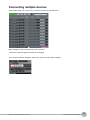
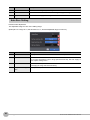
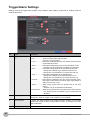
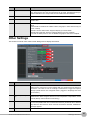
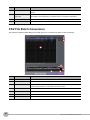
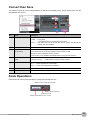
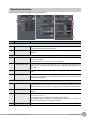
This function is used to convert replayed data to a different format (GBD, CSV), and to clip and save only the
data between the cursors.
1
4
2
5
3
6
7
No.
Name
Description
1
Save format
Select a format to convert and save data.
• GBD ...... binary data
* CSV data cannot be converted to binary data.
• CSV....... text data. This is a file format that can be opened with Microsoft's
EXCEL and other software.
2
Path
Select a location to which you want to save data.
3
Open with EXCEL after
the conversion
If this setting is selected, a file converted into CSV format is opened with EXCEL.
* This setting cannot be selected if data is saved in binary format.
* EXCEL must be installed to use this function.
* This function is not available with EXCEL 2000 or any previous versions.
4
Select data to be converted
5
Spot Samples
Spot samples are extracted when saving data.
Ex) 1 → 1 :Spot samples are not extracted.
Ex) 2 → 1 :One of two data points is extracted.
6
Save
Executes conversion and saving.
7
Cancel
Click to close the screen.
• All Data .................... All of the data being replayed is saved.
• Between Cursor ....... Data between cursors A and B is saved.
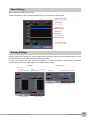
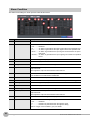
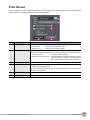
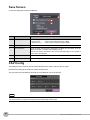
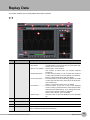
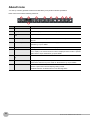
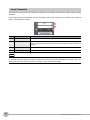
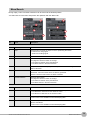
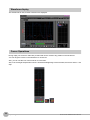
Scale Operations
Use this area to perform scale operations, enlarge the selected area, etc.
Expand x-axis range specification
Drag in X-axis direction
Ordinary Cursor
Display all the data in one screen
Smart Viewer RXW Software Manual
Replay Data
67