1
•
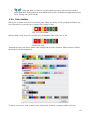
Set model information. Opens a dialog (Fig. 7) to enter model description and author.
Author field is filled with default defined in Program Options (see 5.3.14). License notice is
defined in same dialog, and here you choose if include a license notice or not in your model.
•
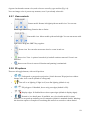
Save current model. If it is first save, it shows a save dialog to ask for file name and
folder. Save model in LDR format. Warning: does not save submodels and flexible parts
generated by program: user must checks that submodels are properly saved and named.
•
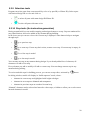
Save current model as. Change name and folder for current model. Warning: if model
contains submodels please check that submodels are in the same folder.
•
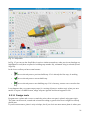
Export current model and submodels in MPD format. Includes all submodel and
custom parts in model. Warning: does not include parts in official or unofficial library (both
zipped or installed).
5.3.3 Sub-model toolbar
You can load a submodel to include in a model, or you can switch editing from model to another or
a submodel without reload program.
•
Load a model as submodel. After loading you can place submodel as normal part. It is
included in submodels list (see below)
•
Select a block/submodel for insert or editing. Will show a dialog (Fig. 8) where you
can see all submodel loaded and select one for insert in current model (button “Insert”) or to
switch model editing (button “Edit”). Program generated parts (as flexible parts, see 5.4) are
marked in red if not saved on disk by user.
13