1
FGR2 Series and I2 Series
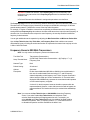
1. Be familiar with your network and know if you have a Point-to-Point or Point-to-MultiPoint
configuration.
Most FreeWave networks are Point-to-MultiPoint.
2. Connect the transceiver to the configuration tool, such as Tool Suite or HyperTerminal of your
choice.
3. Set the transceiver's operation mode, whether it is a Slave, Repeater, Master, and so on and the
network type it is in.
4. Program the receiver, ensuring that all devices in a MultiPoint network have the same settings for
the following parameters:
l
Frequency Key
l
Max Packet Size
l
Min Packet Size
l
RF Data Rate
l
Network ID
5. Establish the Call Book settings if the transceiver is in a network not using Network IDs.
If you are using a Network ID, see "Network ID" on page 49
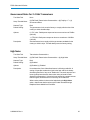
MultiPoint Network Considerations
When installing MultiPoint networks it is important to do some up front planning. Unlike Point-to-Point
networks, a Point-to-MultiPoint network requires several parameters are set consistently on all transceivers in
the network. This includes RF Data Rate and Min and Max Packet Size.
Note: If several independent MultiPoint networks are to be located in close proximity
the planning becomes more critical. In such cases, it becomes very important to
include as much frequency and time diversity as possible through use of
different Min and Max Packet Size. In some instances the use of the
MultiMaster Sync option may be required.
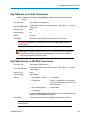
Upgrading Transceivers to the Latest Firmware
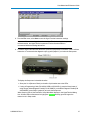
If Tool Suite is connected to a transceiver, and a new version of the firmware is available for that transceiver
model, an indication displays within the Configuration application's Device Information tab.
For more information about viewing the latest firmware versions available, see the Tool Suite User Manual
available from the File > Help menu within Tool Suite.
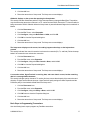
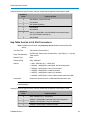
Use the steps below to upgrade a transceiver to the latest firmware:
1. With the transceiver connected to Tool Suite and in Setup mode, in Tool Suite click Configuration
in the Applications pane to display the Configuration application.
2. Click Upgrade Radio in the Firmware section of the Configuration ribbon.
3. Click Yes at the prompt to proceed or No to cancel without installing the new firmware.
Tool Suite identifies and displays the firmware version that is loaded on the connected device and
displays the latest version of firmware available for that model.
4. Click Yes to proceed with the upgrade, or No to exit.
LUM0002AI Rev A
18