1
DATA WINDOWS
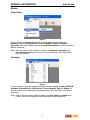
Inputs Window
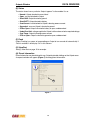
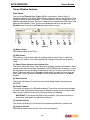
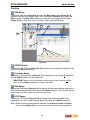
(C) CAN Status
• OK: system is communicating correctly
• CAN1 Bad: Dual CAN system only, utilizing the second CAN bus (CAN2), CAN1 is not
functioning properly
• CAN2 Bad: Dual CAN system only, utilizing the first CAN bus (CAN1), CAN2 is not
functioning properly
• Unknown: status unknown, module may be “Missing”
(D) Version
Each module’s firmware is identified with a version number by the OEM and appears in
this column.
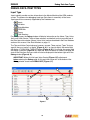
INPUTS WINDOW
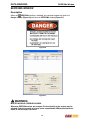
Description
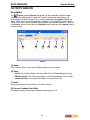
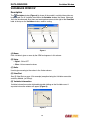
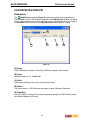
The
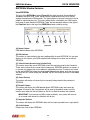
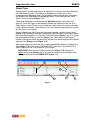
Inputs window (Figure 2) contains all the connected CANLink module Inputs for
the OEM product. Within the Inputs window, the Name, Value and Units can be
observed. Also, there are two pull-down menus to the right of the View/Sort label at the
top on the Inputs window.
D
B
A
C
Figure 2
(A) Name
Each Input is given a name by the OEM and appears in this column.
(B) Value
In this column, the values of all Inputs will be displayed. It will either be a numeric value
for analog inputs, or ON or OFF for digital inputs.
(C) Units
Indicates how to interpret numeric values.
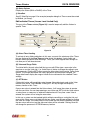
(D) View/Sort
If your equipment has many Inputs, such that they cannot all be viewed in the Inputs
window at once, you can use the View/Sort dropdown menus to view Inputs in two
convenient ways (besides viewing them all).
12