1
4-Getting a Fast Start
6. Creating a RAID set using Quick Volume And RAID Setup Configuration
Step
1
2
3
4
5
6
7
8
Action
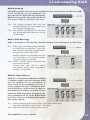
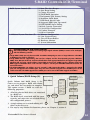
Choose Quick Volume And RAID Setup from the main menu. The available RAID levels and
associated Hot Spare for the current volume set drive are displayed.
RAID Level Try to use drives of the same capacity in a specific array. If you use drives with
different capacities in an array, all the drives in the array is treated as though they have the
capacity of the smallest drive in the array.
The number of physical drives in a specific array determines the RAID levels that can be
implemented with the array.
RAID 0 requires one or more physical drives,
RAID 1 requires at least 2 physical drives,
RAID 1+ Spare requires more than 2 physical drives,
RAID 10 requires 4 physical drives,
RAID 10+ Spare requires 5 physical drives,
RAID 3 requires at least three physical drives,
RAID 5 requires at least three physical drives,
RAID 3+ Spare requires at least four physical drives, and
RAID 5 + Spare requires at least four physical drives.
Using the UP/DOWN key to select the RAID for the volume set and presses ENT to confirm it.
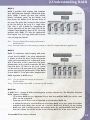
Available Capacity Set the capacity size for the volume set. After select RAID level and press ENT.
The selected capacity for the current volume set is displayed. Using the UP/DOWN to create the
current volume set capacity size and press ENT to confirm it. The available stripe sizes for the
current volume set are displayed.
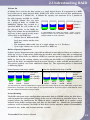
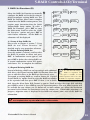
Select Stripe size This parameter specifies the size of the stripes written to each disk in a RAID
0, 1, 10, 3, or 5 Volume Set. You can set the stripe size to 4 KB, 8 KB, 16 KB, 32 KB, 64 KB,
or 128 KB. A larger stripe size provides better-read performance, especially if your computer
does mostly sequential reads. However, if you are sure that your computer does random read
requests more often, choose a small stripe size. Using the UP/DOWN to select stripe size and
press. ENT to confirm it.
When you are finished defining the volume set, press ENT to confirm the Quick Volume And
RAID Set Setup function.
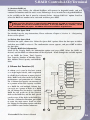
Foreground/Background Initialization
Press ENT to specify foreground initialization and ESC to specify background initialization.
Foreground initialization must be completed before the volume set ready for system accesses,
but completes faster. With Background initialization the volume set is fully accessible for system
reads and writes during initiaization, but the initialization process takes longer and system
performance will be affected.
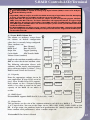
The controller will begin to Initialize the volume set you have just configured
If you need to add additional volume set using main menu Create RAID Volume Set function.
PlatinumRAID Pro Owner’s Manual
21