1
27
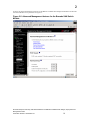
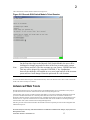
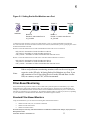
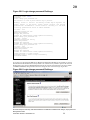
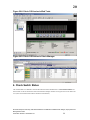
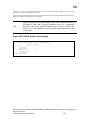
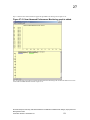
Step 1. Use the Name Server icon on the bottom left half of the Switch Explorer WebTools window to access a list of
devices in the fabric. Figure 27-4.
Figure 27-4. Name Server icon in WebTools.
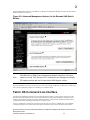
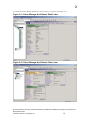
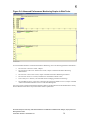
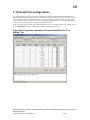
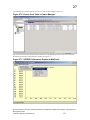
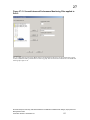
Step 2. Sort the entries by Port and then Domain. Then look to the “Port ID” column to obtain the Source ID’s (SID)
and Destination ID’s (DID) of the devices you wish to monitor. In this example the two Server Blades are
SID_1=010100 (Port 1 on Domain 1) and SID_2=010200 (Port 2 on Domain 1). The Fibre Channel JBOD drives are
located on the same port, Domain 3 Port 7. DID_1=0307ba (the Port ID of the disk drive that SID_1 is communicating
with) and DID_2=0307bc (the Port ID of the disk drive that SID_2 is communicating with). Figure 27-5.
Figure 27-5. Name Server icon in WebTools.
Brocade Enterprise and Entry SAN Switch Modules for IBM eServer BladeCenter Design, Deployment and
Management Guide
Publication Number: 53-0000561-01
150