1
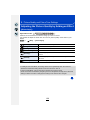
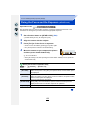
5. Picture Quality and Colour Tone Settings
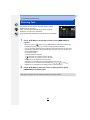
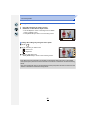
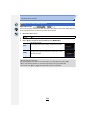
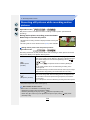
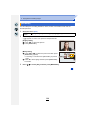
Finely adjusting the White Balance
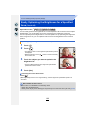
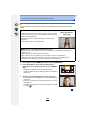
You can finely adjust the White Balance when you cannot acquire the desired hue by
setting the White Balance.
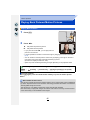
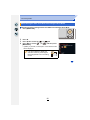
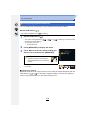
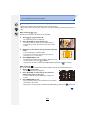
1
2
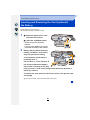
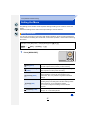
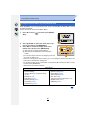
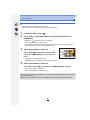
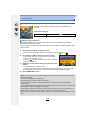
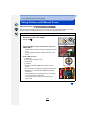
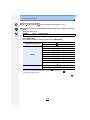
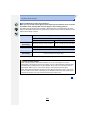
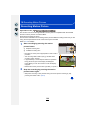
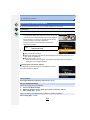
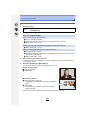
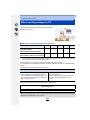
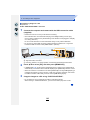
Select the White Balance and then press 4.
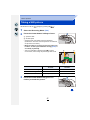
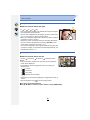
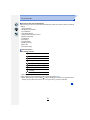
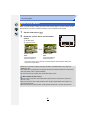
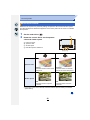
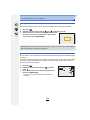
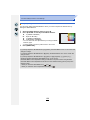
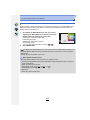
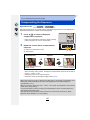
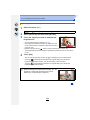
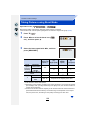
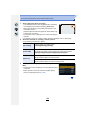
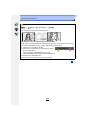
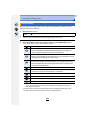
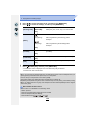
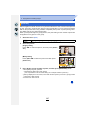
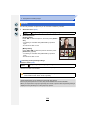
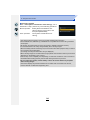
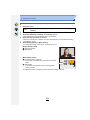
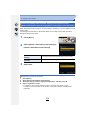
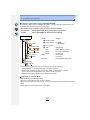
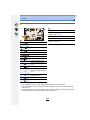
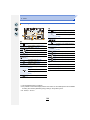
Press 3/4/2/1 to fine-adjust the White Balance.
2 : A (AMBER: ORANGE)
1 : B (BLUE: BLUISH)
3 : G (GREEN: GREENISH)
4 : M (MAGENTA: REDDISH)
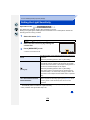
• You can also make fine adjustments by touching the White
Balance graph.
• Pressing [DISP.] resets the position back to the centre.
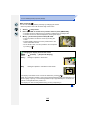
3
G
A
B
M
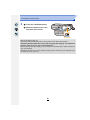
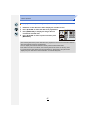
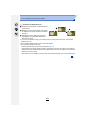
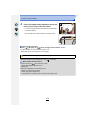
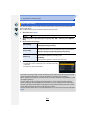
Press [MENU/SET].
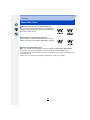
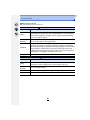
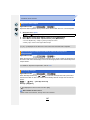
• If you finely adjust the White Balance to [A] (amber), the White Balance icon on the screen will
change to orange.
If you finely adjust the White Balance to [B] (blue), the White Balance icon on the screen will
change to blue.
• If you finely adjust the White Balance to [G] (green) or [M] (magenta), [_] (green) or [`]
(magenta) appears beside the White Balance icon on the screen.
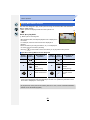
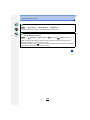
• The White Balance fine adjustment setting is reflected in the picture when using the flash.
• The White Balance fine adjustment level returns to the standard setting (centre point) in the
following cases.
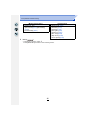
– When you reset the White Balance in [ 1 ] or [ 2 ]
– When you reset the colour temperature manually in [
]
126