1
RemoMail User Guide 3.0
5.8
Manage Accounts
Manage Accounts will show all the account details with Add, Edit buttons and delete option for the accounts. User can
create, edit and delete the accounts. User can create maximum of 5 accounts with RemoMail application.
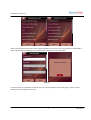
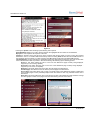
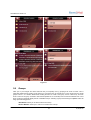
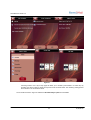
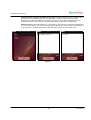
Add Account: You may use Add button option to create an account. It shows the screen to configure the
IMAP or POP account. User can enter account details and clicks next button.
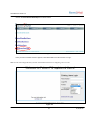
Figure 20
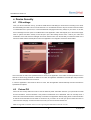
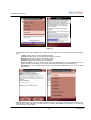
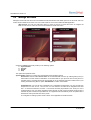
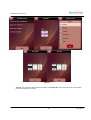
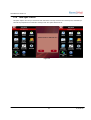
Clicking the ‘Option’ button will provide you the following options:
1. Sync Schedule
2. Security
3. Delete
4. Help
The options are explained below:
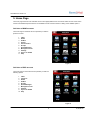
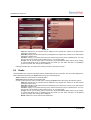
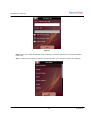
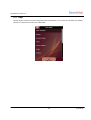
Sync Schedule: Allows you to select from the following Synchronization options:
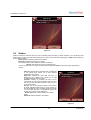
Direct Push: This will enable ‘Direct Push’ for the selected IMAP account. By enabling direct push you
will be able to receive real time notifications of new Email data on your phone as soon as they arrive on
the IMAP server. Choosing Direct Push will navigate you to the Schedule page that contains a list of your
existing schedules along with an option ‘Add Schedule’ to add a new schedule
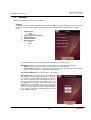
Scheduled sync: You can set up the application for a scheduled synchronization. You may choose from
frequencies of 15 min, 30 min, 1 hour, 2 hour or 4 hour intervals. You will then be navigated to the Start
time – to choose the start time; End time – to choose the end time (say between 8 a.m. and 8 p.m. on the
scheduled days). Then you will be navigated to select the Day of week, and the schedule will be set to the
selected day of the week at the specified time. The application will automatically check for updates at the
defined time and synchronize them to the phone.
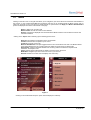
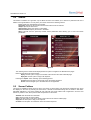
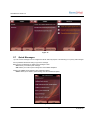
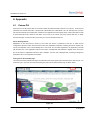
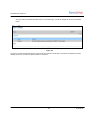
The navigation for setting up Direct Push is shown in the application screenshots below:
18
6/25/2010