1
RemoMail User Guide 3.0
3. Application Setup
3.1
Setting up RemoMail on your mobile phone
1.
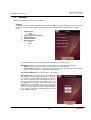
In the BREW Catalog, find and launch RemoMail. At the Welcome screen, press Ok, to continue.
2.
RemoMail will automatically be installed on the Phone
3.
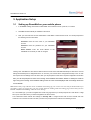
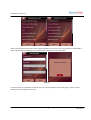
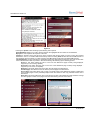
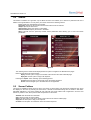
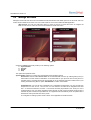
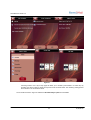
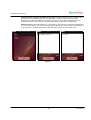
Next, you must enter the account credentials to create IMAP or POP email accounts. You will be prompted for
the following account information:
Username: Enter the user name of your POP/IMAP
account
Password: Enter the password for your POP/IMAP
account
Email address: Enter the email address of the
POP/IMAP account that you wish to configure
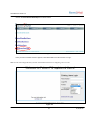
Figure 1
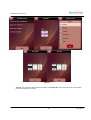
Clicking ‘Next’ will initiate the auto-discover feature with the server where RemoMail will attempt to retrieve the account
settings automatically from a designated server. On success, your account will be configured and ready to use. In case
the required account settings cannot be found, then you will prompted to enter all the required configuration information
then you will be prompted to enter the incoming server address information before an attempt is made to
login using the incoming server address failing which the user will be displayed with a message “Enter the
correct details”.
Note: Ensure that you provide the correct credentials when setting up your account. You can verify if the information you
provided is correct, by logging into your web account and then checking under the Settings page. Ensure that you have
enabled “POP/IMAP forwarding” under the server settings.
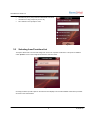
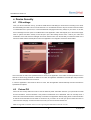
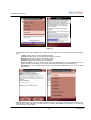
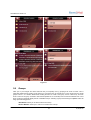
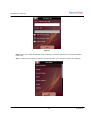
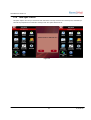
On a successful login, you will be navigated to the PIN entry page where you will be prompted for a PIN. Enter a 4-digit
PIN of your choice after which you will be navigated to the Home screen.
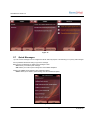
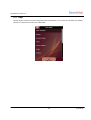
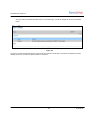
The screenshots below indicate the settings for Security PIN. A 4-digit numeric PIN must be entered and then
confirmed. You must then choose how often you wish to be prompted for the PIN from the following choices:
5
6/25/2010