1
Optic 2
Issue 1
_______________________________________________
Operation of the Optic 2 is controlled by a menu structure. When power is applied to
the Optic 2, a system initialisation sequence is performed. During this time the LCD
display will read: Initialising.
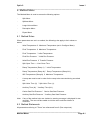
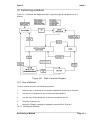
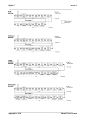
On completion of the initialisation sequence, the Top Level Menu is displayed. The
Top Level Menu contains the following options:
:
Standby Menu
:
Method Menu
:
Sequence Menu
:
Copy Menu
:
Delete Menu
:
Configure Menu
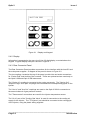
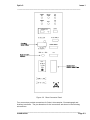
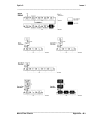
Use the Left or Right arrow key to select a menu option from the Top Level Menu.
To gain access to the required menu, press the Menu Enter key.
2.6 Remote Control
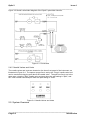
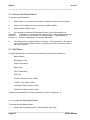
A user can configure the Optic 2 to be controlled by a Personal Computer (PC). To
enable this facility:
1. Switch power on to the Optic 2 with the Function key held down. The Control
Remote window is displayed.
To change back to local control, switch the Optic 2 off and then start up as normal.
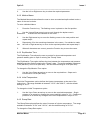
2.7 Method Menus
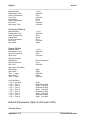
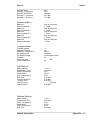
Optic 2 offers many different ways to introduce all kinds of samples into the GC. To
combine flexibility with a user-friendly interface, five different method menus are
available. Split, Splitless, Large Volume and Desorption methods are designed to give
simplified method entry and editing for the most commonly used sample introduction
modes. In contrast, the Expert method menu gives the analyst flexibility to design
injection techniques to suit special requirements. Up to 20 different methods can be
set up at any one time.
Note:
Appendix - F contains blank Method Sheets which can be photocopied for
recording the parameters set in a customised method.
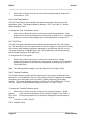
2.7.1 Split Method Menu
Optic 2 can be used as a conventional hot split injector or for cold split injection. In
virtually all cases, better results will be obtained using the cold split approach. This
_______________________________________________
Introduction
Page 2.7