1
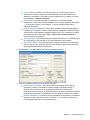
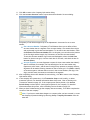
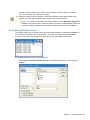
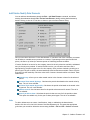
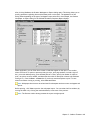
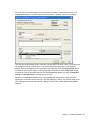
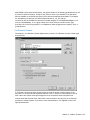
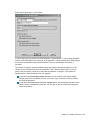
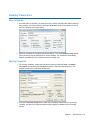
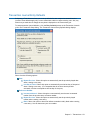
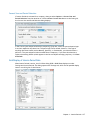
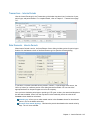
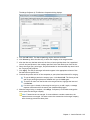
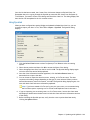
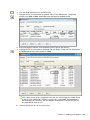
In step 3, you control the appearance and format of the different types of lines that are generated
(major title, section title, detail line, subtotal line, and total line). You can link or copy line
descriptions into the statement.
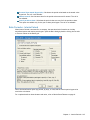
Linking descriptions causes the descriptions to maintain the formatting details from their
source. If you select this option, no capitalization options are available.
Copying descriptions causes text, not formatting, to be copied (fonts are preserved when
copied/linked to Word), and allows you to make capitalization changes to the descriptions.
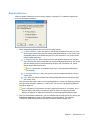
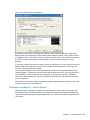
Regardless of whether you select to link or copy, the indenting option is always available. Enter
the distance (number of characters) from the left edge of the statement that each line type should
appear. (The major title cannot be indented.)
Click Next to access step 4 of the wizard.
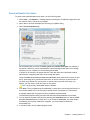
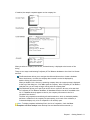
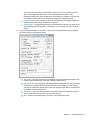
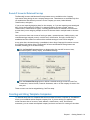
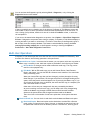
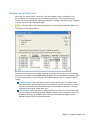
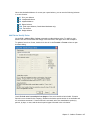
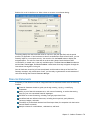
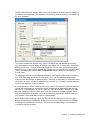
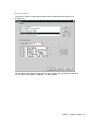
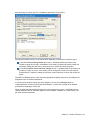
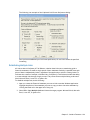
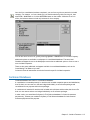
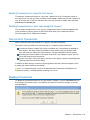
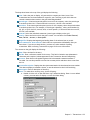
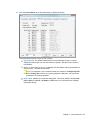
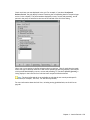
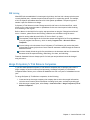
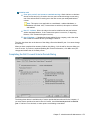
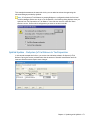
In step 4, you can choose the Hide zero balances box to suppress the display or print of zero
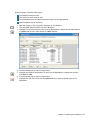
balances or select Column sets for the new financial statement. Pre-configured column sets (and
any customized column sets previously created) applicable to the type of financial statement you
are designing (Balance Sheet, Income Statement, Cash Flow, or Other) are listed in the Name
drop-down list. When you select a column set from the list, information displays in the Specifics
field:
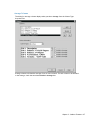
If the selected column set is customized, the Specifics field displays the words
"USER-DEFINED."
If the selected column set is a pre-configured set, the Specifics field displays the parameters
of the set. For example, it displays CY, PY, % Variance for a report that displays a current
year balance, a prior year balance, and the percentage of variation between the two. These
parameters are preceded by SYS:, indicating it is a system-defined column set.
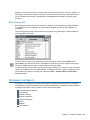
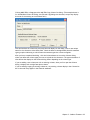
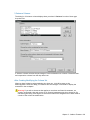
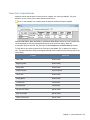
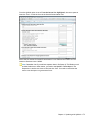
Select the year and, when Interim Periods is activated for the company, the period type and
number (for example, 2008 Quarterly Q3), which the report should reflect. The Column
descriptions list box displays descriptions of the columns in the selected set. If you select a
different year/period, the descriptions will change accordingly, where appropriate.
Chapter 2 - Guide to Features • 82