1
Employee Pay Entry
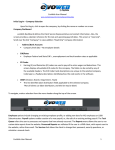
This method of entering payroll allows you to see one employee per page. You will have to
use this screen at some point, even if you prefer to use the Batch Pay Entry method. The
top of the page contains employee notes (if applicable) and demographics. The bottom area
allows you to enter hours/dollars, etc.
A
E
B
F
C
A
B
C
D
E
D
Choose New Paycheck if you want to pay the employee hours/dollars on a separate
check. You may create as many paychecks as you like. Remember to user the Edit
feature to override deductions, etc., if applicable.
Set your code column to your most commonly paid earning/deduction codes. Go to
Company Setup/Auto Pays to customize. Call your payroll provider if you do not
have access to this tab and it will be changed for you. Also, you can add new line
items by choosing them from the drop down and clicking the Add button.
The hours, rate and amount columns are the default. You may customize this if
needed (branch, dept., job coded, etc.). Go to Preferences/Employee Pay Entry to
customize.
Choose Calculate Check to view the employee gross-to-net amount or the pay detail
for this check.
Choose Edit for paycheck overrides. You will be able to change tax percentages or
frequency, block earnings, deductions, labor allocation, or direct deposit.
Additionally, you may create a memo for this specific employee that will show on
the check stub. Remember when applying overrides:
Save Changes-This Paycheck Only – will apply these overrides to this
paycheck only.
Save Changes-This Employee Only – will apply these overrides to all
paychecks for this employee in the batch.
F The remove button will delete the code on that line.
payentry.com™ Quick Reference User Guide
MPAY Software 2006 Version 1.1
21