1
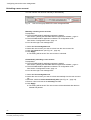
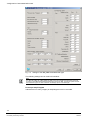
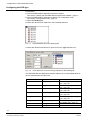
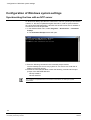
Configuration of cash box mode
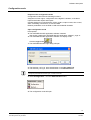
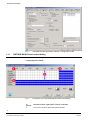
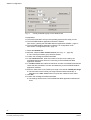
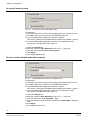
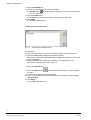
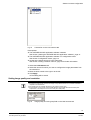
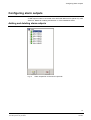
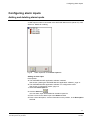
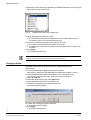
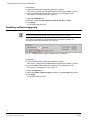
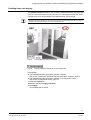
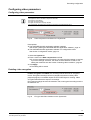
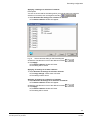
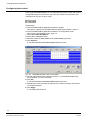
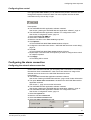
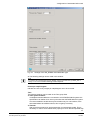
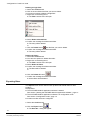
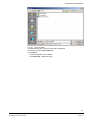
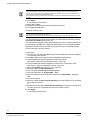
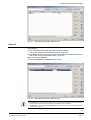
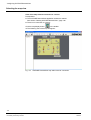
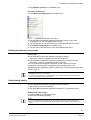
z Click the New filter
button.
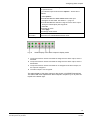
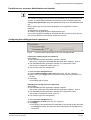
Two fields for defining the filter properties will be opened. or
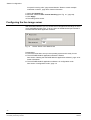
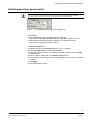
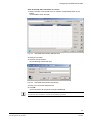
z Double-click the white list field.
Î Two fields for defining the filter properties will be opened. or
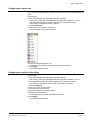
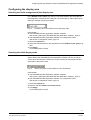
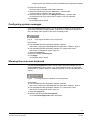
z Right-click on the background.
Î The context menu will open.
Î
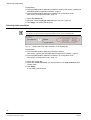
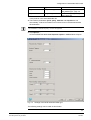
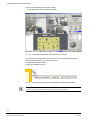
2. Select Add new filter.
Î Two fields for defining filters will be opened.
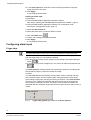
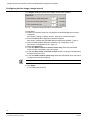
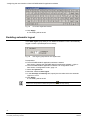
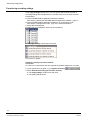
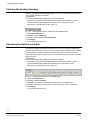
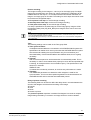
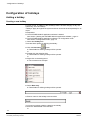
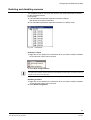
3. Click on the arrow next to the list field.
4. Select the desired option from the dropdown list.
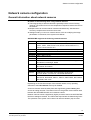
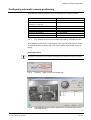
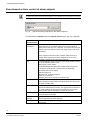
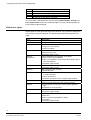
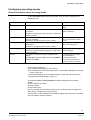
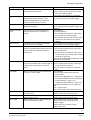
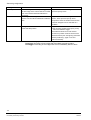
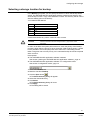
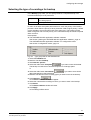
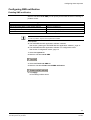
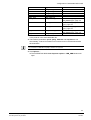
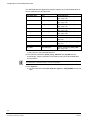
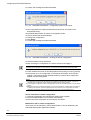
Word filter
Line filter
Alarm trigger
If the filter word occurs as a substring of the received line, the word
will be removed from the telegram.
If the filter word occurs as a substring of the received line, the entire
line will be removed from the telegram.
If the filter word occurs as a substring of the received line, an alarm
will be triggered.
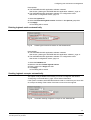
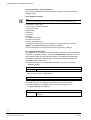
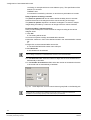
1. Enter the word to search for in the text field.
2. Click Apply. The setting will be saved.
Importing filters
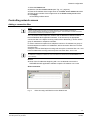
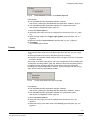
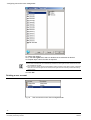
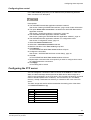
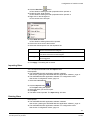
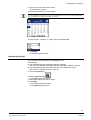
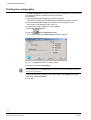
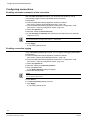
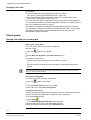
You can import saved filters with the Import button.
Prerequisites
z The SISTORE MX NVS application software is started.
See Section „Starting the SISTORE MX NVS application software“, page 12.
z The SISTORE MX NVS application software is in configuration mode.
See Section "Configuration mode", page 15.
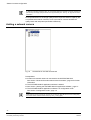
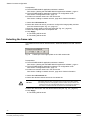
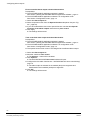
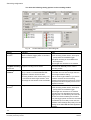
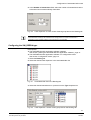
1. Select the Cash box tab.
.
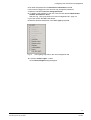
2. Click the Import button
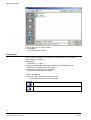
Î The Open dialog will appear.
3. Select the filters you want to import.
4. Click Open.
Î The filters will be imported. The Open dialog will close.
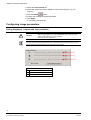
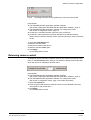
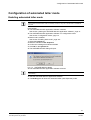
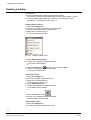
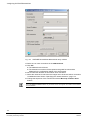
Deleting filters
Prerequisites
z The SISTORE MX NVS application software is started.
See Section „Starting the SISTORE MX NVS application software“, page 12.
z The SISTORE MX NVS application software is in configuration mode.
See Section "Configuration mode", page 15.
143
Siemens Building Technologies
Fire Safety & Security Products
08.2007