Download EV-DO-ATS - Spirent Knowledge Base
Transcript
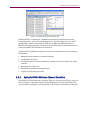
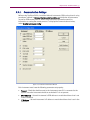
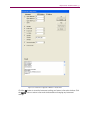
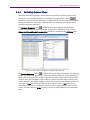
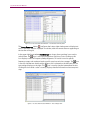
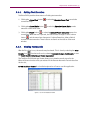
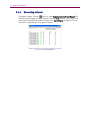
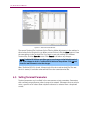
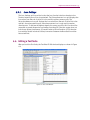
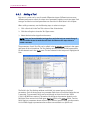
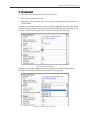
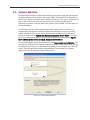
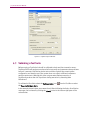
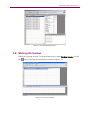
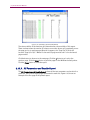
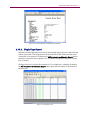
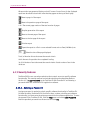
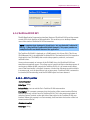
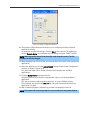
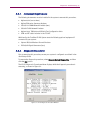
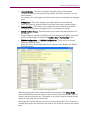
52 | EV-DO ATS User Manual 4.4.2. Group Edit If you want to set a parameter to the same value in more than one test, you can use the Group Edit feature. For example, you may want to set Ior to –90 dBm for tests 1 through 20. Group Edit makes setting values in multiple tests easy and convenient. TestDrive EV-DO allows you to select more than one test at a time. To do this, click and hold the mouse on the first test you wish to select in the Test grid. Then drag the mouse pointer to the last test that you wish to select. You can accomplish the same selection by using the shift key. Click on the first test of the group you wish to select. Hold down the shift key and click on the last test in the group. Similarly, you can select tests by holding down the control key and clicking on the individual tests you wish to edit. The tests selected do not need to be in a contiguous block when selections are made in this manner. Once you have your group of tests selected, you can make changes to the test parameters. If a parameter setting is blank, it means that it is different across the tests in the group. If you set a parameter, it affects that parameter in every test in the group to the value you enter. Some parameters may not apply to every test selected. In this case, the parameter setting only applies to those tests that support that parameter. 4.4.3. Parameter Sweep If you want to execute a test repeatedly while a parameter is slowly changed for each repetition, you can use the Parameter Sweep feature. For example, you can repeatedly execute a PER test while Ioc is adjusted incrementally for each test. The Parameter Sweep feature simplifies this task by building a suite of tests based on your criteria. To use this feature, it is best to start with a new suite. Add a new test as test 1. Select the test type you wish to perform. Modify the test parameters accordingly. When you are finished, click on the parameter you wish to increase or decrease. You may only select one parameter. With the parameter selected, select Edit>Sweep from the Edit menu, or click on the broom icon. The Sweep window displays. Enter the start, stop, and increment values appropriately. TestDrive EV-DO indicates the legal range for the parameter and calculates the number of tests to be added to the suite. You can choose to have the Description for each test appended with the parameter sweep information. This is useful when analyzing the results later. When you click the OK button, TestDrive EV-DO adds the calculated number of tests to the suite. The parameters across all tests are identical except the parameter to be swept. Its value changes for each test appropriately.