1
Sending pages by mail
You can send page images or recognized pages as one or more files
attached to a mail message if you have installed a MAPI-compliant
mail application, such as Microsoft Outlook. To send pages by
e-mail:
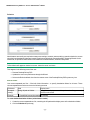
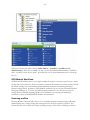
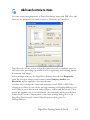
• With automatic processing, select Send in Mail as the
setting in the Export Results drop-down list on the
OmniPage Toolbox. The Export Options dialog box
appears as soon as the last available page in the document
is recognized or proofed. After export options are
specified, an empty mail message appears with file(s)
attached - add recipients and message text as desired.
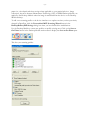
• With manual processing, select Send in Mail as the setting
in the Export Results drop-down list and then click its
button. The Export Options dialog box appears
immediately and then the mail message with the
attachment(s).
• Workflows and jobs accept a Send in Mail export step, but
they require the recipients and message text to be specified
as workflow settings, so the workflow can be run
unattended.
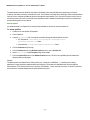
Sending to Kindle
A Kindle reader is an electronic book product from Amazon. The
Kindle Assistant in the Tools menu lets you create a simple
workflow that sends recognition results to a Kindle account at
Amazon; these results are optimized for reader display and appear
on the Kindle device registered to that account.
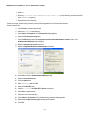
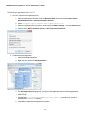
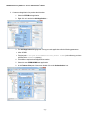
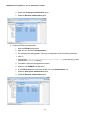
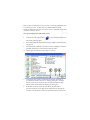
To prepare a Kindle workflow:
1. Have your Kindle reader and its associated e-mail address on
hand.
Chapter 5
Sending pages by mail 83