1
Manual Color Balancing Multiple Displays
Manual Color Balancing Multiple Displays
Color balancing is subjective. It may seem strange at first, but it gets easier with
practice. Fortunately, you don't have to match all the colors; you only have to match
whites and grays.
When you make all the displays look the same with white and gray, all the other
colors will look the same. It is not necessary to achieve a perfect white or a perfectly
colorless gray. It is only necessary that all the displays look alike when they display
white and gray.
Caution: Never try to match the colors of the displays with the black and white level
controls or with the video controls. You will not like the results if you do.
Caution: If you are color blind, even a little bit, do not manually color balance your array.
Have someone else color balance the wall or use the optional Automatic Color Balancing
feature. (See "Auto Color Balancing (ACB) Multiple Displays" on page 81.)
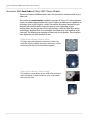
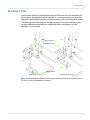
1 Turn on all the displays in the array and let them warm up for at least five minutes.
The LEDs must be thoroughly warm before you color balance.
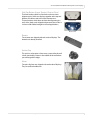
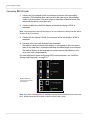
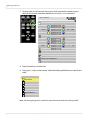
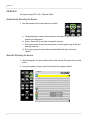
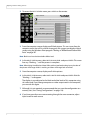
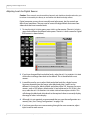
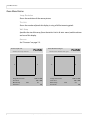
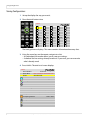
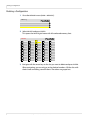
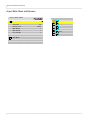
2 On each display, open the COLOR BALANCE menu.
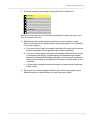
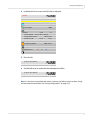
3 If the array has never been color balanced, make sure you start with the NATIVE
color temperature setting on each display. If you are not interested in achieving a
specific color temperature, use NATIVE, which is the brightest. If the display has
been color balanced before, it will display CUSTOM in the COLOR TEMPERATURE
line, because the balance values don’t match any of the pre-set color
temperatures.
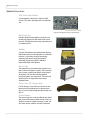
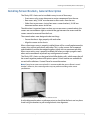
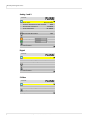
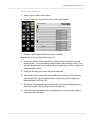
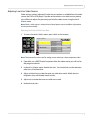
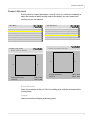
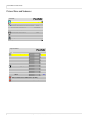
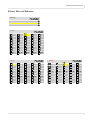
4 On each display, highlight TEST PATTERN and use the left or right arrows until the
menu displays WHITE.
Note: Always use the internal Test Patterns for color balancing, not an external pattern.
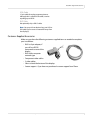
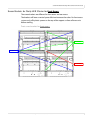
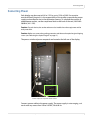
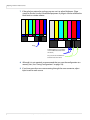
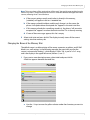
5 When all displays are white, find the least bright display in the array. This will be
the “baseline” display, and you will not adjust it. All other displays will be adjusted
to this baseline display.
Why pick the “least bright” display? Why not pick the brightest and adjust to it?
When the white value is 100, the display is as bright as it can get. You are
adjusting for slight variations in LEDs brightness.
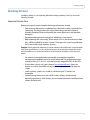
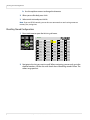
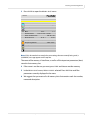
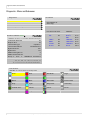
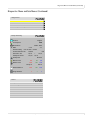
6 Choose a display next to the baseline display and adjust its white values (red,
green and blue) to make it match the baseline display. Concentrate on the center
of the displays, not the adjacent edges. (If you can’t bring these settings down to
match the baseline, maybe you didn’t choose the darkest display.) Do not adjust
the gray values at this time.
Clarity LED 3 Series Installation Guide
83