1
Managing data for your V Series Security Devices
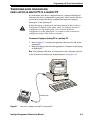
VIEWING AND PRINTING A DEVICE CONFIGURATION’S USER DATABASE
You can view and print a device configuration’s user database at any
time.
To view or print a device configuration’s user database:
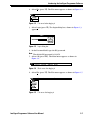
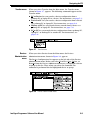
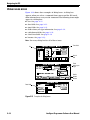
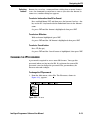
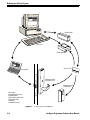
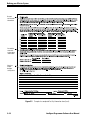
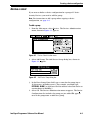
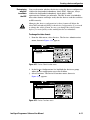
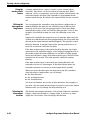
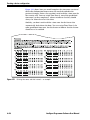
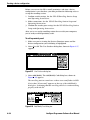
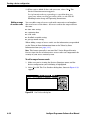
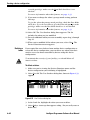
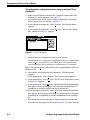
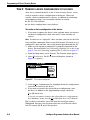
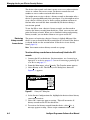
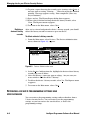
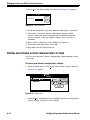
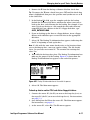
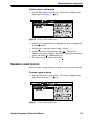
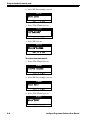
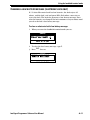
1. From the Main menu, select Reports. The Reports menu, shown in
Figure 6.17, appears.
Figure 6.17 Reports menu
2. In the Device Configurations list, highlight the device configuration
whose user database you want to view or print.
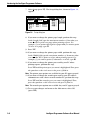
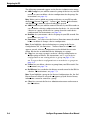
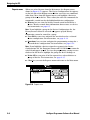
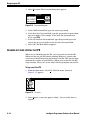
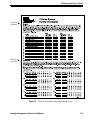
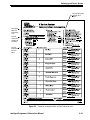
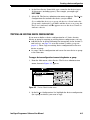
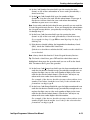
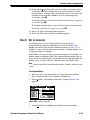
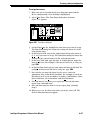
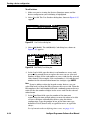
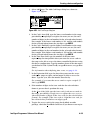
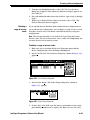
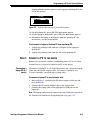
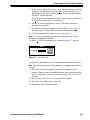
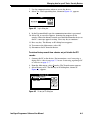
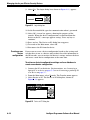
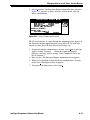
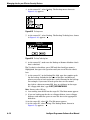
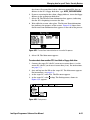
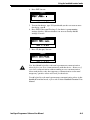
3. Select User DB. The User Db Report information box, shown in
Figure 6.18, appears. It shows all of the access cards in the selected
device configuration.
Figure 6.18 User Db Report information box
Tip: To scroll one line at a time through the information that appears in
the User Db Report information box, press D or U. To scroll one
screen at a time, press N (Page Down) or O (Page Up).
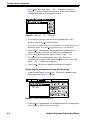
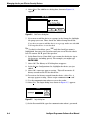
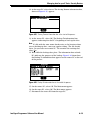
4. To print the device configuration’s settings, select Print. A message
appears stating, “Printing . . .” When the report has finished
printing, a message appears stating, “Print completed. (Press any
key to continue.)”
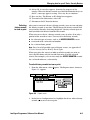
5. Press any key. The User Db Report information box reappears.
6–14
Intelligent Programmer Software User Manual