1
Data Sheet Overview
I/O Operations
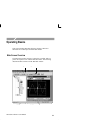
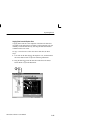
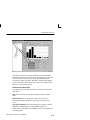
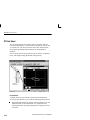
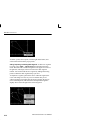
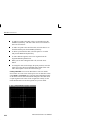
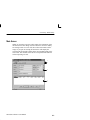
You use drag and drop mouse operations to copy and link scalar
values, such as a TDS oscilloscope automatic measurement, from the
Explorer View to the StripChart data sheet, dropping the measurement anywhere in the graticule area. Subsequent copies to the same
StripChart sheet create separate strip chart graticules within the
StripChart window (two measurements cannot be plotted on the
same StripChart graticule). You cannot drag waveforms from a YT
or XY sheet to a StripChart sheet.
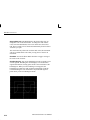
You use drag and drop mouse operations to copy a StripChart
recording to data sheets or Microsoft Word or Excel. Two columns
of scalar values are transferred with measurement values appearing
along recording times. Refer to page 3–15 and Copy and Linking on
page 4–4.
Copying vs. Linking
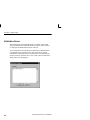
Strip charts monitor data, recording its variations. Because of this,
you should link your data rather than copying it, since copying
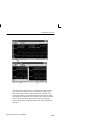
creates a value that does not update. To link data, right click on the
data and hold down the mouse button; drag the data to the Strip chart
sheet. Then select Link from the shortcut menu that pops up.
When you link a scalar value to a Strip chart sheet, the data source
sends updated data whenever data changes, possibly at irregular
intervals. The data sheet collects all the data, but only plots a data
point at the plot rate specified in the strip-chart property sheet. If no
new data has been received during a data-logging interval, the data
sheet plots the last value logged.
Starting and Stopping
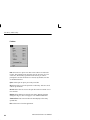
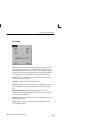
The recording can be started with one of three selections: Automatic,
Manual, and Time. The default is Automatic, with a recording
sample time of one second. Recording can be stopped with one of
three selections: Manual, Time, or Duration. The default is Manual.
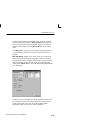
You can set the recording methods from the Recording tab of the
property page (refer to Setting Properties on page 4–5). The
minimum data sample rate you can set in the properties page is
1 second.
4–24
WaveStar Software User Manual