1
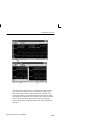
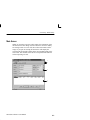
Data Sheet Overview
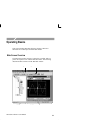
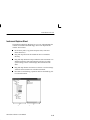
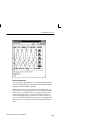
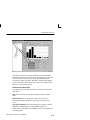
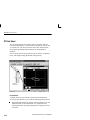
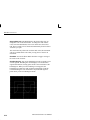
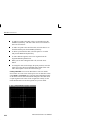
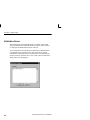
Moving Mask Segment Points. To select a segment point, position the
cursor on the point A selected point fills with the current mask color.
To move the point, press and hold the left mouse button and drag the
point to a new location.
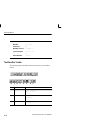
You can use the Zoom control on the YT sheet toolbar to magnify
the image for performing critical point positioning. The point
position values are shown in the status bar at the bottom of the sheet.
N O T E . As stated in the mask edit conventions section, different
instruments use different algorithms to store and connect mask
points. In some instruments, moving a point past a diagonal
boundary causes that point to detach from its current line and
reattach to a line on the other side of the boundary. This is normal
behavior for these instruments. The YT sheet duplicates this behavior
so that the mask segments you create on the YT sheet will look and
work correctly on the target instrument.
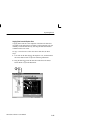
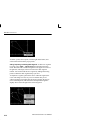
Adding and Deleting Mask Points. The Mask editor lets you add new
points to a segment halfway between the selected point and the next
point counterclockwise from the selected point. To add a point,
select the point, then press the right mouse button to display the
pop-up menu. Select Add Point. The YT sheet adds the new point to
the line segment.
WaveStar Software User Manual
4–37