1
Procedures
Saving and Restoring Workbooks
Follow the steps below to save and restore a workbook:
Save a Workbook
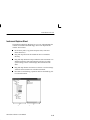
1. Use one of the following methods for displaying the Save dialog:
H Select File | Save Workbook.
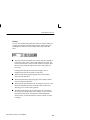
H Click the Save Workbook button in the toolbar.
2. In the Save dialog, enter a file name and destination for the
workbook. Workbook files have a .WK extension.
3. Click OK to save the workbook and close the dialog.
Restore a Workbook
1. Use one of the following methods to restore a workbook:
H Select File | Open and select the workbook file you want to
restore. Click OK.
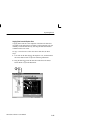
H Drag the workbook file from Windows Explorer View and
drop it on the data pane.
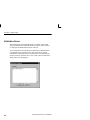
2. The Reconnect Links dialog appears, prompting you to select
Reconnect or Offline.
Reconnect. Select Reconnect to reconnect the links used when
the workbook was last saved.
Offline. Select Offline to open the data sheet without restoring
the links to the original data sources.
N O T E . If you select Reconnect and the data source is no longer
available, a dialog will appear telling you so, and the workbook will
be opened as an Offline file (no active links).
3. If you have a workbook already open, you will be prompted to
save. Restoring a saved workbook file closes the current
workbook file.
5–14
WaveStar Software User Manual