1
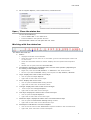
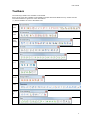
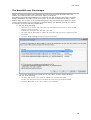
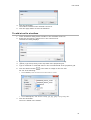
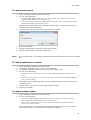
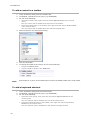
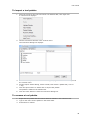
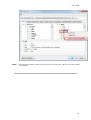
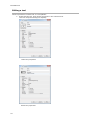
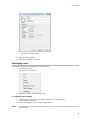
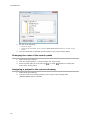
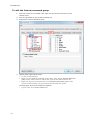
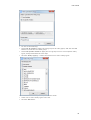
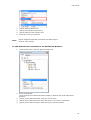
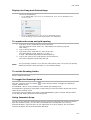
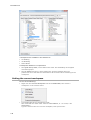
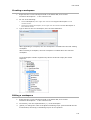
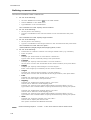
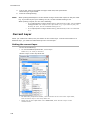
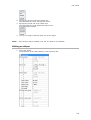
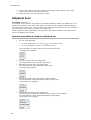
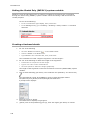
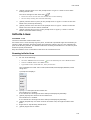
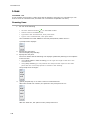
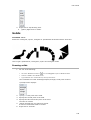
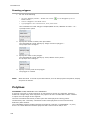
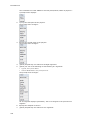
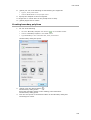
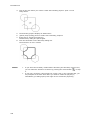
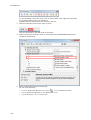
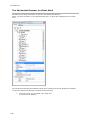
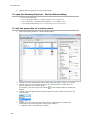
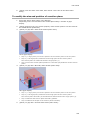
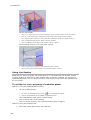
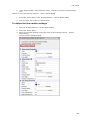
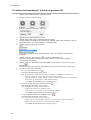
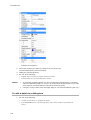
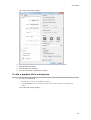
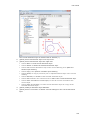
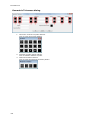
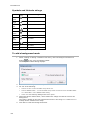
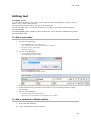
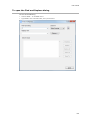
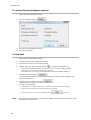
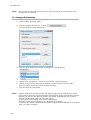
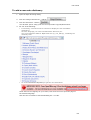
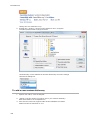
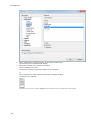
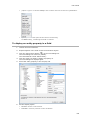
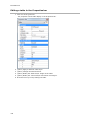
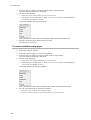
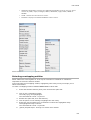
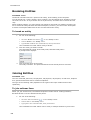
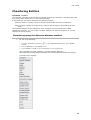
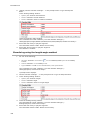
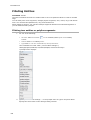
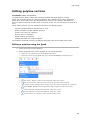
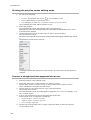
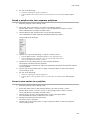
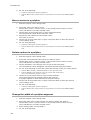
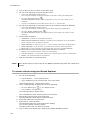
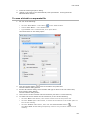
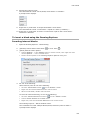
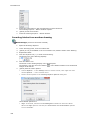
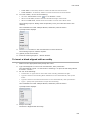
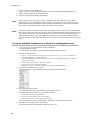
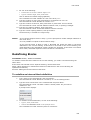
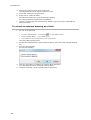
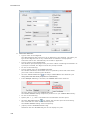
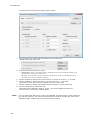
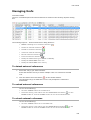
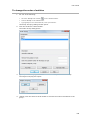
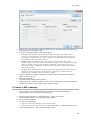
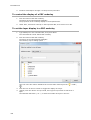
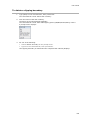
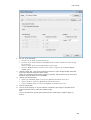
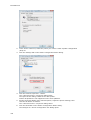
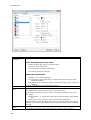
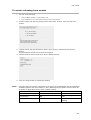
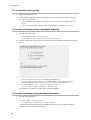
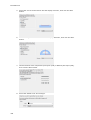
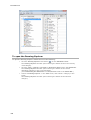
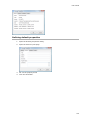
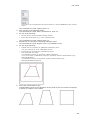
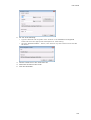
BricsCAD V14 2. Do one of the following: Type a name in the Name field. Check the Unnamed option to create an unnamed group. 3. (option) Type a description in the Description field. 4. (option) Check / uncheck the Selectable option. 5. Click the Select entities and create group button. The Entity Grouping dialog temporarily closes to let you select entities. 6. Select the entities you want to include in the new group. 7. Right click to conclude the selection of entities. The Entity Grouping dialog reopens. The newly created group is added. 8. Click the OK button to close the Entity Grouping dialog To modify a group 1. Do one of the following: Click the Group tool button ( ) on the Tools toolbar. Choose Group in the Tools menu. Type group in the command bar, then press Enter. The Entity Grouping dialog window opens. 2. Select the group you want to modify. 3. (option) Double click in the Name field to edit the group name. 4. (option) Double click in the Description field to edit the group description. 5. (option) Click in the Selectable column to toggle the Selectable option on/off. 6. (option) Click the Add entities to group button to add new entities to the group. The Entity Grouping dialog temporarily closes to let you select the new group entities. 7. (option) Click the Remove entities from group button to remove entities from the group. The Entity Grouping dialog temporarily closes to let you select the entities. 8. Click the OK button to close the Entity Grouping dialog To ungroup entities 1. Do one of the following: Click the Group tool button ( Choose Group in the Tools menu. ) on the Tools toolbar. Type group in the command bar, then press Enter. The Entity Grouping dialog window opens. NOTE 448 2. Select the group or groups you want to delete. 3. Click the Un-group selected groups button. The selected groups are removed. When you ungroup entities, the entities remain in the drawing but the group is deleted from the drawing.