1
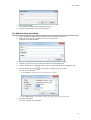
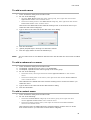
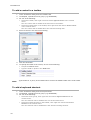
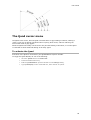
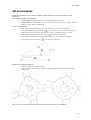
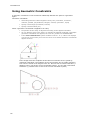
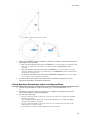
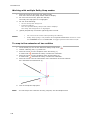
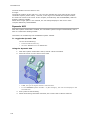
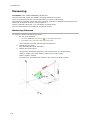
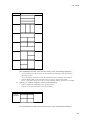
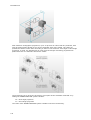
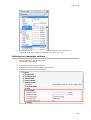
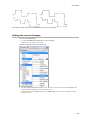
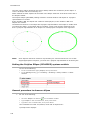
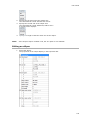
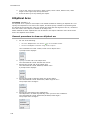
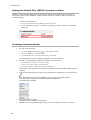
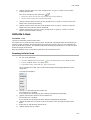
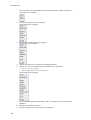
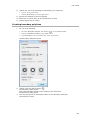
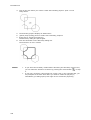
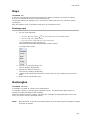
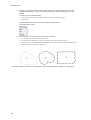
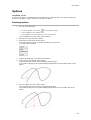
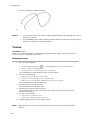
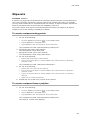
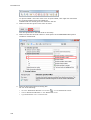
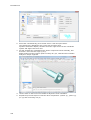
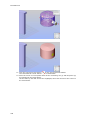
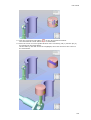
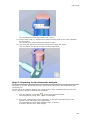
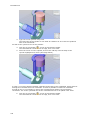
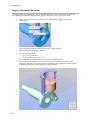
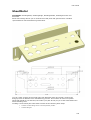
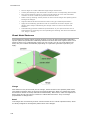
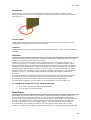
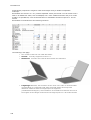
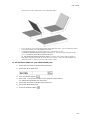
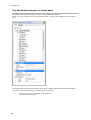
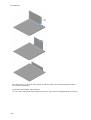
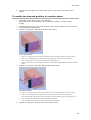
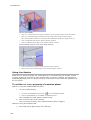
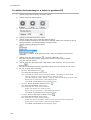
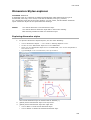
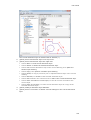
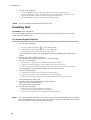
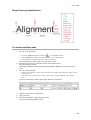
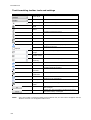
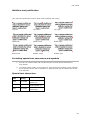
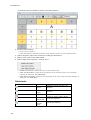
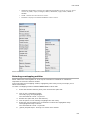
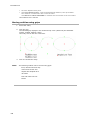
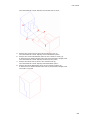
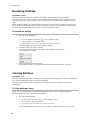
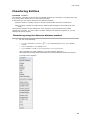
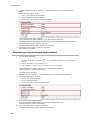
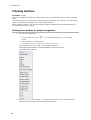
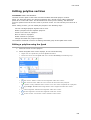
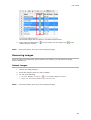
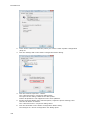
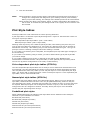
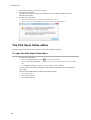
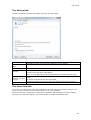
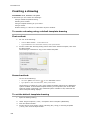
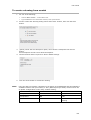
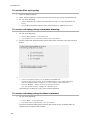
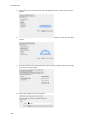
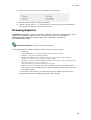
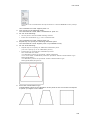
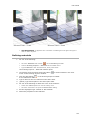
User Guide Using fix constraints A fix geometric constraint ( ) forces a point or an entity to a fixed location. If a fix geometric constraint is applied to a line or a polyline segment, the angle of the line or polyline segment is fixed. The endpoints can still be moved. If you fix an arc or a circle, the center point is fixed too. It is recommended to apply a fix constraint to important geometric features in your design. This prevents the geometry from moving unexpectedly when you edit the design. NOTE Using coincident constraints A coincident geometric constraint can be applied to two points or to a point and an entity. The endpoints of lines, polylines, splines, rays and arcs (circular and elliptical) and the center point of circles, ellipses and arcs (circular and elliptical) are accepted. These points can be made coincident (= to lie on the entity or on the extension of the entity) with a line, a polyline segment, a circle or an arc (circular and elliptical). Coincident constraints between the endpoint of a line and two circles If the endpoints or center points of entities already coincide, the Autoconstraint option of the GcCoincident command automatically applies coincident constraints to such points. To apply a coincident constraint between a point and an entity: 1. Click the Coincident tool button ( ) on the 2D Constraints toolbar. The command bar reads: Select first point or [Entity/Autoconstrain] <Entity>: A prompt menu displays: 2. Do one of the following: Press Enter. Choose Entity in the prompt menu. The command bar reads: Select an entity: 89