1
3.2 Changing the printer port (for Driver printing)
1
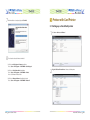
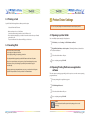
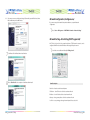
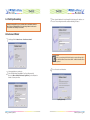
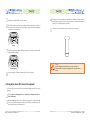
Go “Start -> Devices and Printers”
2
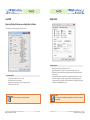
“Right-Click Card Printer Driver and select Printing Preferences” (or Printer
Properties)
3
4
24
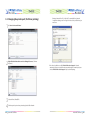
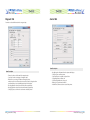
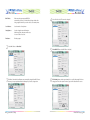
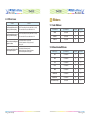
- Printing to Network Port : IP_192.168.0.34 (For example-Ref er to Network
Configuration Settings section on Page 36 and choose the port (IP address) you
want to use
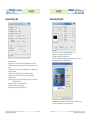
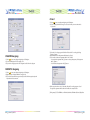
If the driver is installed successfully, “Enable bidirectional support” is selected
automatically. If you meet a problem when you print through the network port, please
unselect “Enable bidirectional support” and proceed with printing.
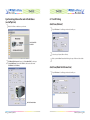
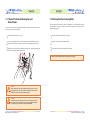
Select the Ports (or Detaii)Tab.
Click the required port in order to print through either USB or Network
Printer with Card Printer
Printer with Card Printer
25