1
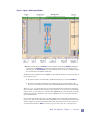
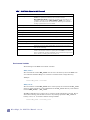
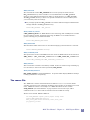
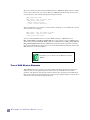
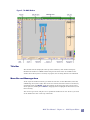
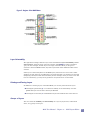
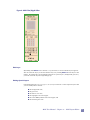
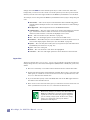
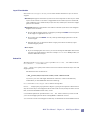
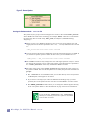
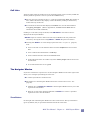
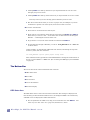
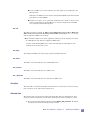
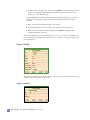
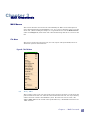
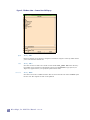
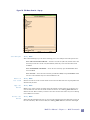
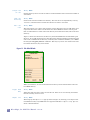
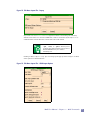
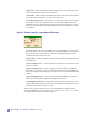
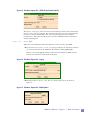
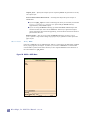
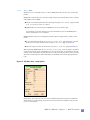
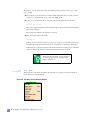
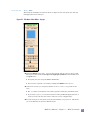
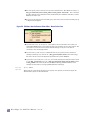
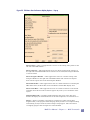
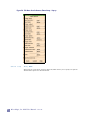
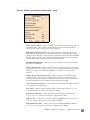
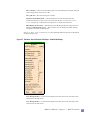
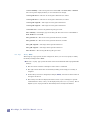
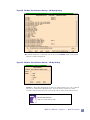
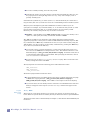
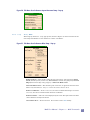
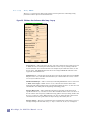
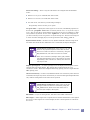
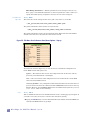
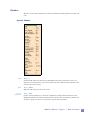
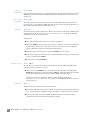
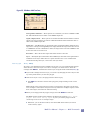
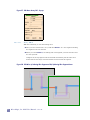
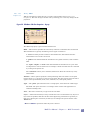
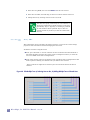
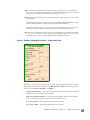
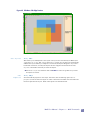
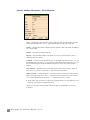
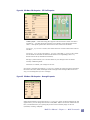
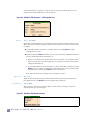
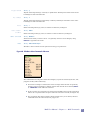
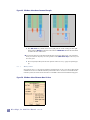
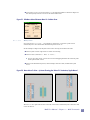
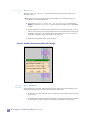
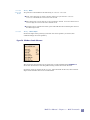
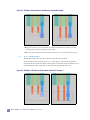
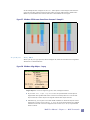
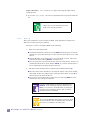
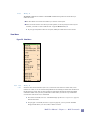
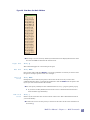
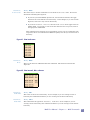
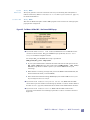
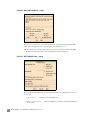
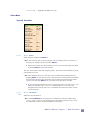
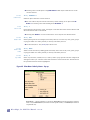
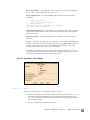
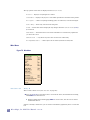
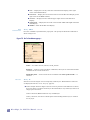
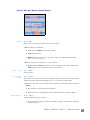
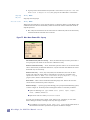
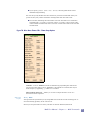
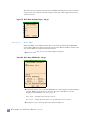
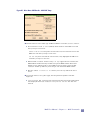
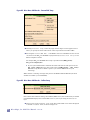
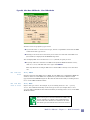
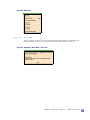
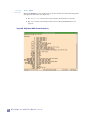
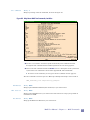
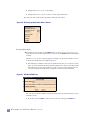
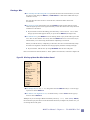
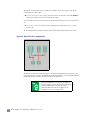
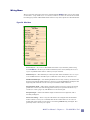
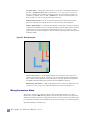
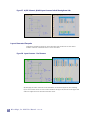
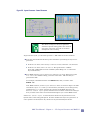
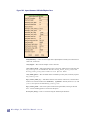
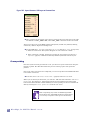
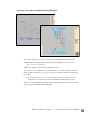
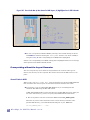
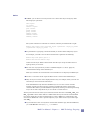
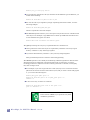
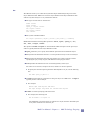
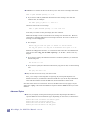
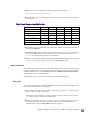
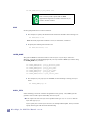
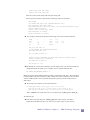
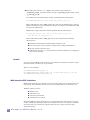
Drawing a Wire To actually start drawing the wire, point the mouse to the location where you want the wire to start and press Button-1 (or Shift-Button-1 to match the width of the layer under the cursor). You can then move the mouse to create the wire, which will follow the mouse movements. To create a vertex (bend in the wire) press Button-1 again. Notice that the vertex slides along the previous wire segment so that you can move the mouse in any direction and the wire will follow. To prevent the vertex from sliding, press the a key, or select anchor vertex from the pop-up menu that appears when you press mouse Button-2 (see Figure 92). To end the wire, press Button-3 over an existing metal or poly of the same type as the wire. You can also end the wire at any time with Button-3 not over current wire layer, which allows you to exit wiring mode without completing a connection. When you end the wire by completing a connection, the wire tool automatically snaps the final wire segment to make the wire align properly with the existing rectangle. To prevent this, end the wire by using Ctrl-Button-3 at the wire end-point. Once a wire has been started, the Wire Menu updates its selections, as shown in Figure 92. Figure 92: Wire Pop-up Menu After Wire Has Been Started To change layers, drop a via using either the d or Shift-d hot keys, or use the popup menu on mouse Button-2. To undo a wire segment or via, use the u hot key, or select undo from the pop-up menu on mouse Button-2. Example: If you are wiring in Met1 horizontally and drop a via, down (hotkey: Shift-d), the via down to poly still moves in the horizontal direction (see Figure 93). In this case, you are wiring the two left gates. MAX User Manual - Chapter 4 -- The MAX Wire Tool 111