1
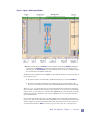
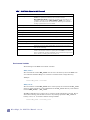
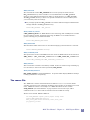
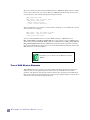
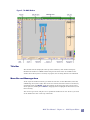
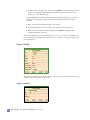
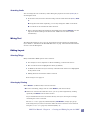
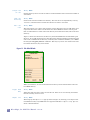
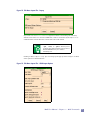
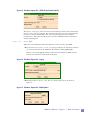
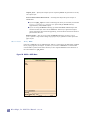
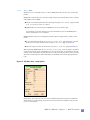
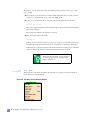
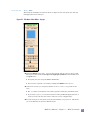
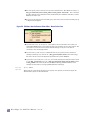
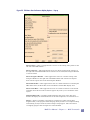
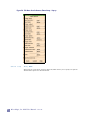
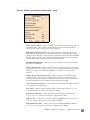
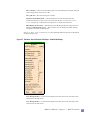
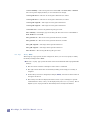
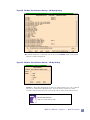
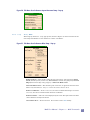
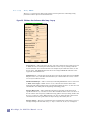
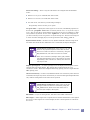
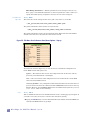
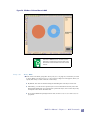
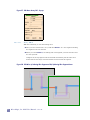
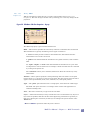
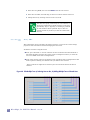
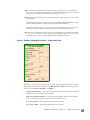
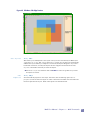
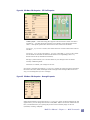
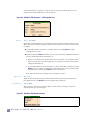
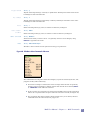
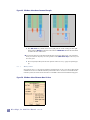
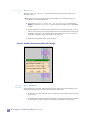
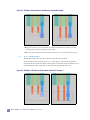
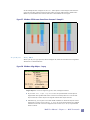
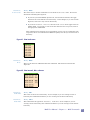
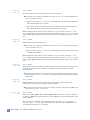
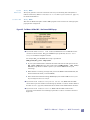
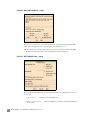
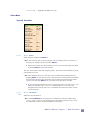
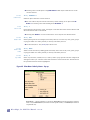
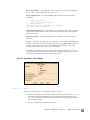
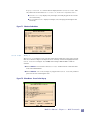
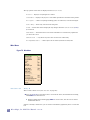
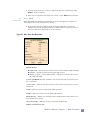
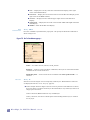
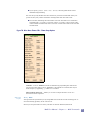
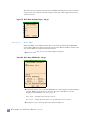
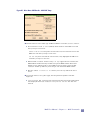
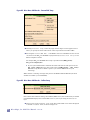
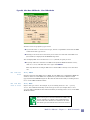
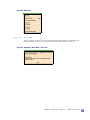
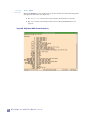
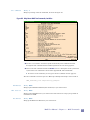
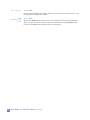
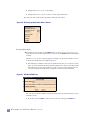
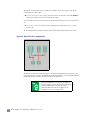
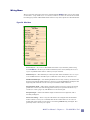
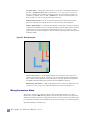
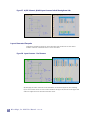
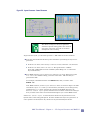
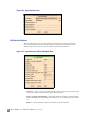
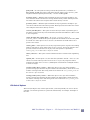
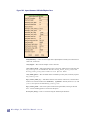
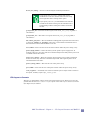
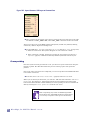
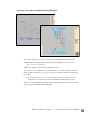
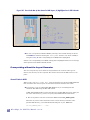
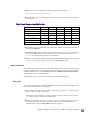
size — Display the size only of the box in the Box Area Display (lower right corner of the MAX window). size+area — Display the size and area of the box in the Box Area Display (lower right corner of the MAX window). corners — Display the lower left and upper right corners in the Box Area Display. origin+size — Display the lower left corner and the width and height in the Box Area Display. disable —Turn off the Box Area Display. Goto Coordinates Hotkey: Ctrl-b Go to the coordinates specified in the pop-up box. You specify the X and Y coordinates as shown in Figure 75. Figure 75: Go To Coordinates popup.... Units — are either microns, nanons, or half_nanons. Zoom In — zooms in on the coordinate. Otherwise, the layout is centered around the coordinate at the current zoom level. Mark this point — leaves a mark at the coordinate until Clear point marks — is selected. Measure Hotkey: m Place the box in the largest area unoccupied by visible layers. The dimensions of the box are displayed in the Box Area Display (page 22). In the example shown in Figure 76, if the cursor is placed over the M2 wire as shown, the box is drawn out until it finds a layer other than M2, or any visible layer if there is empty space in between. In the x direction, MAX searches for any non-M2 layer. In the y direction, since there is blank space before finding another layer, it searches for any layer. 96 Micro Magic, Inc. MAX User Manual -- v5.1.12