1
106 •
9.2 Java Applets in Maple T.A. Questions
Maple T.A. has a couple of built-in applets that you can use to dynamically
label a static image or create a graph of a specific function.
Dynamic Labels on an Image
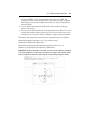
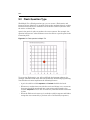
Maple T.A. includes a labeling applet that allows you to include an image and
then place labels on it. This provides the ability to use the same underlying
image for your questions, but position algorithmic variables on the image to
generate variations.
To dynamically label an image:
1. Upload an image to a folder on your class web site and take note of its
exact location; see section 6.4 for details.
2. Create or edit a question in the Question Editor.
3. In the field where you want to include the image (question text, feedback,
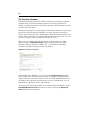
button to view the html source.
or solution), click the Source
4. Paste the following applet code into the source html where you want the
labeled image to appear:
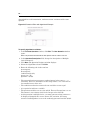
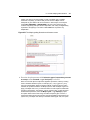
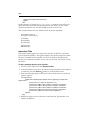
<div align=center>
<applet code="applets.labelImage.LabelImage" width="316" height="258">
<param name="image" value="../classes/classname/imagename">
<param name="size" value="numberoflabels">
<param name="label.1.x" value="x-position of first label">
<param name="label.1.y" value="y-position of first label">
<param name="label.1.text" value="text for first label">
<param name="label.2.x" value="x-position of second label">
<param name="label.2.y" value="y-position of second label">
<param name="label.2.text" value="text for second label">
</applet>
</div>
5. Modify the applet code to reflect the actual image and values you want to
include. In particular:
• The value of "image" parameter should be set to the path to the image you
uploaded in step 1.
• The value of "size" parameter is the number of labels to be added to the
image.
• For each label, specify the x- and y-pixel coordinates as well as the text
that should appear. Note that the text can be a variable from your
question's algorithm, thereby creating a dynamic label.