1
1.6 Registering Users in a Class •
9
Student Self-Registration
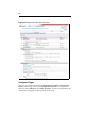
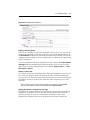
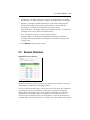
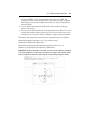
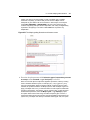
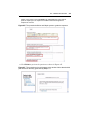
Students can register for your class using the Find classes open for
registration link on the System Homepage. The student selects the class he
or she wants to enroll in, and clicks Register. The student then clicks Confirm
and must complete the form on the Student Registration screen.
You can lock access to this form of registration from your class homepage.
From the Actions menu, select Class Info, click Edit, and select the
Registration Locked check box.
Class Rosters
Creating a Class Roster
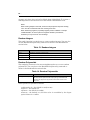
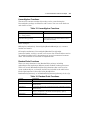
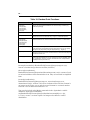
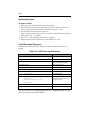
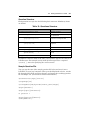
A class roster has the same format as a user roster. See “User Rosters” on
page 5.
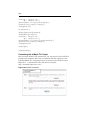
Uploading a Class Roster
You can upload a class roster from your Class Homepage. This will register
users in the system as students in your course. If you have create privileges
and the user is not already in the system, a new account will be created.
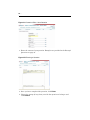
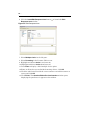
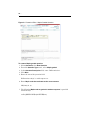
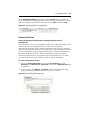
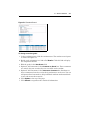
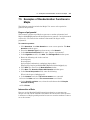
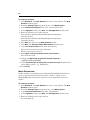
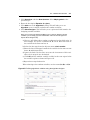
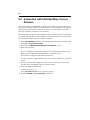
1. From the Class Homepage, click Actions and select User Manager. From
the Actions menu, select Roster, and then Import.
2. To locate your class roster, click Browse. Navigate to the file and click
Open.
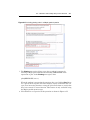
3. From the drop-down menu, select the type of file being submitted as either
Comma-separated or Tab-separated.
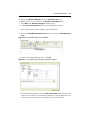
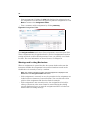
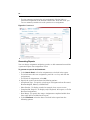
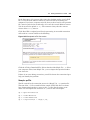
4. Click Submit. A table is displayed that includes all columns and
information in the file.
5. Click Enroll Roster. A roster upload summary is displayed.
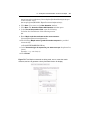
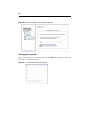
As discussed in the User Rosters section, system administrators and
instructors with create privileges can also import users from the System
Homepage. This will add students into the Maple T.A. system, but you will
still need to register the students into a course.