1
6. Commands and F9 Windows
Zero Suppress
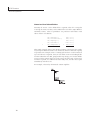
You can use Zero Suppress to quickly reduce the size of your financial
reports to only include non-zero data. Sum rows (e.g., rows that sum up
detailed values returned by F9) will be eliminated automatically as well, as
long as you include the sum row in the range to Zero Suppress. It is easy
to hide title rows that are associated with all-zero details as well. To hide
title rows, do the following:
•
Create a hidden column in your report or use a column that is
outside the printing range of your report.
•
In the title row in this column, place a “sum of sums” function that
sums either all the detailed values returned by F9 or the sums of
those detailed values.
Finally, make sure this column is included in your Zero Suppress range.
Because the title row now contains a number, and that number is zero, it
too will be hidden.
To un-Zero Suppress data, you may use the Format Row Un-hide commands
(Excel), re-size the rows (Excel or Lotus 1-2-3 ’97), or you can use Zero
Suppress.
To use Zero Suppress to Un-hide rows, highlight a range of cells that span
the rows that are hidden, but that contain no zeros and then select Zero
Suppress. Since the first thing Zero Suppress does is Un-hide all rows in the
range, this will have the desired effect.
Column-wise zero suppress
Excel and Lotus 1-2-3 can perform column wise zero suppression. Quattro
does not support this operation.
Column-wise zero suppression means a multiperiod report with columns of
future periods (which should always be zero) can be suppressed until amounts
are posted to these periods.
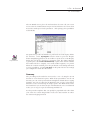
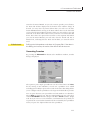
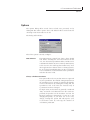
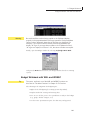
Column-wise suppression can be enabled or disabled by a check-box in the
Options window. When the option is disabled column will not be suppressed.
Hidden columns will be exposed whether column-wise zero suppression is
on or not.
122