1
Create document
Choose production options
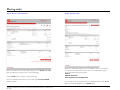
Use the options provided on this page to add print and production features to your document.
Document name
You can change the name of your document here, if so desired.
Quantity
Enter the number of copies of the document you want to order.
Document style
Use these panels to specify paper type and color, or to add features such as
page tabs and document covers. Open a panel by clicking on its name.
Any options you select will be reflected in the document preview to the
right of Document style panels; use the slider underneath the preview to
navigate from page to page.
When you’re finished with your selection, press ORDER DOCUMENT
button to continue.
The document you create can be ordered immediately or at a later time. To
save the document and exit the order process, press SAVE & EXIT
button. All production features selected will be saved as well.
Saved documents are stored for 30 days and can be accessed by pressing
Your documents button in the navigation bar.
The displayed price will automatically adjust as you add features or change
quantity of copies.
If, at any time, you’d like to view the unchanged original PDF, use the
VIEW PDF link (file will open in a new window).
Note: If your document consists of several PDF files, the top-most file will
be open when VIEW PDF link is clicked. Use the arrows on the left of file
thumbnails to change file order in the document.
IKON WebPrint QuickStart Guide l Proprietary l Copyright © 2004-2009 IKON Office Solutions, Inc. All rights reserved.
Rev. 02/09
9