1
Troubleshooting
288
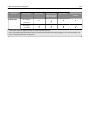
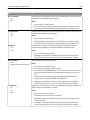
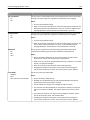
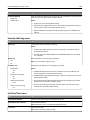
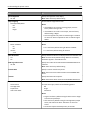
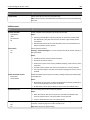
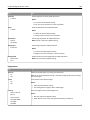
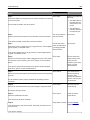
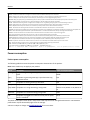
Action
Yes
No
Step 4
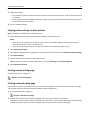
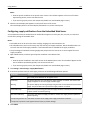
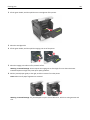
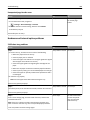
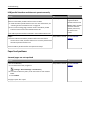
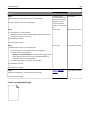
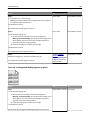
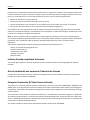
a Reinstall the imaging unit.
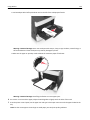
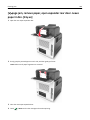
1 Remove the toner cartridge, and then the imaging unit.
Go to step 5.
The problem is solved.
Contact customer
support.
The problem is solved.
Yes
No
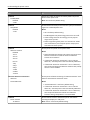
Warning—Potential Damage: Do not expose the imaging unit to
direct light for more than 10 minutes. Extended exposure to
light may cause print quality problems.
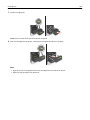
2 Install the imaging unit, and then the cartridge.
b Resend the print job.
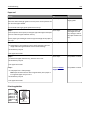
Do streaked horizontal lines appear on prints?
Step 5
Replace the imaging unit, and then resend the print job.
Do streaked horizontal lines appear on prints?
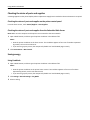
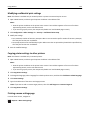
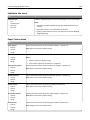
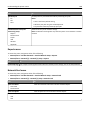
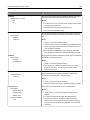
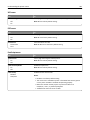
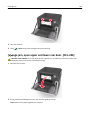
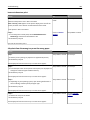
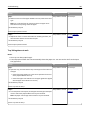
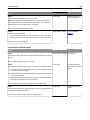
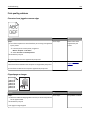
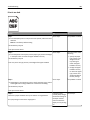
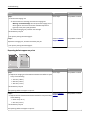
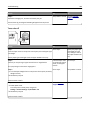
Streaked vertical lines appear on prints
Leading edge
ABCDE
ABCDE
ABCDE
Trailing edge
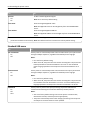
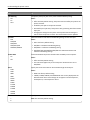
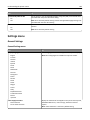
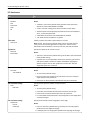
Action
Go to step 2.
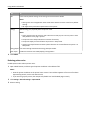
Step 1
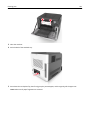
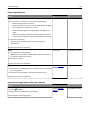
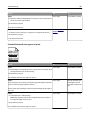
a Depending on your operating system, specify the paper type, texture,
and weight from Printing Preferences or from the Print dialog.
b Resend the print job.
The problem is solved.
Do streaked vertical lines appear on prints?
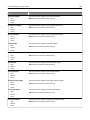
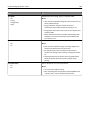
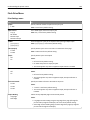
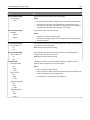
Step 2
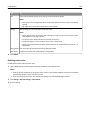
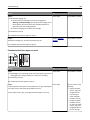
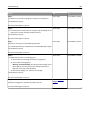
From the printer control panel, set the paper texture, type, and weight in
the Paper menu to match the paper loaded in the tray.
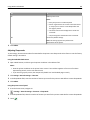
Do the paper texture, type, and weight match the paper in the tray?
Go to step 3.
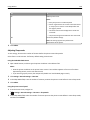
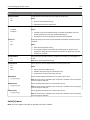
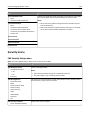
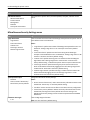
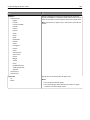
Do one or more of the
following:
• Specify the paper
texture, type, and
weight from the
tray settings to
match the paper
loaded in the tray.
• Change the paper
loaded in the tray
to match the paper
texture, type, and
weight specified in
the tray settings.