1
Troubleshooting
261
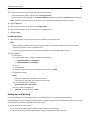
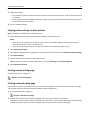
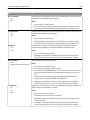
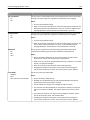
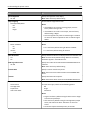
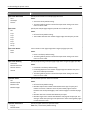
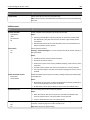
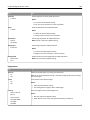
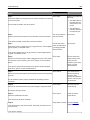
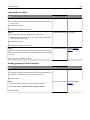
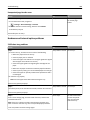
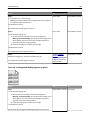
Printer display is blank
Action
Yes
No
Step 1
The problem is solved. Go to step 2.
Press the Sleep button on the printer control panel.
Does Ready appear on the printer display?
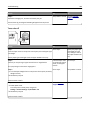
Step 2
Turn off the printer, then wait for about 10 seconds, and then turn the
printer back on.
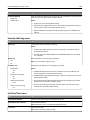
The problem is solved. Turn off the printer,
and then contact
customer support.
Do Please wait and Ready appear on the printer display?
Printing problems
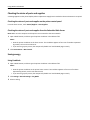
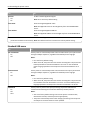
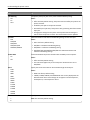
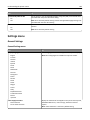
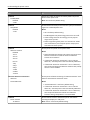
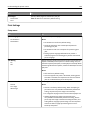
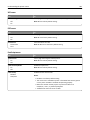
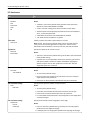
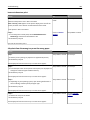
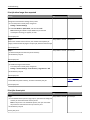
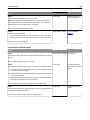
Confidential and other held jobs do not print
Action
Yes
No
Step 1
a From the printer control panel, open the Held Jobs folder, and then
verify that your print job is listed.
b Resend the print job.
The problem is solved. Go to step 2.
For more information, see“Printing confidential and other held jobs”
on page 81 or “Printing confidential and other held jobs” on page
129.
Did the jobs print?
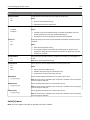
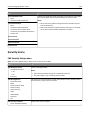
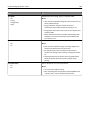
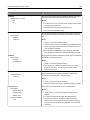
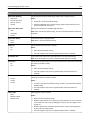
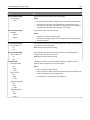
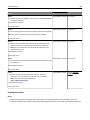
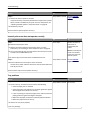
Step 2
The problem is solved. Go to step 3.
Do one or more of the following:
• Delete the print job, and then resend it.
• If you are printing PDF files, then generate a new file, and then print
it again.
Did the jobs print?
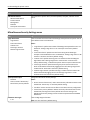
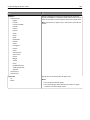
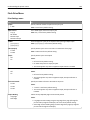
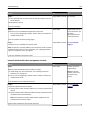
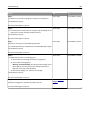
Step 3
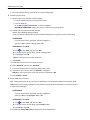
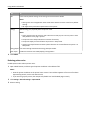
a Increase the printer memory. Do one or more of the following:
• Delete some print jobs.
• Install additional printer memory.
b Resend the print job.
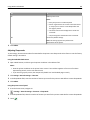
Did the jobs print?
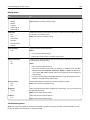
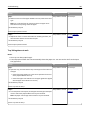
The problem is solved. Contact customer
support.