1
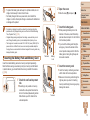
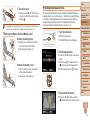
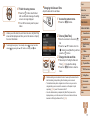
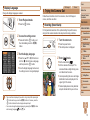
Registering Web Services
Use a smartphone or computer to add to the camera Web services that you
want to use.
• A smartphone or computer with a browser and Internet connection is
required to complete camera settings for CANON iMAGE GATEWAY and
other Web services.
• Check the CANON iMAGE GATEWAY website for details on browser
(Microsoft Internet Explorer, etc.) requirements, including settings and
version information.
• For information on countries and regions where CANON iMAGE
GATEWAY is available, visit the Canon website (http://www.canon.com/
cig/).
• You must have an account with Web services other than CANON iMAGE
GATEWAY if you desire to use them. For further details, check the
websites for each Web service you want to register.
• Separate ISP connection and access point fees may be applicable.
Registering CANON iMAGE GATEWAY
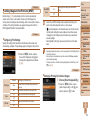
After linking the camera and CANON iMAGE GATEWAY, add CANON
iMAGE GATEWAY as a destination Web service on the camera.
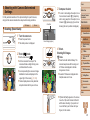
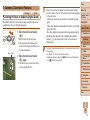
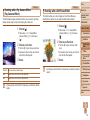
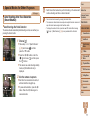
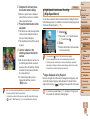
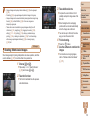
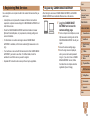
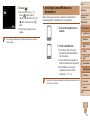
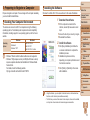
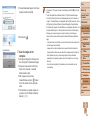
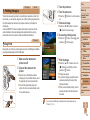
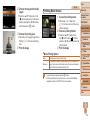
1 Log in to CANON iMAGE
GATEWAY and access the
camera settings page.
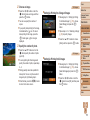
zz
From a computer or smartphone, access
http://www.canon.com/cig/ and visit the
CANON iMAGE GATEWAY site for your
region.
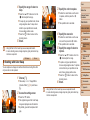
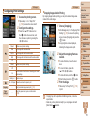
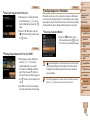
zz
Access the camera settings page.
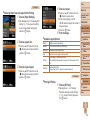
zz
Once the login screen is displayed,
enter your user name and password
to log in. If you do not have a CANON
iMAGE GATEWAY account, follow
the instructions to complete member
registration (free of charge).
Cover
Before Use
Common Camera
Operations
Basic Guide
Advanced Guide
1
2
3
4
5
6
7
8
9
10
Camera Basics
Auto Mode
Other Shooting
Modes
P Mode
Tv, Av, and M
Mode
Playback Mode
Wi-Fi Functions
Setting Menu
Accessories
Appendix
Index
109