1
Cover
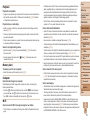
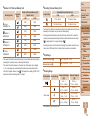
Still Images
Movies
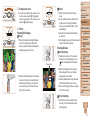
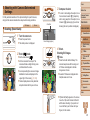
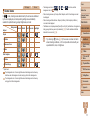
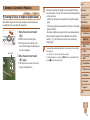
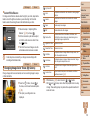
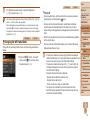
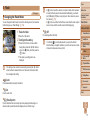
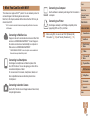
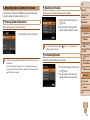
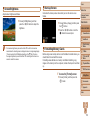
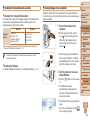
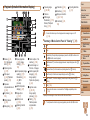
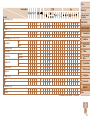
Scene Icons
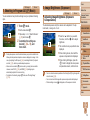
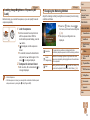
In [
] mode, shooting scenes determined by the camera are indicated
by the icon displayed, and corresponding settings are automatically
selected for optimal focusing, subject brightness, and color.
Background
Subject
Normal
Backlit
Dark* Sunsets
–
People
In Motion
Shadows on Face
Babies
Spotlights
–
–
–
–
–
–
–
–
–
–
Other Subjects
In Motion
–
–
At Close Range
–
–
–
*Tripod Used
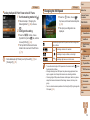
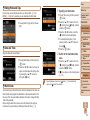
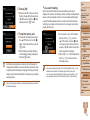
The background color of icons is light blue when the background is a blue sky,
dark blue when the background is dark, and gray for all other backgrounds.
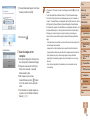
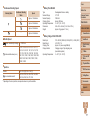
The background color of icons is light blue when the background is a blue sky,
and gray for all other backgrounds.
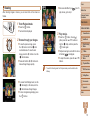
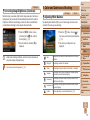
•The background color of [ ], [ ], [ ], [ ], and [ ] is dark blue, and the
background color of [ ] is orange.
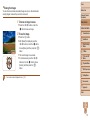
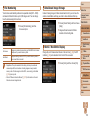
•When shooting movies, only People, Other Subjects, and At Close Range icons will
be displayed.
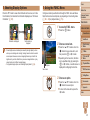
•When shooting with the self-timer, People (In Motion), Other Subjects (In Motion)
icons will not be displayed.
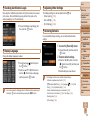
•The Babies icon is displayed when [Face ID] is set to [On] and the face of a registered
baby (younger than two years old) is detected (= 37). Confirm beforehand that the
date and time are correct (= 14).
• Try shooting in [G] mode (= 61) if the scene icon does not match
actual shooting conditions, or if it is not possible to shoot with your
expected effect, color, or brightness.
Before Use
Common Camera
Operations
Basic Guide
Advanced Guide
1
2
3
4
5
6
7
8
9
10
Camera Basics
Auto Mode
Other Shooting
Modes
P Mode
Tv, Av, and M
Mode
Playback Mode
Wi-Fi Functions
Setting Menu
Accessories
Appendix
Index
31