1
Computer Connections via a Cable
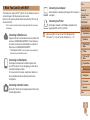
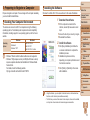
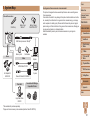
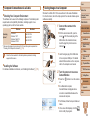
Checking Your Computer Environment
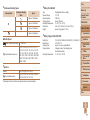
The software can be used on the following computers. For detailed system
requirements and compatibility information, including support in new
operating systems, visit the Canon website.
Windows
Operating
System*
Windows 8
Windows 7 SP1
Windows Vista SP2
Windows XP SP3
Macintosh
Mac OS X 10.6
Mac OS X 10.7
Mac OS X 10.8
*When sending images to a computer via Wi-Fi, check the system requirements in
"Checking Your Computer Environment" (= 113).
• Check the Canon website for the latest system requirements, including
supported OS versions.
Installing the Software
For software installation instructions, see "Installing the Software" (= 113).
Cover
Saving Images to a Computer
Before Use
Windows 7 and Mac OS X 10.6 are used here for the sake of illustration.
For other functions, refer to the help system of the relevant software (some
software excluded).
Common Camera
Operations
Basic Guide
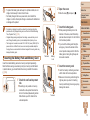
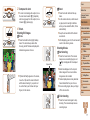
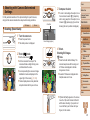
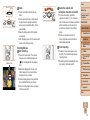
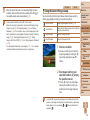
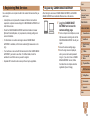
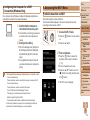
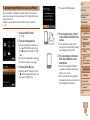
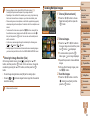
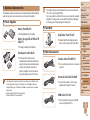
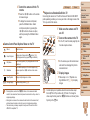
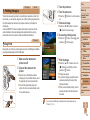
1 Connect the camera to the
Advanced Guide
computer.
zz
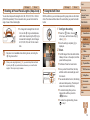
With the camera turned off, open the
cover ( ). With the smaller plug of the
USB cable in the orientation shown,
insert the plug fully into the camera
terminal ( ).
zz
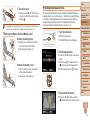
Insert the larger plug of the USB cable
in the computer’s USB port. For details
about USB connections on the computer,
refer to the computer user manual.
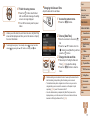
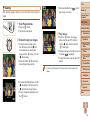
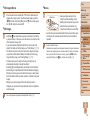
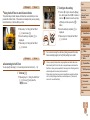
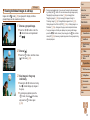
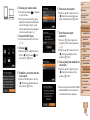
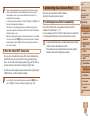
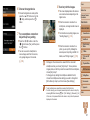
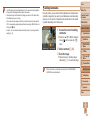
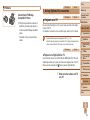
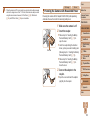
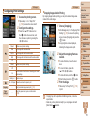
2 Turn the camera on to access
CameraWindow.
zz
Press the <1> button to turn the camera
on.
zz
On a Macintosh computer,
CameraWindow is displayed when a
connection is established between the
camera and computer.
1
2
3
4
5
6
7
8
9
10
Camera Basics
Auto Mode
Other Shooting
Modes
P Mode
Tv, Av, and M
Mode
Playback Mode
Wi-Fi Functions
Setting Menu
Accessories
Appendix
Index
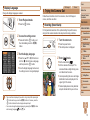
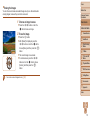
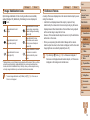
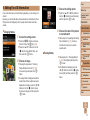
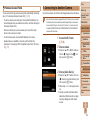
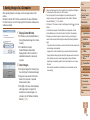
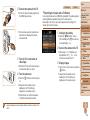
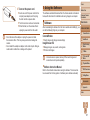
zz
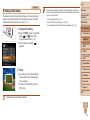
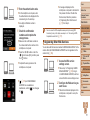
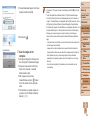
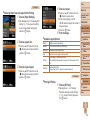
For Windows, follow the steps introduced
below.
zz
In the screen that displays, click the [
]
link to modify the program.
148