1
Making copies
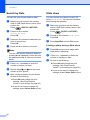
Setting your changes as a
new default
3
You can save the copy settings for Quality,
Enlarge/Reduce, Density,
Ink Save Mode and Page Layout that
you use most often by setting them as the
default settings. These settings will stay until
you change them again.
a
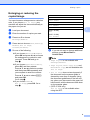
Press a or b and d or c to choose your
new setting.
Press OK.
Repeat this step for each setting you
want to change.
b
After changing the last setting, press
a or b to choose Set New Default.
Press OK.
c
d
Press + to choose Yes.
3
Press Stop/Exit.
Restoring all settings to the
factory settings
3
You can restore the copy settings Quality,
Enlarge/Reduce, Density,
Ink Save Mode, and Page Layout, that
you have changed, to the factory settings.
a
Press a or b to choose
Factory Reset.
Press OK.
b
c
Press + to choose Yes.
Press Stop/Exit.
11