Download Connect Control User Guide

Transcript
Good communication is rewarding
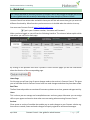
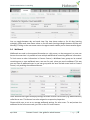
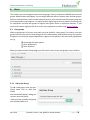
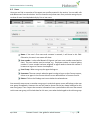
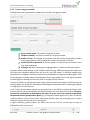
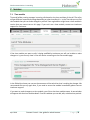
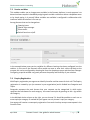
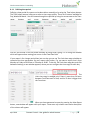
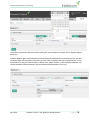
Once you have found the agent you want to monitor you click on his/her name and a new window
will appear.
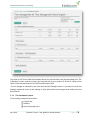
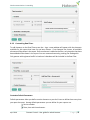
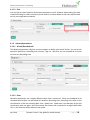
7.6.1 Request Silent Monitoring
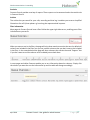
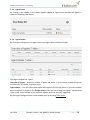
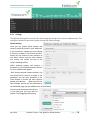
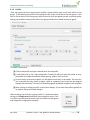
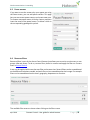
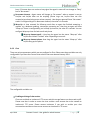
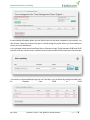
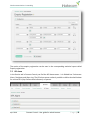
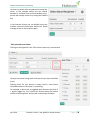
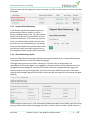
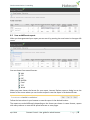
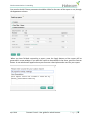
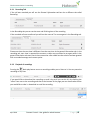
In the Request window you need to enter your
phone number (fixed or mobile) in a 00 or +
format including country code. You then need to
decide how many calls you would want to listen
to and until what time. The reason you set time
limits is to avoid situations where Connect calls
you when you are unavailable (e.g.in a meeting)
Once you have filled out the relevant information
you can then either press Add or press Enter on
your keyboard and the request will be processed.
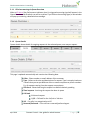
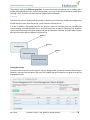
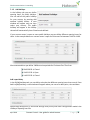
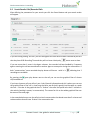
7.6.2 Silent Monitoring request
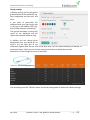
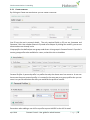
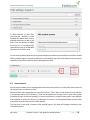
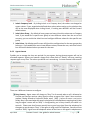
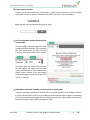
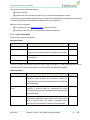
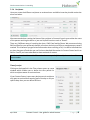
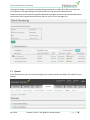
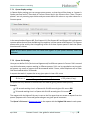
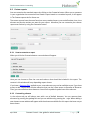
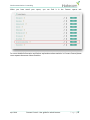
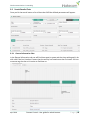
Once your Silent Monitoring request has been processed the detail of your request will be shown
in the upper left corner on the Silent Monitoring page.
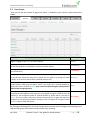
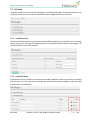
If the agent that you want to monitor is already in a Connect call you will receive a call
immediately. If the chosen agent is not engaged in a Connect call you will be called the next time
the agent becomes engaged in a Connect call. Please note there is no guarantee the agent you
want to monitor will receive and answer any call from Connect within the time limit. The reason
might be that the agent logs off/clicks Pause or there are few incoming calls to the queue the agent
answers.
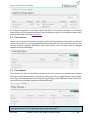
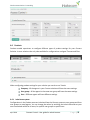
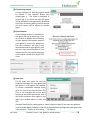
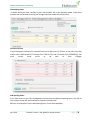
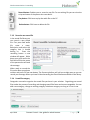
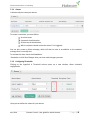
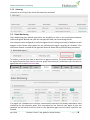
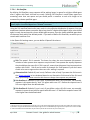
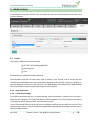
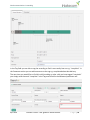
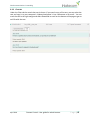
Once the agent receives a call, a call information window will appear on the upper right side corner
giving you information about the ongoing call (caller’s number, access number, queue name etc.).
April 2014
Connect Control –User guide for administrators
P a g e | 47