1
188 CHAPTER 8
Using Gradients, Blends, and Patterns
Creating and working with
gradient fills
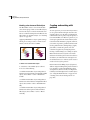
A gradient fill is a graduated blend between two or
more colors or tints of the same color. You use the
Gradient palette to create your own gradients and
—in combination with the Color palette and
Swatches palette—to modify existing gradients.
You can also add intermediate colors to a gradient
to create a fill defined by multiple blends among
colors. For details on using the Color palette and
the Swatches palette when working with gradients,
see Chapter 7, “Working with Color.”
Gradient colors can be assigned as CMYK process
color, RGB process color, or a spot color. When a
gradient is printed or separated, mixed-mode
gradient colors are all converted to CMYK process
color. (See “Printing gradients, gradient mesh
objects, and color blends” on page 347.)
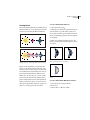
3 To define the starting color of a gradient, click
the left square below the gradient bar and then do
one of the following:
• Alt-click (Windows) or Option-click (Mac OS)
a color swatch in the Swatches palette.
• Create a color using the sliders or the color bar in
the Color palette.
• Drag a color from the Color palette or the
Swatches palette to the square below the gradient
bar.
Note: If you create a gradient between spot colors,
you must deselect Convert to Process in the
Separation Setup dialog box to print the gradient in
individual spot color separations. (See “Printing
gradients as separations” on page 363.)
To create a gradient:
1 Select an object with a selection tool, and click
the Fill box in the toolbox to select the object’s fill.
2 To apply a gradient, do one of the following:
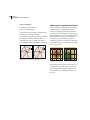
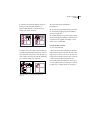
A
B
C
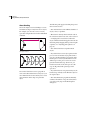
• Choose Window > Show Gradient, and click the
A. Starting color B. Midpoint C. Ending color
Gradient Fill box at the upper left of the Gradient
palette. (If the Gradient Fill box is not displayed,
choose Show Options from the pop-up menu in
the Gradient palette.)
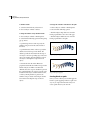
4 To define the ending color of the gradient, click
the right square below the gradient bar. Then
choose the color you want as described in step 3.
• Click the Gradient button in the toolbox.
• Click a gradient swatch in the Swatches palette.