1
ADOBE ILLUSTRATOR 8.0 193
User Guide
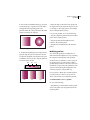
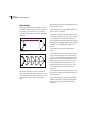
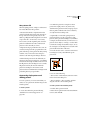
• To Edge creates a highlight on the edges of the
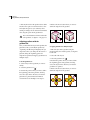
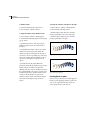
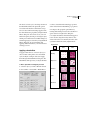
To add or delete mesh points and mesh lines:
object.
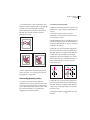
1 Select the gradient mesh tool (
• Flat applies the object’s original color evenly
across the surface, resulting in no highlight.
2 Do one of the following:
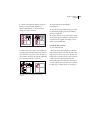
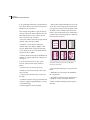
Mesh object with the highlight appearance set to Flat,
To Edge, and To Center.
6 Enter a percentage of white highlight to apply to
the mesh object. A value of 100% applies
maximum white highlight to the object; a value of
0% applies no white highlight to the object.
).
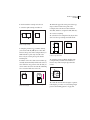
• To add a mesh point colored with the current fill
color, click anywhere in the mesh object. The
corresponding mesh lines extend from the new
mesh point to the edges of the object. Clicking on
an existing mesh line adds a single intersecting
mesh line.
• To add a mesh point without changing to the
current fill color, press Shift and click.
• To delete a mesh point and the corresponding
mesh lines, Alt-click (Windows) or Option-click
(Mac OS) directly on the mesh point.
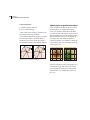
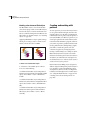
To edit a mesh point:
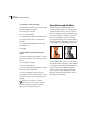
1 Select the gradient mesh tool and click directly
Creating a mesh object using the Expand command:
on a mesh point. Direction lines appear on the
mesh point.
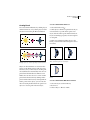
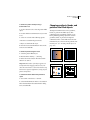
1 Select an object containing a radial or linear
gradient fill.
2 Do one of the following:
2 Choose Object > Expand.
3 Select the Gradient Mesh option in the Expand
dialog box and click OK. The selected object is
converted to a mesh object that takes the shape of
the gradient, either circular (radial) or rectangular
(linear).
Editing mesh objects
Once you have created a mesh object, you can
adjust or edit its mesh points, anchor points, and
mesh lines. Anchor points can be added with the
add-anchor-point tool or deleted with the deleteanchor-point tool on any mesh line.
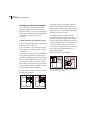
• Drag the direction lines to edit the mesh point as
you would any anchor point. For more information about editing anchor points, see “About
direction lines and direction points” on page 70.
• Shift-drag a direction line to move all direction
lines from the mesh point at once.
• Use the direct-selection tool, the convertselection-point tool, or the transformation tools to
edit mesh points.