1
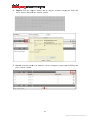
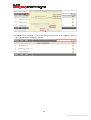
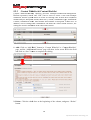
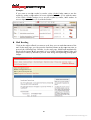
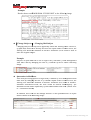
4. Search: Fill a complete or part of the String
tring to search for in the “Search” field on
the right hand side,
e, and press “Search.”
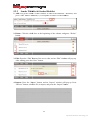
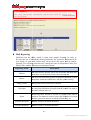
Setting rules of the mail content
With the help of special characters,
characters, the filtering function will be more effective, and
the management of Content Whitelist/Blacklist can also be more simplified.
1.
Subject, Recipient, Sender, Attachment
Attachment Content, Attachment Name, and
Mail Header.
Supported Special Characters:
* represents one or more characters, or no character.
Example: If you type in “pr*ject” and the words “project”, ”prject” match
the rule.
?
represents one English character
character or 2 Chinese characters.
Example: If you type in “[email protected]” , “[email protected]” and
“[email protected]” match the rule.
[] represents one of the characters included.
Example: If you type in “[Aa]uction” , only the “Aution” and “aution” will
match the rule.
! represents that the results of a rule behind “!” will be excluded.
Example: If you type in “![Aa]uction”,
“![Aa]uction” only the “Aution” and “aution” will
not match the rule and will be excluded.
\ represents that the following
following character should be regarded as a normal
character.
Example: If you type in “\[Announcement\]”,
“
“[Announcement]” will
match the rule which indicates that “[“ and ”]” are not functional characters
here.
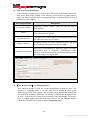
2. Mail Size and Number of Recipient * Mail Size
Supported Special Characters:
Operators comparing size: >, <, =.
Unit can be expressed as follows:
K or k - > 100k represents 100*1024 bytes,
M or m - > 10M represents 10*1024*1024 bytes.
“!” can also be used with to filter out those not matched.
21
Openfind Information Technology, Inc.