1
CLI User Guide
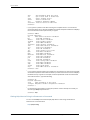
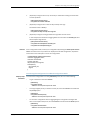
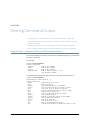
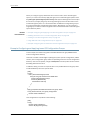
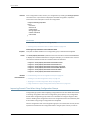
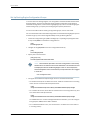
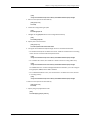
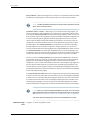
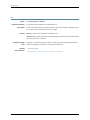
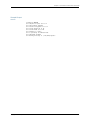
In previous releases, output from the show | compare command looked like the following:
[edit groups]
- group_xmp;
- group_cmp;
- group_grp;
+ group_xmp;
+ group_grp;
+ group_cmp;
Now, output from the show | compare command looks like the following:
[edit groups]
group_xmp {...}
! group_grp {...}
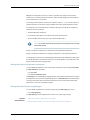
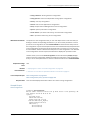
Comparing Configurations and Displaying the Differences in XML
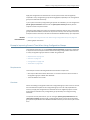
The compare | display xml filter compares the candidate configuration with the current
committed configuration and displays the differences between the two configurations
in XML. To compare configurations, enter compare | display xml after the pipe ( | ) symbol
in either operational or configuration mode.
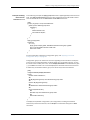
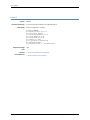
Example in operational mode:
user@host> show configuration | compare | display xml
Example in configuration mode:
[edit]
user@host# show | compare | display xml
You can enter a specific configuration hierarchy prior to | compare. In configuration mode,
you can navigate to a hierarchy where the command is applied.
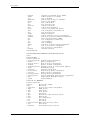
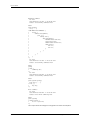
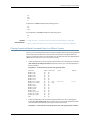
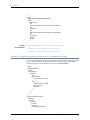
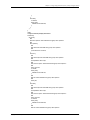
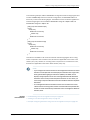
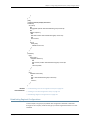
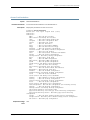
For a description of the XML output, see “Understanding the show | compare | display
xml Command Output” on page 126.
Counting the Number of Lines of Output
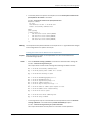
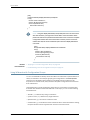
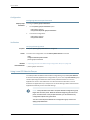
To count the number of lines in the output from a command, enter count after the pipe
symbol ( | ). For example:
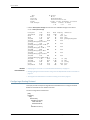
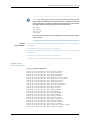
user@host> show configuration | count
Count: 269 lines
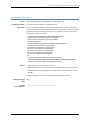
Displaying Output in XML Tag Format
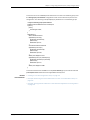
To display command output in XML tag format, enter display xml after the pipe symbol
( | ).
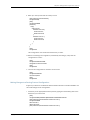
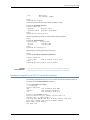
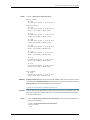
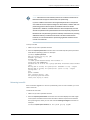
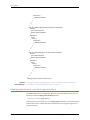
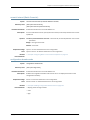
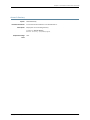
The following example displays the show cli directory command output as XML tags:
user@host> show cli directory | display xml
<rpc-reply xmlns:junos="http://xml.juniper.net/junos/7.5I0/junos">
<cli>
<working-directory>/var/home/regress</working-directory>
</cli>
190
Copyright © 2015, Juniper Networks, Inc.