1
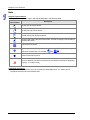
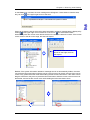
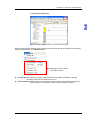
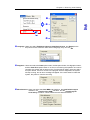
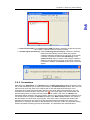
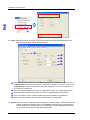
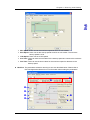
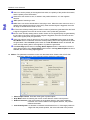
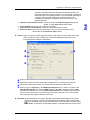
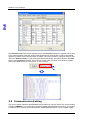
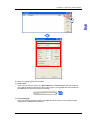
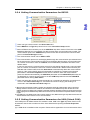
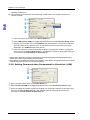
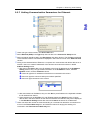
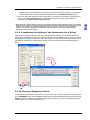
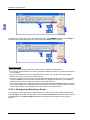
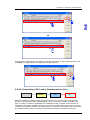
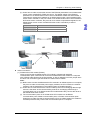
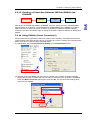
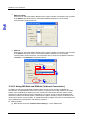
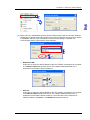
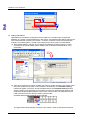
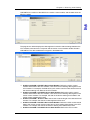
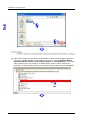
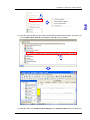
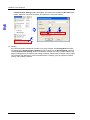
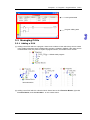
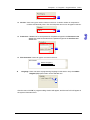
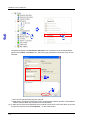
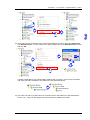
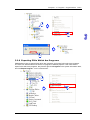
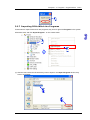
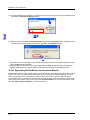
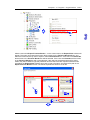
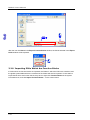
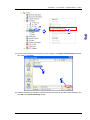
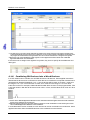
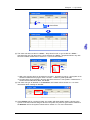
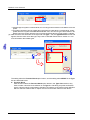
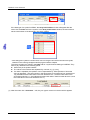
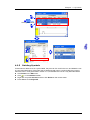
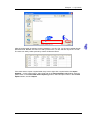
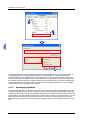
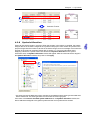
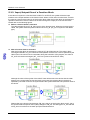
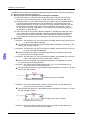
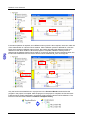
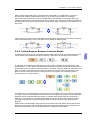
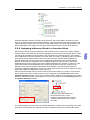
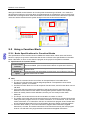
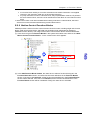
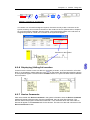
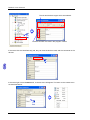
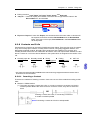
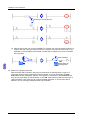
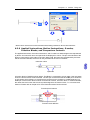
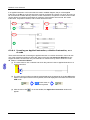
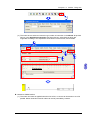
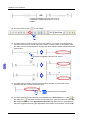
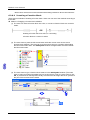
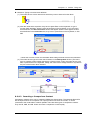
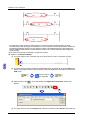
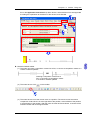
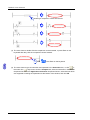
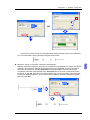
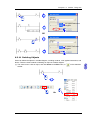
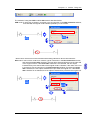
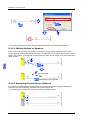
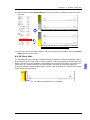
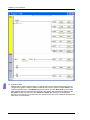
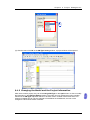
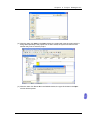
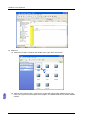
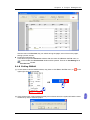
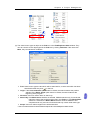
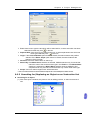
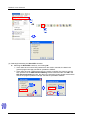
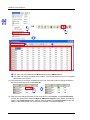
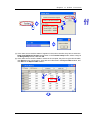
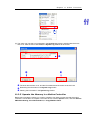
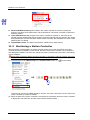
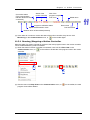
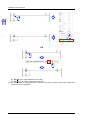
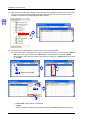
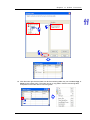
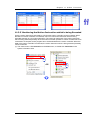
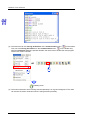
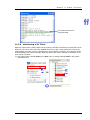
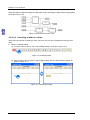
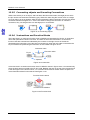
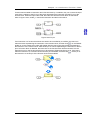
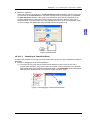
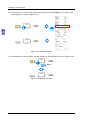
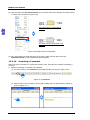
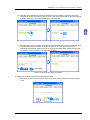
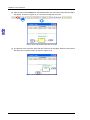
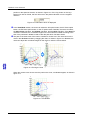
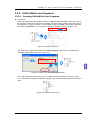
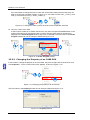
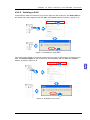
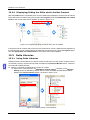
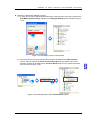
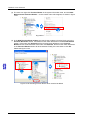
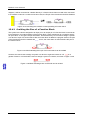
PMSoft User Manual If an applied instruction or a function block is used in a ladder diagram, the pin of the applied instruction or the En pin of the function block must be connected to a device or a block, and can not be connected to a busbar directly. However, motion instructions, comparison contacts, and G-codes can be directly connected to the busbars in networks. If the networks are scanned, the motion instructions, comparison contacts, and G-codes will be executed. O X O 6.2.9.1 Inserting an Applied instruction, a Motion Instruction, or a G-code There are three methods of inserting an applied instruction or a motion instruction. Users can use one of the methods according to their habit. Owing to the fact that Instruction Wizard does not support G-codes, the users can only use method 2 or method 3 if they want to insert a G-code. Method 1: Instruction Wizard (1) The users have to click a network into which they want to insert an applied instruction or a motion instruction. (2) The users have to make sure that the mode displayed in the status bar is the the OVR mode. After the users press Insert on the keyboard, the mode displayed in the status bar will be the OVR mode. Press Insert on the keyboard (3) After the users click appear. 6-18 on the fast toolbar, the Application Instruction window will