1
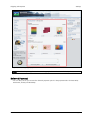
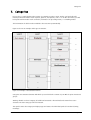
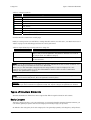
Types of Structure Elements
Categories
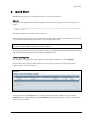
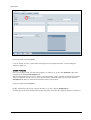
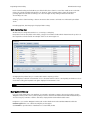
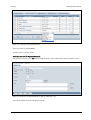
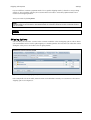
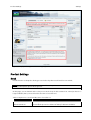
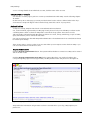
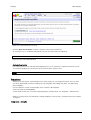
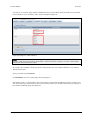
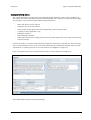
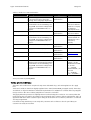
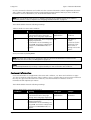
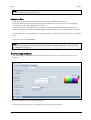
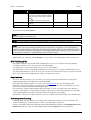
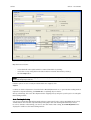
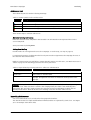
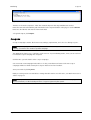
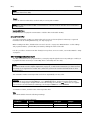
Save your entries by clicking Save.
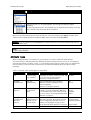
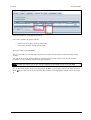
Note: The link to the contact Information page is displayed using the Navigation function in the Design
area of the shop. For more on this, see Navigation on page 133.
Note: You should review the default set of customer information installed and adapt it, if necessary, to
the current requirements of your shop or replace it with your own set of customer information.
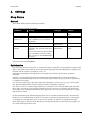
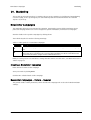
Promotional Products
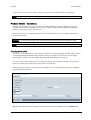
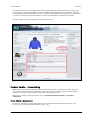
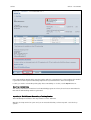
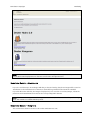
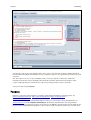
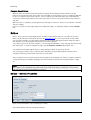
If you wish to start promotional activities in your shop and offer promotional items, use the Promotional
Products page.
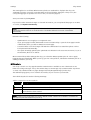
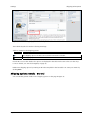
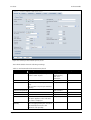
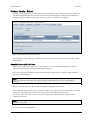
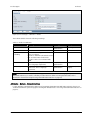
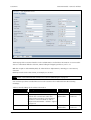
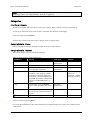
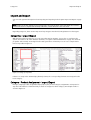
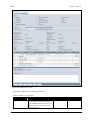
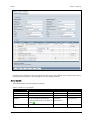
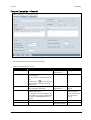
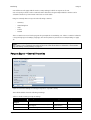
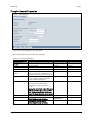
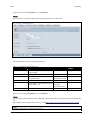
Promotional Products - General Properties
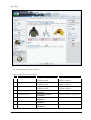
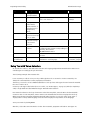
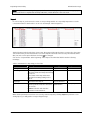
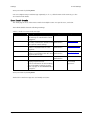
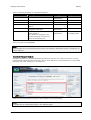
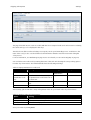
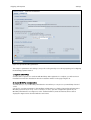
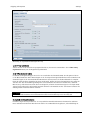
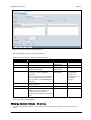
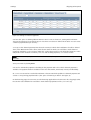
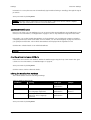
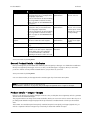
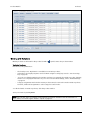
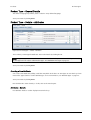
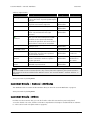
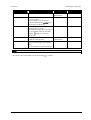
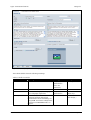
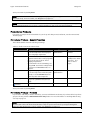
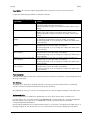
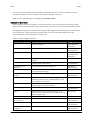
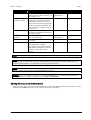
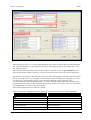
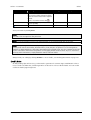
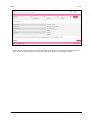
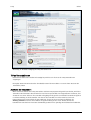
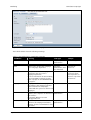
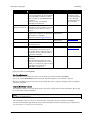
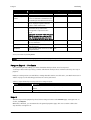
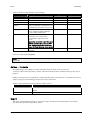
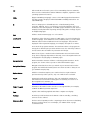
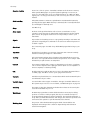
The individual fields have the following meanings:
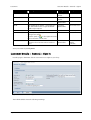
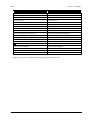
Table 56: Fields for Promotional Products
Field Name
Meaning
Field Type
Example
Entry field,
alphanumeric
Promotional
Products
Name
Title of the page, on which the
promotional products are displayed.
This is language-dependent.
Text
Text Field
Informational text that is displayed
together with the title on the page with
the promotional products. This is
language-dependent.
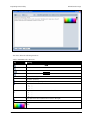
For information about formatting, see
Using HTML Commands in Entry Fields
on page 26 and WYSIWYG Editor on
page 26.
Image
Image for the page with the
promotional products. Enter the path
directly or use the Browse button to
enter the path of the image file.
Entry field,
alphanumeric
Scale Image
Upload and display the image in the
shop at an optimized size (50 x 50
pixel).
Check box
(Delete)
<h1>Special Offers in
the Milestones Demo
Shop</h1> The
items on these
pages…
Delete Image
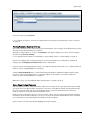
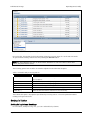
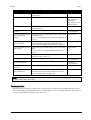
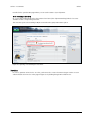
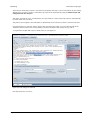
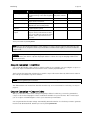
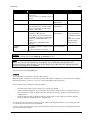
Save your entries by clicking Save.
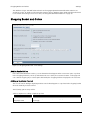
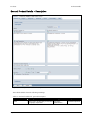
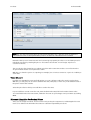
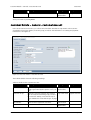
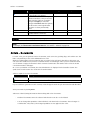
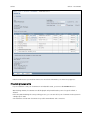
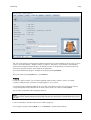
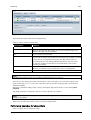
Promotional Products - Products
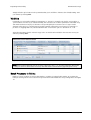
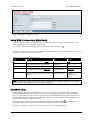
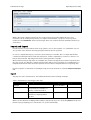
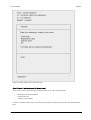
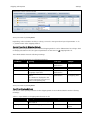
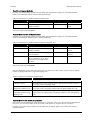
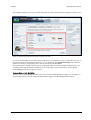
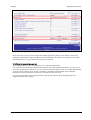
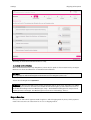
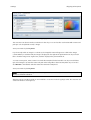
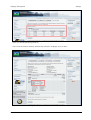
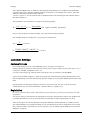
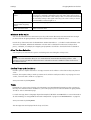
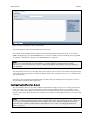
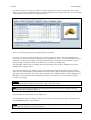
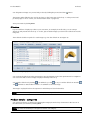
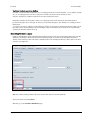
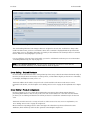
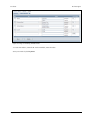
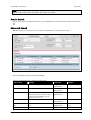
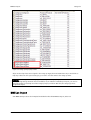
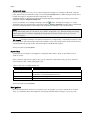
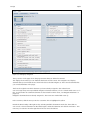
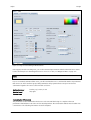
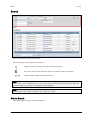
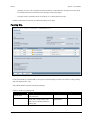
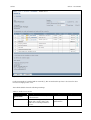
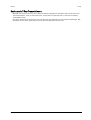
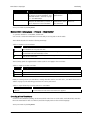
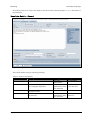
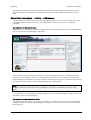
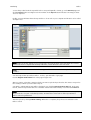
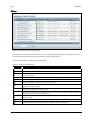
If you want to add new products to the table, you must add them from the tray. If you have added a product
group to the tray, click the Add Products from Tray button. For more information on working with the tray,
see Tray on page 19.
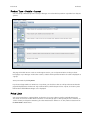
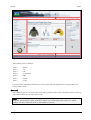
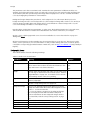
Note: There are two navigation elements for displaying promotional products in the shop: Promotional
Products and Link to the Promotional Products. They are positioned in the shop using the Navigation
function in the Design area. For more on this, see Navigation on page 133.
Merchant User Guide
Page 125